












Pointing someone at a page and then telling them which tab to click wastes the click and loses some of them.
Give a tab its own ID and you can link straight to it — the page opens with that tab already showing.
For every Tabs Tours setting in one place, see the Tabs Tours block guide.
Before You Start
- Edition: Free — works in Nexter Blocks (free) and with Nexter Blocks Pro.
- Block to enable: Tabs Tours, switched on under Nexter > Blocks in your WordPress dashboard.
- Your sections planned: one tab per section, and the block takes up to 10 tabs.
Steps
- Add the Tabs Tours block to your page and click Design from Scratch.
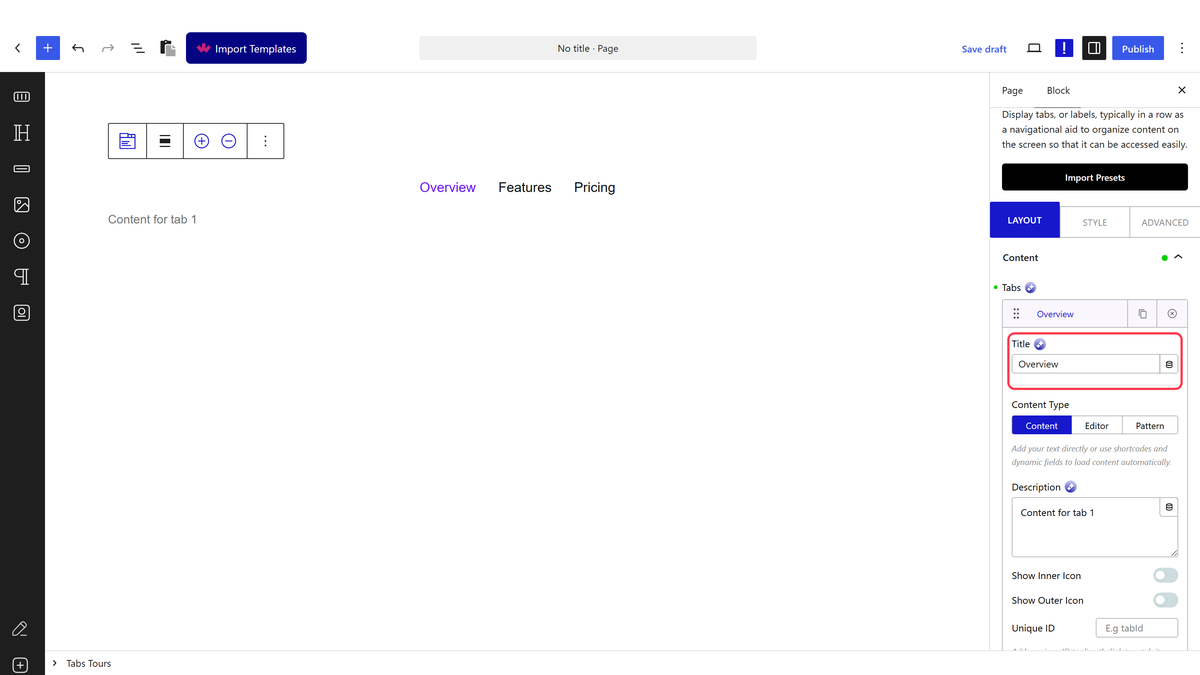
- Open the Content panel. Each item in Tabs is one tab — set its Title, and click Add Tab for more.
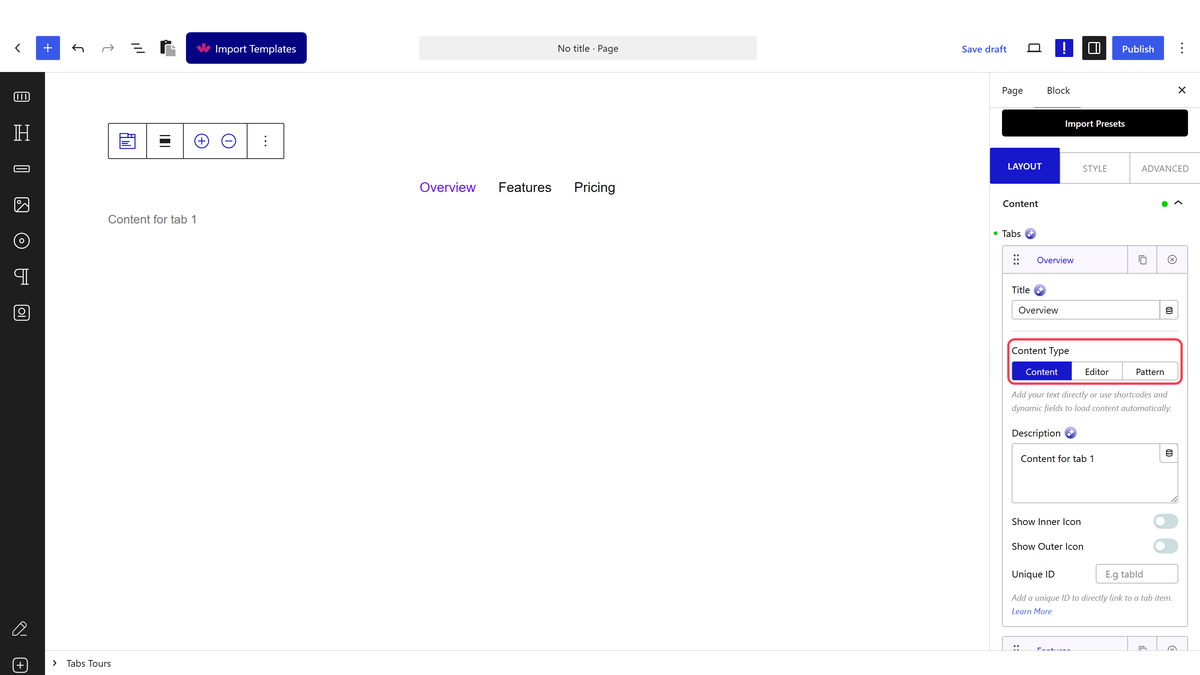
- Set each tab’s Content Type and fill in its content.
- In the Content panel, open the tab you want to link to and give it a unique ID, such as pricing-tab. Use lowercase letters and hyphens, with no spaces.
- Publish the page.
- Build the link by adding # and that ID to the page address, for example https://example.com/plans/#pricing-tab.
- Open the link in a new tab to check the right tab is showing.
How It Behaves
- The ID you set is placed on the tab title, and that is what the link has to point at.
- Opening the page with that anchor shows the matching tab straight away, with its content, instead of the first tab.
- The link works from anywhere — another page on your site, an email, or another website.
- Each tab needs its own ID, and every ID on a page has to be unique.
Limitations
- The ID belongs to the tab title. Linking to the tab’s content element instead does not open the tab — the page stays on the first one.
- IDs must be unique across the whole page, so two Tabs blocks cannot both use pricing-tab.
- Changing the ID later breaks every link already pointing at it.
- Anchor links do not survive a redirect that strips the # part of the address.
Troubleshooting
The link opens the page but shows the first tab
Three things to check: the ID is set on the tab you meant, the link uses exactly that ID after the #, and nothing else on the page uses the same ID.
Nothing happens when I use the link
Confirm the ID is really in the page by opening the published page and searching its source for your ID. If it is missing, the setting did not save — set it again and republish.
I want the tab open for everyone, not just from a link
Use Default Active Tab instead, which sets the tab that opens every time.
