A product people can turn over in their hands holds attention in a way a photograph does not.
The Spline 3D Viewer block puts a scene you built in Spline onto a WordPress page, and lets visitors drag it around.
Before You Start
- Edition: Pro — the Spline 3D Viewer block is part of Nexter Blocks Pro.
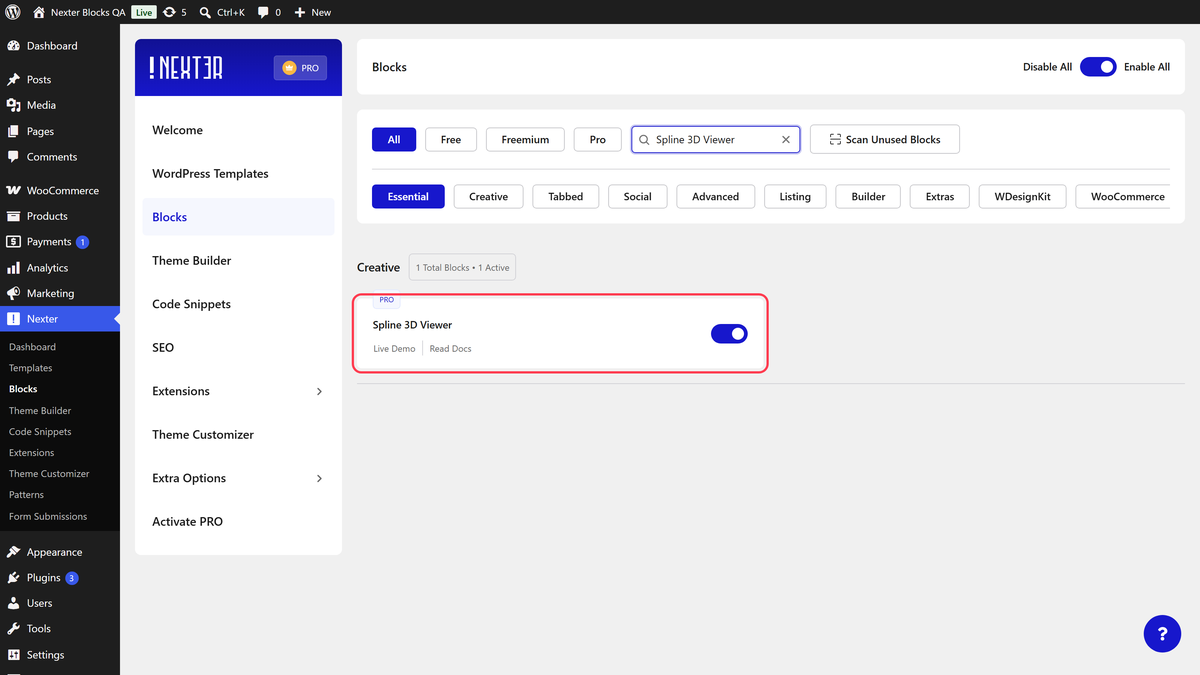
- Block to enable: Spline 3D Viewer, switched on under Nexter > Blocks in your WordPress dashboard.
- A scene exported from Spline: export it as Spline Viewer and copy the integrated embed URL. The block cannot make a scene, only show one.

Steps
- In Spline, export your design as Spline Viewer and copy the integrated embed URL.
- Add the Spline 3D Viewer block to your page and click Design from Scratch.
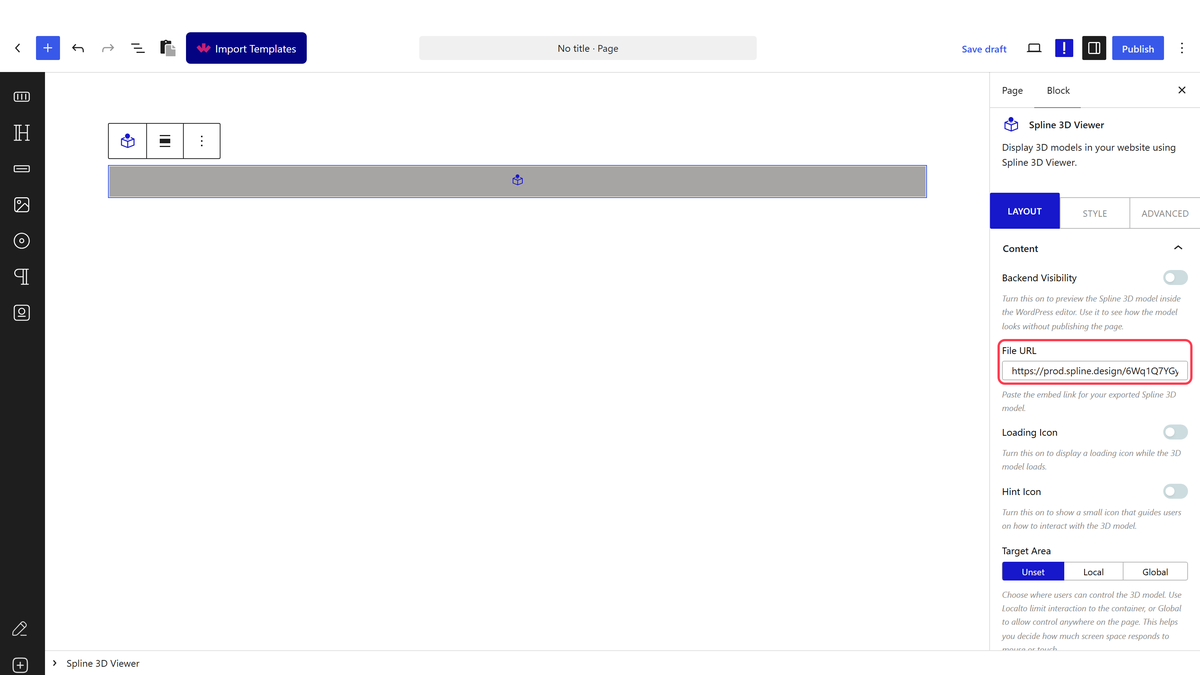
- Paste your URL into File URL, replacing what is already there.
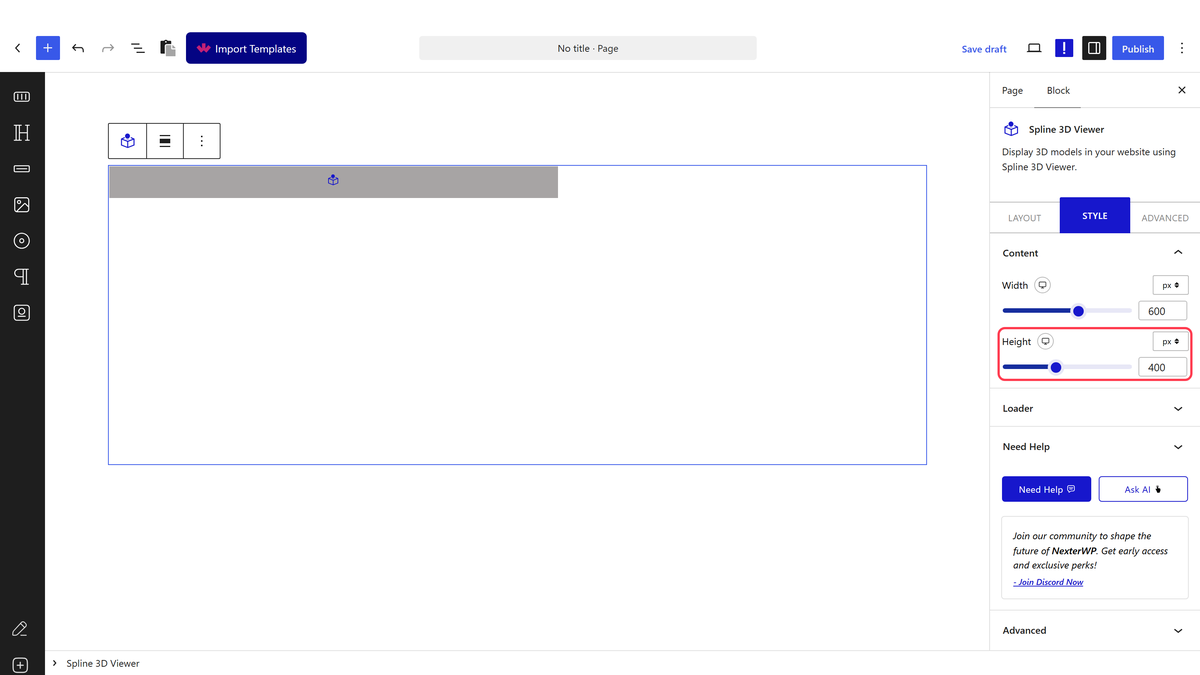
- On the Style tab, set a Height. Without one the viewer has no height at all and nothing will be visible.
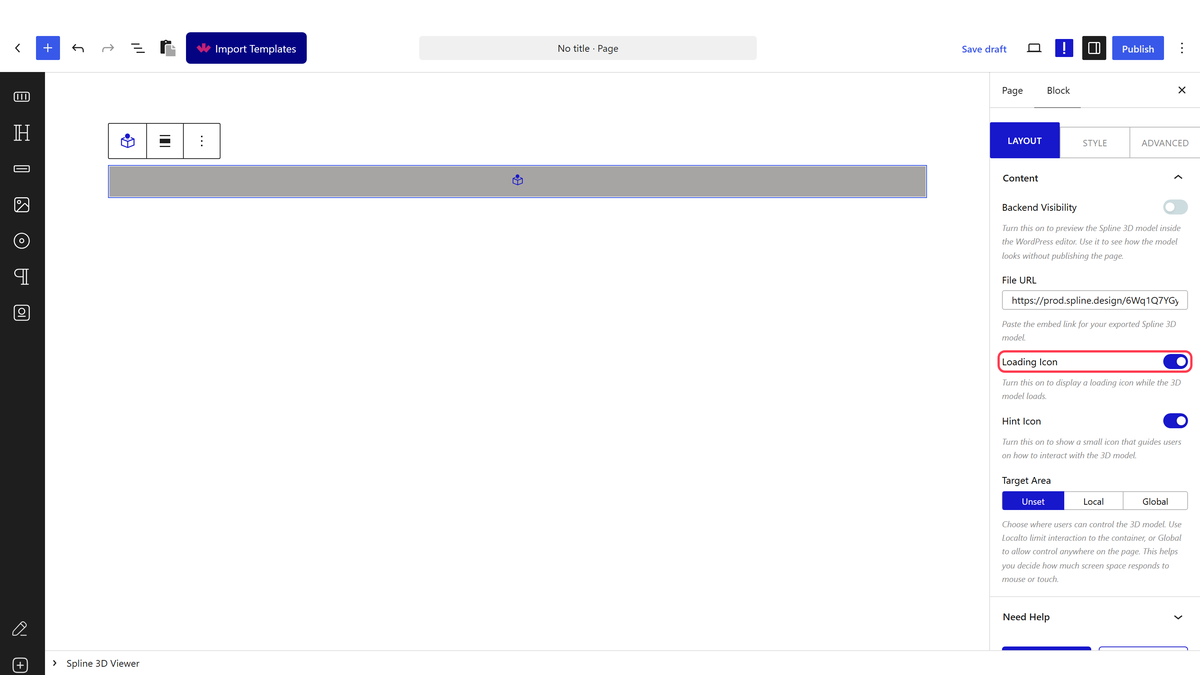
- Switch on Loading Icon and, if your scene is drag-driven, Hint Icon.
- Publish, then open the page and move the mouse over it.
Set a Height or you will see nothing. Measured with no size set, the viewer rendered full width and zero pixels tall. This is the single most common reason the block looks broken.
What Each Setting Does
| Setting | What it does |
|---|---|
| File URL | The integrated embed URL of your exported Spline scene — the only thing that connects the block to your design |
| Loading Icon | Shows a spinner until the 3D runtime has finished loading |
| Hint Icon | Shows an animated drag hint inside the viewer |
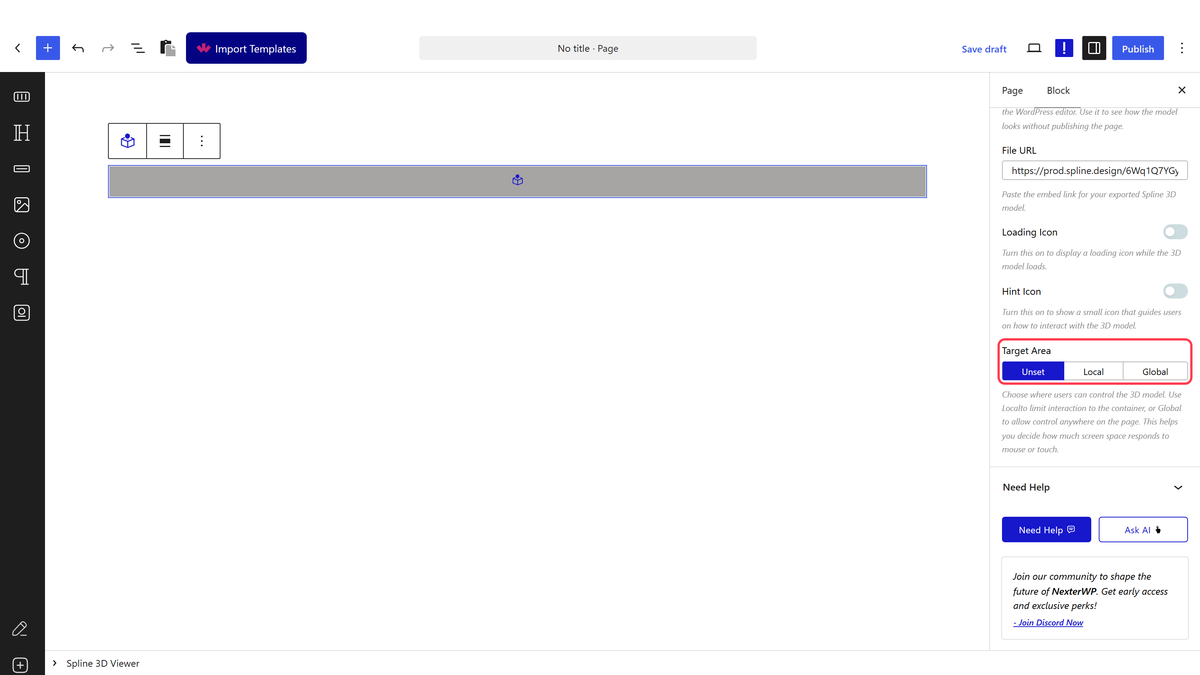
| Target Area | Whether mouse and touch events are picked up inside the canvas only, or across the page |
| Backend Visibility | Previews the scene inside the editor, so you can check its size before publishing |
| Width / Height | The size of the canvas, on the Style tab |
Target Area
| Option | Where mouse and touch events are picked up |
|---|---|
| Unset | The default — no target is set on the viewer |
| Local | Only inside the canvas |
| Global | Across the whole page, including outside the canvas |
Use Global when your scene follows the cursor and should keep reacting while the visitor moves around the rest of the page.
How It Behaves
- The 3D runtime is not downloaded until the visitor interacts. Measured: straight after page load nothing is registered; after a mouse move, a scroll or a key press the runtime is added and the viewer comes alive. It is around 1.7 MB, so this saves it entirely for visitors who never engage.
- That means the scene is genuinely absent until someone interacts — including for screenshots, previews and crawlers. It is not a fault.
- Loading Icon fits that gap. The spinner is hidden the moment the runtime finishes loading — confirmed on the front end.
- The runtime is served from your own site, not a third-party CDN. Only the scene file itself is fetched from Spline.
- Each setting maps to one attribute on the viewer: Loading Icon writes
loading-anim, Hint Icon writeshint, and Target Area writesevents-target.
Limitations
- Pro only.
- The File URL that ships with the block does not work. A newly inserted block points at a placeholder address that cannot resolve, so pasting your own URL is a required step, not an optional one.
- With no Height the viewer is invisible, as above.
- 3D scenes are heavy. One per page is plenty, and it is worth keeping them off pages where speed matters most.
- The scene is loaded from Spline’s servers, so it depends on their availability and is a third-party request to declare in a privacy policy.
- The block only displays a scene — building and editing it happens in Spline.
Troubleshooting
Nothing appears at all
Set a Height on the Style tab. With no height the viewer is zero pixels tall, which looks exactly like a block that is not working.
There is a space but no 3D object
Either the scene has not been triggered yet — move the mouse or scroll — or the File URL is still the placeholder the block came with. Paste the integrated embed URL from Spline’s export.
It works for me but a colleague sees nothing
They may not have interacted with the page yet. Switch Loading Icon on so there is something to see in the meantime.
My scene does not react to the mouse outside the canvas
Set Target Area to Global.
The block is missing from the inserter
Switch Spline 3D Viewer on under Nexter > Blocks in your dashboard.