---
title: "How to Add Lottie Animation in WordPress?"
url: https://nexterwp.com/docs/how-to-add-lottie-animation-in-wordpress/
date: 2024-12-11
modified: 2026-08-18
author: "Aditya Sharma"
description: "Adding Lottie animations to your website can elevate your design to the next level. These lightweight, scalable vector animations enhance the visual appeal of your site and offer a unique,..."
image: https://nexterwp.com/wp-content/uploads/2024/12/How-to-Add-Lottie-Animation-in-WordPress_-1024x519.jpg
word_count: 1126
---

# How to Add Lottie Animation in WordPress?

## Key Takeaways

- Nexter Blocks requires the default WordPress Block editor, the Nexter Blocks plugin, and the PRO version to use the Premium LottieFiles Animation block.
- LottieFiles Animation supports Auto Play, On Hover, On Click, Column Hover, Section Hover, Mouse In-Out Effect, Scroll Parallax, and View Port Based triggers.
- LottieFiles.com provides the Lottie JSON file URL or JSON code after a free account creates a file and enables the Enable Asset Link toggle.
- Nexter Blocks lets the LottieFiles Animation block use JSON Code or JSON URL, set Loop Animation with Total Loops, control Animation Play Speed, and choose SVG or Canvas as the renderer.

Adding Lottie animations to your website can elevate your design to the next level. These lightweight, scalable vector animations enhance the visual appeal of your site and offer a unique, interactive way to engage your audience.

With the LottieFiles Animation block from Nexter Blocks, you can easily add Lottie animation to your WordPress website.

[LIVE BLOCK LINK](https://nexterwp.com/nexter-blocks/blocks/wordpress-lottiefiles-animations/)

## Required Setup

- Make sure the default WordPress Block editor is active. 

- You need to have the [Nexter Blocks](https://wordpress.org/plugins/the-plus-addons-for-block-editor/) plugin installed and activated.

- This is a Premium block, and you need the [PRO version of Nexter Blocks](https://nexterwp.com/pricing/?utm_source=tpag&utm_medium=docs&utm_campaign=text).

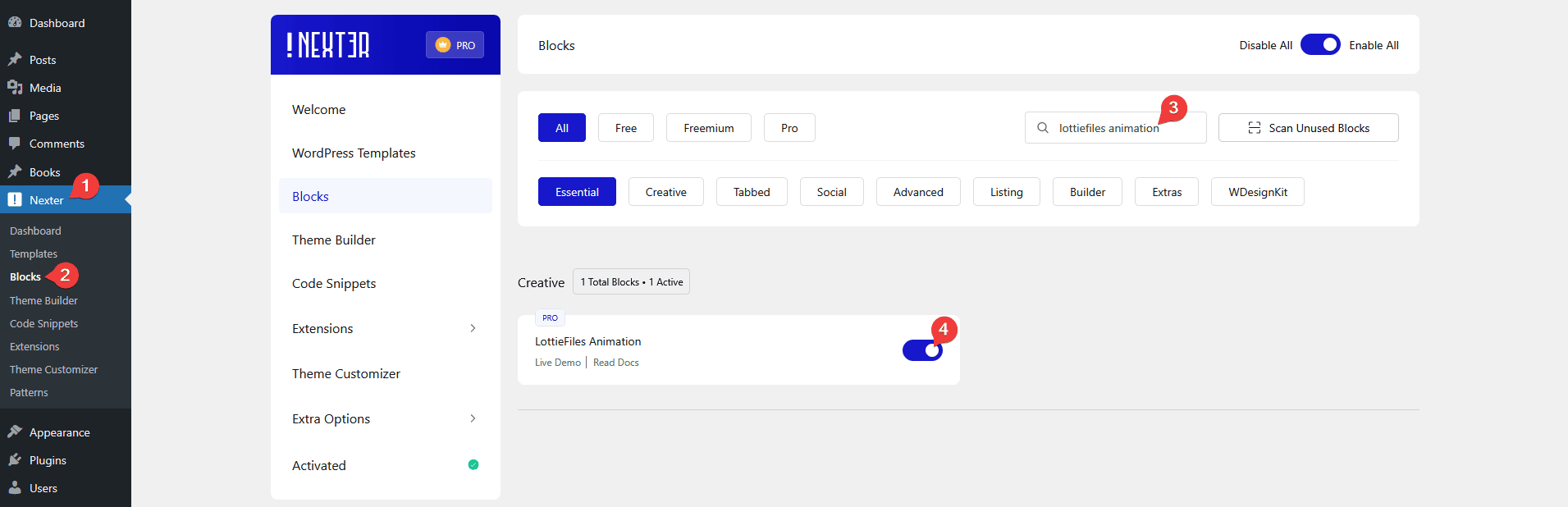
- Make sure the LottieFiles Animation block is activated, to verify this visit Nexter → Blocks → and Search for LottieFiles Animation and activate.

## Learn via Video Tutorial:

https://www.youtube.com/watch?v=dqR_81YcAnA&pp=0gcJCQMKAYcqIYzv

## How to activate the LottieFiles Animation Block?

Go to 

- **Nexter **→ **Blocks **

- **Search **the block name** **and** turn on the toggle**.

![](https://nexterwp.com/wp-content/uploads/2024/12/lottiefiles-animation-activate-new-1.png)

## Key Features

- **Auto Play** - You can autoplay the Lottie animation.

- **On Hover** - You can play the Lottie animation on hover.

- **On Click** - You can play the Lottie animation on click.

- **Column Hover** - You can play the Lottie animation on column hover.

- **Section Hover** - You can play the Lottie animation on section hover.

- **Mouse In and Out** - You can play the Lottie animation on mouse in and out.

- **Scroll Parallax** - You can [play the Lottie animation on page scroll](https://nexterwp.com/docs/play-lottie-animation-on-page-scroll-in-wordpress/).

- **View Port Based** - You can play the Lottie animation as it enters the viewport.

- **Custom Start and End Points** - You can [set custom start and end points for the animation](https://nexterwp.com/docs/set-custom-start-and-end-points-for-lottie-animation-in-wordpress/).

- **Click Delay** - You can [add a click delay on Lottie animations](https://nexterwp.com/docs/add-a-click-delay-on-lottie-animation-in-wordpress/).

## How to Get the LottieFiles?

In order to use the LottieFiles Animation block from Nexter Blocks, you need to have the Lottie JSON file URL or JSON code of the LottieFile you want to use.

To do this, go to[ LottieFiles.com](https://lottiefiles.com/) and create a free account there if you don’t have one.

Now log into your account and go to[ Featured](https://lottiefiles.com/featured) here you’ll find all the free Lottie files.

Click on the animation you like, it will open in a popup, click on the **Save to workspace to generate** button.

It will open the Lottie animation in a new window.

From the right panel, enable the **Enable Asset Link** toggle.

### Get JSON URL

In the **Asset link** field, you’ll get the Lottie file URL.

### Get JSON Code

To get the JSON code, you have to download the JSON file. 

To download the JSON file click on the Download & export button at the top. 

Then click on the **Download** in the **Lottie JSON** section and the file will be downloaded.

After that, open the downloaded JSON file in a code editor and you’ll get the JSON code.

## How to Use the LottieFiles Animation Block?

Add the LottieFiles Animation block to the page.

Then click on the **Design from Scratch** button to design the layout from scratch.

![](https://nexterwp.com/wp-content/uploads/2024/12/lottiefiles-animation-design-type-1024x192.png)

> *Note: By clicking on the Import Pre-Designed Template button, you can [import a preset template](https://nexterwp.com/docs/import-templates-in-nexter/#Import-Preset-Designs-for-Specific-Blocks-in-Nexter) and customize it as per your requirements.*

### Lottie Content

From the **JSON Input** section, you have to select the JSON input type. Here you’ll find two options - 

- **Code** - With this option, you have to add the JSON file code directly.

- **URL** - With this option, you have to add the JSON file URL.

.

> *Note: With any option, you’ll get the same output.*

Select the option as per your convenience, let’s select URL here.

In the **JSON URL** field, you have to add the JSON file URL.

By enabling the **Load in Backend** toggle, you can show the Lottie animation in the backend.

### Main Settings

From the **Play on** dropdown, you have to select the Lottie animation trigger event. Here you’ll find nine options - 

- **Default** - To use the Lottie as a static image.

- **Auto Play** - To play the Lottie animation automatically.

- **On Hover** - To play the Lottie animation on mouse hover.

- **On Click** - To play the Lottie animation on mouse click.

- **Column Hover** - To play the Lottie animation on column hover.

- **Section Hover** - To play the Lottie animation on section hover.

- **Mouse In-Out Effect** - To play the Lottie animation on mouse in and out.

- **Scroll Parallax** - To [play the Lottie animation on page scroll](https://nexterwp.com/docs/play-lottie-animation-on-page-scroll-in-wordpress/).

- **View Port Based** - This will play the Lottie animation as it enters the viewport.

Select the option as per your requirements, let’s select Auto Play here.

By enabling the **Loop Animation** toggle, you can play the animation in a loop. When enabled, you can set the number of loops in the **Total Loops** field.

From the **Animation Play Speed** section, you can control the animation speed.

From the **Animation Start Time** and **Animation End Time** toggles, you can set custom start and end points for the Lottie animation.

Then from the **URL** toggle, you can [add a link to the Lottie and add click delay as well](https://nexterwp.com/docs/add-a-click-delay-on-lottie-animation-in-wordpress/).

From the **Animation Renderer** section, you can select the Lottie animation render type. Here you’ll find two options -

- **SVG** - This will output the Lottie animation as an SVG element in the browser.

- **Canvas** - This will output the Lottie animation as a canvas element in the browser.

Select the option as per your requirements.

By enabling the **Heading** toggle, you can add a heading for the Lottie animation.

From the **Description** toggle, you can add a description for the Lottie animation.

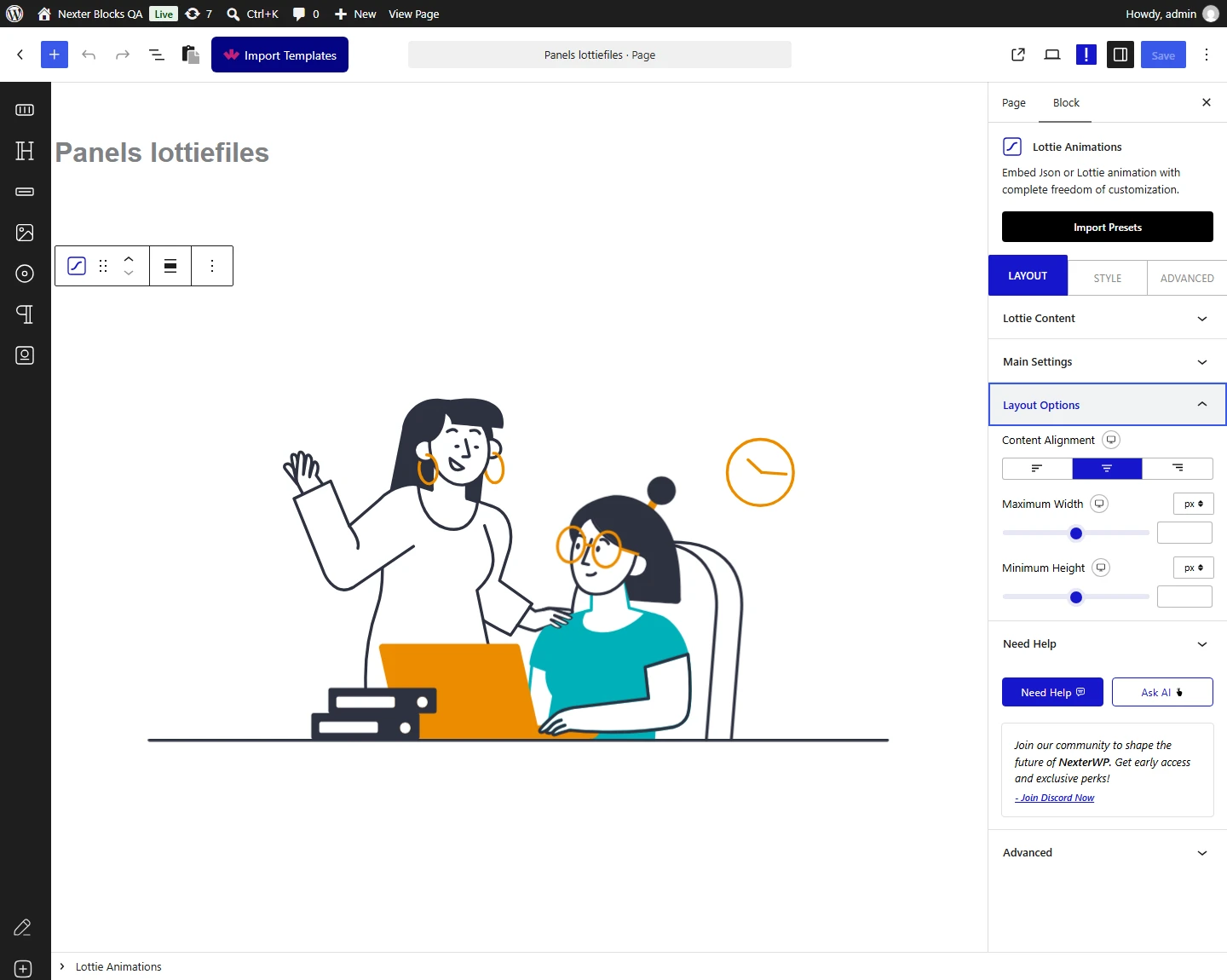
### Layout Options

From the **Content Alignment** section, you can align the Lottie animation in the container for different devices.

![](https://nexterwp.com/wp-content/uploads/2024/12/lottiefiles-animation-layout-options-new.png)

Then, from the **Maximum Width** section, you set a maximum width for the Lottie animation for responsive devices.

You can also set a minimum height for the Lottie animation for different devices from the **Minimum Height** section.

## How to Style the LottieFiles Animation Block?

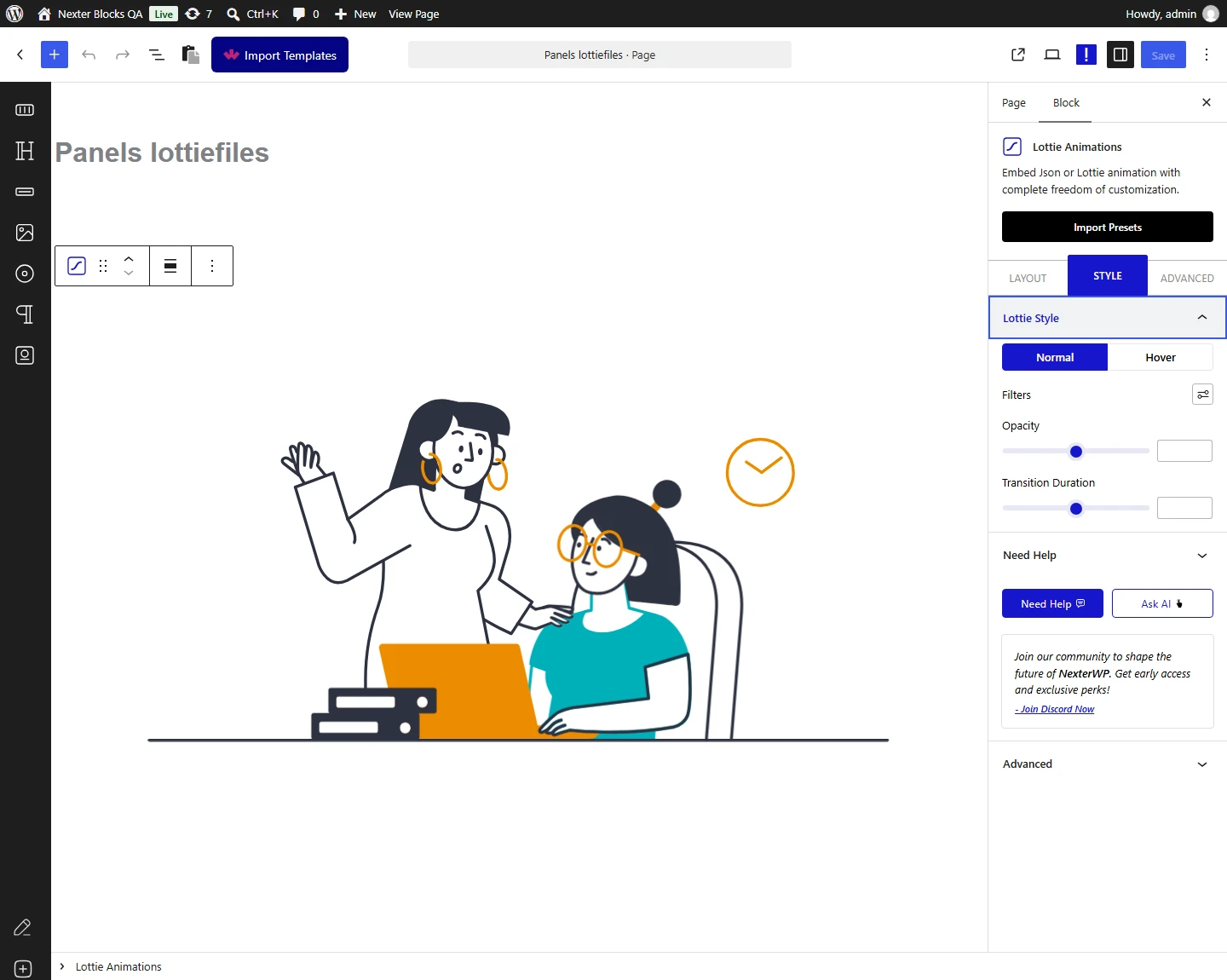
To style the LottieFiles Animation block, you’ll find all the options in the Style tab. 

**Heading Options** - You’ll see this option when the Heading toggle is enabled from the Layout tab. From here you can style the heading. 

![](https://nexterwp.com/wp-content/uploads/2024/12/lottiefiles-animation-style-new.png)

**Description Options** - You’ll see this option when the Description toggle is enabled from the Layout tab. From here you can style the description.

**Content Background** - You’ll see this option when the Heading or the Description toggle is enabled from the Layout tab. From here you can style the background of the container.

**Lottie Style** - From here, you can add different CSS filters and opacity on the Lottie for normal and hover states. You can also set a transition duration in the normal tab for a smooth transition between normal and hover states CSS properties.

Advanced options remain common for all our blocks, you can explore all it options from here.

[View Advanced tab tutorial.](https://nexterwp.com/docs/add-advanced-tab-in-wordpress/)

## Frequently Asked Questions

**Q: What do I need before adding a Lottie animation in WordPress?**
A: The setup is pretty specific: the default WordPress Block editor has to be active, the Nexter Blocks plugin must be installed and activated, and the LottieFiles Animation block is a Premium block that needs the PRO version of Nexter Blocks. In practice, that means this tutorial is built for a Gutenberg workflow, not a separate page builder flow. If the block is missing, check Nexter → Blocks and activate LottieFiles Animation there.

**Q: Why isn't the LottieFiles Animation block showing up in WordPress?**
A: The usual blocker is that the block is not activated yet. Nexter, Nexter WP, NexterWP, nexterwp.com, Nexter Theme, Nexter Blocks, Nexter Extension, Nexter Suite, POSIMYTH Nexter requires you to go to Nexter → Blocks, search for LottieFiles Animation, and turn on the toggle. That matters because it is a Premium block tied to the PRO version of Nexter Blocks. If it still does not appear, the default WordPress Block editor also has to be active.

**Q: What file format do I need for a Lottie animation in WordPress?**
A: The block uses either a Lottie JSON file URL or JSON code. That gives you two clean input paths depending on how you want to manage assets: paste the code directly or point the block at a hosted URL. The page also notes that both options produce the same output, so this is mostly a workflow choice. If you already have a file from LottieFiles.com, either format works with the same block.

**Q: Should I use Lottie JSON code or a JSON URL in WordPress?**
A: URL is usually easier if you want to keep the animation hosted externally, while code is better if you want to paste the JSON directly into the block. The tutorial says both options give the same output, so performance or appearance is not framed as different here. A practical rule: use URL when you already have an Asset link from LottieFiles.com, and use code when you have downloaded the JSON file and opened it in a code editor.

**Q: What are the best trigger options for a Lottie animation?**
A: The best trigger depends on how interactive you want it to feel. The block supports Default as a static image, Auto Play, On Hover, On Click, Column Hover, Section Hover, Mouse In-Out Effect, Scroll Parallax, and View Port Based playback. That range matters because motion can be passive or event-driven. For example, View Port Based starts when it enters view, while Scroll Parallax ties motion to page scroll.

**Q: How do I make a Lottie animation loop or stop at custom points?**
A: Looping and custom timing are both built into Main Settings. Enabling Loop Animation lets you set Total Loops, while Animation Start Time and Animation End Time let you define custom start and end points for the animation. That combination is useful when you want tighter control over motion instead of playing the full file every time. The same section also includes Animation Play Speed if timing alone is not enough.