












Two photographs of the same thing, taken before and after, make their own argument — as long as the reader can line them up.
The Before After block stacks the two images and reveals one over the other as the pointer moves, in whichever of three modes suits the pair.
Before You Start
- Edition: Pro — the Before After block needs Nexter Blocks Pro.
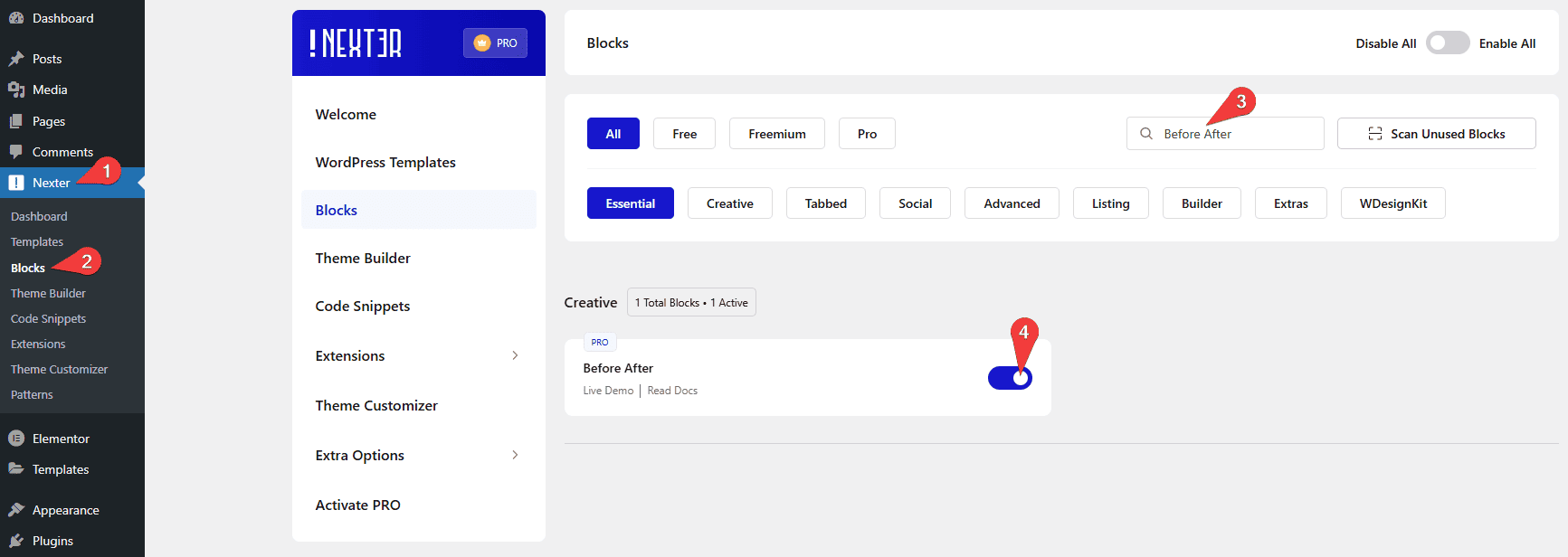
- Block to enable: Before After, switched on under Nexter > Blocks in your WordPress dashboard.
Video Tutorial

Steps
- Add the Before After block to your page.
- Under Layout > Content, choose a Mode: Horizontal, Vertical or Opacity.

- Set Select Before Image and Select After Image — both are required.
- Optionally add a Before Label and After Label.
- Open Separator Option to switch on the separator line, set its width and position, or add a separator icon.
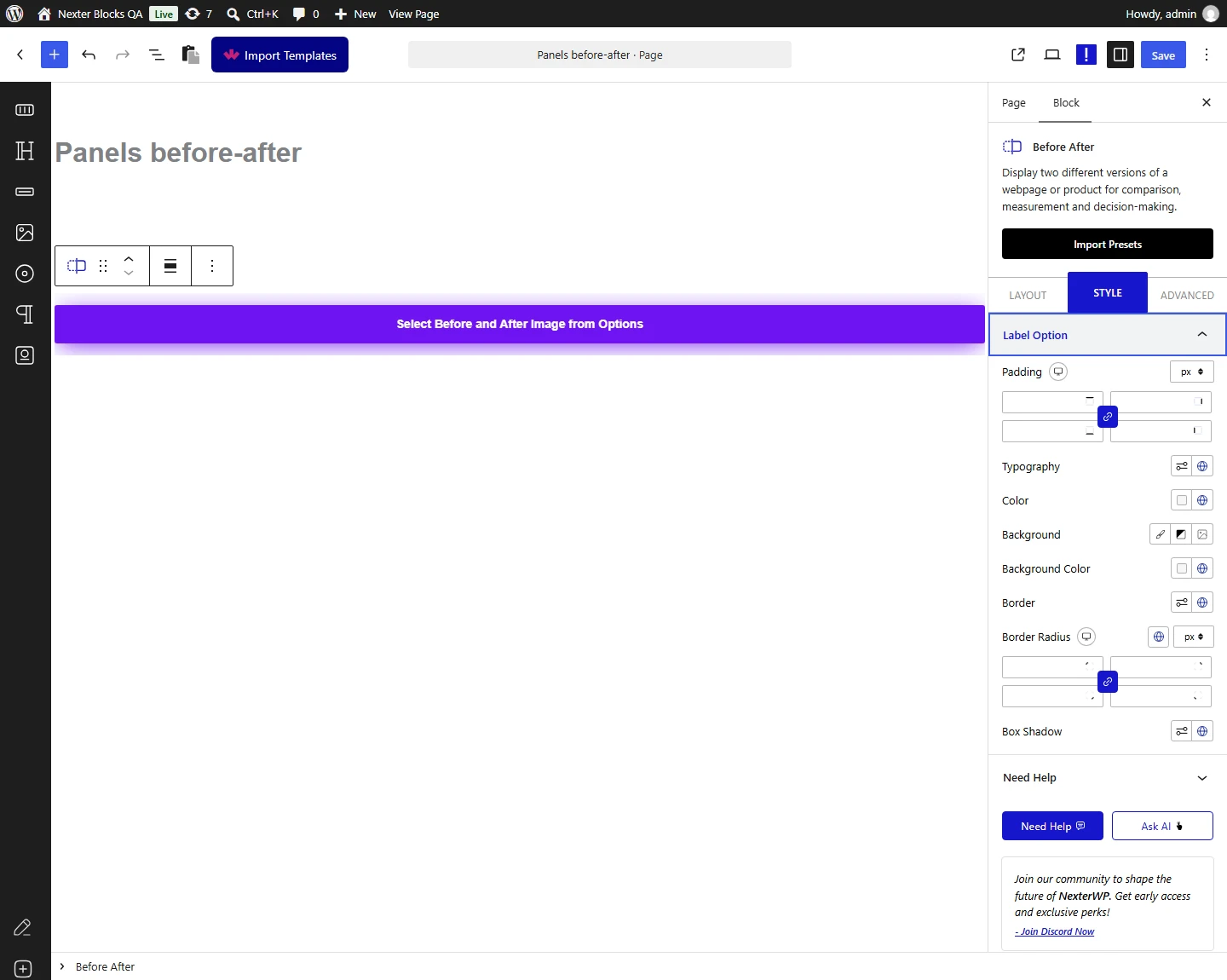
Both images are required. With only one set, the block prints “Please select a Before images & After Image” on the page instead of the comparison — measured on a published page.
How It Behaves

| Mode | What happens as the pointer moves |
|---|---|
| Horizontal | The before image is revealed left to right — measured, the before panel grew from 163px to 928px across the widget. |
| Vertical | The before image is revealed top to bottom — measured 120px to 680px. Needs a separator, see Limitations. |
| Opacity | The before image fades out instead of being wiped — measured, its opacity went from 0.86 to 0.23 across the widget. |
On Mouse Hover is on by default, and the comparison follows the pointer with no clicking. Switch it off and it becomes a click-to-position control — measured: clicking at 10%%, 75%% and 90%% across the widget moved the split to exactly those points, while holding the button down and dragging did not track, it stayed where the press landed.
- Start position sets where the split sits before anyone interacts — 25% by default.
- Full Width scales the comparison to the browser width rather than the content column — measured 1400px wide against 1200px in the default case.
- Give both images the same dimensions. Measured with a 1200×800 before and a 900×900 after, the widget takes the after image’s size, so a mismatch crops or letterboxes the comparison.
Limitations
- Vertical mode does not move until you give it a separator. See the note below and the Vertical mode doc.
- Opacity mode has no separator line. There is nothing to draw a line between, so the Separator Option panel does not appear in that mode.
- With On Mouse Hover off the split is positioned by clicking, not by dragging a handle — measured.
- Both images must be set, and should share the same dimensions.
Vertical mode needs a separator to work. Measured on published pages: with Separator Line off and no Separator Icon — the defaults for a new block — the vertical slider stays frozen at its start position and the browser console reports a script error. Switch Separator Line on, or set a Separator Icon, and it tracks the pointer correctly. This is a known bug and has been reported to the development team.
Troubleshooting
The page shows “Please select a Before images & After Image”
One of the two images is missing. Set both Select Before Image and Select After Image — the block prints that line instead of the comparison until you do.
My vertical slider will not move
Switch Separator Line on, or set a Separator Icon. Measured: a vertical block with neither stays frozen at its start position.
Nothing happens when I drag the handle
Check On Mouse Hover. With it on, the split follows the pointer with no clicking at all. With it off, click where you want the split — dragging does not track.
The two images do not line up
They are different sizes. The widget takes the after image’s dimensions, so crop both to the same size before uploading.
