












Some things on a page need to stand apart from the body text — a warning, a delivery notice, a note about an offer that ends on Friday.
The Message box gives you that in one block: an icon, a title, a description, a button and a close button, all styled together.
Before You Start
- Edition: Free — works in Nexter Blocks (free) and with Nexter Blocks Pro.
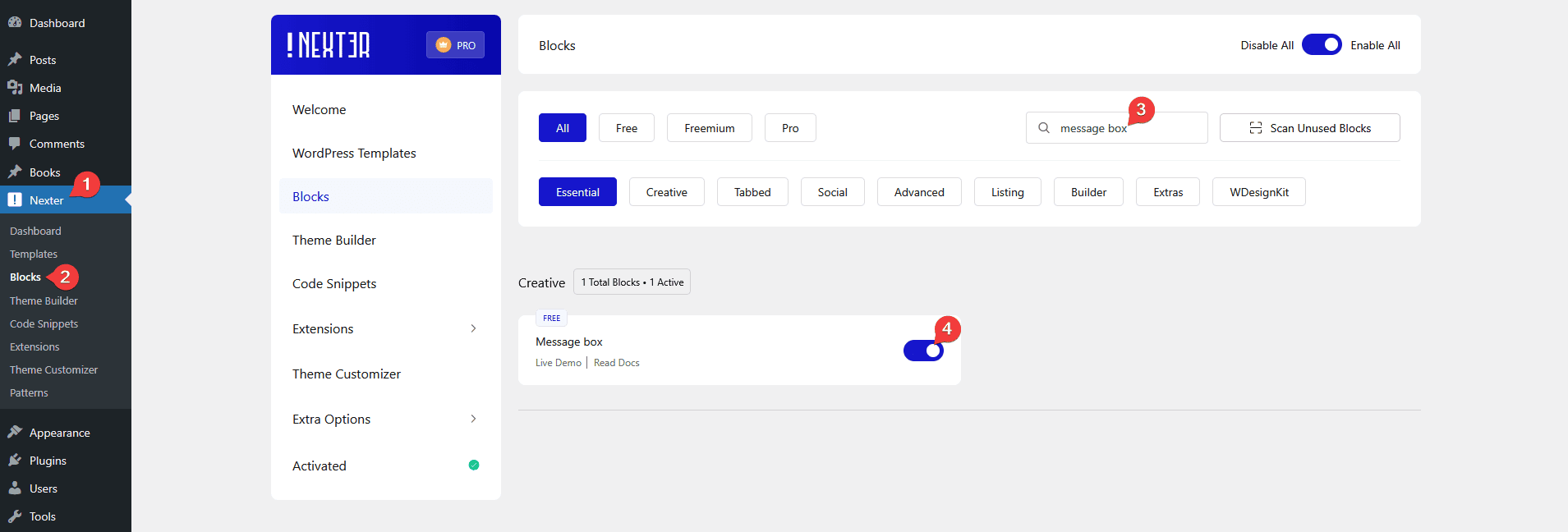
- Block to enable: Message box, switched on under Nexter > Blocks in your WordPress dashboard.
Video Tutorial
Steps
- Add the Message box block to your page.
- Type your Title. This is the only text shown by default.
- Switch Description on and type the description text — it needs both.

- Choose an Icon and whether it sits before or after the text.
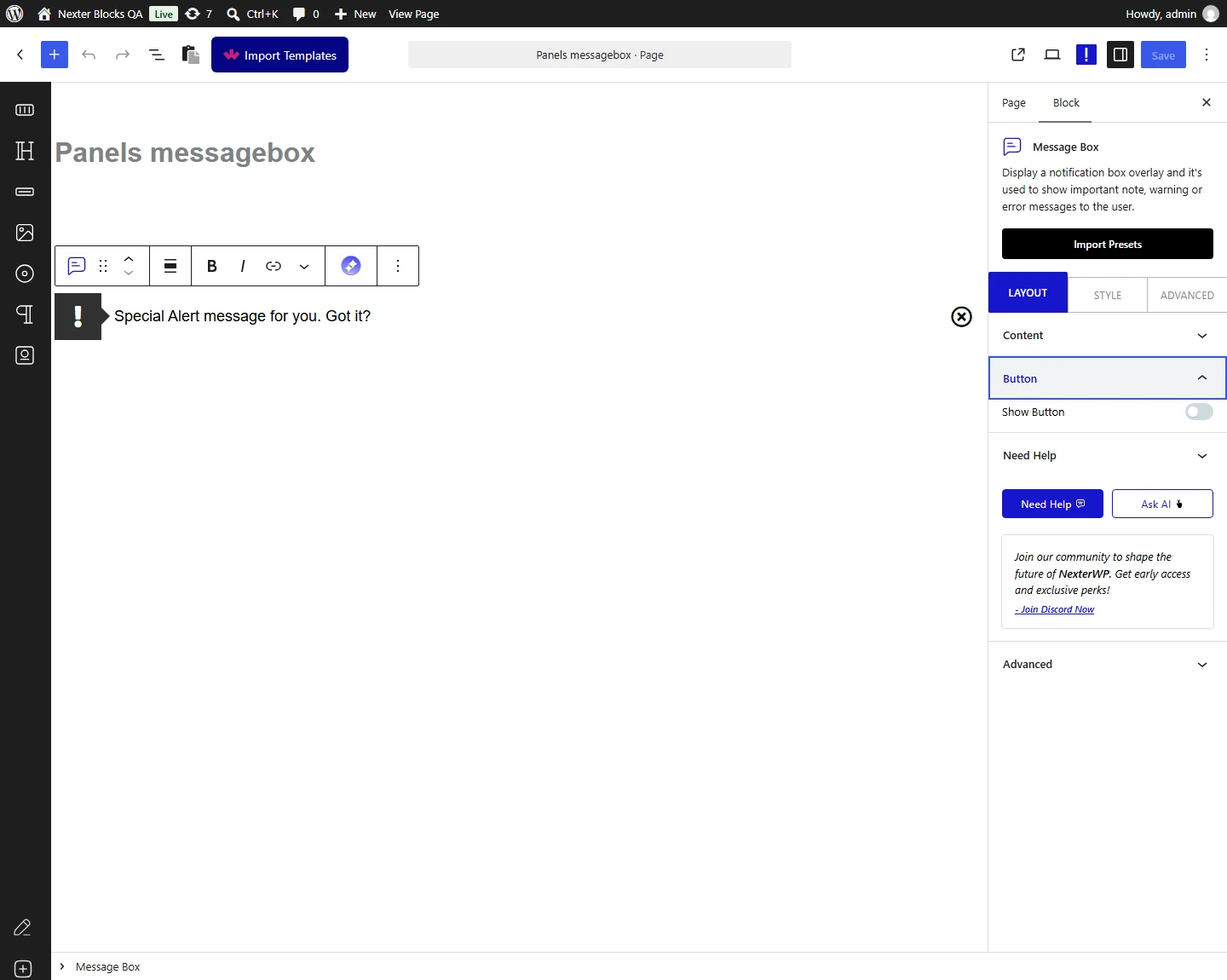
- Switch the close button or a button on if you want them, then publish and check the page.
The description needs both switches. Measured separately in both directions: with the toggle on and the text box empty, and with text typed but the toggle off, no description element is rendered at all.
How It Behaves
The Message box is a single styled box with up to four parts — an icon, a title, a description and a button — plus an optional close button. It is the block to reach for when a page needs a notice that stands apart from the body text.
- Only the title shows by default. Measured on a default block: icon, arrow and close button are on, and the description is off until you switch it on.
- The description needs both switches. Measured separately in both directions: with the toggle on and the text box empty, and with text typed but the toggle off, no description element is rendered at all.
- The arrow only exists if the icon does. Measured with the icon switched off and the arrow switched on: there is no arrow anywhere on the page. The arrow is drawn on the icon, so switching the icon off removes both.
- Icon position moves the icon, not just its alignment. Measured: setting it to postfix moves the icon after the text in the page itself, and the arrow follows it.
- The button sits on the title’s row, at the right edge — not underneath the message. Measured with a title, a description and a button all switched on: the title and the button share the top row and the description runs full width below them.
- The close button hides the box for that page view only — measured, it is back after a reload.
There is no separate alert box block or preset — an alert box is this same Message box with alert styling. The block’s own default title, “Special Alert message for you. Got it?”, is why it is often described that way.
Limitations
- Closing is not remembered. Measured: the box returns on reload. There is no setting to keep it dismissed for a returning visitor.
- The arrow depends on the icon — measured, no icon means no arrow.
- One message per block. For several notices, add several blocks.
- An empty box is invisible rather than obviously broken — see Troubleshooting.
Troubleshooting
My description does not appear
Measured in both directions: the description renders only when the toggle is on and the text field has content. Check both.
The arrow is switched on but there is no arrow
The icon is switched off. Measured: the arrow is drawn on the icon, so it disappears with it. Switch the icon back on.
The box is there but nothing shows in it
With the icon, close button and title all switched off and no description, the block renders a box measuring 1092 by 0 pixels — measured, present on the page but with nothing in it, and no error to explain why. Switch the title, icon or description back on.
The message comes back after closing it
That is expected. Measured: closing hides the box for that page view only and a reload brings it back. Nothing is stored about the dismissal.
My button is beside the title instead of below the message
That is where it sits. Measured with a title, description and button on: the button shares the title’s row at the right edge. See the message box button guide.
