












A few months back, a client running a two-chair dental clinic asked us why her website looked like every other WordPress site her cousin’s “web guy” had built for a bakery down the street. Same stock hero image, same generic “Welcome to Our Website” heading, same contact form buried three clicks deep. She wasn’t wrong to be annoyed. Most local service businesses get a website that was clearly built for nobody in particular, then have “restaurant” or “clinic” bolted on with a logo swap.
That’s the gap this guide closes. We’ll build a real restaurant or clinic website on Nexter Theme, starting from a niche-matched template instead of a blank canvas, and cover the parts most tutorials skip: the menu or services page, the booking flow, the local SEO basics, and the security checklist you actually need before you hand the site to a client or launch it yourself.
What You Need Before You Start
Before opening the template library, gather the things that actually slow a build down when they’re missing: your final menu or service list with prices, real photos (not the ones from your phone’s camera roll taken in bad lighting; even a same-day smartphone reshoot near a window beats a dark, blurry dinner-table shot), your hours including holiday exceptions, and the exact wording of your booking policy if you have one (deposits, cancellation window, walk-in acceptance). Every hour spent chasing this content after the site is “built” is an hour the layout sits half-finished.
You’ll also want Nexter Theme installed and activated, plus Nexter Blocks if you want access to the Data Table, Pricing Table, and Google Map blocks used below. Both are available from the WordPress plugin directory, and the starter template importer works from inside the WordPress admin once they’re active.
Why a Generic Template Doesn’t Work for a Restaurant or Clinic
A restaurant visitor wants three things in the first five seconds: what kind of food, where it is, and how to book a table or order. A clinic visitor wants: what you treat, whether you take their insurance or walk-ins, and how to get an appointment. Neither of those journeys looks anything like a SaaS landing page, yet that’s the template most people start from because it’s what their page builder shows them first.
Starting from a niche-matched template fixes this before you write a line of copy, because the layout already assumes the right content blocks exist: a menu or service list, hours, a map, and a booking or reservation call to action above the fold.
Step 1: Start From the Right Template, Not a Blank Canvas
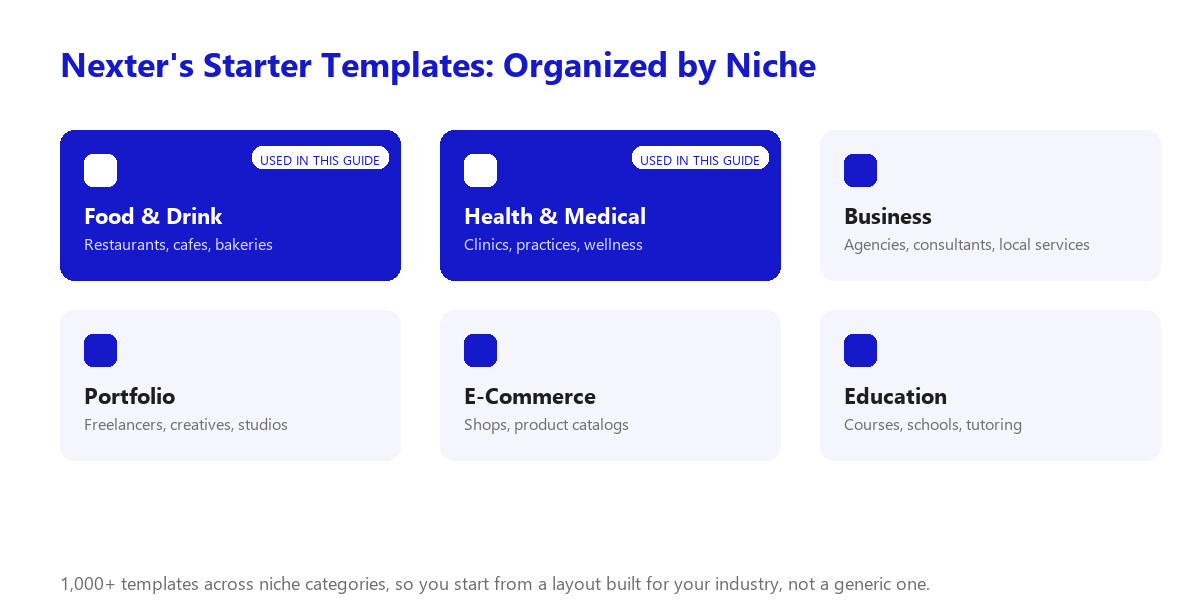
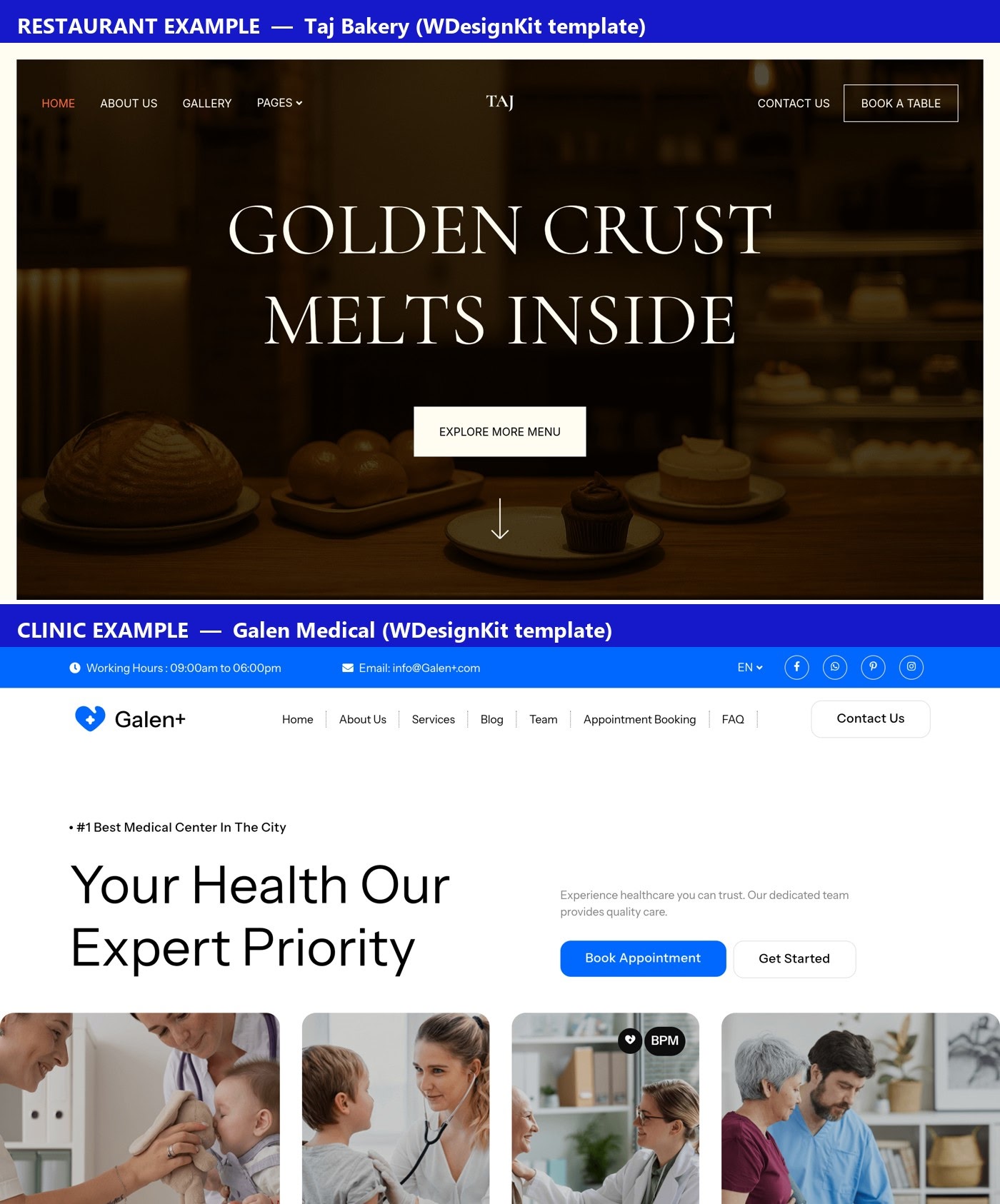
Nexter Theme ships as a lightweight, vanilla-JS starter theme with no jQuery dependency, and it plugs into a library of 1,000+ pre-built Gutenberg templates, sections, and kits through Nexter’s starter template system. That library is organized by category, including a dedicated Health & Medical group (with real kits like Medclinic Pro and Galen Medical already built for clinic and practice sites) and a Food & Drink group for restaurant and cafe layouts. You’re not reskinning a generic business template; you’re starting from one built for your actual industry.
Also Read: How to Build a Business Website with Nexter Theme in Under an Hour if you need a general small-business layout instead of a restaurant or clinic-specific one.
To pick a starting point: open Nexter’s starter templates library, filter by Food & Drink or Health & Medical, and import the closest match as a full site or as individual page kits. Everything imports as native Gutenberg blocks, so once it’s in your editor it behaves like any other block content: no page-builder lock-in, no proprietary shortcodes to maintain later.
Step 2: Build the Homepage That Answers the First Question
Whatever template you start from, the homepage needs to answer the visitor’s first question before they scroll. For a restaurant that’s cuisine, location, and a reservation or order button. For a clinic it’s the services you treat, whether you accept walk-ins or insurance, and a book-an-appointment button. Everything else, your story, your team, your awards, belongs below that fold, not instead of it.
Nexter Theme’s global settings do the heavy lifting here. Global Colors and Global Fonts let you swap the imported template’s default palette and typography for your own brand in one place, instead of hunting through every section. Global Container Size controls how wide your content runs, which matters more than people expect on a menu or service list, since a container that’s too wide makes a short list of six menu items look sparse and abandoned.
Step 3: Build the Menu or Services Page
This is the page people actually came for, and it’s also the one most templates get wrong by dumping every item into one long, unstructured list. A menu page reads better broken into categories (starters, mains, desserts) with prices aligned in a clean column. A clinic services page reads better as short service cards with a one-line description and a “book this” link, not a wall of paragraph text.
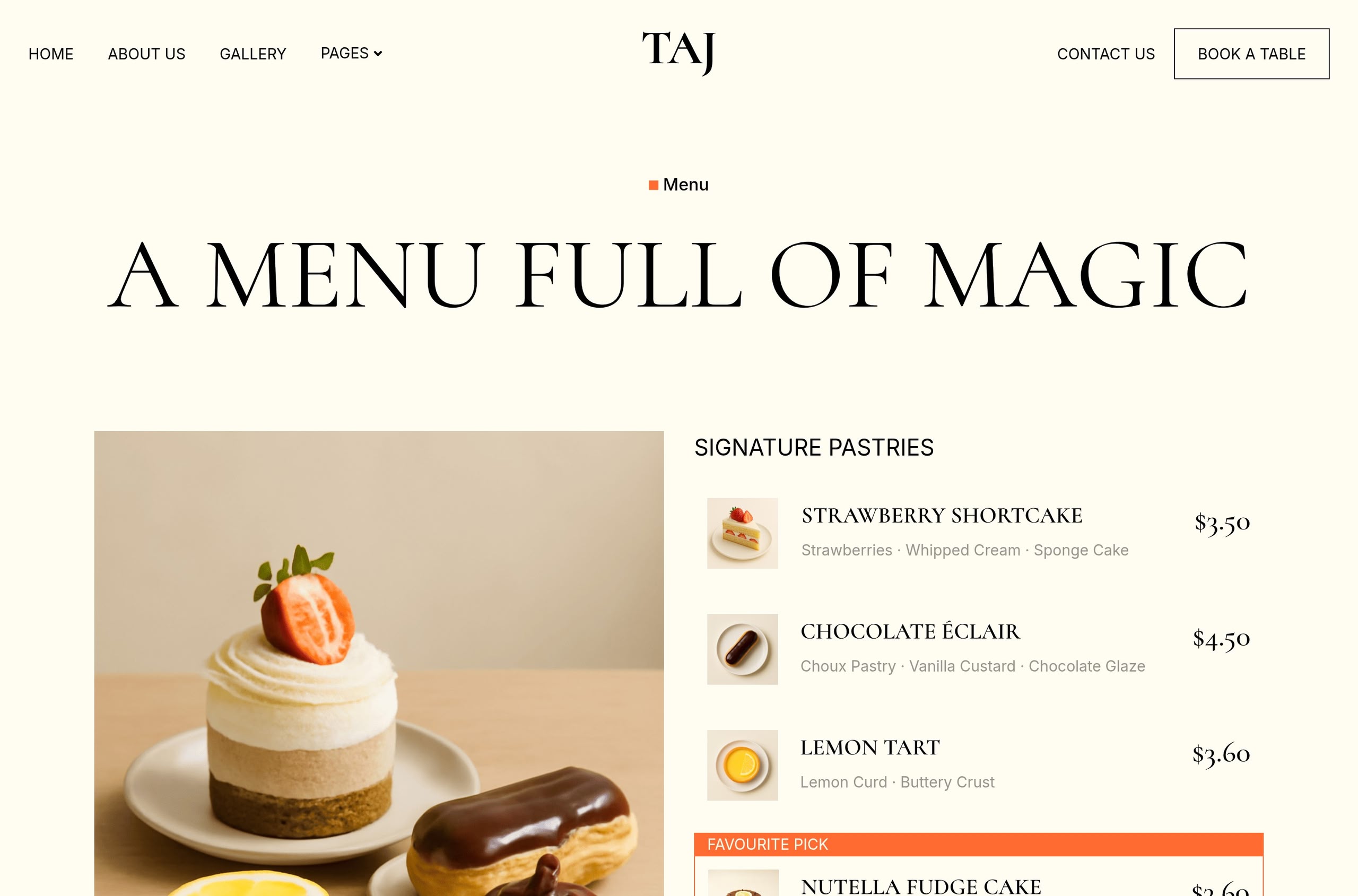
Nexter Blocks’ Data Table and Pricing Table block covers both cases well: use the data table for a straightforward menu with prices, or the pricing-card layout for services grouped by package (a “New Patient Exam,” a “Cleaning,” a “Cosmetic Consult”). Both are native Gutenberg blocks, so editing an item or a price later is a two-click edit, not a support ticket to whoever built the site.
If you’d rather see the block in more depth, including how to set up columns and highlight a featured item, we cover that build step by step separately.
Step 4: Contact, Location, and Booking
Here’s the part worth being upfront about: neither Nexter Theme nor Nexter Blocks includes a native appointment or table-reservation system. That’s a deliberate scope decision, not a gap, because booking logic (calendars, staff availability, deposits, no-show handling) is a deep enough problem that it deserves a dedicated plugin rather than a bolted-on afterthought. What Nexter gives you is the design layer: a contact page with a Google Map block and a form, built to match the rest of your site, that a booking plugin can plug into.
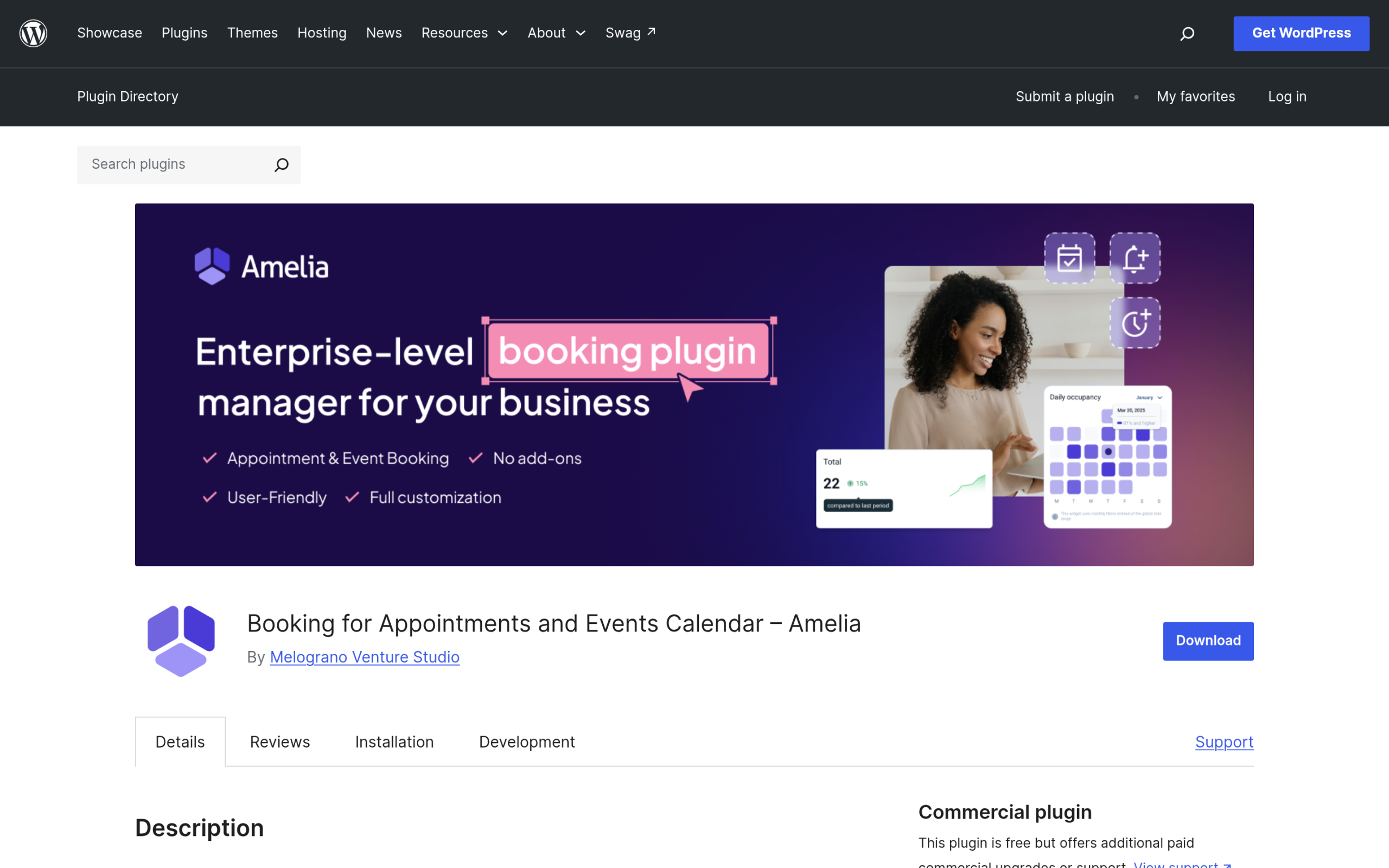
For the actual booking mechanics, two free WordPress.org plugins are worth a look: Amelia (90,000+ active installs, a 4.6-star rating from 788 reviews at the time of writing) handles appointments and events with staff calendars and automated reminders, and Bookly (60,000+ active installs, 4.4 stars from 577 reviews) covers similar ground with a simpler setup. Either drops into a page built with Nexter Blocks without a fight; you’re styling the page around their booking form or calendar widget, the same way you’d style a contact form.
Step 5: Local SEO Nexter Extension Handles Out of the Box
A restaurant or clinic lives or dies on local search, and Nexter Extension’s free, built-in SEO toolkit covers the fundamentals without a separate plugin: site audits, meta and schema markup, XML sitemaps, and redirects. That gets your on-page basics in order, but local SEO also has a set of business-specific tasks (Google Business Profile, NAP consistency, local citations, review generation) that no theme or SEO plugin does for you automatically.
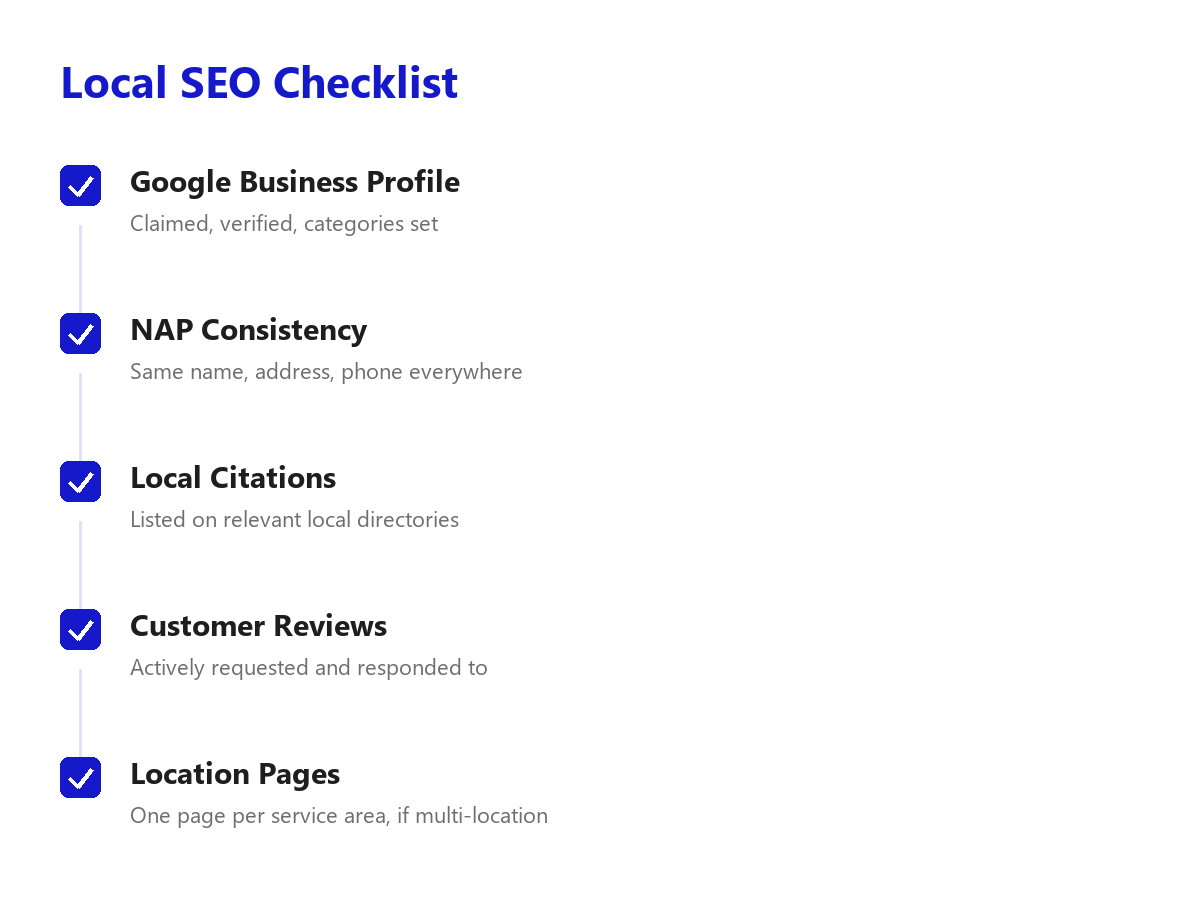
Also Read: Local SEO for WordPress: The 2026 Playbook for the full checklist, from Google Business Profile setup to citation consistency.
Step 6: Performance and Security Before You Launch
A slow-loading menu page loses hungry visitors fast, and a clinic site handling patient contact forms needs to take security seriously even before you touch HIPAA-adjacent concerns. Nexter Extension’s performance layer strips non-required asset loading, and its security hardening covers reCAPTCHA on forms, login protection, and the general hardening checklist every public-facing site should have before launch, whether or not you’re taking bookings through it.
Run through the basics before launch: reCAPTCHA on your contact and booking forms, forced HTTPS, a caching setup appropriate to your host, and image sizes that match where they’re actually displayed (a 4MB hero photo behind a 1200px-wide banner is the single most common speed mistake we see on local business sites).
Common Mistakes We See on Local Service Websites
- Burying the menu or services page in the navigation. It should be one click from the homepage, not nested under a “Company” dropdown.
- No booking or reservation call to action above the fold. If the first thing a visitor sees doesn’t tell them how to act, they leave.
- Copying a competitor’s site structure without checking whether it converts. A generic template borrowed from a different niche fights you the whole way.
- Skipping Google Business Profile because “the website is done.” For a local business, the website is only half the local search picture.
- Uncompressed hero images. The single biggest performance killer on restaurant and clinic sites, where photography matters but rarely gets resized before upload.
- No mobile check on the menu table. A pricing table that looks clean on a 27-inch monitor can wrap awkwardly on a phone, where most restaurant lookups actually happen. Preview every template on mobile before publishing.
- Treating the booking plugin as an afterthought. Pick Amelia, Bookly, or whatever fits your workflow before you finalize the contact page layout, not after, so the page is actually built around the widget instead of squeezing it in later.
Elementor or Gutenberg: Which Should You Use for This Build?
Nexter Theme is built to work with both Elementor and Gutenberg, so the honest answer depends on what you’re already comfortable with rather than one being objectively better for a restaurant or clinic site. If you’re starting from scratch and have no existing Elementor investment, Gutenberg with Nexter Blocks keeps everything native to WordPress core, which means fewer moving parts to update and a lighter page weight since Nexter Blocks ships pure vanilla JS with no jQuery dependency. If you’re already running other sites on Elementor and want consistency across a portfolio of client sites, Nexter Theme’s Elementor compatibility means you don’t have to relearn a second builder just for this one project.
Either path uses the same starter templates and the same underlying theme settings for colors, fonts, and container width, so switching later isn’t a full rebuild, just a re-import of the sections you want to change.
After Launch: What to Check in the First Week
Launching the site isn’t the finish line for a restaurant or clinic build, since the first week of real traffic surfaces problems a staging environment never will. Check your booking or reservation flow end to end from a phone, not just a desktop browser, since most local searches happen on mobile and a plugin’s default calendar widget can render differently on a small screen. Confirm your hours and holiday exceptions actually match what’s live, since a stale “closed Sundays” note left over from the template import will cost you a walk-in or two before anyone notices.
Watch your Google Business Profile listing against the live site for the first week too. A mismatch between the phone number on your profile and the one in your footer is a common, easily missed local SEO problem that undercuts everything else you did to get the site into local search results, and it’s worth a five-minute manual check rather than assuming the template import carried the right details through.
Suggested Reading
- How to Build a Business Website with Nexter Theme in Under an Hour
- Local SEO for WordPress: The 2026 Playbook
- 8 Best WordPress Booking Plugins (Appointment Schedulers)
- How to Create a Salon Website Using WordPress in 15 Minutes
