












I rebuilt my own portfolio three times before I stopped fighting my page builder and started fighting my content instead, which is the right fight. The version that finally worked took an afternoon: a starter template from the Nexter Theme library, Global Styles set once, and a Grid View archive doing the heavy lifting for the project grid. No custom CSS, no child theme, no dev environment. This is that exact workflow, written the way I wish someone had written it for me.
Why WordPress (and Nexter) for a Portfolio Site
WordPress runs 40.7% of all websites and 58.9% of every site whose CMS is known, according to W3Techs’ live usage tracking (checked September 2026). That scale means portfolio-specific themes, plugins, and hosting are mature and cheap, which matters more for a portfolio than for almost any other site type: you want your case studies to load fast and look identical whether a client opens the link on a laptop or a phone in a hallway before a meeting.
The Nexter Theme is built for exactly this brief: a lightweight (under 20KB) block theme with Global Styles, a visual Grid View archive builder, and starter templates you can import in one click, all editable in the native Gutenberg editor or Elementor if you already use it.
Step 1: Pick a Starter Template That Matches Your Work
Nexter ships 1000+ pre-designed template kits inside Starter Templates, and the fastest mistake to make is picking one because it looks nice in the preview rather than because it matches how your work is actually consumed. Sort by the shape of your content first, style second.
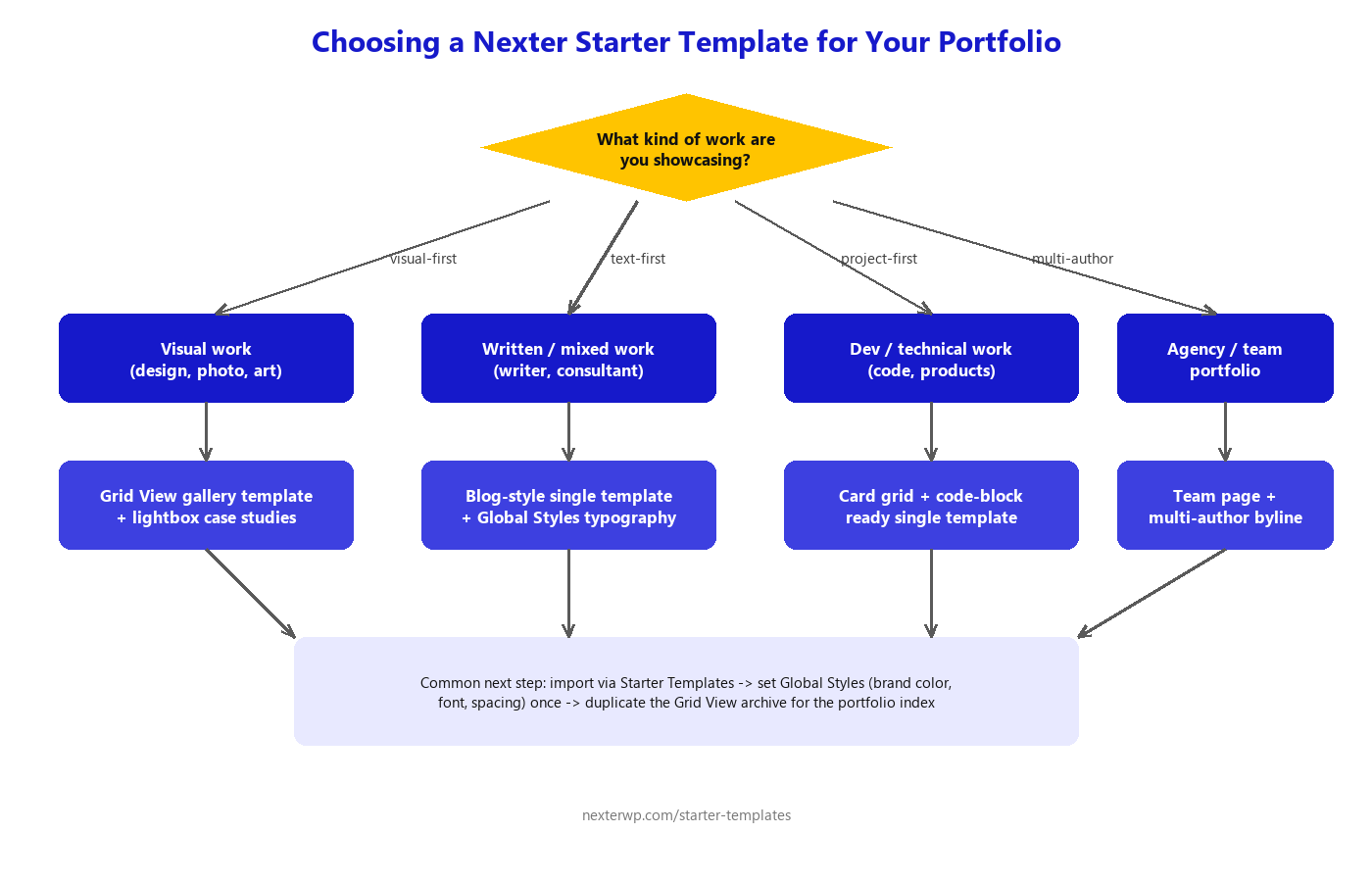
Visual portfolios (design, photography, illustration) want a template built around a Grid View gallery. Writing and consulting portfolios do better on a cleaner, blog-style single template where Global Styles typography carries the page instead of imagery. Developer and product portfolios usually need a card grid that can sit next to code snippets or embeds. Whatever you pick, import the template, then immediately delete the demo content you don’t need. It is much faster to strip a template down than to build one up, so decide before you import.
Also Read: The Nexter Grid View Theme Builder: What It Is and How to Use It for a deeper look at the archive builder this whole workflow leans on.

Step 2: Set Global Styles Before You Touch a Single Page
This is the step people skip and then regret. Open Appearance > Editor > Styles and set your brand color, your two typefaces (one for headings, one for body), and your container width once, sitewide. Every page and every future case study inherits it automatically. Skip this and you’ll spend your third case study page manually re-matching a color you eyeballed on the first one.
Keep the palette to two colors plus a neutral: one for your brand accent (links, buttons, highlights) and one dark neutral for body text. Portfolios that use five accent colors read as indecisive, not creative. The work should carry the color, not the theme.
Also Read: Nexter Theme Global Styles: How to Set Up Brand Colors, Fonts and Spacing Sitewide walks through every Global Styles panel in detail.
Step 3: Build the Project Grid with Grid View
Your portfolio index is an archive of projects, and Nexter’s Grid View lets you design that archive card visually instead of writing loop templates. Set it up once: choose your columns (3 across works well for 6-12 projects, 2 across if your case studies are text-heavy), pick which fields show on the card (thumbnail, title, one tag), and set a consistent aspect ratio for the thumbnail so a wide screenshot and a tall poster don’t fight each other in the same row.
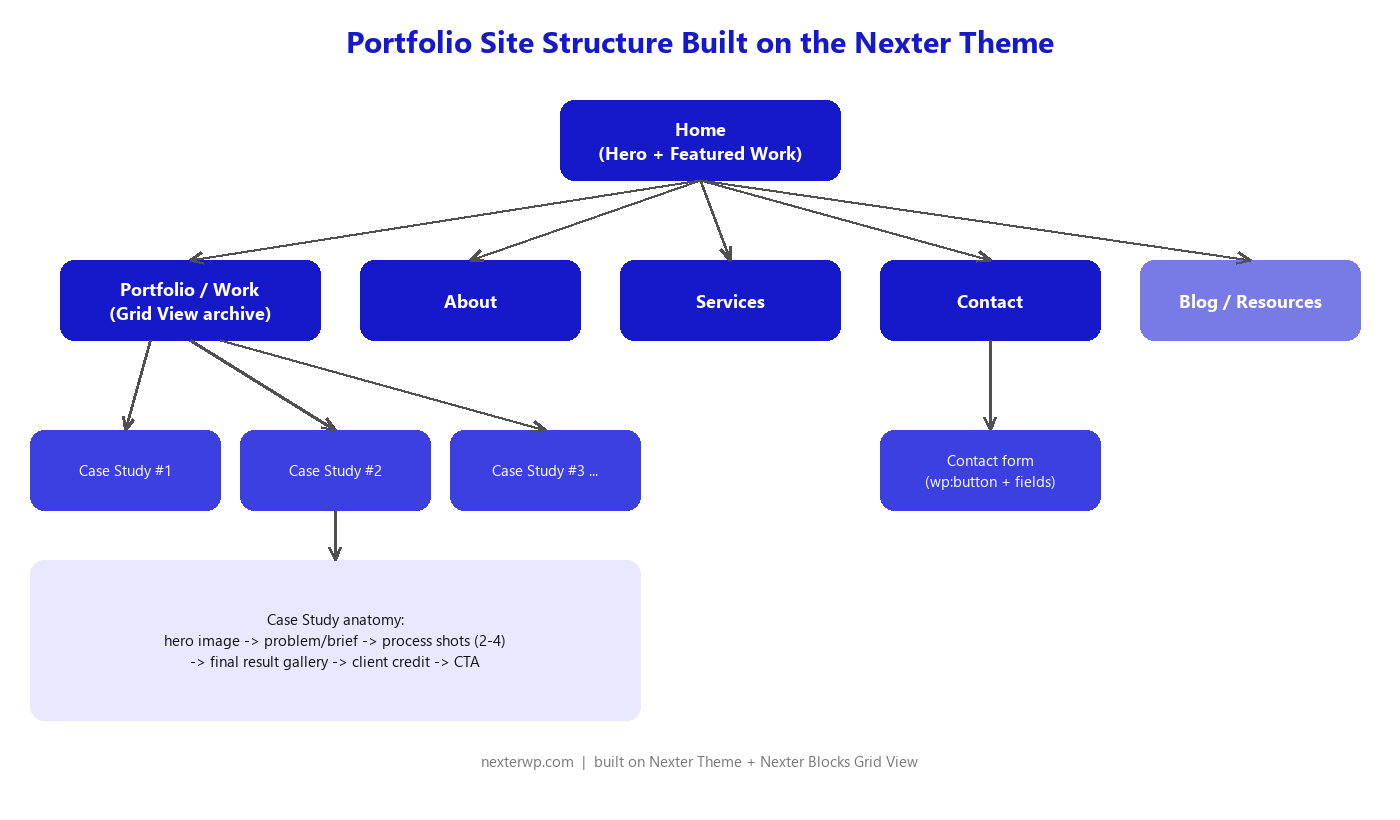
Here’s the full site map this produces, from the home page down to an individual case study:
Step 4: Build Each Case Study Page (Not Just an Image Dump)
A project thumbnail gets the click; the case study page gets the client. Use the same anatomy on every case study so returning visitors learn to scan it: a hero image, one paragraph on the brief or problem, two to four process shots, a final result gallery, and a client or role credit at the bottom. Keep it templated in the block editor as a reusable block so you’re filling in content, not rebuilding layout, on project ten.
Close every case study with a next step: a standard button block linking to your contact page or your next project. Don’t build this as a custom HTML div; the native wp:button block already inherits your Global Styles button color and stays consistent if you ever change your brand color later.
Step 5: Add a Contact Section That Doesn’t Get Ignored
Put a contact form on its own page, but also repeat a lighter contact prompt (email link or a short form) at the bottom of every case study and on the About page. Visitors who are ready to hire rarely go hunting through a nav menu for a “Contact” link buried three items in. They act right where their interest peaked.
Also Read: How to Build a Business Website with Nexter Theme in Under an Hour covers the same contact and services setup from a client-facing business angle.
Step 6: Optimize Images (a Portfolio Lives or Dies on This)
A portfolio is the most image-heavy site type you’ll ever build, and it’s the one where slow-loading images cost you the most. Google’s own web.dev performance research cites the BBC’s finding that they lost an additional 10% of users for every additional second their site took to load. A gallery of ten unoptimized 6MB photos will absolutely produce that additional second, or several, on a slow connection.
- Export images as WebP or compressed JPEG, not source PNG or camera-raw-derived files.
- Resize before upload: don’t upload a 4000px-wide photo and let CSS shrink it to 800px in the browser.
- Use a single consistent thumbnail size in Grid View so WordPress isn’t generating and serving redundant crop sizes.
- Turn on lazy loading for every image below the fold except your hero and featured image (which should load eager, since they’re the first thing a visitor sees).
Frequently Asked Questions
Do I need to know code to build a portfolio with the Nexter Theme?
No. Every step above (template import, Global Styles, Grid View, case study layout, and the contact form) is done in the visual block editor. Custom CSS is available if you want it, but it’s optional, not required.
How many projects should I put on a portfolio homepage?
Six to nine strong projects beat twenty average ones. Grid View makes it easy to feature a curated subset on the home page while keeping the rest in the full archive, so you don’t have to choose between “curated” and “complete.”
Can I use Nexter Theme with Elementor instead of the block editor?
Yes. Nexter Theme works as both a classic theme (with Elementor) and a full-site-editing block theme, so you can build the same portfolio structure in whichever editor you’re already comfortable with.
Will a media-heavy portfolio slow down my site?
Only if the images aren’t optimized. Follow the compression, resizing, and lazy-loading steps above and a portfolio with dozens of project images can still load quickly. The theme’s under-20KB footprint helps, but image weight is almost always the real bottleneck, not the theme.
Suggested Reading
- Nexter Theme Global Styles: How to Set Up Brand Colors, Fonts and Spacing Sitewide
- The Nexter Grid View Theme Builder: What It Is and How to Use It
- How to Build a Business Website with Nexter Theme in Under an Hour
- Nexter Theme vs Blocksy
- WordPress Theme Customization Without Touching Code
