












Most WordPress code-snippet advice starts the same way: open functions.php, paste in a PHP function, hope the next theme update doesn’t wipe it out. That works until the day a snippet throws a fatal error mid-edit and the whole site goes white-screen, or a client’s developer opens the theme folder and finds six unrelated hacks nobody documented. Nexter Extension’s Code Snippets module exists for exactly that failure mode: a dedicated place to add PHP, CSS, JS, or HTML from the dashboard, with conditions on where it loads and a safeguard for when a snippet breaks.
This walkthrough covers what the module actually does, how to add your first snippet, the difference between the four code types, what happens when a snippet errors out, and where it makes sense to reach for a dedicated plugin instead.
Why a Built-In Snippets Manager Beats Editing functions.php
Editing functions.php directly has three separate ways to go wrong. A child theme protects you from the file being overwritten on update, but most sites don’t have one set up, and building one just to hold a ten-line snippet is overkill. Without a child theme, a parent-theme update silently deletes every custom function you added. And even with a child theme in place, one missing semicolon in functions.php can take the entire front end down, because that file loads on every single request, admin included.
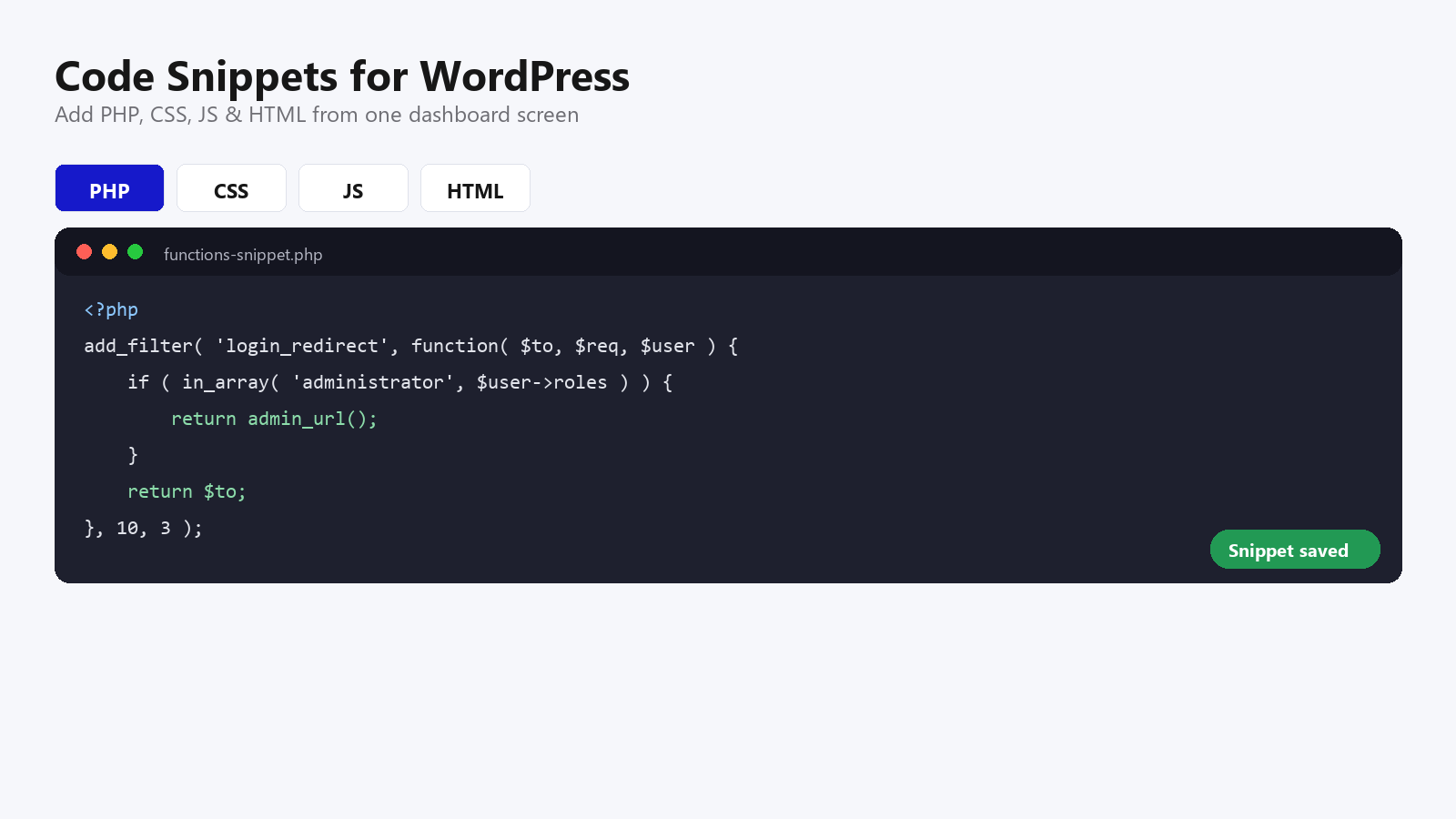
A dedicated snippets manager separates the code from the theme files entirely. Nexter Extension’s Code Snippets module stores each snippet as its own entry, independent of whatever theme is active, so a theme switch or update doesn’t touch it. It also supports four code types in one interface, PHP, CSS, JavaScript, and HTML, instead of forcing everything through functions.php regardless of what it actually is.
If you’re building on Elementor instead of a block theme, the same problem shows up differently, usually as custom CSS scattered across a dozen widgets instead of one file. The Plus Addons for Elementor’s guide to vibe-coding a WordPress site covers the equivalent workflow for keeping custom code organized without leaving the builder.
Adding Your First Snippet
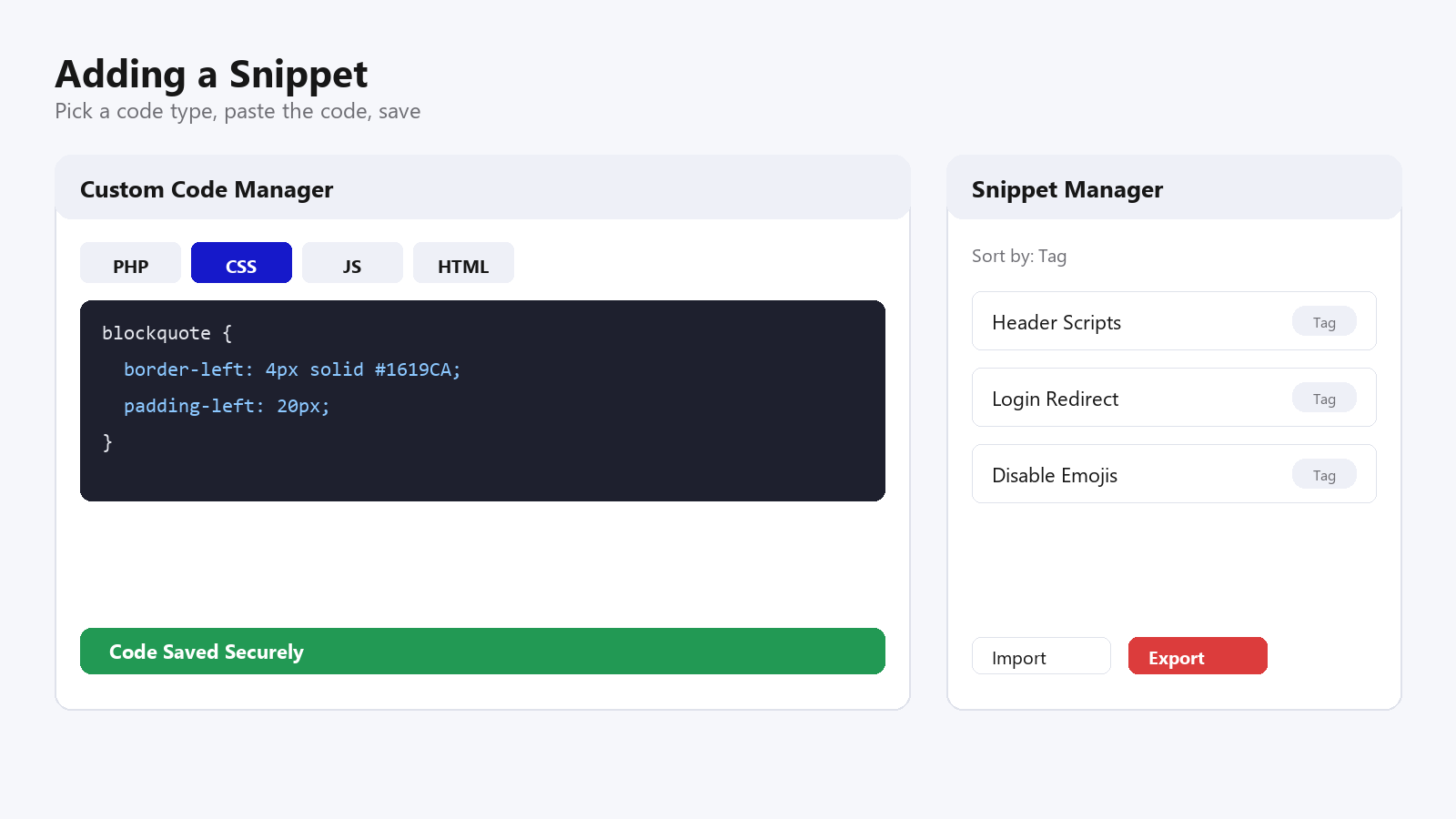
- Step 1: In WordPress admin, go to Nexter Extension > Code Snippets and click Add New.
- Step 2: Pick the code type: PHP for logic (custom functions, hooks, shortcodes), CSS for styling, JS for front-end behavior, or HTML for markup you want inserted as-is.
- Step 3: Paste your code into the editor panel. There’s no need to wrap PHP in opening tags the way you would in functions.php, the module handles that.
- Step 4: Name the snippet something you’ll recognize in six months, “Custom Excerpt Length” beats “Snippet 4”.
- Step 5: Save. The snippet is stored as its own entry, separate from your active theme.
Also Read: WordPress Staging Sites: How to Test Changes Safely before you push a new PHP snippet straight to a live site.
Controlling Where a Snippet Loads
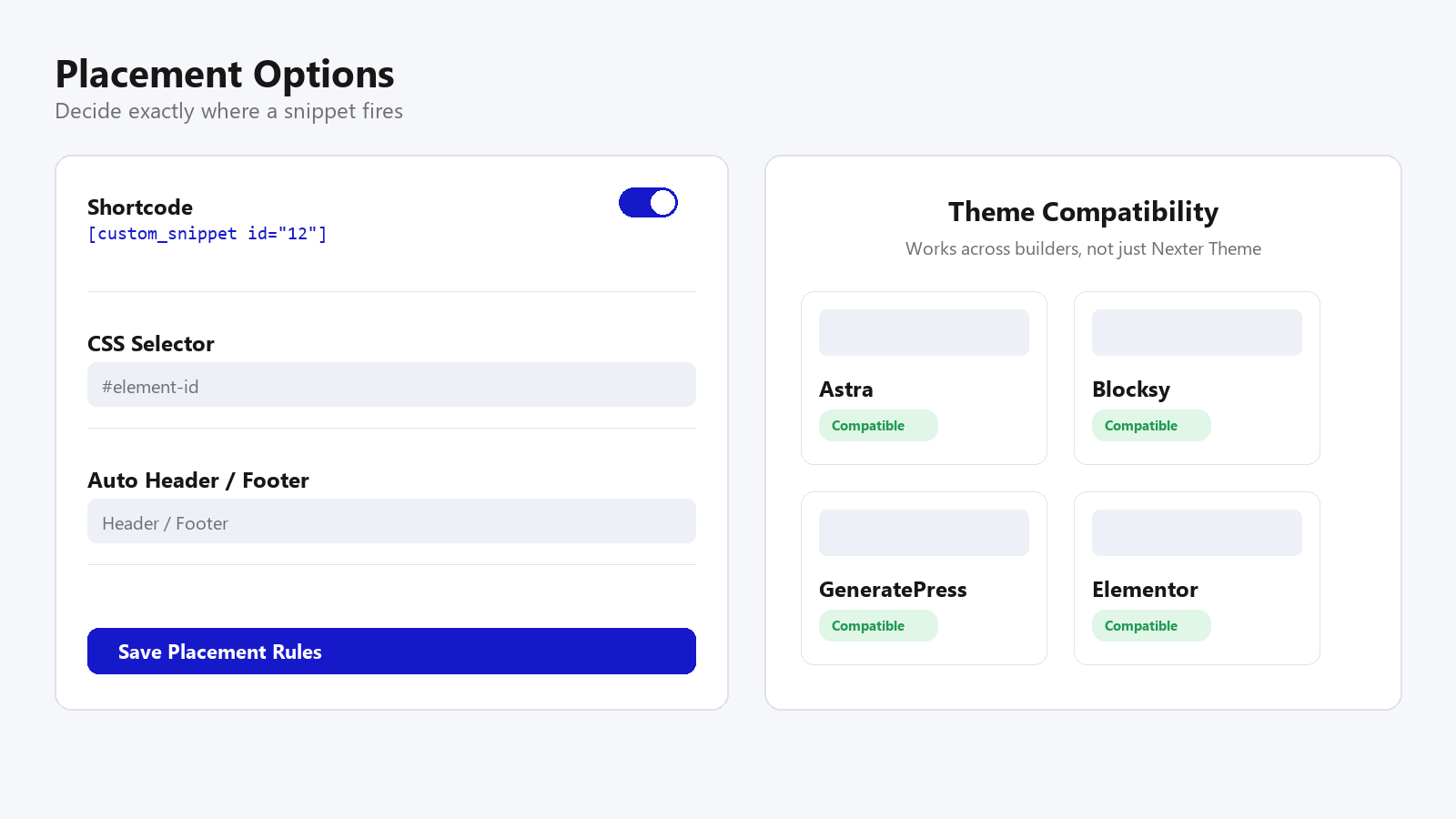
A snippet that only needs to run on the checkout page shouldn’t load on every archive and admin screen too. The module’s placement settings cover three ways to scope a snippet: a shortcode you drop into a specific page or post ([custom_snippet id='12']), a CSS selector so a style or script only applies where that selector exists, or an automatic header or footer placement for something that needs to run site-wide, like an analytics tag or a global style override.
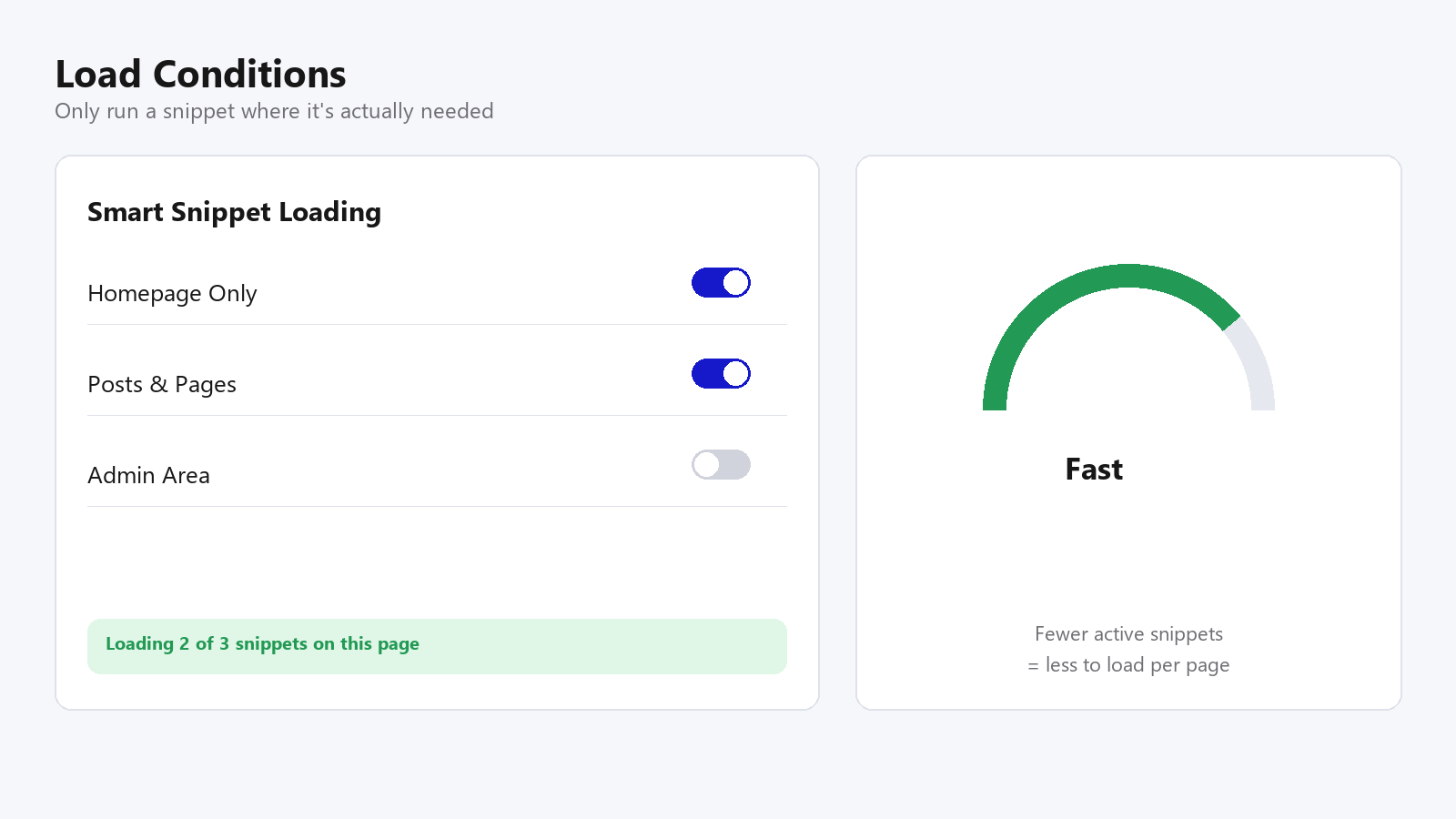
There’s a separate set of load conditions that go one level further than placement: restricting a snippet to the homepage only, to posts and pages generally, or excluding the admin area entirely. Combined with placement, this is what keeps a snippet from running somewhere it has no business running, a JS animation meant for one landing page has no reason to load on every post in the archive.
What Happens When a Snippet Breaks
This is the part a raw functions.php edit doesn’t give you. If a PHP snippet throws a fatal error, the module’s error handling detects it and prevents that specific snippet from taking the rest of the site down with it, rather than white-screening every page on the next request. That single guardrail is the real argument for using a snippets manager over a direct file edit: the failure mode changes from “the whole site is down” to “one snippet got disabled, go fix it.”
It’s still worth testing a new PHP snippet on staging before it touches a production site, error recovery limits the blast radius, it doesn’t make untested code safe to ship. Treat the safeguard as a seatbelt, not a reason to skip testing altogether.
Keeping Snippets Organized as the List Grows
Five snippets are easy to keep straight from memory. Twenty snippets across a year of client work are not, especially if someone else eventually has to maintain the site. The Snippet Manager view adds tags, notes, and sort options so a list that started simple doesn’t turn into an unlabeled pile six months later. Import and export options matter for a different reason: they let an agency build a standard snippet set once (disable emojis, adjust excerpt length, add a login redirect) and drop the same bundle into every new client site instead of retyping it from memory each time.
Also Read: Nexter Extension for Client Sites: A White-Label WordPress Setup Guide for the wider agency workflow this fits into.
Five Snippets Worth Keeping in Your Library
A few small, low-risk snippets cover most of what site owners actually ask for. None of these need a full plugin on their own:
- Disable emojis: removes the emoji detection script WordPress loads on every page by default, a small but free performance win.
- Custom excerpt length: overrides the default 55-word excerpt so archive pages show more (or less) preview text.
- Redirect after login by role: sends editors to the post list and administrators to the dashboard instead of dumping everyone on the same default screen.
- Disable comments site-wide: a one-snippet alternative to hunting through Settings and every post type individually.
- Hide the admin bar for non-admin roles: keeps client-facing logins from seeing developer-only tools.
A site-wide light/dark toggle is another common ask that fits this same pattern, a small CSS and JS snippet rather than a dedicated plugin. The Plus Addons for Elementor’s guide to adding a site-wide dark mode toggle walks through the identical approach for Elementor-built sites, code-first, no extra plugin.
Two Snippets Written Out, PHP and CSS
It helps to see what actually goes into the editor rather than just reading a list of what snippets can do. Here’s a PHP snippet that redirects editors and administrators to different admin screens after login, one of the five listed above, written out in full:
function nexter_role_based_login_redirect( $redirect_to, $request, $user ) {
    if ( isset( $user->roles ) && is_array( $user->roles ) ) {
        if ( in_array( 'administrator', $user->roles, true ) ) {
            return admin_url();
        }
        if ( in_array( 'editor', $user->roles, true ) ) {
            return admin_url( 'edit.php' );
        }
    }
    return $redirect_to;
}
add_filter( 'login_redirect', 'nexter_role_based_login_redirect', 10, 3 );
Set the code type to PHP, paste that in, save, and every future login respects the redirect without touching the theme’s actual files. A CSS snippet is simpler still, no function wrapper, no hook, just the rule itself. This one restyles every blockquote on the site to match a brand color, without editing the theme’s stylesheet directly:
blockquote {
    border-left: 4px solid #1619CA;
    padding-left: 20px;
    font-style: italic;
    color: #333333;
}
Set that one’s code type to CSS instead of PHP, and it applies as a stylesheet rule rather than executing as logic, the module keeps the two separate so a CSS rule never accidentally gets parsed as PHP or the other way around. Pair it with the CSS Selector placement field from the previous section to scope it to a single template instead of the whole site, if that’s all it needs to touch.
When a Dedicated Snippets Plugin Still Makes Sense
A built-in module isn’t the right call for every situation. If a site is already running a different page builder or theme framework and doesn’t have Nexter Extension installed, a standalone snippets plugin is the more sensible choice, there’s no reason to add an entire extension just for this one feature. Teams that manage snippet libraries across dozens of unrelated WordPress installs, with no other Nexter dependency, are usually better served by a plugin built specifically for that job and nothing else.
Where the built-in module wins is exactly the opposite case: a site already running Nexter Extension for other reasons (SEO settings, theme builder, performance tools), where adding one more standalone plugin just for code snippets means one more thing to update, one more settings screen, one more potential conflict. Plugin count adds up faster than most site owners realize, and every additional plugin is one more update to test, one more support surface if something breaks, and one more line item in a site audit six months from now.
The honest way to decide is to ask what else the site already needs. A site that’s only ever going to need snippets and nothing else from Nexter Extension probably doesn’t need the whole module installed for that alone. A site that’s already reaching for Nexter Extension’s SEO tools, theme builder options, or performance settings gets the snippets manager as part of what’s already there, at no extra cost in plugin count.
Conclusion
The actual risk in “just paste it into functions.php” was never the code itself, it was having no safety net when that code eventually breaks something. A dedicated snippets manager with load conditions, placement controls, and error handling turns a fragile habit into a repeatable, low-risk workflow, four code types, one place to manage them, and a guardrail for the day a snippet doesn’t behave.
Frequently Asked Questions
Do I need a child theme to add code snippets in WordPress?
No. Nexter Extension’s Code Snippets module stores each snippet as its own entry, separate from the active theme, so a theme update or switch doesn’t wipe it out the way a direct functions.php edit without a child theme would.
What happens if a code snippet has an error?
The module’s error handling detects the failure and prevents that specific snippet from taking the rest of the site down, rather than white-screening every page the way an unguarded PHP error in functions.php would.
Can I load a snippet only on specific pages?
Yes. Snippets can be scoped with a shortcode dropped into a specific page or post, a CSS selector, or restricted to the homepage, to posts and pages, or excluded from the admin area entirely.
Is the Code Snippets module free?
Yes, Code Snippets is part of the free Nexter Extension. It supports PHP, CSS, JS, and HTML snippet types without requiring an upgrade.
Will custom code snippets work with any theme?
Nexter Extension includes a Theme Compatibility mode built to keep snippets stable across different themes and page builders, rather than assuming only the Nexter Theme is in use.
Suggested Reading
- Nexter Extension for Client Sites: A White-Label WordPress Setup Guide
- WordPress Staging Sites: How to Test Changes Safely
- How to Vet a WordPress Plugin Before You Install It
- Nexter Abilities Explained: The WordPress Abilities API Inside Nexter Blocks
