












Google’s recommended events cover the common cases. They do not cover clicked the pricing toggle or opened the sizing guide, and those are often the things you most want to count.
A custom event lets you name it yourself.
For every Event Tracking setting in one place, see the event tracking guide.
Before You Start
- Edition: Pro — event tracking needs Nexter Blocks Pro.
- Block to enable: Event Tracking, switched on under Nexter > Blocks in your WordPress dashboard.
- A GA4 measurement ID and event tracking switched on in Nexter’s settings.
- A naming convention. Custom event names are yours forever; pick a pattern before you create the first one.
Steps
- On your block’s Advanced tab, turn on Google and set the event type to custom.
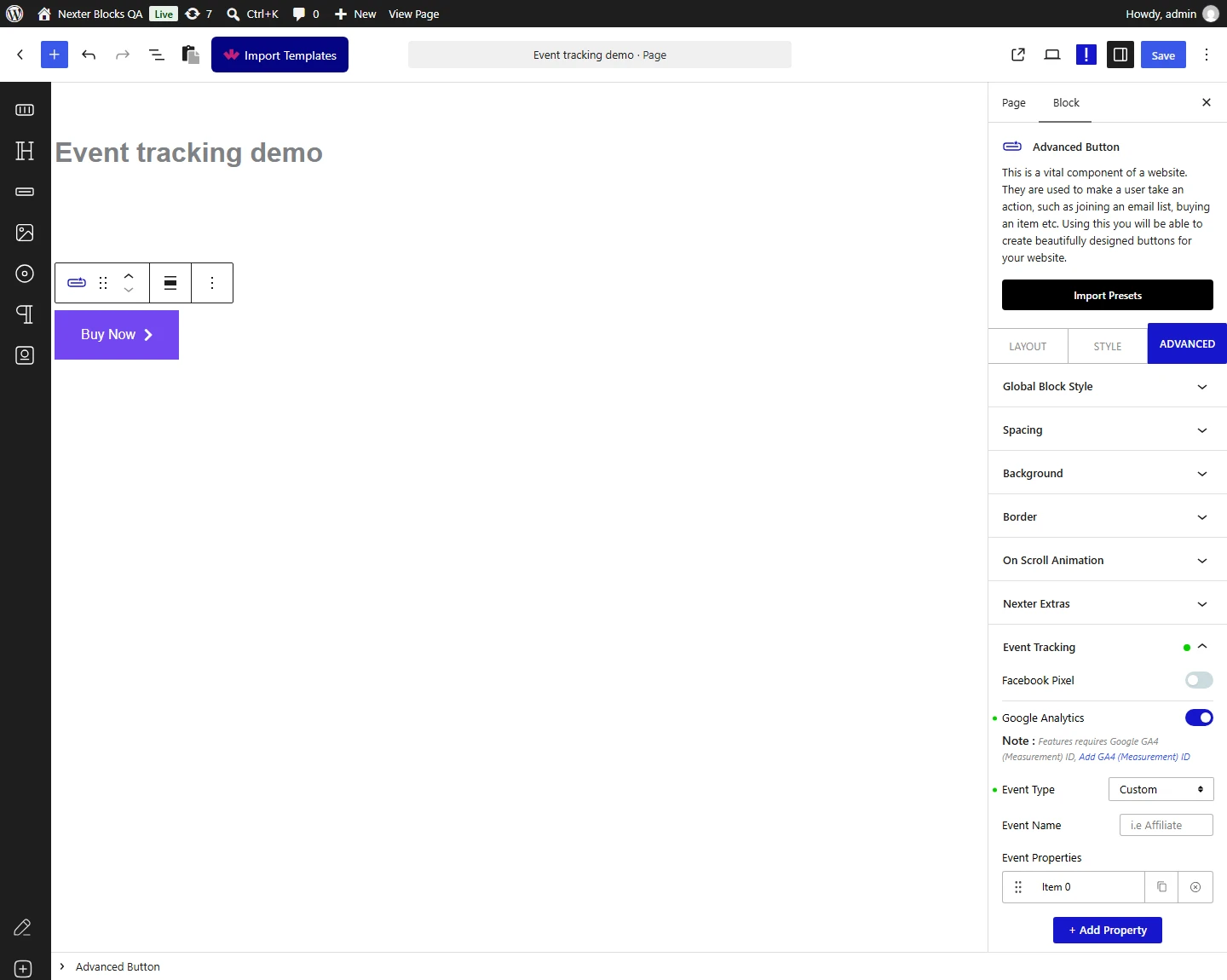
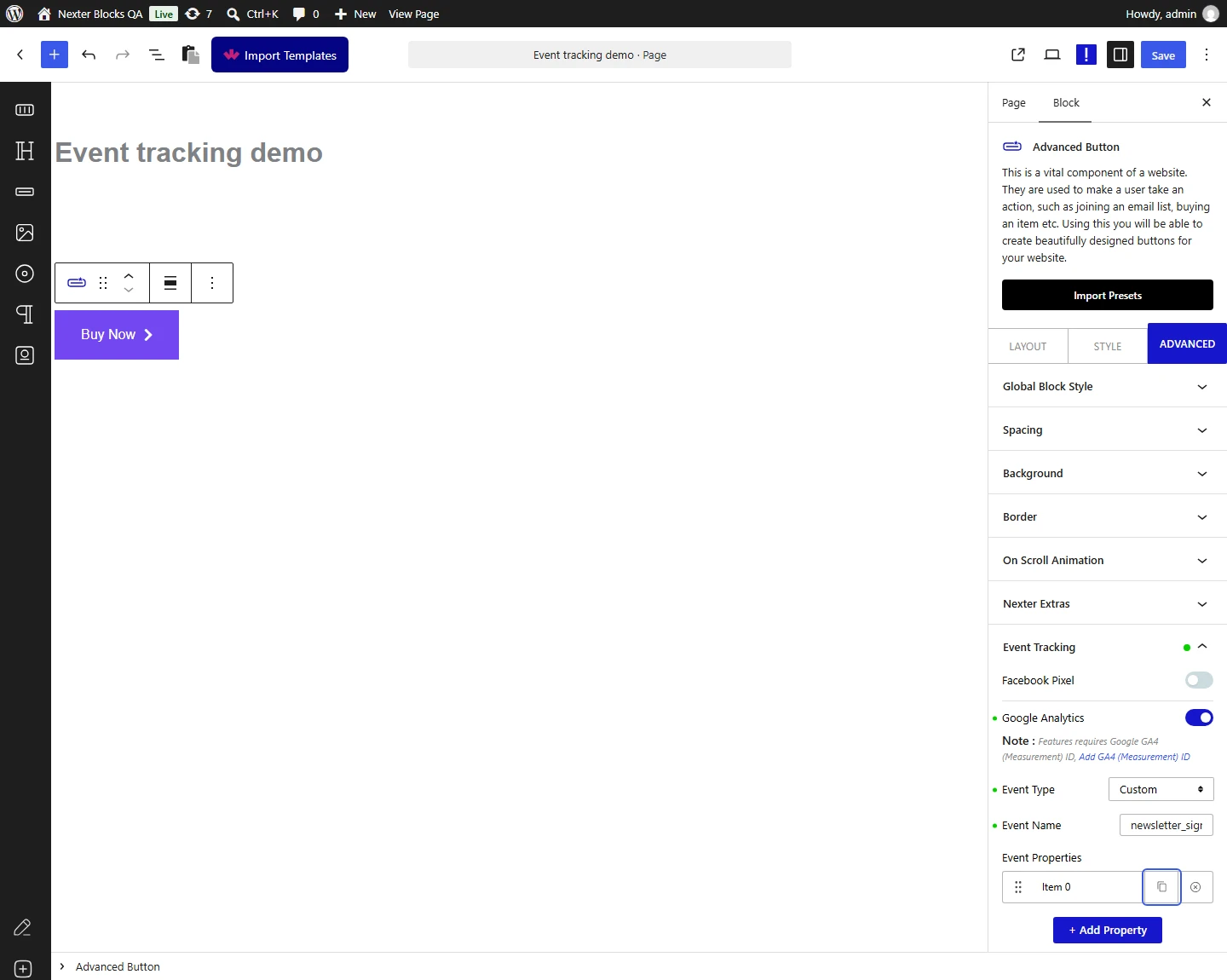
- Enter your event name and any properties, then publish and confirm in GA4’s realtime view.
How It Behaves
- Turn event tracking on in Nexter’s settings first. Measured: with the site-level setting unset, a block configured for both providers emitted nothing — no markup, no console message, no warning. With the setting enabled and nothing else changed, the same block immediately emitted its full tracking payload.
- Your name is sent verbatim. Read from the shipped script, a custom event results in
gtag('event', <your name>, <properties>)— the same call as a recommended event, with your name in place of Google’s. - Measured payload: the event type is recorded as
customand the name is carried separately, so the block keeps both. - Custom properties are merged into one object and sent with the event.
- A property with no name is dropped. Measured: three properties with one unnamed produced two in the payload.
- The whole configuration is written onto the block. Measured: the block gains a
tpgb-event-trackerwrapper and an inner element carrying adata-event-optattribute holding the providers, the event type and name, and any custom properties. You can confirm your setup reached the page by looking for that attribute. - Only certain things inside the block fire an event. Read from the shipped script, this is the complete list, all on click: any link, a video play button, and the submit button of Mailchimp, WPForms, Everest Forms or Contact Form 7. A block containing none of those is tracked in name only.
- Binding happens once, when the page loads. Blocks added to the page later by AJAX are not picked up.
- Measured with Nexter Blocks Pro deactivated: a fully configured block emits no tracking markup at all. Event tracking is Pro only and does not degrade.
Limitations
- What this page verified, and what it did not. The markup the block emits and the calls the script makes were measured. Whether an event arrives in your analytics account was not, and cannot be from the page source. Confirm arrival in the provider’s own tools.
- Custom events do not populate GA4’s built-in reports. They appear in realtime and in explorations, but the standard reports are built around Google’s own event names.
- GA4 limits how many distinct event names a property can have. Generating names dynamically will hit that ceiling; keep the set small and deliberate.
- A typo becomes a permanent second event. GA4 has no rename, so
hero_clickandhero_clikwill both sit in your property forever. - Only links and a few form submit buttons fire it.
- Pro only.
Troubleshooting
The event is not in realtime
Check the site-level event tracking setting first, then the console for gtag is not defined.
It is in realtime but not in my reports
That is expected for custom events. Use an exploration, or register the event as a conversion if it matters that much.
I have two events that should be one
A name was mistyped at some point. GA4 cannot merge them; fix the block and use the correct one going forward.
Can I send properties?
Yes, and they are sent with every Google event. Note that Meta events do not receive them.
