












Meta’s standard events are built around commerce. If what you want to count is downloaded the spec sheet or opened the booking widget, none of them fit.
A custom event lets you name it yourself and still use it as a conversion.
For every Event Tracking setting in one place, see the event tracking guide.
Before You Start
- Edition: Pro — event tracking needs Nexter Blocks Pro.
- Block to enable: Event Tracking, switched on under Nexter > Blocks in your WordPress dashboard.
- A Meta pixel ID and event tracking switched on in Nexter’s settings.
- A naming convention, since custom event names accumulate in Events Manager.
Steps
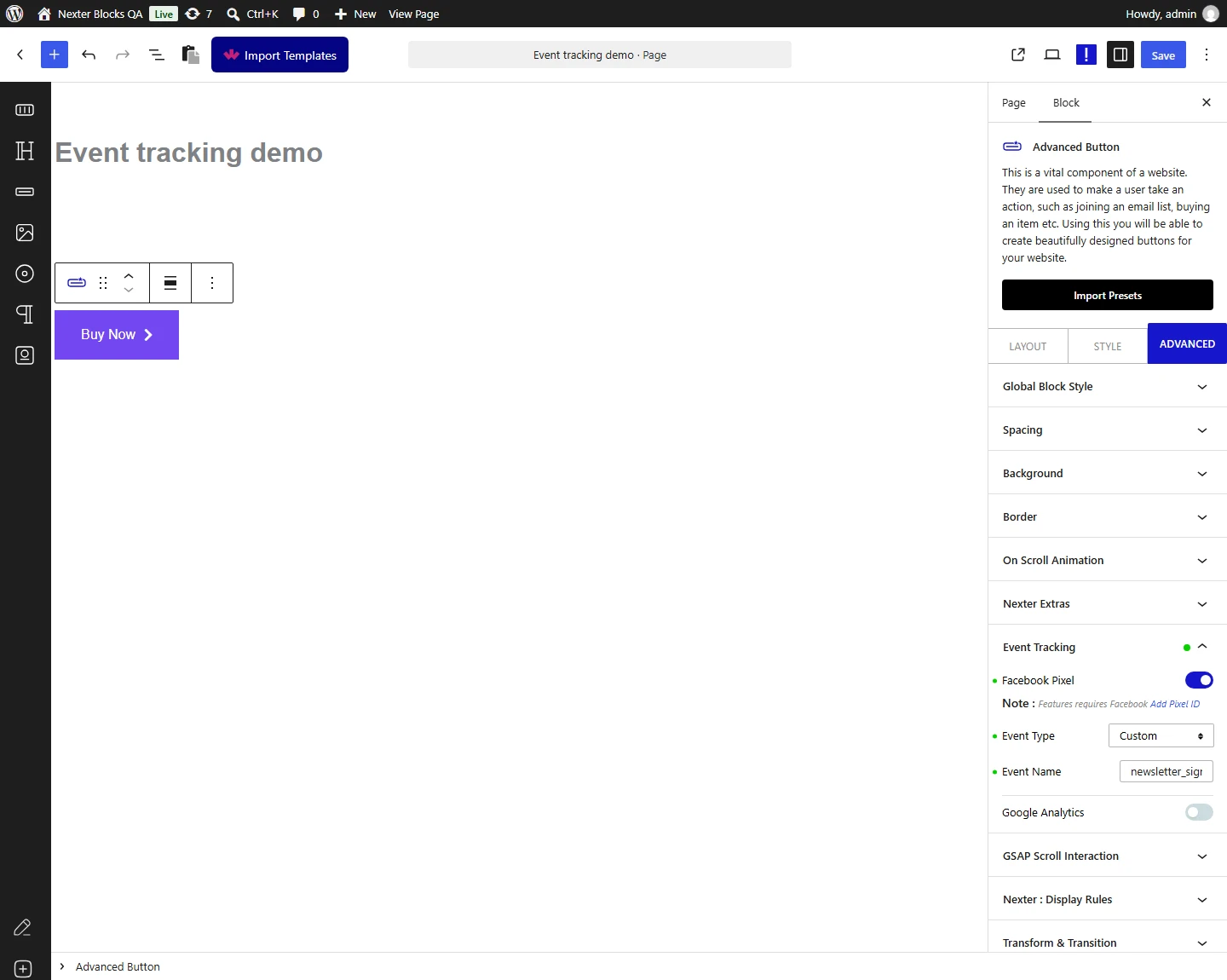
- On your block’s Advanced tab, turn on Facebook and set the event type to custom.
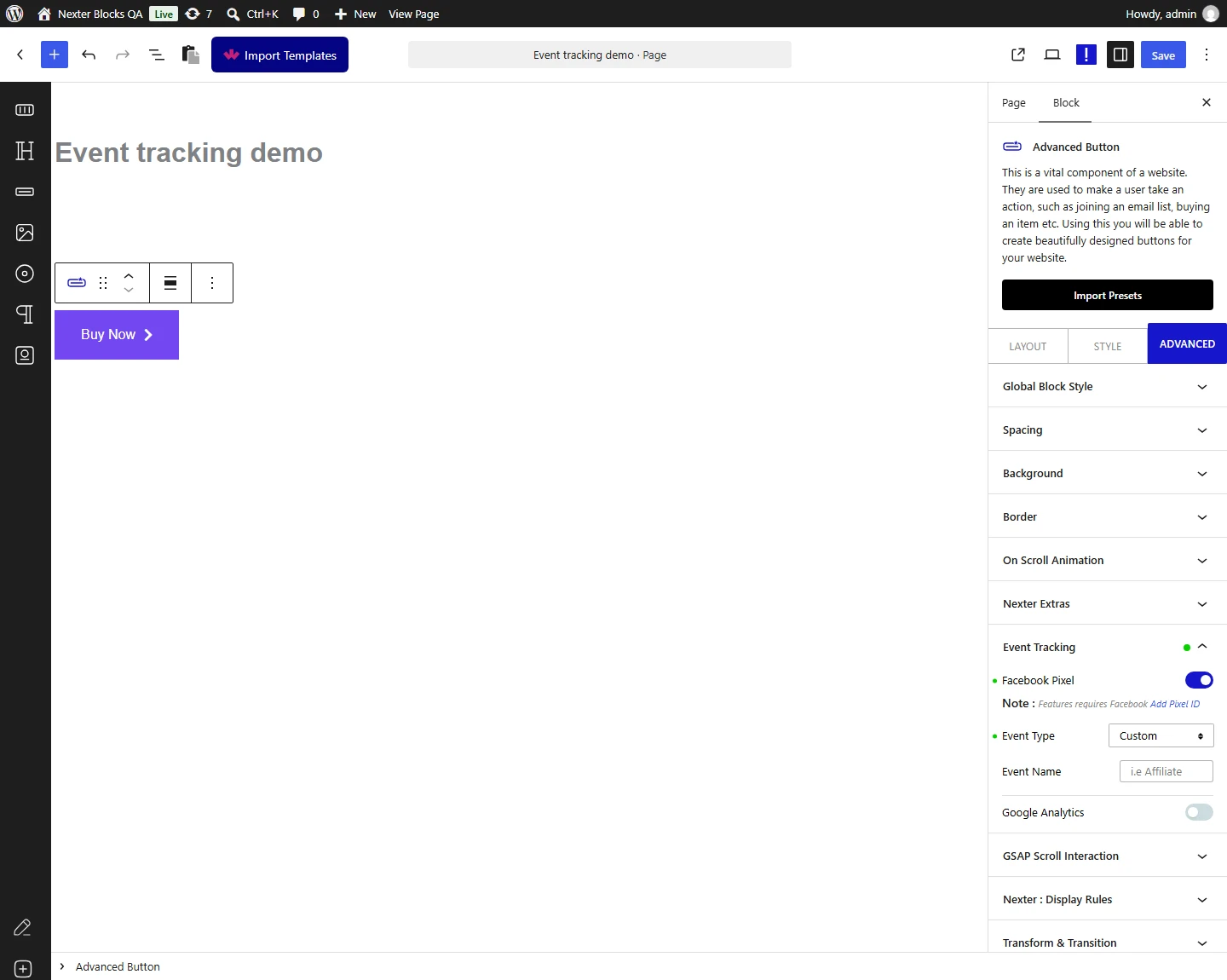
- Enter your event name.
- Publish and confirm with the Meta Pixel Helper.
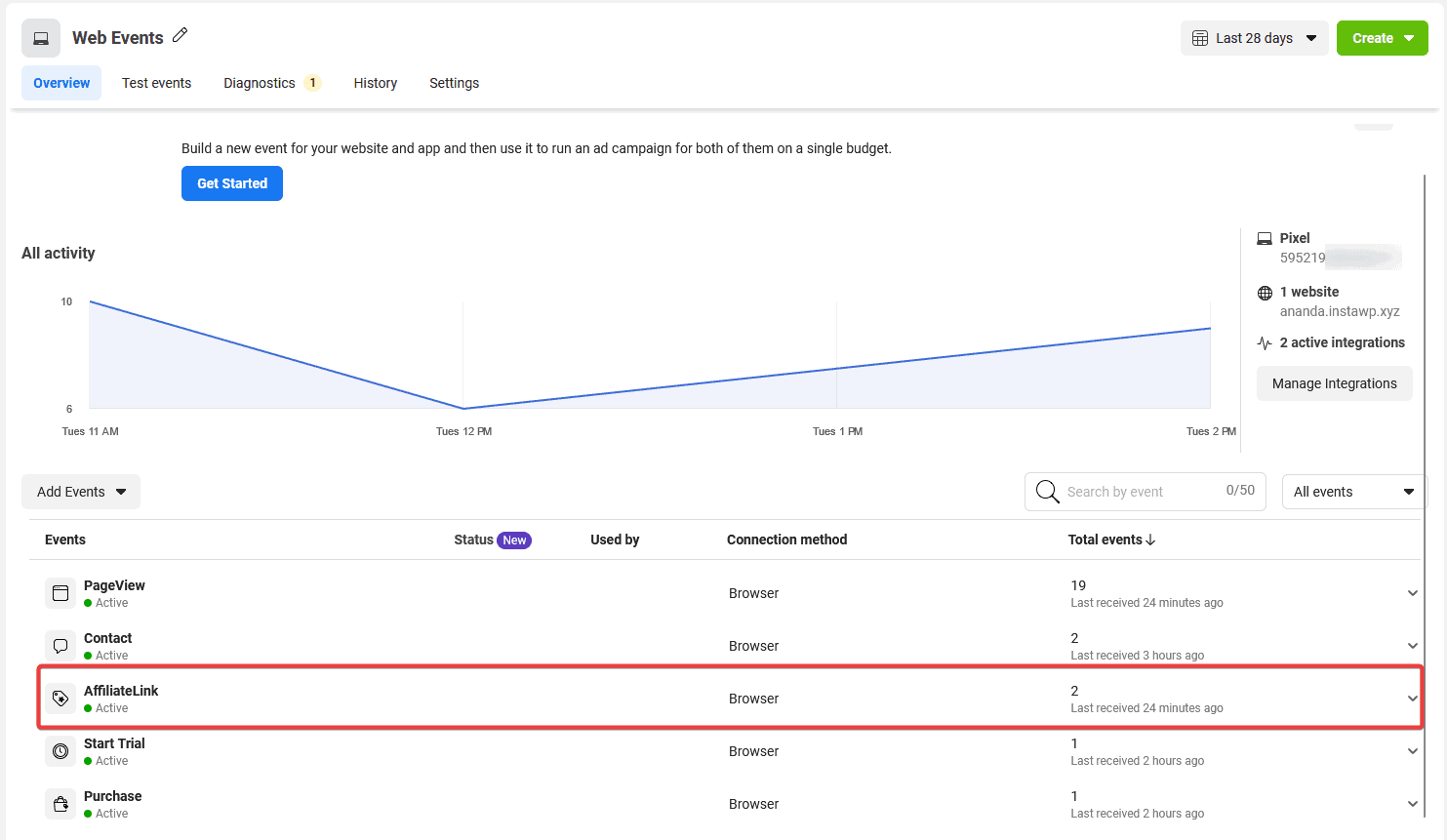
- Find it in Events Manager and use it as a conversion.
How It Behaves
- Turn event tracking on in Nexter’s settings first. Measured: with the site-level setting unset, a block configured for both providers emitted nothing — no markup, no console message, no warning. With the setting enabled and nothing else changed, the same block immediately emitted its full tracking payload.
- Custom events use a different pixel call. Read from the shipped script, a custom event results in
fbq('trackCustom', <your name>), where a standard event usesfbq('track', ...). - An empty name falls back to the literal string
Custom. Read from the script: if no name is entered, that is what Meta receives — so every unnamed event on your site collapses into one. Always enter a name. - Measured payload: the event type is recorded as
Customwith your name carried separately. - Custom properties reach Google only. Read from the script: properties are merged into an object and passed on every Google call, while the Facebook calls are made with the event name alone. If you need properties on a Meta event, this feature will not send them.
- The whole configuration is written onto the block. Measured: the block gains a
tpgb-event-trackerwrapper and an inner element carrying adata-event-optattribute holding the providers, the event type and name, and any custom properties. You can confirm your setup reached the page by looking for that attribute. - Only certain things inside the block fire an event. Read from the shipped script, this is the complete list, all on click: any link, a video play button, and the submit button of Mailchimp, WPForms, Everest Forms or Contact Form 7. A block containing none of those is tracked in name only.
- Binding happens once, when the page loads. Blocks added to the page later by AJAX are not picked up.
- Measured with Nexter Blocks Pro deactivated: a fully configured block emits no tracking markup at all. Event tracking is Pro only and does not degrade.
Limitations
- What this page verified, and what it did not. The markup the block emits and the calls the script makes were measured. Whether an event arrives in your analytics account was not, and cannot be from the page source. Confirm arrival in the provider’s own tools.
- No parameters are sent. The call is made with the name alone, so custom properties you set on the block reach Google but not Meta.
- Custom events take time to appear in Events Manager, and have to be seen at least once before they can be chosen as a conversion.
- They are not comparable with standard events in Meta’s own reporting and optimisation, which is built around the standard set.
- A typo becomes a separate event permanently.
- Pro only.
Troubleshooting
The event shows as Custom rather than my name
The name field was left empty, and the script falls back to the literal word Custom. Enter a name and republish.
Pixel Helper shows nothing
Check the site-level event tracking setting first, then the console for fbq is not defined.
It is not selectable as a conversion
Meta has to receive the event at least once before it appears. Trigger it yourself, then look again.
My properties are missing
Meta events are sent with the name only. Properties reach Google events, not Meta ones.
