












In order to meet the demands of today’s internet users, website owners need to prioritize their website’s overall performance, including optimizing their web vitals. Google’s recent announcement of their new Core Web Vitals ranking factors has made it clear that website performance is a key component in determining a website’s search engine ranking. Therefore, website owners need to ensure their website is optimized for the best web vitals.
When you are using Nexter blocks, they are optimized out of the box for the best performance, but you can still perform some steps to make sure you get the best performance out of your website.
For this, go to Nexter > Nexter Blocks > Settings.
If you are not using Google Maps on your website, you should disable the Connect Google Maps API Key toggle.
In case you are not using Google Fonts and Font Awesome on your site, you should keep them disabled or disable the one you are not using.
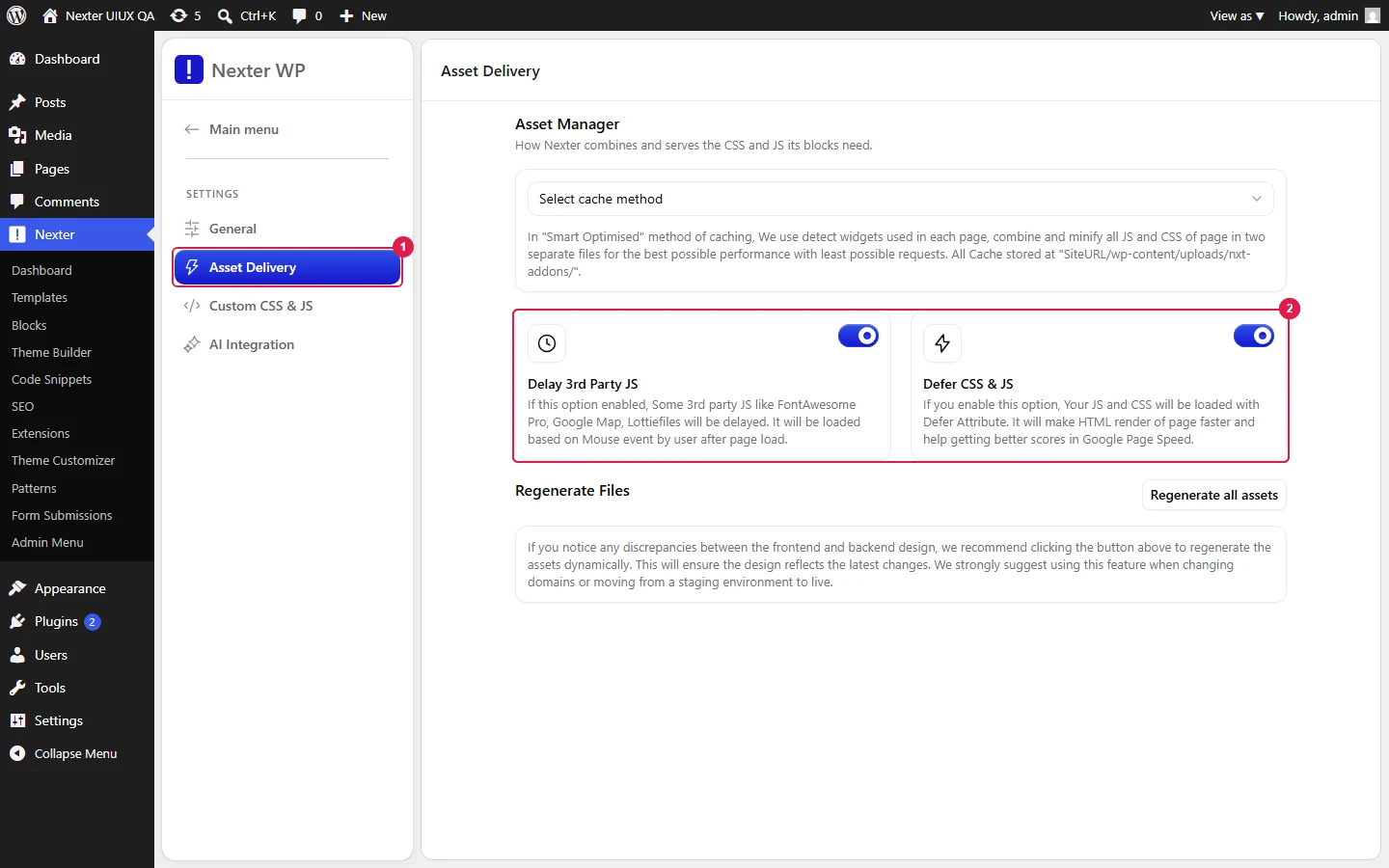
Then go to Nexter > Nexter Blocks > Settings > Asset Delivery.
Make sure Delay 3rd Party JS and Defer CSS & JS options are enabled.
It is already set for best performance, you can learn more about settings from here. Make sure Delay Extra JS and Defer CSS & JS options are enabled.
This is how you can get the best performance from your website using Nexter Blocks.
