












Pasting a YouTube link into a page hands the visitor YouTube’s branding, its suggested videos and its cookies, all before they press play.
The Video block embeds the same video and lets you turn each of those off.
For every Video setting in one place, see the Video block guide.
Before You Start
- Edition: Free — the Video block is in the free Nexter Blocks plugin.
- Block to enable: Video, switched on under Nexter > Blocks in your WordPress dashboard.
- The video id — the part of the YouTube URL after
v=, not the whole address.

Steps
- Add the Video block to your page and click Design from Scratch.
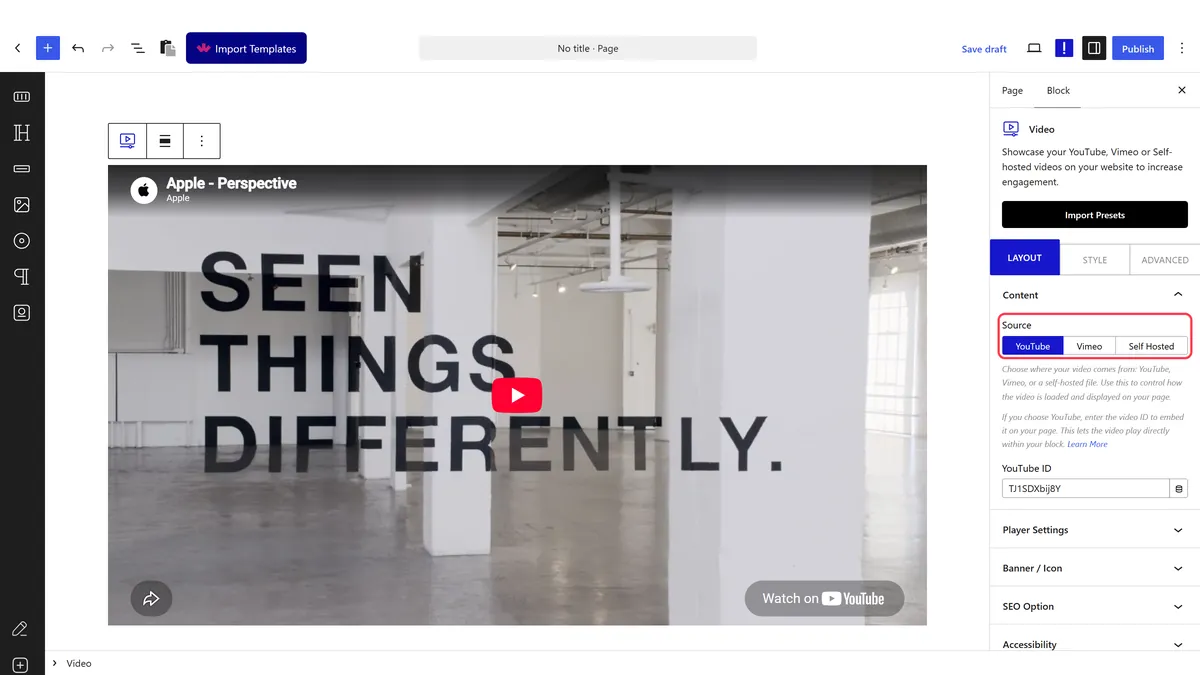
- Set Source to YouTube.
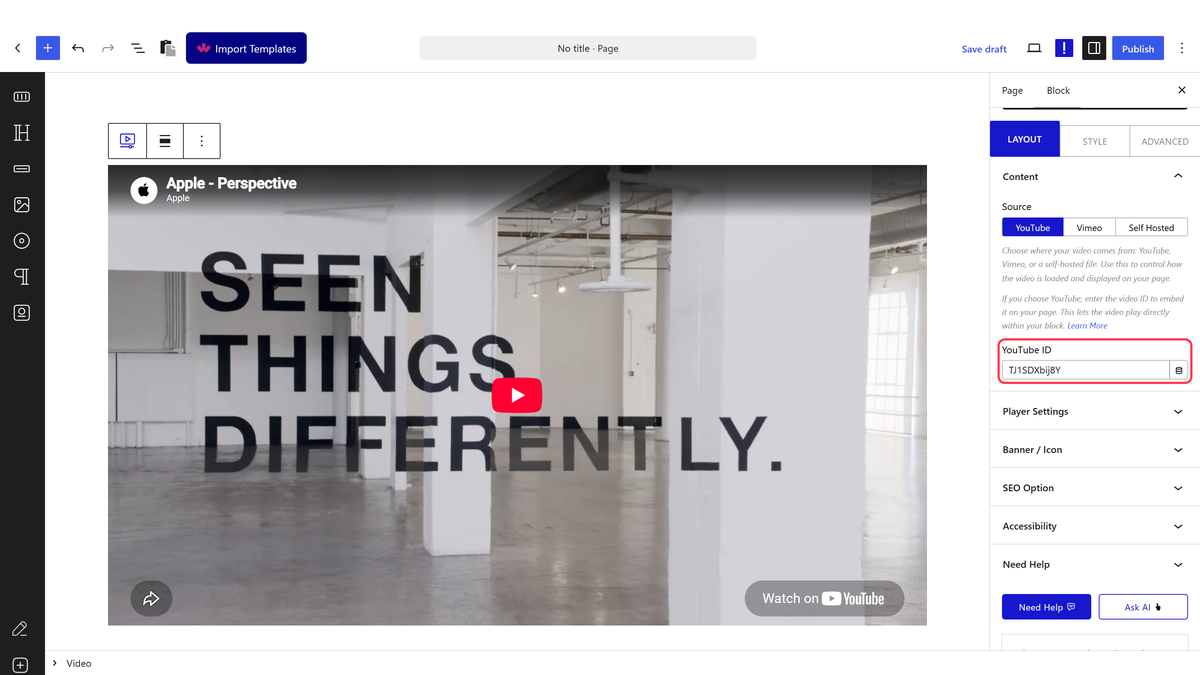
- Paste the id into YouTube ID.
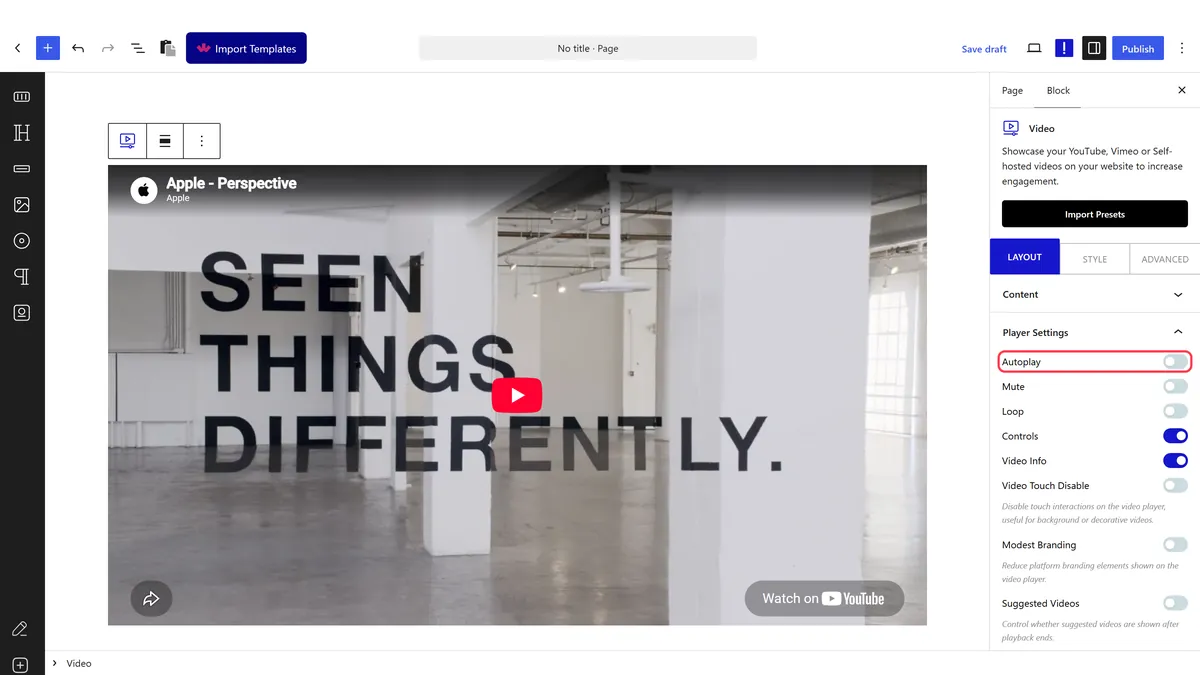
- In Player Settings, switch Suggested Videos off so the end screen does not advertise other channels, and Modest Branding on.
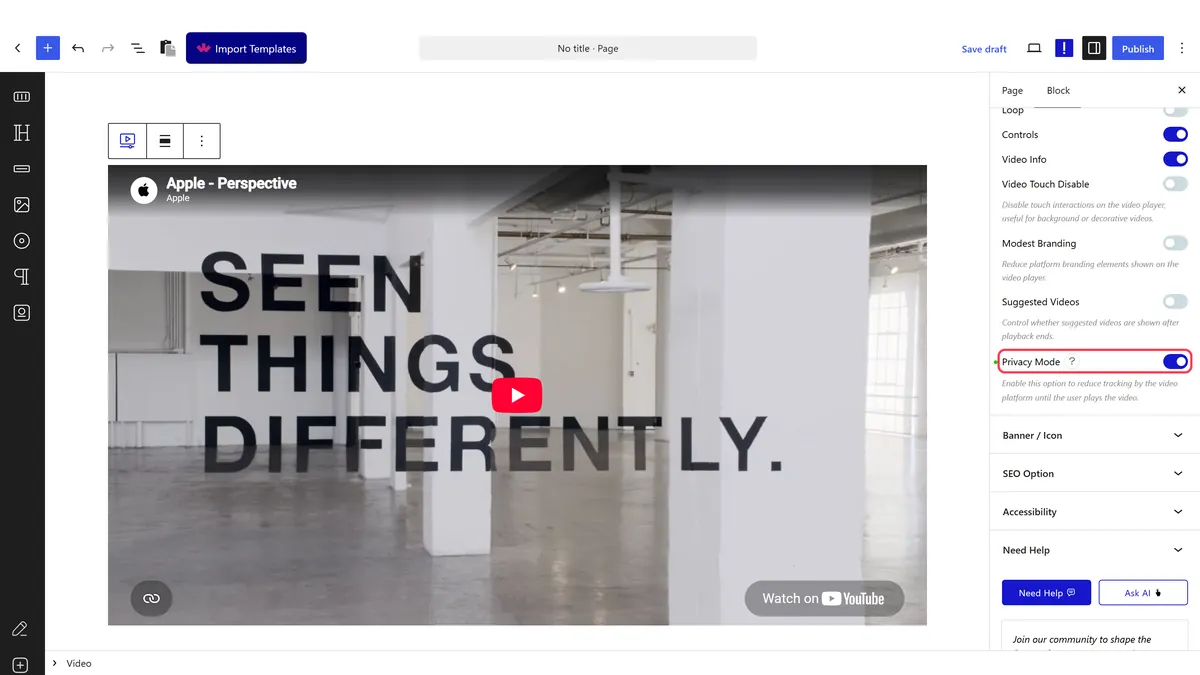
- Switch Privacy Mode on.
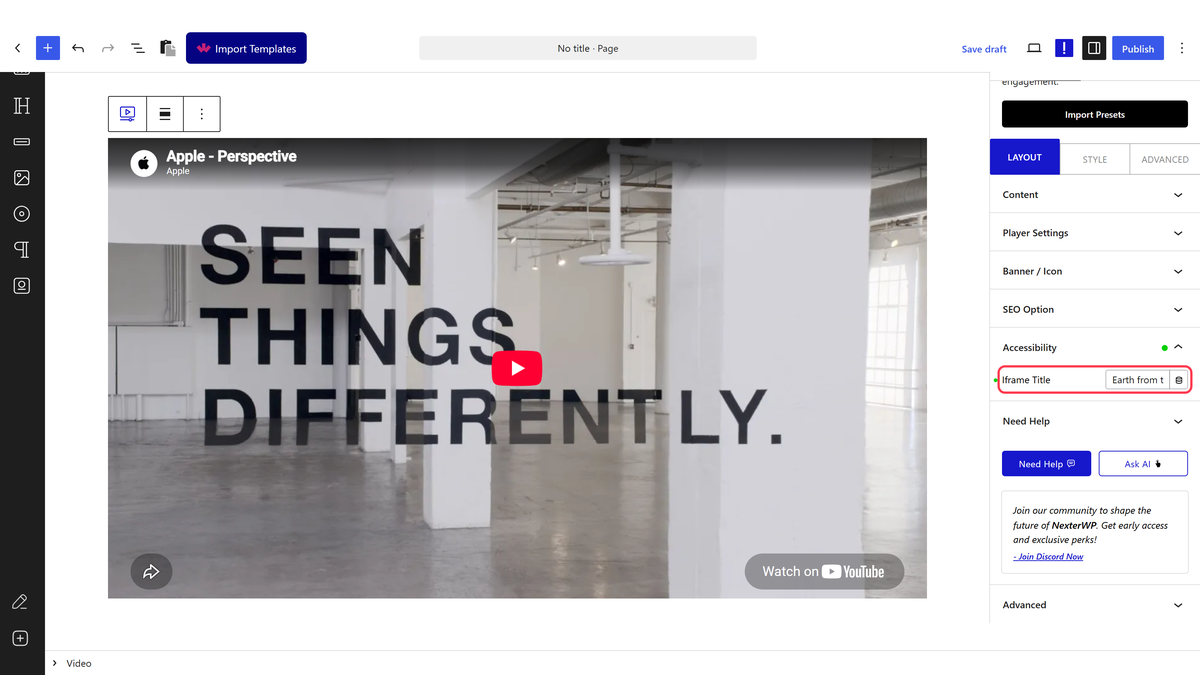
- Write an Iframe Title in the Accessibility panel.
Privacy Mode switches the embed to youtube-nocookie.com — measured on the rendered page. It stops YouTube setting tracking cookies before anyone presses play, which is the single most useful toggle here for anyone with a cookie notice.
How It Behaves
- Every toggle lands in the embed URL. Measured: Controls and Video Info off with Modest Branding and Suggested Videos on gave
controls=0&showinfo=0&modestbranding=1&rel=1. - Privacy Mode changes the host to
youtube-nocookie.com— confirmed on the rendered page. - Autoplay adds
autoplay=1and anallow="autoplay"permission on the iframe. Browsers still require the video to be muted. - Custom Layout replaces the embed with your own thumbnail and loads nothing from YouTube until the visitor clicks — measured, with no iframe on the page at all until then.
Limitations
- It takes the id, not the URL. Pasting a whole address leaves the player blank.
- Privacy Mode reduces cookies but the video is still served by YouTube, so it remains a third-party request to declare.
- Suggested Videos off is not absolute. YouTube now shows videos from the same channel instead of hiding suggestions entirely.
- One video per block. For a row of videos, use several blocks or a carousel.
Troubleshooting
The player is blank
You have pasted the whole URL. Use only the id from after v=.
Autoplay does nothing
Switch Mute on too — browsers block autoplay with sound.
I still see cookies from YouTube before anyone plays the video
Switch Privacy Mode on, and for nothing at all until a click, switch on Custom Layout so the thumbnail loads instead of the player.
