












Clicking a table of contents link normally teleports the reader, and they lose their bearings.
Smooth scrolling animates the trip instead, so the reader sees how far they have moved and where they have landed.
For every Table of Contents setting in one place, see the Table of Contents block guide.
Before You Start
- Edition: Pro — the Table of Contents block is part of Nexter Blocks Pro.
- Block to enable: Table of Contents, switched on under Nexter > Blocks in your WordPress dashboard.
- Real headings on the page: the list is built from your H1–H6 blocks, so text that only looks like a heading will not appear.
Steps
- Add the Table of Contents block to your post or page and click Design from Scratch.
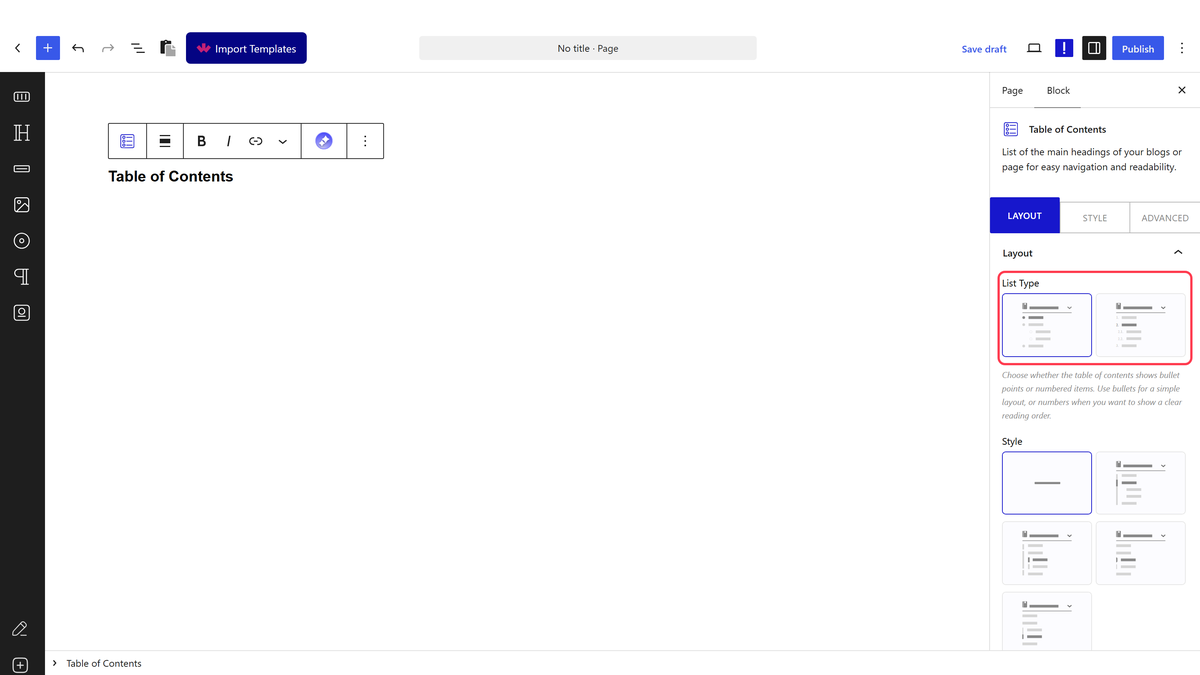
- In the Layout panel, pick a List Type — UL for bullets or OL for numbers — and a Style.
- In the Layout panel, switch Smooth Scroll on.
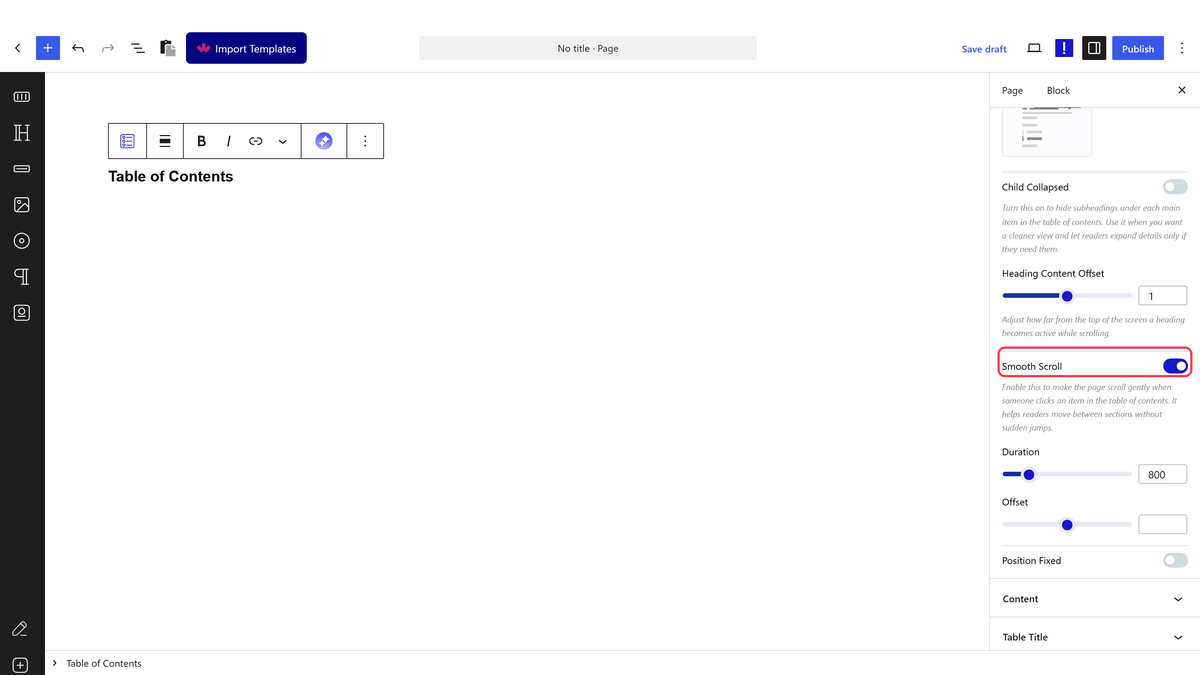
- Set Duration — how long the trip takes, in milliseconds. The default 420 is a good starting point.
- Leave Offset at 0.
- Publish, then click a link and watch it travel.
Leave Offset at 0. Any other value sends the page to the wrong place — see below.
How It Behaves
- The travel is real, not instant. Measured 300 milliseconds after a click, a page with smooth scrolling on was part-way there and still moving; with it off the same click was already finished.
- Duration is the length of that journey. A longer value is gentler but makes readers wait; much above a second starts to feel slow.
- It applies to clicks on the table of contents links, not to the browser’s own scrolling.
- Heading Content Offset, further up the same panel, is unrelated — it decides how near the top of the screen a heading has to be before the list marks it as the section you are reading.
Limitations
- Pro only.
- Offset is broken. With Smooth Scroll on and Offset set to 150, the page animated almost to the heading and then jumped back, leaving the heading nearly 500 pixels down the screen; Offset 400 ended in exactly the same wrong place, so the number is not being honoured. Clicking the first link with an offset set left the page at the top, having not moved at all. With Smooth Scroll off, Offset does nothing at all. Leave it at 0.
- Readers who have asked their system to reduce motion will still see the animation.
- A very long duration on a long page can feel like the click did not work.
- One per page. With two Table of Contents blocks on the same page only the first one is filled in — the second stays empty. This was measured on the front end.
Troubleshooting
The page still jumps instantly
Smooth Scroll is off, or Duration is very small. Switch it on and try 420.
It lands in the wrong place
Offset has a value in it. Set it back to 0 — with it clear, clicks land with the heading at the top of the screen.
The wrong item is highlighted as I scroll
That is Heading Content Offset, not this setting. Raise it so a heading counts as current sooner.
Nothing happens when I click
If the list itself is empty, the problem is the Content Selector rather than the scrolling — see the block guide.
