












When everything on a page moves at exactly the same speed, the page feels flat.
Parallax moves an image at a slightly different rate from the text beside it, which reads as depth.
For every Advanced Image setting in one place, see the Advanced Image block guide.
Before You Start
- Edition: Pro — the block itself is free, but Scroll Parallax only renders with Nexter Blocks Pro. On the free plugin the toggle is there and switching it on changes nothing on the page.
- Block to enable: Advanced Image, switched on under Nexter > Blocks in your WordPress dashboard.
- Your image in the Media Library, at a size large enough for where it will sit.
Steps
- Add the Advanced Image block to your page and click Design from Scratch.
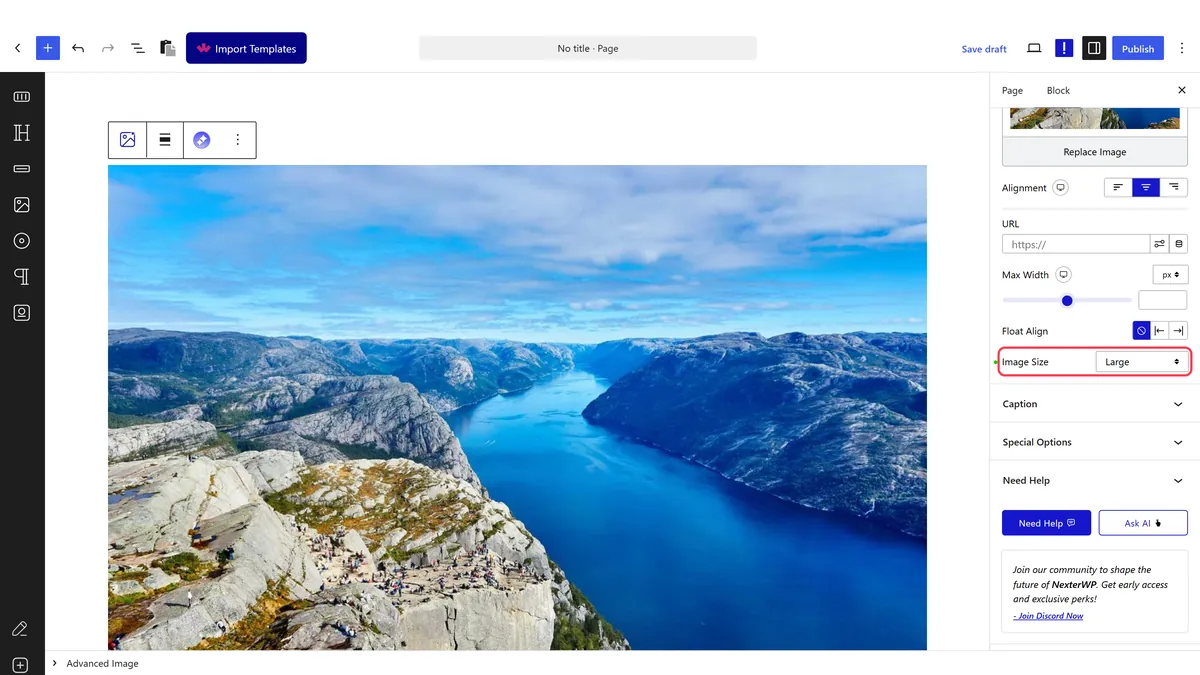
- In the Content panel, upload or choose your image, then set Image Size and Alignment.
- Open Special Options and switch on Scroll Parallax.
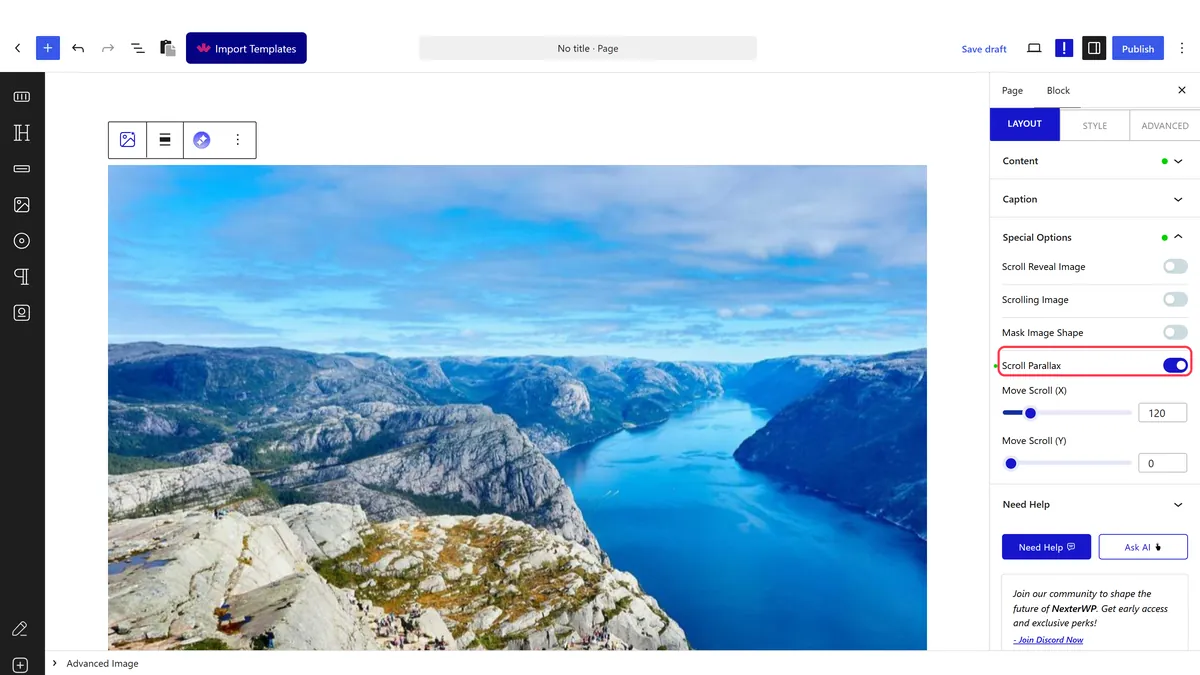
- Set Move Scroll (X) for sideways drift and Move Scroll (Y) for vertical. The defaults are 120 and 0.
- Publish and scroll the image through the screen.
The default drift is sideways, not up and down. Move Scroll (X) starts at 120 and Move Scroll (Y) at 0, so out of the box the image slides horizontally. For the vertical parallax most people picture, set X to 0 and give Y a value.
How It Behaves
- The image starts offset and eases back to its resting place as it crosses the screen. Measured with the defaults: while the image was still below the fold it sat at 120 pixels off to the side, then moved to 116, 84 and 52 as the page scrolled.
- Both axes work the same way. With X at 0 and Y at 200, the vertical offset eased from 200 to 193, 140 and 86 over the same scroll.
- Nothing moves until the image is near the screen. The drift is tied to its position in the viewport, not to the page’s total scroll.
- A bigger number means a more obvious drift. Values in the low hundreds are enough; large ones leave the image visibly out of place while the reader approaches it.
Limitations
- Pro only. On the free plugin the toggle does nothing — no parallax markup is added.
- The page must be long enough to scroll. Test on a page long enough to actually scroll. On a short page there is no scrolling for the effect to respond to, and a working setting looks broken. This is the single most common reason parallax looks broken.
- The image is offset before the reader reaches it, so a large value can push it out of its column or leave a visible gap.
- Readers who have asked their system to reduce motion still see the movement.
- Movement on every scroll costs a little performance. A handful of parallax images on one page is plenty.
Troubleshooting
Nothing moves
Check the page actually scrolls — on a short page there is no scrolling for the effect to follow. Then check you are on Pro, and that Move Scroll (X) and (Y) are not both 0.
It moves sideways and I wanted it to move up and down
That is the default. Set Move Scroll (X) to 0 and give Move Scroll (Y) a value instead.
The image sits off to one side before I scroll to it
That is the starting offset, and it is the value you set. Use a smaller number.
It jumps rather than drifting
The value is large relative to how far the image travels through the screen. Reduce it.
