












A word beside the pointer tells visitors what a click will do before they make it.
The Follow Text type trails a short label — View, Drag, Explore — and can change it over links.
For every Mouse Cursor setting in one place, see the Mouse Cursor block guide.
Before You Start
- Edition: Pro — the Mouse Cursor block is part of Nexter Blocks Pro.
- Block to enable: Mouse Cursor, switched on under Nexter > Blocks in your WordPress dashboard.
- A short label in mind. One or two words; anything longer trails awkwardly.
Steps
- Add the Mouse Cursor block and click Design from Scratch.
- Set Cursor Area to Body.
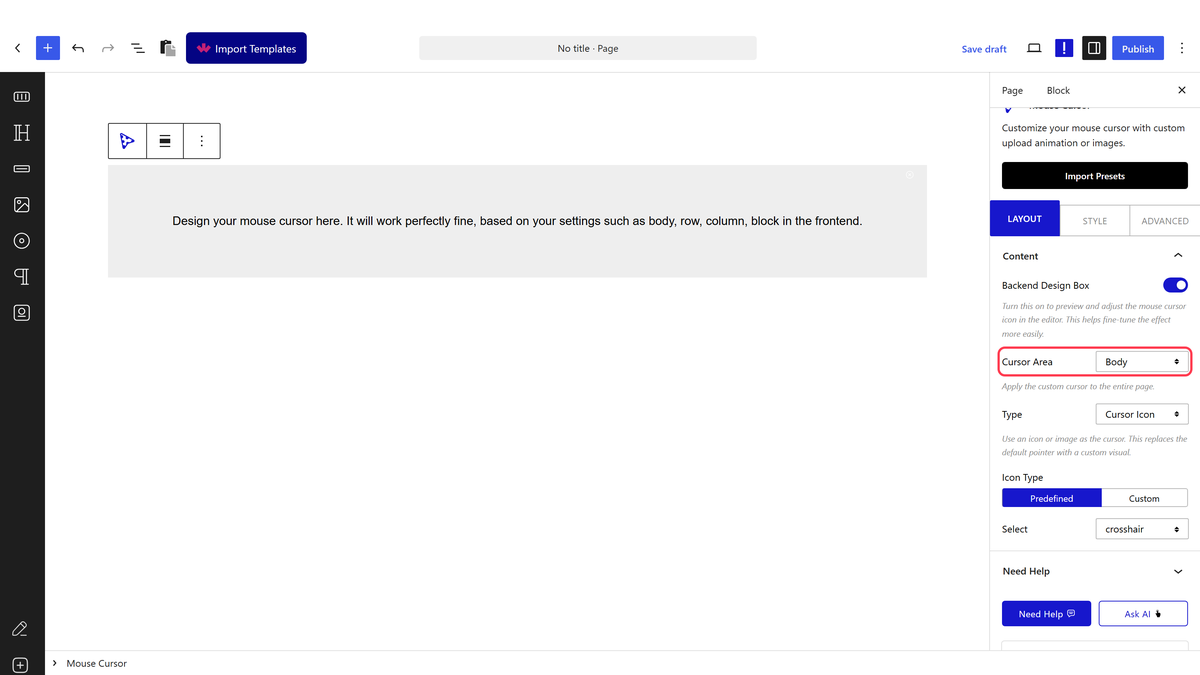
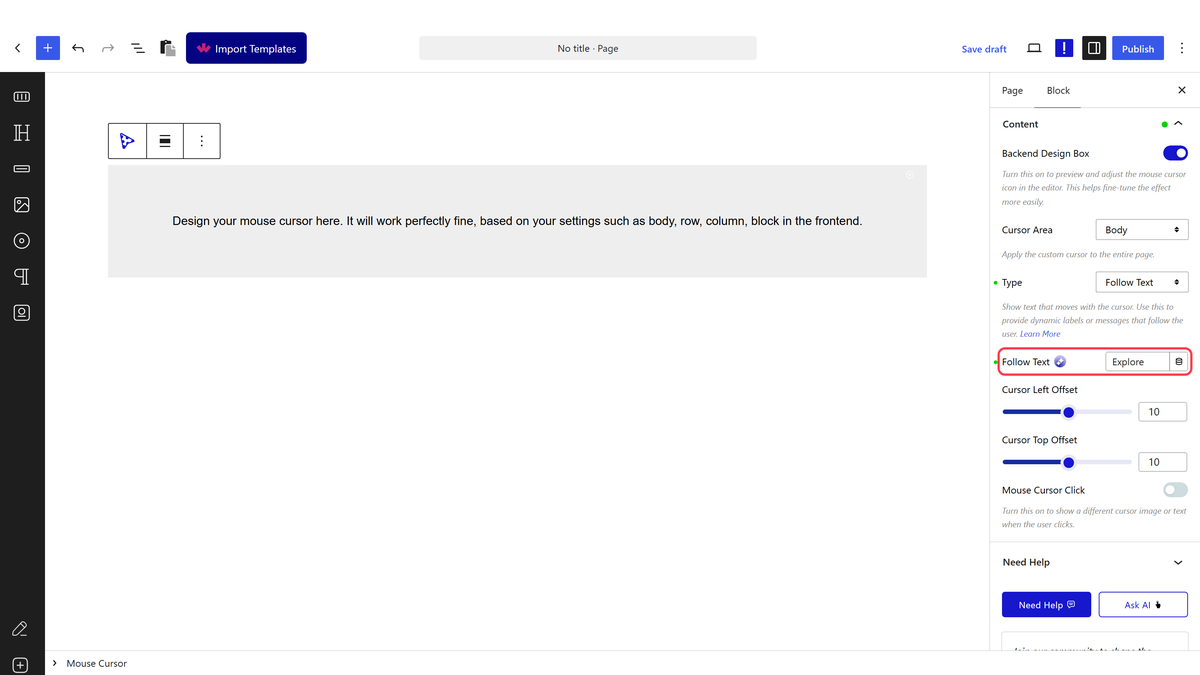
- Set Type to Follow Text and type your label into Follow Text.
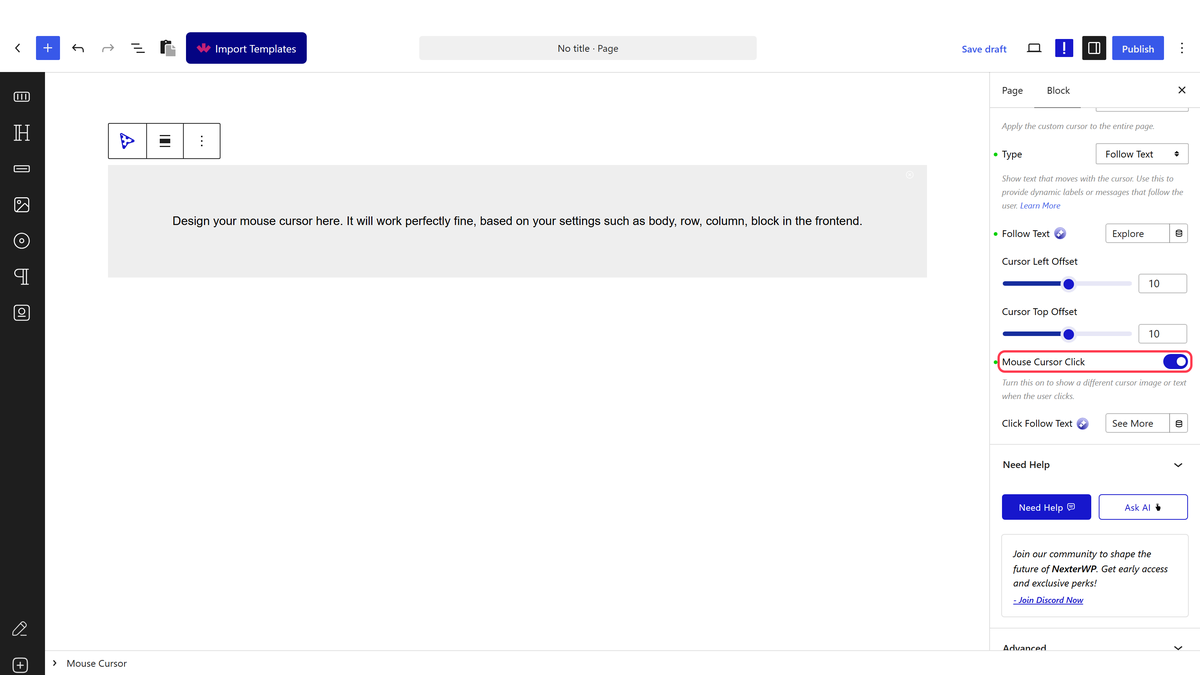
- Switch on Mouse Cursor Click and set Click Follow Text if you want a different word over links.
- Style it in the Follow Text panel on the Style tab.
- Publish and move the mouse over ordinary text and then over a link.
A custom cursor shows while the pointer is over your content and the ordinary pointer returns over empty page background — measured on the front end. That is normal, not a fault.
How It Behaves
- It follows and it changes on links. Measured: the label read Explore over ordinary content and became See More while hovering a link, then changed back.
- List of Tags for Hover Effect decides what counts as a link. It starts as
aand takes a comma-separated list. - The label has its own typography, colour, background, border and shadow on the Style tab.
- It is real text on the page, so it can be long — which is exactly why it should not be.
Limitations
- Pro only.
- Long labels trail behind the pointer and cover the content. One or two words is the practical limit.
- The label follows the pointer, so it can sit over the very thing the visitor is reading.
- The word is fixed for the whole area — it cannot change per block without a second Mouse Cursor block.
- Touch screens have no cursor, so phone and tablet visitors see none of this.
Troubleshooting
No text appears
Check the Follow Text field is not empty, and that the pointer is over your content rather than the blank page background.
The text does not change over links
Mouse Cursor Click is off, or List of Tags for Hover Effect does not include the tag you are hovering.
It is hard to read against my page
Give it a background colour and padding in the Follow Text panel on the Style tab.
