








Skip to content

How to Add a Follow Image Cursor in WordPress?

Key Takeaways

  • Mouse Cursor block en Nexter Blocks Pro activa el tipo Follow Image, que toma cualquier imagen de la biblioteca y la hace seguir al mouse.
  • Cursor Left Offset y Cursor Top Offset empiezan en 10, y Icon Max Width controla el ancho para que la imagen no tape lo que hay debajo.
  • La imagen conserva su relación de aspecto, usa el alt o title propio del archivo como alt text, y no aparece en pantallas táctiles porque no hay cursor.
Table of Contents

A picture that trails the pointer is the kind of detail people screenshot.

The Follow Image type takes any image from your library and has it chase the mouse.

For every Mouse Cursor setting in one place, see the Mouse Cursor block guide.

Before You Start

  • Edition: Pro — the Mouse Cursor block is part of Nexter Blocks Pro.
  • Block to enable: Mouse Cursor, switched on under Nexter > Blocks in your WordPress dashboard.
  • A small image — a logo, an icon or a cut-out, ideally with a transparent background.

Steps

  1. Add the Mouse Cursor block and click Design from Scratch.
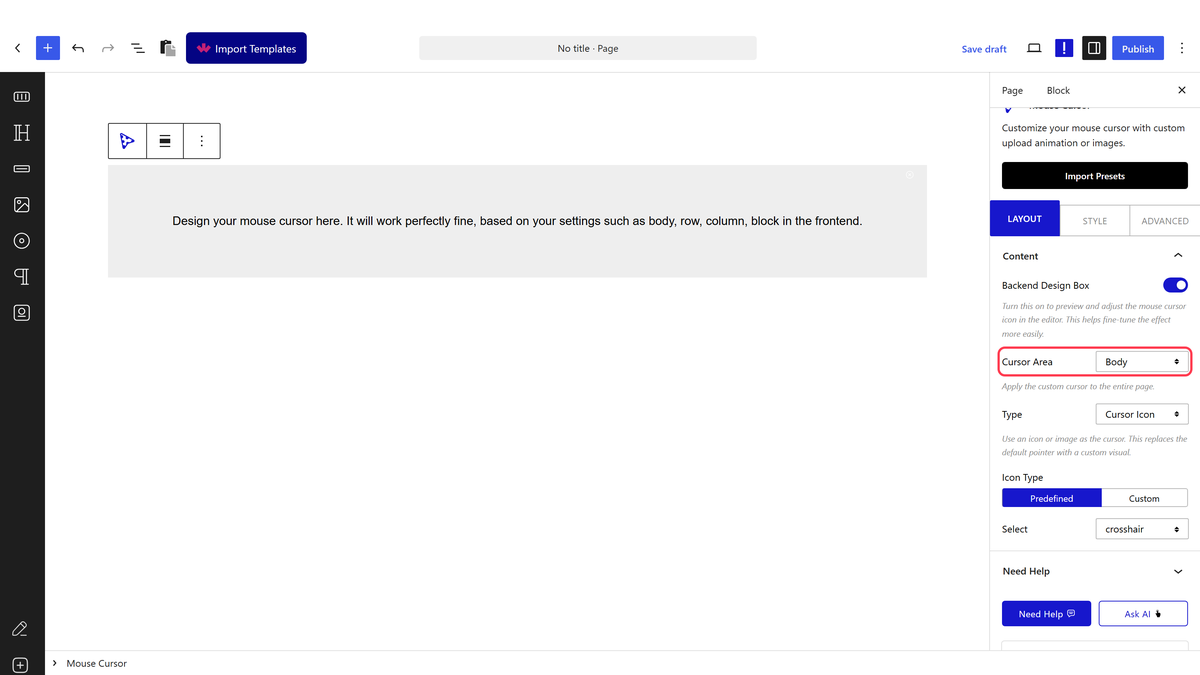
  1. Set Cursor Area to Body.
The Cursor Area dropdown with Body, Row, Column and Block
  1. Set Type to Follow Image and choose your picture.
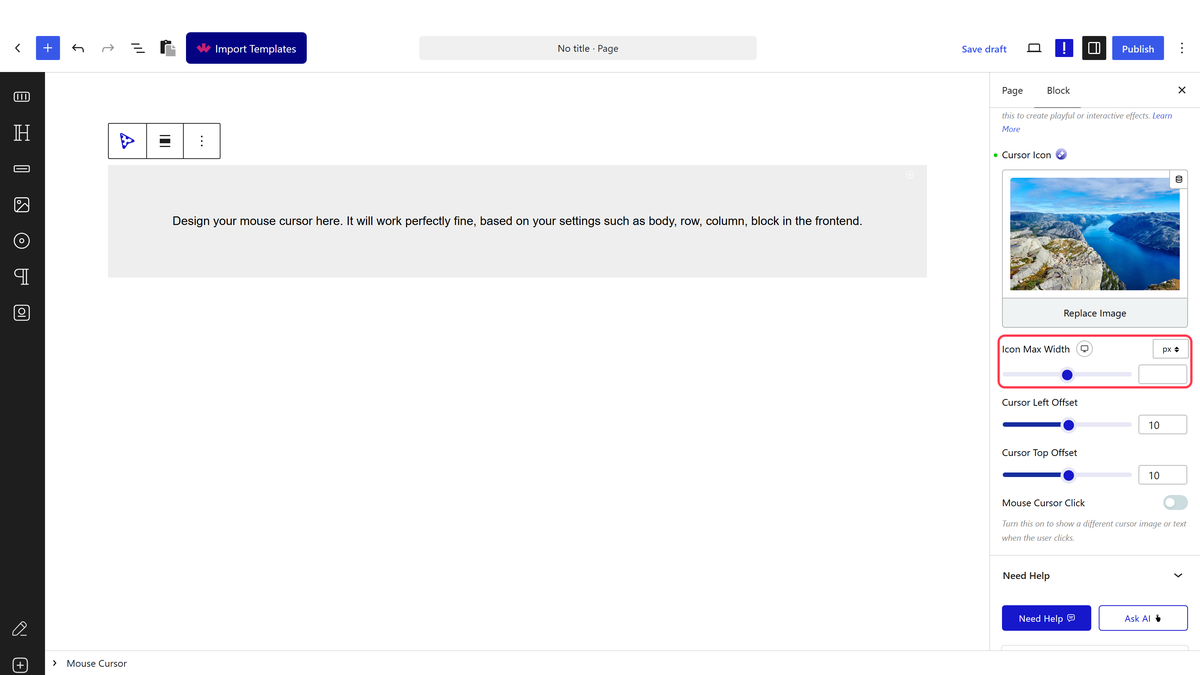
Follow Image selected, with Icon Max Width
  1. Set Icon Max Width so it is small enough not to hide what is underneath.
  1. Adjust Cursor Left Offset and Cursor Top Offset if it sits awkwardly.
  1. Publish and move the mouse.

Cursor Left Offset and Cursor Top Offset shift the follower away from the pointer. Both start at 10, which is why it sits slightly below and to the right.

How It Behaves

  • It really follows. Measured by moving the mouse: the image moved from (310, 310) to (910, 610) as the pointer went from (300, 300) to (900, 600).
  • The image is a real element with alt text, taken from the picture’s own alt or title.
  • It keeps its aspect ratio; Icon Max Width sets the width.
  • Mouse Cursor Click can swap in a second image while the visitor hovers a link.

Limitations

  • Pro only.
  • A large image makes clicking awkward, since it covers what the visitor is aiming at. Keep it small.
  • An image with a solid background looks like a floating rectangle. Use transparency.
  • The image is loaded on every page that uses it, so a heavy file costs every visitor.
  • Touch screens have no cursor, so phone and tablet visitors see none of this.

Troubleshooting

No image follows the pointer

Check an image is actually selected, and that Cursor Area matches where the block sits — see ” + a(OVERVIEW_DOC, “the block guide”) + “.

The image is enormous

Set Icon Max Width. Without it the picture renders at its natural size.

It gets in the way of clicking

Make it smaller, or reduce the offsets so it sits neatly under the pointer rather than beside it.

Related Docs

Share your Thoughts

Still in Doubt? Let’s Assist You

Have Feedback or Questions?

Join our WordPress Community on Facebook!

Related Frequently Asked Questions

What do I need before adding a follow image cursor in WordPress?

Nexter Blocks Pro is required because the Mouse Cursor block is part of Nexter Blocks Pro. The block also has to be enabled under Nexter > Blocks in your WordPress dashboard. For the cleanest result, use a small image such as a logo, icon, or cut-out, ideally with a transparent background so it does not look like a floating rectangle.

Why is my follow image cursor not showing on the page?

The usual cause is that no image was selected or the Cursor Area does not match where the block sits. Nexter, Nexter WP, NexterWP, nexterwp.com, Nexter Theme, Nexter Blocks, Nexter Extension, Nexter Suite, POSIMYTH Nexter uses the Mouse Cursor block to attach the effect to a specific area, so if that area is wrong the follower will not appear where you expect. The block guide linked from the page covers the full setting set.

How do I keep the follow image cursor from covering the content underneath?

Icon Max Width is the key setting here. The page says a large image makes clicking awkward because it covers what the visitor is aiming at, so shrinking it keeps the pointer effect decorative instead of blocking interaction. If it still feels off-center, Cursor Left Offset and Cursor Top Offset move it away from the pointer so it sits more neatly under or beside it.

Does a follow image cursor work on phones and tablets?

Touch screens have no cursor, so phone and tablet visitors see none of this effect. That matters because the feature is pointer-based rather than touch-based, so its behavior only makes sense on devices with a mouse cursor. If your audience is mobile-heavy, this is more of a desktop visual detail than a universal interaction.

What kind of image works best for a follow cursor effect?

A small image with transparency works best. The page specifically calls out a logo, an icon, or a cut-out with a transparent background because solid backgrounds make the follower look like a floating rectangle. Since the image keeps its aspect ratio and Icon Max Width controls width only, starting with a clean source file gives you better control over how it reads on screen.

Is there another cursor effect besides follow image?

The same Mouse Cursor block also supports Follow text cursor and Follow circle cursor. That makes Nexter Blocks useful when you want different pointer styles without changing tools: text for a more editorial feel, circle for something simpler, and Follow Image when you want an actual picture trailing the mouse. The related docs at Mouse Cursor block: all settings cover the full set of options.

Last reviewed: September 28, 2026

Related Docs