












Key Takeaways
- Malware usually shows up as spam redirects, a Google warning, unknown admin users, or your host suspending the account. Confirm the infection with a scan before you start deleting things.
- Before cleaning, put the site in maintenance mode, back up the infected files, and change every password: WordPress, database, FTP, hosting, and email.
- A free scanner such as Wordfence, Sucuri, MalCare, or Jetpack Protect will find most infections. Removal is either manual (reinstall core, refresh plugins and themes, inspect wp-config, .htaccess, and the database) or a paid one-click clean.
- If you have a recent clean backup from before the hack, restoring it is often faster and safer than hand-cleaning file by file.
- The cleanup only sticks if you harden afterward: updates, limited login attempts, two-factor login, and a smaller attack surface. Nexter Extension bundles several of these controls.
There is a specific kind of stomach-drop that comes with opening your own website and watching it redirect to a sketchy online-pharmacy page. Or getting the email from Google that calls your site “deceptive.” Or a host quietly suspending the account with a one-line note about “malicious activity.”
A hacked WordPress site feels like an emergency, and it is one. But the cleanup follows a predictable order, and most infections are fixable in an afternoon if you work through the steps calmly instead of deleting files at random.
This guide walks through how to find and remove malware from WordPress: how to confirm you are actually infected, how to contain the damage, how to scan and clean, and how to make sure it does not come back.
How to Tell if Your WordPress Site Actually Has Malware
Before you touch a single file, confirm that malware is really the problem. A few symptoms are almost always a real infection:
- Unexpected redirects. Visitors (or you) land on spam, gambling, or pharmacy pages instead of your content.
- A Google warning. Search Console shows a “Security Issues” report, or browsers display a red “Deceptive site ahead” screen from Google Safe Browsing.
- Your host suspended the site. Many hosts scan automatically and take a site offline the moment they detect malicious files.
- Unknown admin users. A user you never created appears in Users, often with a random name and admin role.
- Strange files or spam pages. New PHP files you did not add, or hundreds of spammy pages showing up in Google when you search
site:yourdomain.com.
Not every problem is a hack. A white screen or a broken layout is often just a plugin conflict. That is why the first real step is a scan, not a panic-delete. If your issue turns out to be a plugin clash instead, our roundup of common WordPress mistakes to avoid covers the usual suspects.
First 15 Minutes: Contain the Damage
Malware can spread and can also be used to steal data while you work. Lock things down first:
- Put the site in maintenance mode or take it offline so visitors are not served malicious code while you clean.
- Back up the infected site anyway. Yes, it contains malware, but you need a copy of the evidence, and you can extract clean uploads from it later. A dedicated plugin makes this quick; see our picks for the best WordPress backup plugins.
- Change every password. WordPress admin, the database user in
wp-config.php, FTP/SFTP, your hosting panel, and the email tied to the admin account. - Regenerate your security keys. Replacing the secret keys and salts in
wp-config.phplogs out every session, which kills any stolen login cookies an attacker is still using.
Also Read: 5 Best WordPress Security Plugins to Protect Your Site for the tools that scan and monitor continuously.
Step 1: Scan and Find the Malware
Start with a free remote scan that needs no install: Sucuri’s SiteCheck or Google’s Safe Browsing status page will tell you quickly whether your site is flagged and where the obvious problems are. Remote scanners only see public pages, though, so follow up with a server-side scanner plugin that can read your actual files.
Here is how the four most common free scanners compare (install counts and versions verified on WordPress.org, July 2026):
| Scanner | Active installs | Free scan | Removal |
|---|---|---|---|
| Wordfence | 5M+ | Yes: core, themes, plugins for malware, backdoors, redirects, SEO spam | Manual (you act on the findings) |
| MalCare | 200,000+ | Yes: cloud-based deep scan | One-click removal is paid |
| Sucuri Security | 600,000+ | Yes: remote scan, file integrity, activity audit | Removal is a paid service |
| Jetpack Protect | 100,000+ | Vulnerability scan via WPScan (53,500+ known issues) | Malware scan and removal are paid (Jetpack Scan) |
A good scan report tells you which core files were modified, where injected PHP or backdoors are hiding, and which redirects or spam links were added. Save that report. It is your cleanup checklist.
Step 2: Remove the Malware
One warning before you edit anything: you already backed up in the last section, so if a step goes wrong you can restore. If you are not comfortable editing PHP or running SQL, use a one-click removal tool or hire a cleanup service instead of guessing. With that said, here is the manual path:
- Reinstall WordPress core. In the dashboard go to Updates and click “Re-install Now.” This overwrites every core file with a fresh copy without touching your database or
wp-content. If the dashboard is locked, upload fresh core files over FTP (keep your ownwp-config.phpandwp-content). - Refresh plugins and themes. Delete every plugin and theme, then reinstall clean copies from WordPress.org or the developer. Remove anything you do not actively use, and delete any plugin or theme you do not recognize.
- Check the common injection points. Inspect
wp-config.php,.htaccess, andindex.phpfor code you did not add, and look insidewp-content/uploads: there should be no.phpfiles in there at all. - Clean the database. In phpMyAdmin, review
wp_usersfor rogue admins,wp_optionsfor suspicious autoloaded scripts, andwp_postsfor injected spam links. Remove any scheduled tasks (cron events) you do not recognize. - Compare against a clean copy. Download a fresh WordPress ZIP of the same version and diff it against your files to spot anything that was modified.
- Re-scan until clean. Run the scanner again and repeat until it reports nothing.
Step 3: Get Your Site off Google’s Blocklist
A clean site can still be flagged for days until you ask for a re-check. Once your scans come back empty:
- Open Google Search Console, go to Security Issues, and click Request Review after confirming the site is clean.
- Check your status on Google Safe Browsing so browsers stop showing the red warning.
- If your host suspended the account, reply to their ticket and ask them to re-scan and restore the site.
How long recovery takes comes down to one thing: a clean, recent backup. Sites that have one are usually back within an hour. Sites cleaning file by file without one can spend 24 to 72 hours on it.
Should You Clean It Yourself, Restore a Backup, or Pay a Service?
There is no single right answer. Match the route to your situation:
| Route | Best when | Cost and speed |
|---|---|---|
| Clean it manually | You are comfortable with FTP and the database, and you have no clean backup | Free, but slow and detail-heavy |
| Restore a backup | You have a recent backup from before the infection | Free and fastest, if the backup predates the hack |
| Pay a removal service | The site is business-critical, keeps getting reinfected, or you are not technical | Roughly $50 to $300, usually same-day |
Also Read: 5 Best WordPress Backup Plugins so next time “restore a clean backup” is actually an option.
Harden WordPress So It Does Not Happen Again
Removing the malware fixes the symptom. Hardening closes the door it came through. If you skip this part, reinfection is common within weeks.
- Update everything. Outdated core, plugins, and themes are the number one entry point. Update on a schedule and remove abandoned plugins entirely.
- Lock down logins. Limit login attempts, add two-factor authentication, put a CAPTCHA on the login form, and change the default login URL.
- Disable file editing. Add
define('DISALLOW_FILE_EDIT', true);towp-config.phpso a stolen login cannot edit theme or plugin code from the dashboard. - Set correct permissions. Files at 644 and folders at 755, with
wp-config.phplocked down tighter. - Keep a firewall and scanner running, and keep automated off-site backups.
- Shrink your attack surface. Fewer plugins and a lightweight theme mean fewer things that can be exploited.

This is where a hardening tool earns its keep. Nexter Extension bundles several of these controls in one place, so you are not stacking five single-purpose plugins: Limit Login Attempts, 2 Factor Authentication, Captcha Spam Protection, a Custom Login URL, Login Email Notification, and Content Protections. To be clear, Nexter Extension is not a malware scanner and will not clean an infected site, that is what the scanners above are for. What it does is close the login and access holes that let malware in, which is exactly where most WordPress hacks start.
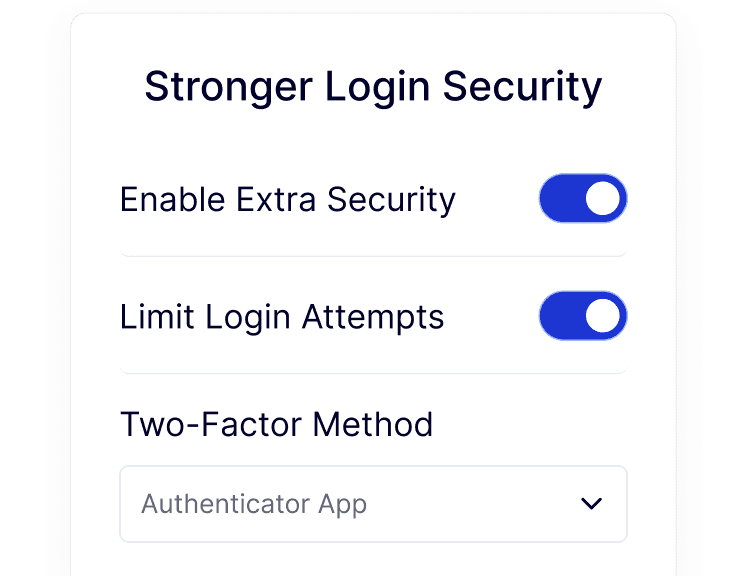
Pair that with the lightweight Nexter Theme to keep your footprint small, and lean on a proper security plugin for continuous scanning. For more ways to keep content and access under control, see our guide on ways to protect content in WordPress.
Suggested Reading
- 5 Best WordPress Security Plugins to Protect Your Site
- 5 Best WordPress Backup Plugins
- 9 Ways to Protect Content in WordPress
- 7 Best WordPress Hosting Providers
- How to Make a WordPress Site Private
