












Say you have a pricing page with ten questions stacked down it, and a visitor has to scroll past nine answers to reach the one they actually came for. That is the problem an accordion solves. It collapses each section behind a clickable heading so the page stays short, and people open only the part they need.
Most guides answer this by telling you to install a plugin or fire up a page builder. You often do not need either. WordPress can build an accordion with blocks alone, and this guide shows you two block-native ways to do it: the no-plugin method using a block that already ships with WordPress, and a more capable free block when you want design control and FAQ schema. We will also cover accessibility and when a dedicated plugin is genuinely the better call.
What “Block-Native” Actually Means
Block-native means the accordion lives inside the WordPress block editor as a real block, styled with the same controls you use for everything else, instead of being drawn by a separate page builder or injected by a shortcode from a single-purpose plugin. It matters for three reasons. The markup stays lighter because there is no extra builder engine loading on the page. The accordion is portable, since it travels with your content rather than being locked to one builder. And you edit it with the interface you already know, not a second one bolted on top.
The trade-off is that core WordPress gives you the behavior but not much polish, while a block library gives you both. Knowing which you need keeps you from installing more than the job calls for.
Also Read: New to the editor? Start with What Is Gutenberg: A Beginner’s Guide to the WordPress Block Editor.
Method 1: The No-Plugin Accordion With the Core Details Block
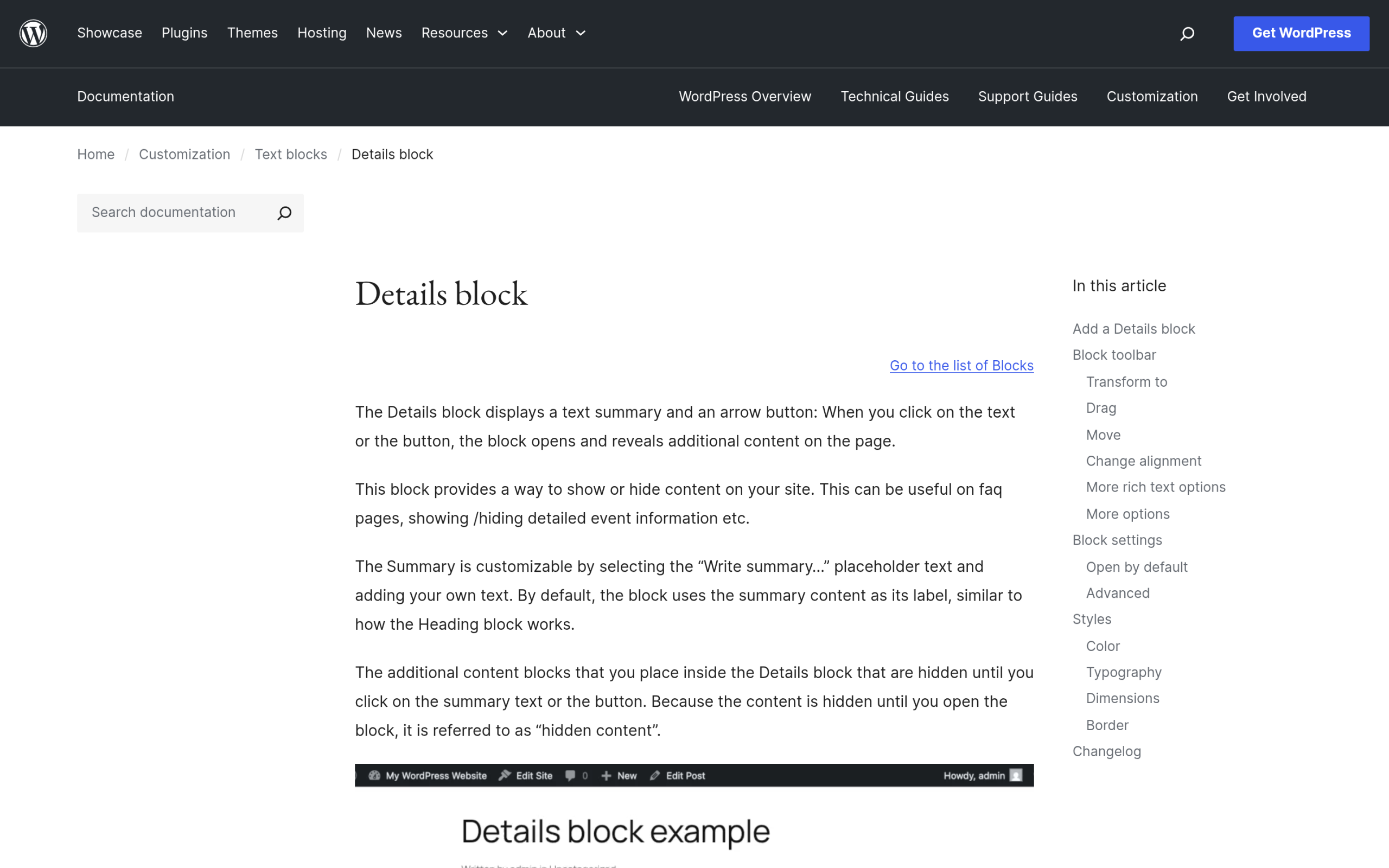
WordPress includes a block called Details that most people never notice. It displays a summary line with a small arrow, and clicking either the text or the arrow reveals the content hidden underneath. On its own, one Details block is a single expandable section. The trick that turns a stack of them into a real accordion arrived in WordPress 6.8 and is easy to miss.
Step 1: Add a Details Block
Click the block inserter, the plus icon, and search for Details. Faster still, type /details in an empty paragraph and press Enter. The block drops in with a “Write summary” placeholder for the clickable label and an area beneath it for the hidden content.
Step 2: Write the Summary and the Hidden Content
Replace the placeholder with your question or section title. That text becomes the label people click. Below it, add whatever you want hidden until the block opens: paragraphs, images, lists, even other blocks. If you want a section to start open, turn on the “Open by default” toggle in the block settings.
Step 3: Duplicate the Block for Each Item
Use the block toolbar’s More options menu to duplicate the Details block once for each question or section, then edit each summary and its content. At this point you have several independent expandable sections. They all open and close on their own, which is a toggle list, not yet an accordion.
Step 4: Give Them a Shared Name to Make a True Accordion
Select each Details block, open the Advanced section in the block settings sidebar, and set the same value in the Name attribute field, for example faq. Per the WordPress documentation, “Details blocks with the same name attribute work like an accordion: opening one closes the others in that group.” Give every item the same name and you get the classic accordion behavior where only one section is open at a time. Leave the field blank if you would rather let each open independently.
You can style the group with the block’s built-in Color, Typography, Dimensions, and Border controls, so it can match your theme without a line of CSS. That is a complete, working accordion using nothing but core WordPress.
Where the Core Details Block Falls Short
The core block is the right answer for a simple FAQ or a few collapsible notes. It stops being enough once you want the accordion to look and behave like a designed component. There is a single arrow indicator with no choice of icon, no open-on-hover option, and no per-item animation control. The styling covers the basics but not niceties like an active-item highlight or an expand-all and collapse-all control. And there is no built-in FAQ schema, so search engines and AI tools get no structured hint that this is a set of questions and answers.
None of that makes the core block wrong. It just means that when the accordion is a real part of your design, or you want it working for FAQ visibility, you want a block that does more. That is the next method.
Also Read: Building navigation the same block-native way? See How to Add a Mega Menu in WordPress Using Gutenberg.
Method 2: A Designed Accordion With the Nexter Blocks Accordion Block
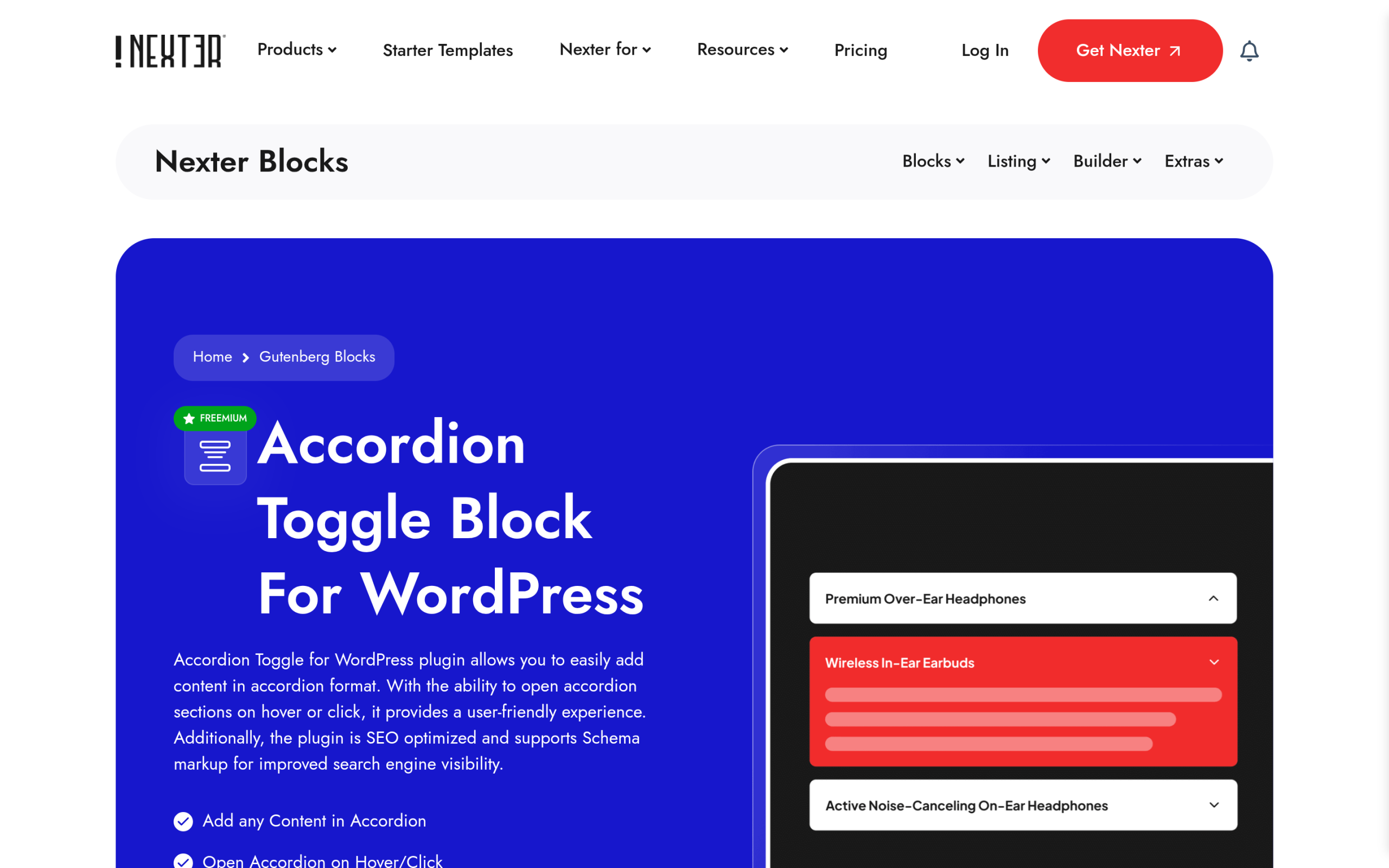
Nexter Blocks is a free library of 120+ Gutenberg blocks, and its Accordion block is built for the cases the core Details block cannot cover. It is freemium: the block itself is free, with a Pro tier in the Nexter plans that unlocks the extras. Here is how to use it.
Step 1: Turn On the Accordion Block
After installing Nexter Blocks, go to Nexter, then Blocks, search for Accordion, and toggle it on. Nexter lets you enable only the blocks you use, which keeps the editor and the front end lean.
Step 2: Insert It and Add Your Items
Add the Accordion block to your page and choose Design from Scratch, or import a ready-made preset. Click an item to add its title, then choose how to fill the body: Content or Editor on the free tier, or Pattern on Pro for reusing a saved layout. Use the Add Accordion button to create as many items as you need.
Step 3: Set Behavior and Style
The settings are grouped into clear tabs. Layout handles the title, description, icons, and IDs. Toggle Icon lets you pick and customize the expand and collapse icon rather than living with a single arrow. Extra Options sets the default active item and the accordion type, and Pro adds an expand-all and collapse-all button. The Style tab controls titles, descriptions, icons, backgrounds, and typography, and the accordion is responsive, so it holds up on phones. You can also place images inside an item, which the core block does not make easy.
Turning It Into an FAQ Accordion With Schema
If your accordion is a list of questions and answers, you can mark it up as an FAQ. In the Nexter Accordion block, open the SEO Option tab and switch on Enable Schema Markup. The block then outputs the structured data that describes your content as a set of questions and answers, without you touching any code.
Be honest with yourself about what that buys you in 2026. Google stopped showing FAQ rich results for most sites, so the old reward, those expandable questions under your listing, is largely gone. What FAQ schema still does is give AI answer engines and search crawlers a clean, machine-readable version of your questions and answers, which helps them quote you accurately. Treat it as an AI-citation and clarity signal now, not a route to SERP decorations.
Also Read: Going deeper on structured data? See FAQ Schema Generator for WordPress.
Do Not Ship an Accordion That Breaks Accessibility
An accordion hides content, so it has to stay usable for people navigating by keyboard or screen reader. The good news is that the core Details block is built on the native HTML details and summary elements, which browsers already make keyboard-focusable and announce correctly, so it is accessible out of the box. When you use a block library instead, check that each header is reachable with the Tab key, that Enter or Space opens and closes it, and that the open or closed state is announced. Keep your summary labels descriptive rather than a bare “Read more,” and do not hide anything critical, like the only copy of a phone number, behind a closed panel search engines and some users may never open.
When a Dedicated Accordion Plugin Makes More Sense
Blocks cover the vast majority of accordion needs. A standalone plugin earns its place in narrower cases: when you want to manage a large FAQ library from one screen with search and categories, when you need an accordion built from your existing posts or a custom post type, or when a non-technical team wants a dedicated FAQ interface rather than the block editor. If that sounds like you, compare the options before installing one so you do not add a plugin you will outgrow.
Also Read: Weighing standalone tools? See 5+ Best WordPress Accordion Plugins and, for a close cousin, the best tab plugins for WordPress.
Wrapping Up
Adding an accordion in WordPress does not have to mean another page builder or a plugin you barely use. For a plain FAQ, the core Details block with a shared Name attribute gives you a real accordion using nothing but WordPress. When the accordion is part of your design, or you want it working for FAQ visibility, the Nexter Accordion block adds icons, animation, responsive styling, and one-toggle schema while staying a native block. Pick the lighter option that meets the need, and keep it accessible on the way out.
If you want the designed version without the page-builder weight, Nexter Blocks is free on WordPress.org, so you can add the Accordion block and test it before you commit to anything.
Suggested Reading
- 5+ Best WordPress Accordion Plugins [Interactive FAQs]
- 5 Best Tab Plugins for WordPress Compared
- How to Add a Mega Menu in WordPress Using Gutenberg
- What Is Gutenberg: A Beginner’s Guide to the WordPress Block Editor
- FAQ Schema Generator for WordPress
Stay updated with Helpful WordPress Tips, Insider Insights, and Exclusive Updates – Subscribe now to keep up with Everything Happening on WordPress!
FAQs on Adding an Accordion in WordPress
Can I add an accordion in WordPress without a plugin?
Yes. WordPress core includes a Details block that hides and reveals content. Add one Details block per section, then give them all the same Name attribute in the Advanced settings so opening one closes the others. That produces a working accordion with no plugin and no page builder.
Does WordPress have a built-in accordion block?
There is no block named Accordion in core, but the Details block does the job. Since WordPress 6.8, Details blocks that share a Name attribute behave like an accordion, so only one is open at a time. For a block literally called Accordion with more design options, a free library like Nexter Blocks adds one.
Is an accordion good or bad for SEO?
Content hidden inside an accordion is still crawled and indexed by Google, so an accordion does not hurt your SEO when used for genuinely secondary detail. Keep your most important content visible by default, and do not bury the single copy of a key fact behind a closed panel.
Do I still get FAQ rich results from an accordion?
Mostly no. Google retired FAQ rich results for the majority of sites in 2026, so FAQ schema rarely produces the expandable SERP snippet anymore. It is still worth adding, because it gives AI answer engines and crawlers a clean, structured version of your questions and answers to cite from.
