








How to Clean Up the WordPress Admin Bar?

Key Takeaways

  • Nexter Extension allows users to remove unnecessary items from the WordPress admin bar.
  • Users can enable the Clean Admin Bar feature in Nexter Extension to customize their workspace.
  • Nexter Extension provides options to hide items such as the WordPress logo, updates counter, and 'Howdy' greeting.
Table of Contents

Do you want to clean your WordPress admin bar and get rid of unnecessary items? When you’re logged into your WordPress site, you’ll see several links in the top admin bar. While some of them are helpful, not all of them are necessary. By removing the extra links, you can create a cleaner, more focused workspace.

With the Nexter Extension (Free) plugin, you can easily remove different items from the WordPress admin bar.  


Learn via Video Tutorial

YouTube video

How to Clean Up WordPress Admin Bar with the Nexter Extension?

To clean up the WordPress admin bar with Nexter Extension, from the WordPress Dashboard, go to Nexter > Extensions > Admin Interface.

Then go to the Clean Admin Bar section, enable the toggle, and click on the gear icon (⚙).

enable clean admin bar new

It will open the Clean-Up Admin Bar popup, where you’ll find options to hide different items from the WordPress admin bar.

  • Remove WordPress Logo/Menu
  • Remove Home Icon and Site Name
  • Remove Customize Menu
  • Remove Updates Counter/Link
  • Remove Comments Counter/Link
  • Remove New Content Menu
  • Remove “Howdy”
  • Remove the Help Tab and Drawer

Turn on the options that fit your needs, and then click on the Save button.

Remove WordPress Logo/Menu

This will remove the WordPress logo from the WordPress admin bar.
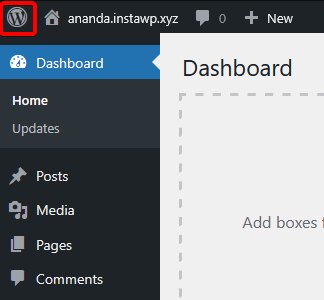
wp admin bar logo

Remove Home Icon and Site Name

This will remove the home icon and site name from the WordPress admin bar.
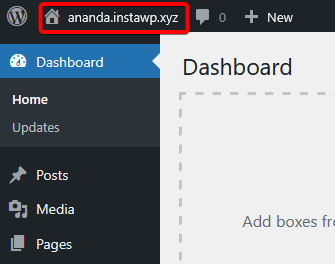
wp admin bar sitename

Remove Customize Menu

This will remove the Customize link (visible in the front end only) from the WordPress admin bar.

wp admin bar customize

Remove Updates Counter/Link

When an update is available for a plugin, theme, or core WordPress, you’ll see an updates counter in the WordPress admin bar. This will remove the updates counter from the WordPress admin bar.
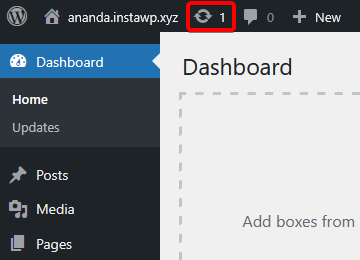
wp admin bar update

Remove Comments Counter/Link

This will remove the comments counter from the WordPress admin bar.
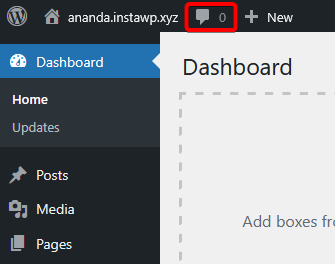
wp admin bar comment

Remove New Content Menu

This will remove the New menu item from the WordPress admin bar, which is used to create any new post type.
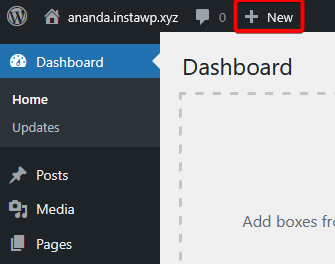
wp admin bar new button

Remove “Howdy”

This will remove the “Howdy” word in front of the user name in the WordPress admin bar.
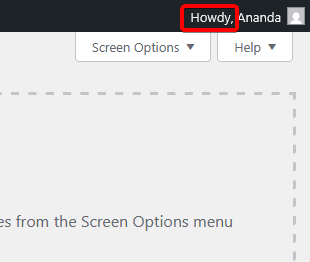
wp admin bar howdy

Remove the Help Tab and Drawer

This will remove the Help tab from the WordPress backend.
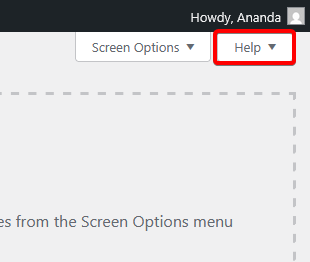
wp admin bar help

About the Author

Photo of Aditya Sharma CMO of NexterWP
CMO at POSIMYTH Innovations · NexterWP · 7 years experience

He has spent years in the WordPress ecosystem building, breaking, and optimizing sites until they actually perform. He works at the intersection of speed, growth, and usability, helping creators ship websites that load fast and convert. An active WordPress community contributor sharing through tools, tutorials, and direct collaboration. Tested practice, not theory.

WordpressThemesElementorn8nAIClaudeAutomationServer

Share your Thoughts

Get Instant Answers to all your questions about Nexter Blocks,
Extensions & Theme trained on 1000+ Docs and Videos

Still in Doubt? Let’s Assist You

Have Feedback or Questions?

Join our WordPress Community on Facebook!

Related Frequently Asked Questions

What if I can't find the Clean Admin Bar section in the Nexter Extension?

If you can't locate the Clean Admin Bar section, ensure that the Nexter Extension is properly installed and activated. Navigate to the WordPress Dashboard, then go to Nexter > Extensions > Admin Interface. If the section is still missing, try refreshing the page or clearing your browser cache, as sometimes updates may not display immediately.

What is the best practice for cleaning up the WordPress admin bar?

A best practice for cleaning up the WordPress admin bar is to only remove items that you or your team find unnecessary. For instance, if you rarely use the Customize Menu or the New Content Menu, consider disabling those options to reduce clutter. This tailored approach enhances focus and improves workflow efficiency.

How do I remove the Help Tab from the WordPress admin bar?

To remove the Help Tab from the WordPress admin bar, go to the Clean-Up Admin Bar popup in the Nexter Extension and enable the option to remove the Help Tab and Drawer. This can be particularly useful for users who are familiar with WordPress and do not need the additional help resources cluttering their workspace.

Does removing the Updates Counter affect my site management?

Removing the Updates Counter from the WordPress admin bar will not affect your site's functionality, but it may make it harder to keep track of necessary updates for plugins, themes, or WordPress core. If you prefer a minimalistic admin bar, consider balancing this choice by regularly checking for updates through the dashboard.

Last reviewed: April 14, 2026

Related Docs