












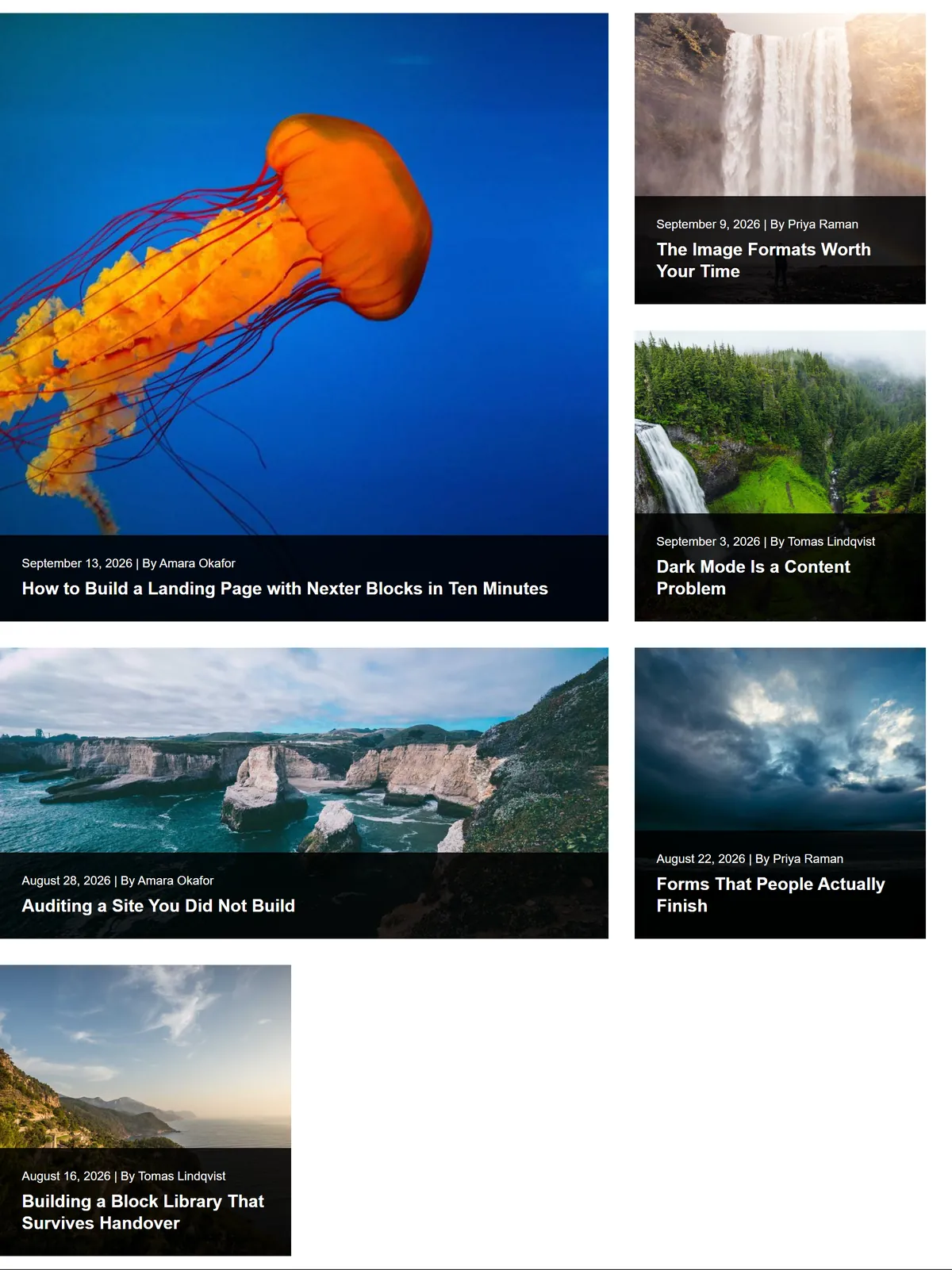
In a normal grid every post looks equally important. On a magazine-style index that is rarely true, and the lead story deserves more room than the rest.
Metro lays the posts out as tiles of different sizes, so the first few can be larger.
Before You Start
- Edition: Pro — the metro layout needs Nexter Blocks Pro.
- Block to enable: Post Listing, switched on under Nexter > Blocks in your WordPress dashboard.
- Enough posts to see the effect. A listing with three posts cannot show pagination, filtering or a second row.
Steps
- Select your Post Listing block.
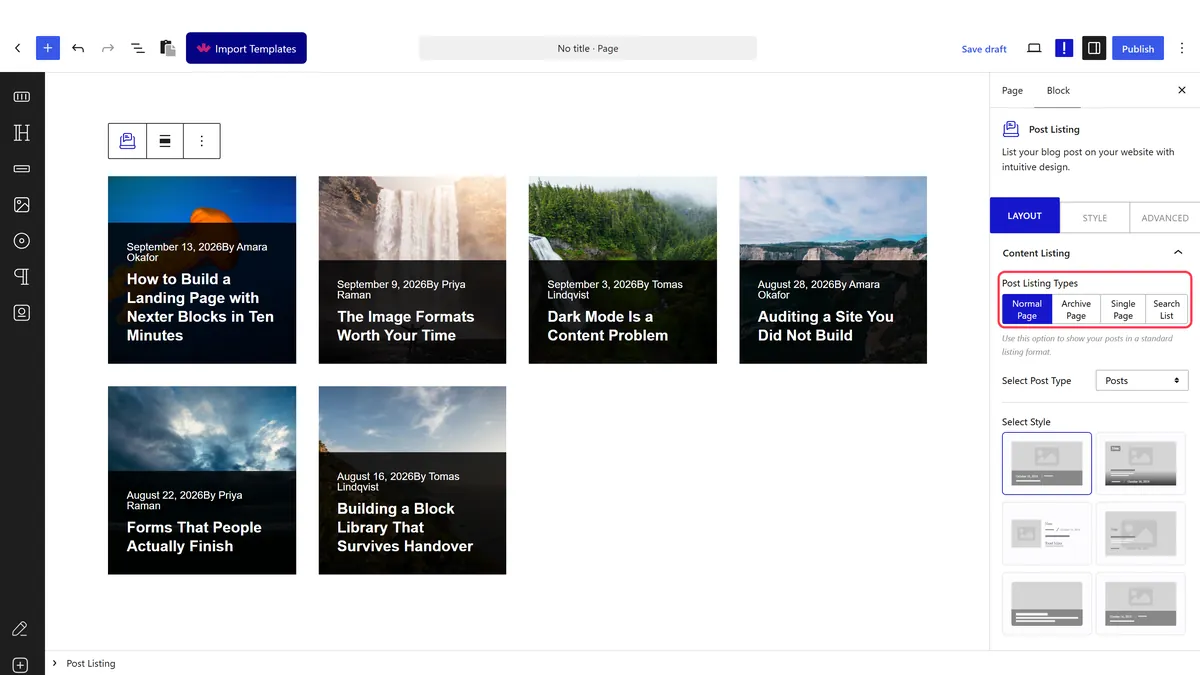
- Set the layout to metro.
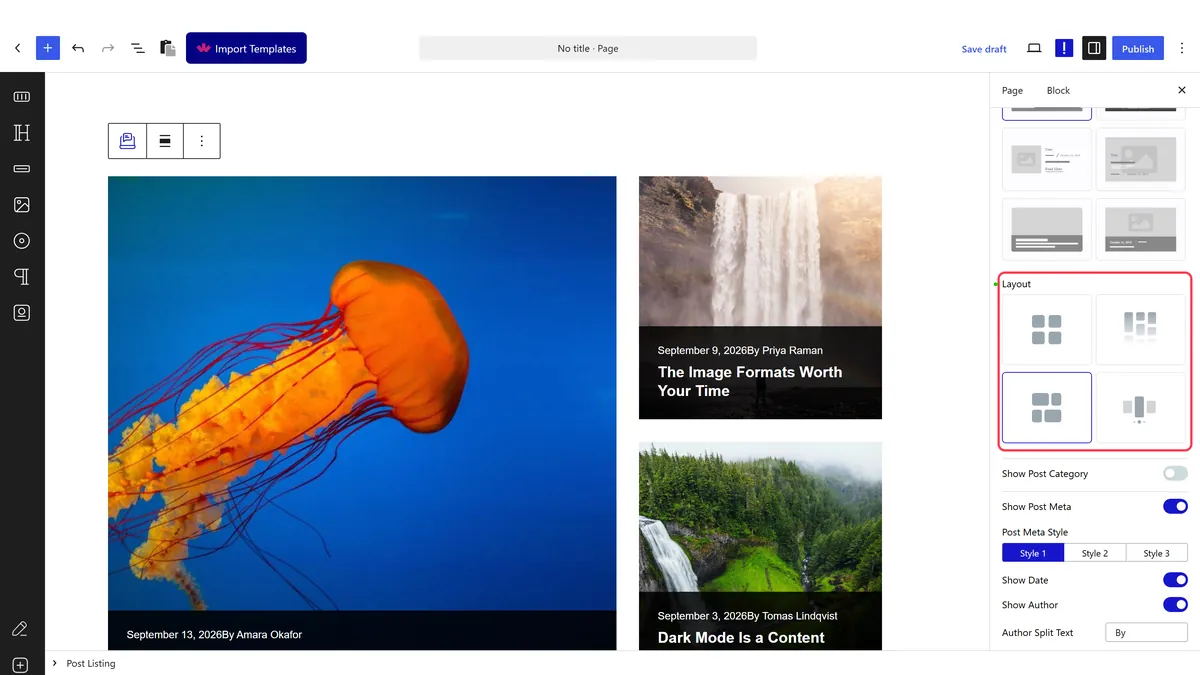
- Choose a metro style, which decides which tiles are large.
- Set the number of metro columns, per device.
- Publish and check the real page.
How It Behaves
Metro uses its own markup and carries its settings in a dedicated attribute.
- Measured on a published page: the wrapper rendered
data-layout="metro"with the classtpgb-metro, and each tile rendered asgrid-item tpgb-metro-1 tpgb-tab-metro-1 tpgb-mobile-metro-1. - The settings live in their own attribute, measured as
data-metroAttrcarrying the column counts and the chosen style for desktop, tablet and mobile. - Featured images are CSS backgrounds here, not image tags. Measured: the tile renders a
divwithbackground:url(...). That matters if you were relying on image alt text. - Tile size is positional. The block does not know which post matters most, so the largest tile is simply the first in the query.
- Measured with Nexter Blocks Pro deactivated: this stops working. The block still renders a plain list of posts, so there is no error to see — just the feature quietly missing.
Limitations
- Pro only — measured with Nexter Blocks Pro deactivated, metro falls back to ordinary grid items.
- Background images carry no alt text. Because the featured image is a CSS background, assistive technology gets nothing from it, so the title has to carry the meaning.
- It needs enough posts to fill the pattern, or the layout shows gaps.
- Metro rarely survives a phone screen. At one column the size differences vanish.
- Reordering your posts changes which one is featured.
Troubleshooting
There are gaps in the layout
There are not enough posts to complete the metro pattern. Increase the number of posts shown.
My images have no alt text
Metro renders featured images as CSS backgrounds rather than image tags. That is measured behaviour, not a setting.
It looks like a plain grid
Check Nexter Blocks Pro is active. Measured with Pro off, the metro classes are not rendered.
The wrong post is featured
The large tile is the first post in the query. Change the ordering, or exclude posts, to control which one lands there.
