












A plain grid gives every card in a row the same height, so a short post leaves white space beneath it. With mixed image shapes and excerpt lengths that adds up quickly.
Masonry lets each card keep its own height and packs them together instead.
Before You Start
- Edition: Pro — the masonry layout needs Nexter Blocks Pro.
- Block to enable: Post Listing, switched on under Nexter > Blocks in your WordPress dashboard.
- Enough posts to see the effect. A listing with three posts cannot show pagination, filtering or a second row.
Steps
- Select your Post Listing block.
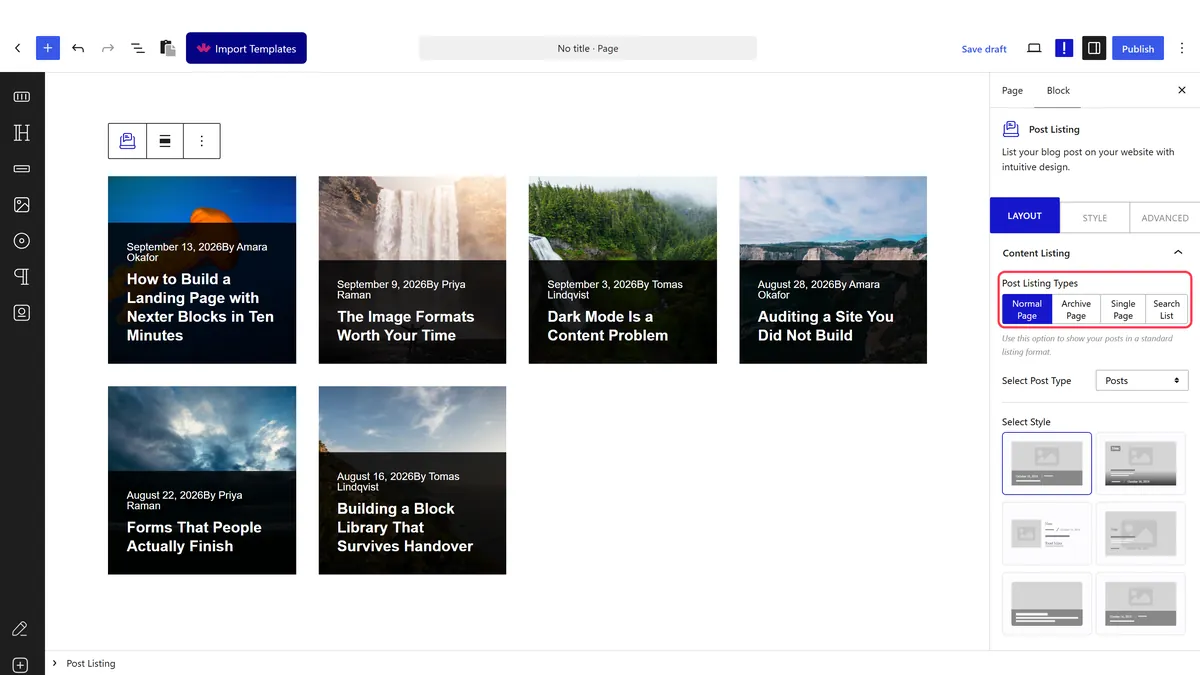
- Set the layout to masonry.
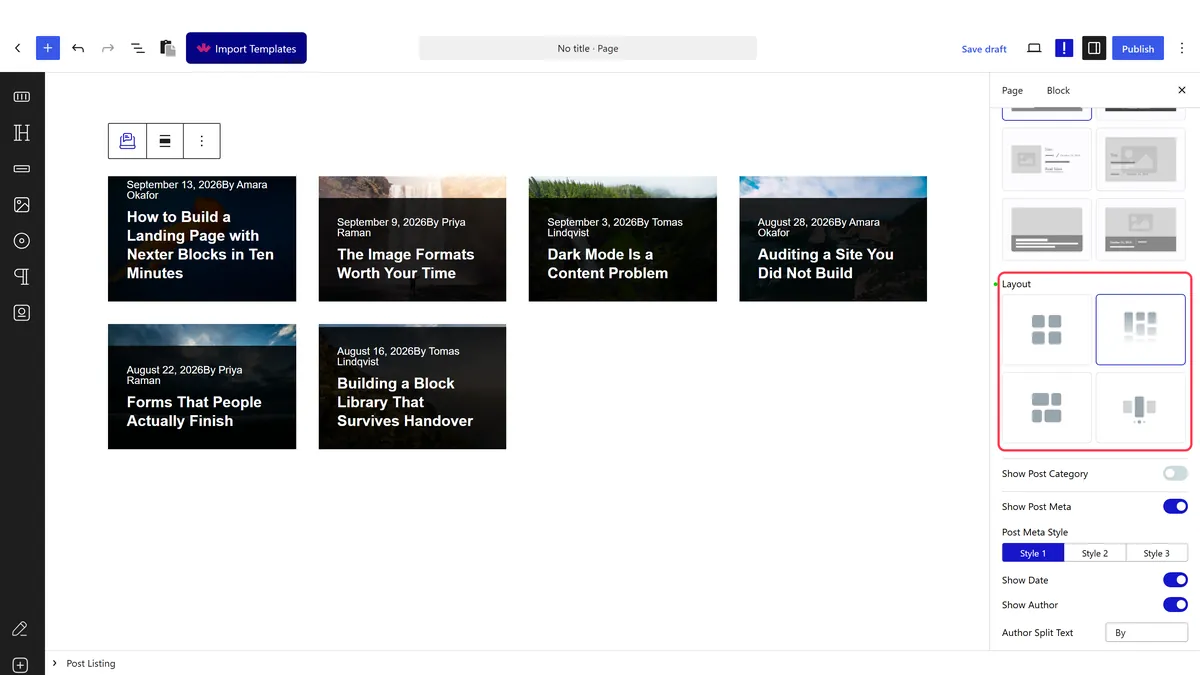
- Set the column width, then set it again for smaller screens.
- Publish and check the real page.
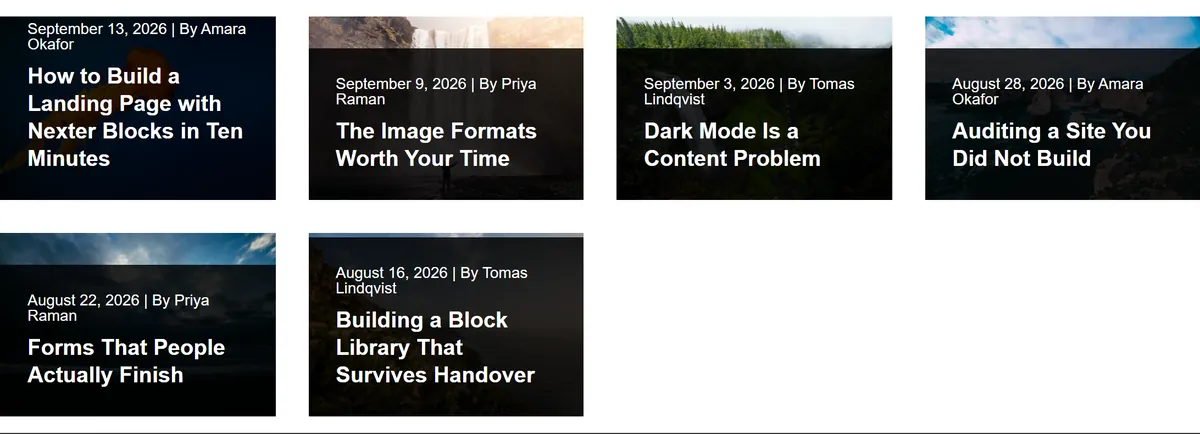
How It Behaves
Masonry is a layout mode plus a script that positions the cards once their heights are known.
- Measured on a published page: the wrapper rendered
data-layout="masonry"and carried thetpgb-isotopeclass that does the packing. - Positioning happens after load, because card heights cannot be known until the content and images are there.
- Reading order is unchanged. The visual order looks staggered but the underlying order is the query order, which is what a screen reader follows.
- Everything ends up in one attribute. The block writes its whole query configuration into a
data-dypostattribute on the published page, so if a setting is not doing what you expect, that is where to look. - Measured with Nexter Blocks Pro deactivated: this stops working. The block still renders a plain list of posts, so there is no error to see — just the feature quietly missing.
Limitations
- Pro only — measured with Nexter Blocks Pro deactivated, the masonry class is absent and the posts fall back to a plain grid.
- Cards can jump as the page loads. Images without width and height attributes cause a visible reflow once they arrive.
- It only helps when heights genuinely differ. With uniform cards masonry looks identical to a grid and costs extra work for nothing.
- Visual order is not source order, so avoid it where sequence carries meaning.
- On a single-column phone layout there is nothing to pack.
Troubleshooting
It looks exactly like a grid
Your cards are all the same height, so there is nothing to pack. Masonry only shows its value when heights vary.
The cards jump around while the page loads
Heights are measured as images arrive. Give your images explicit width and height attributes.
Nothing packs at all
Check Nexter Blocks Pro is active. Measured with Pro off, the masonry class is not rendered.
The order looks wrong
Masonry packs by column height rather than sequence. If order matters, use a grid.
