












An icon that draws itself line by line catches the eye as visitors scroll to a feature or service section.
The free Draw SVG block in Nexter Blocks animates built-in icons or your own SVG files.
Before You Start
- Edition: Free — works in Nexter Blocks (free) and with Nexter Blocks Pro.
- Block to enable: Draw SVG, switched on under Nexter > Blocks in your WordPress dashboard.
- For your own SVG files: administrators and editors can upload SVGs directly. See how to add a custom animated SVG icon.
Learn via Video Tutorial

Steps
- Go to Nexter > Blocks, search for Draw SVG and turn it on.
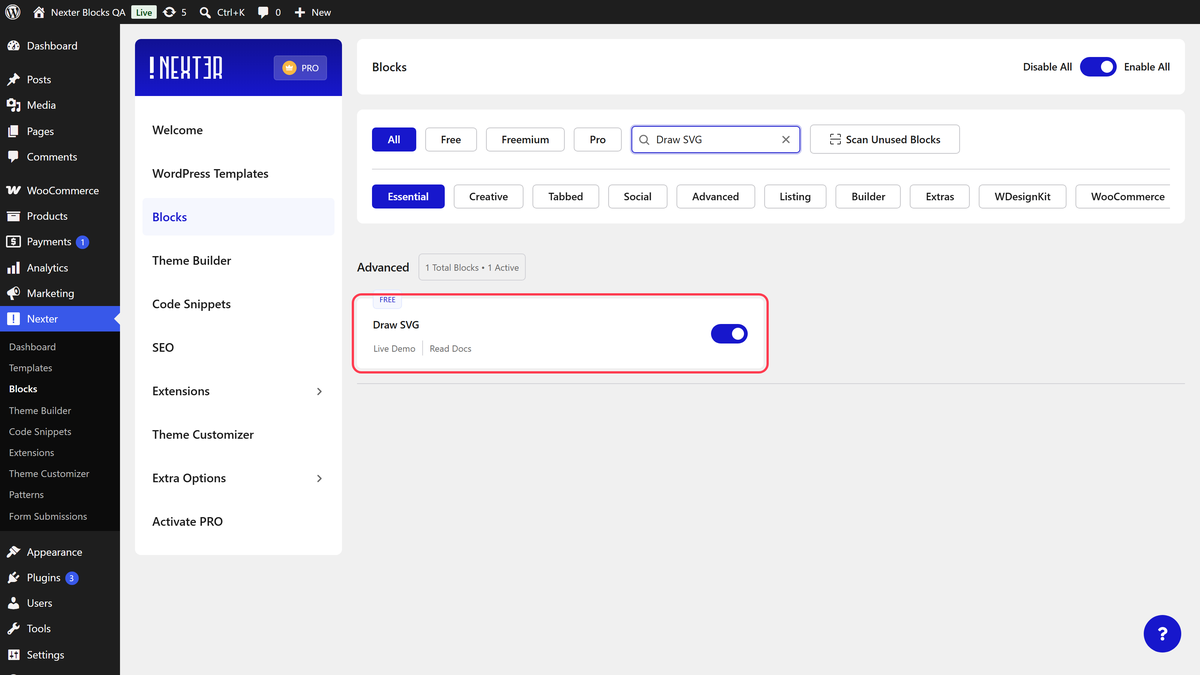
- Add the Draw SVG block and click Design from Scratch.
- Keep Pre Build SVG under SVG Options and choose an icon in Select SVG.
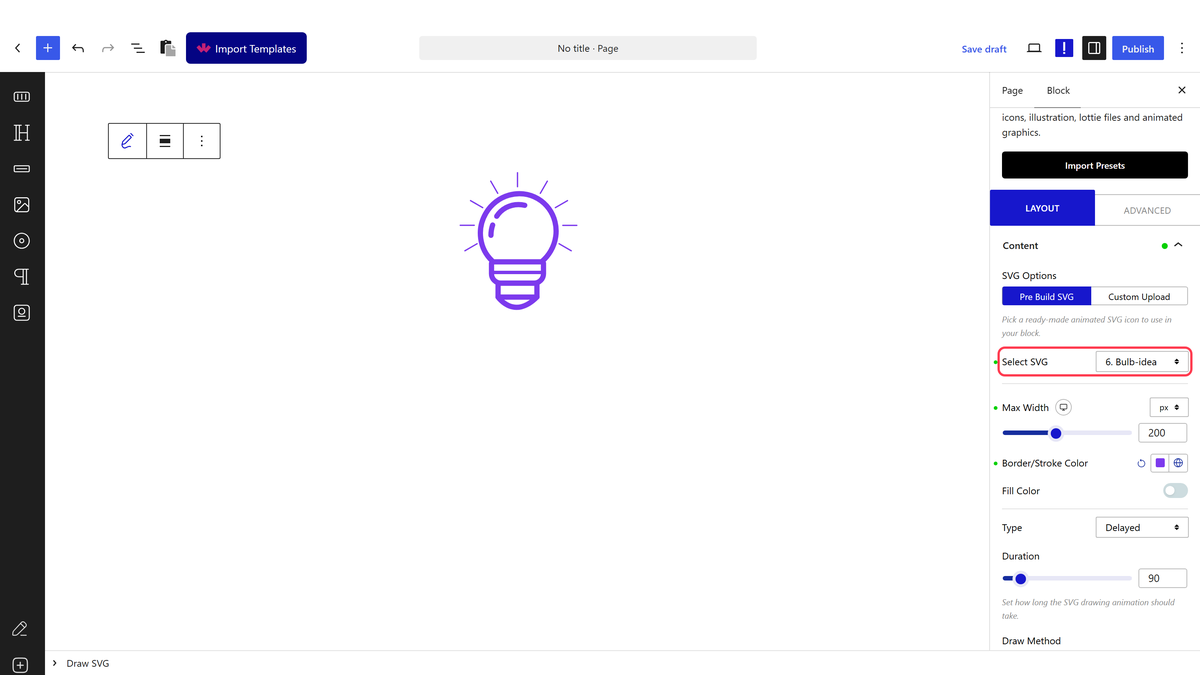
- Set Max Width, the Border/Stroke Color and, if you want, turn on Fill Color.
- Pick a drawing Type, a Duration and a Draw Method.
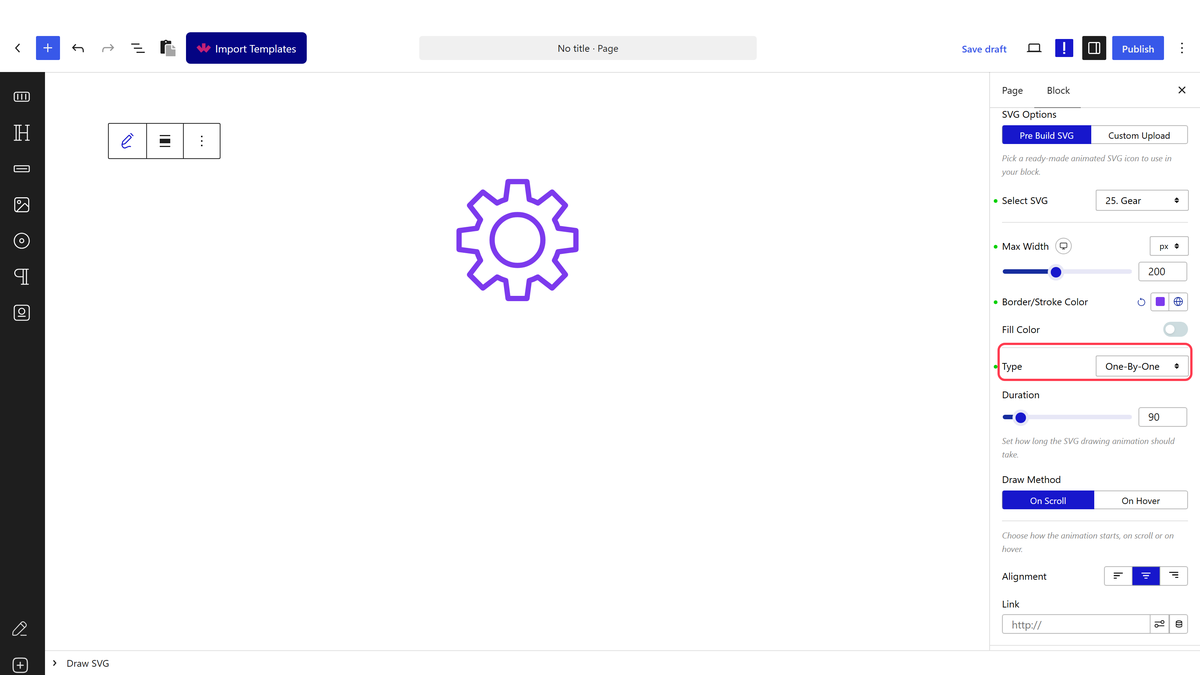
- Save and scroll to the icon on the live page.
Settings
| Setting | What it does | Default |
|---|---|---|
| SVG Options | Pre Build SVG (60+ built-in icons) or Custom Upload (your SVG file) | Pre Build SVG |
| Select SVG / Upload SVG | The icon or file to animate | App |
| Max Width | Largest size of the icon, per device | — |
| Border/Stroke Color | Colour of the drawn lines | #8072fc |
| Fill Color | Fills the shapes with a colour | Off |
| Type | Delayed (lines start one after another with overlap), Sync (all together), One-By-One (each line after the previous) or Scenario-Sync | Delayed |
| Duration | Length of the drawing in animation frames; 90 is about 1.5 seconds | 90 |
| Draw Method | On Scroll (draws when the icon comes into view) or On Hover | On Scroll |
| Alignment, Link | Position of the icon and an optional link | Center |
There is no Style tab. The Advanced tab holds the options shared by all Nexter Blocks.
How It Behaves
- On Scroll: the lines stay hidden until the icon enters the screen, then draw once.
- On Hover: the icon is shown fully drawn when the page loads, and the drawing replays each time the pointer moves over it.
- It works the same in the free plugin and with Nexter Blocks Pro.


Limitations
- There is no loop setting. On Scroll draws once; use On Hover to replay.
- Only line-based SVGs animate well. Filled shapes without strokes show little drawing.
- The icon has no alt text setting; screen readers hear “icon”.
Troubleshooting
The icon does not animate
It may already be on screen when the page loads with On Scroll. Scroll away and back, or use On Hover to test.
I cannot upload my SVG file
Only administrators and editors can upload SVG files by default. For other roles, turn on SVG Upload in Nexter Extension and choose the roles.
