How To Add a Preloader WordPress?

Key Takeaways

  • Nexter Blocks offers a Preloader Block that allows users to add customizable page loading animations to their WordPress site.
  • The Preloader Block includes options for Image, Icon, Text, Lottie, Custom Code, and Shortcode preloaders.
  • Users can set a minimum or maximum load time for the preloader, ensuring it displays for a specified duration regardless of actual page load time.
  • Nexter Theme's theme builder feature enables users to add the Preloader Block to common templates like Header or Footer.
Table of Contents

Page loading animations can significantly enhance the user experience on your WordPress website by providing visual feedback during loading times. A preloader animation, a small graphic or animation displayed while a website loads, assures visitors that the site is actively loading, rather than frozen or broken.

Custom code or additional plugins are often necessary to add a page loading animation in WordPress. However, the Preloader Block from the Nexter Blocks offers an intuitive and user-friendly solution. It allows you to add beautiful and customizable page loading animations to your WordPress site.

Required Setup

  • Make sure the default WordPress Block editor is active. 
  • You need to have the Nexter Blocks plugin installed and activated.
  • This is a Premium block, and you need the PRO version of the Nexter Blocks.
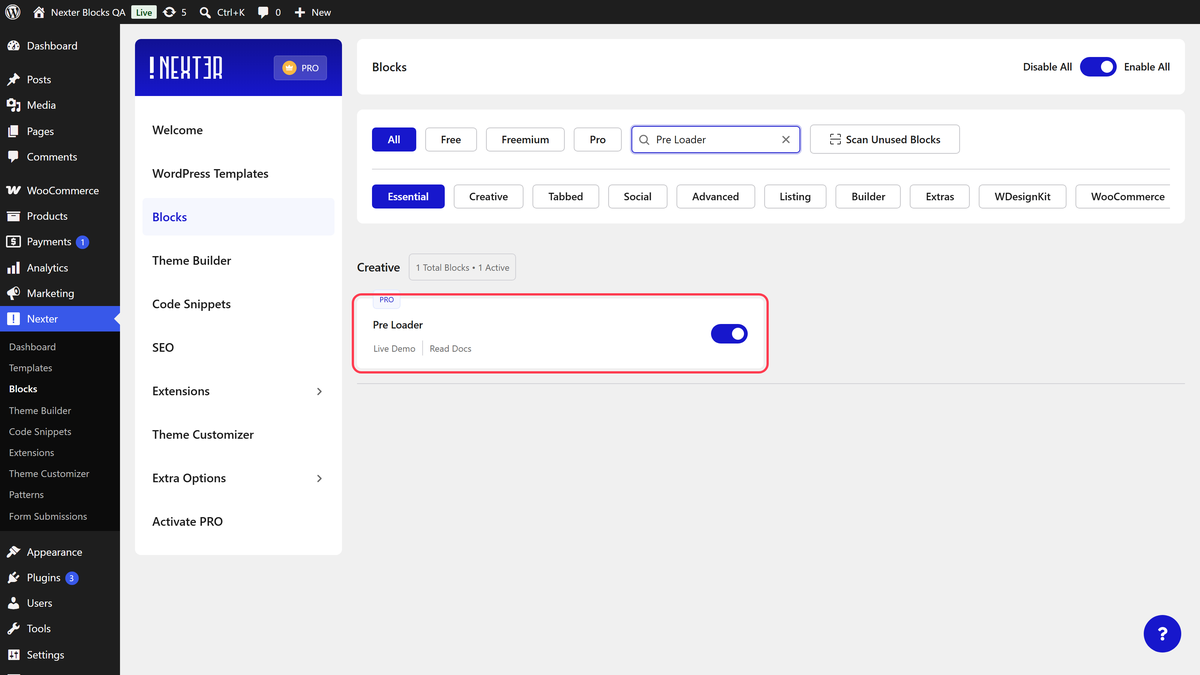
  • Make sure the Preloader block is activated, to verify this visit Nexter → Blocks → and Search for Preloader and activate.

Learn via Video Tutorial:

YouTube video

How to Activate the Preloader Block?

Go to 

  • Nexter Blocks 
  • Search for the block name and turn on the toggle.

preloader activation new 1

Key Features

How to Add the Preloader Block?

If you want to add page loading animation on the entire website, then you should add the Preloader block on common templates like Header or Footer.

You can easily do that with the free Nexter Theme’s theme builder feature. Where you can create header, footer and other templates.

Otherwise, you can add the Preloader block on individual pages or posts where you want to add the page loading animation.

Add the Preloader block to the template or page.

Then click on the Design from Scratch button to design the layout from scratch.

preloader design type

Note: By clicking on the Import Pre-Designed Template button, you can import a preset template and customize it as per your requirements.

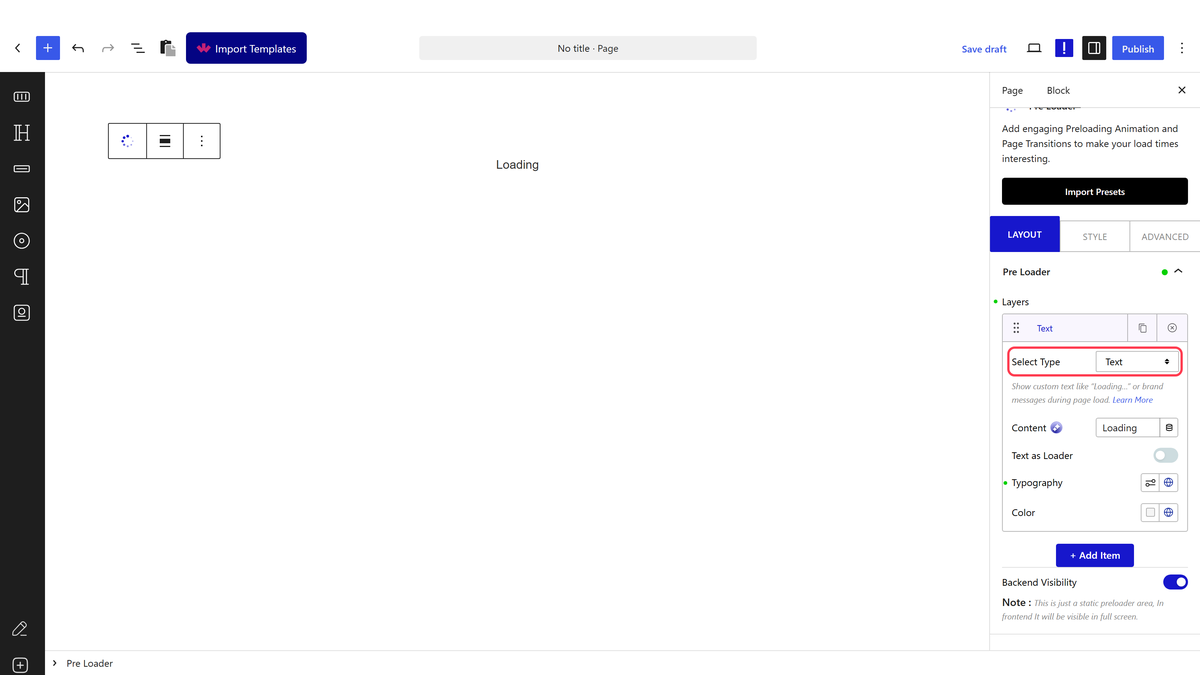
Then in the PreLoader tab, you’ll find a repeater item under Layers.

Open the item. Under the Select Type dropdown, you’ll find multiple options –

Image – To create an image preloader. Learn more.

Icon – To create an icon preloader. Learn more.

Text – To create a text preloader. Learn more.

Predefined – With this, you can select from different predefined loading animations as preloaders.

Lottie – To create a Lottie File animation preloader. Learn more.

Custom Code – To create a custom preloader. Learn more.

Shortcode – To create shortcode based preloader. Learn more.

Progress – With this, you can select from different progress bar loading animations as a preloader.

Based on your choice, you’ll find relevant options.

You can click on the + Add Item button to add multiple preloaders on the page. Learn the process.

Then you’ll see a Backend Visibility option, turn it on to see the preloader preview in static mode.

Note: Preview will not be available for some types of preloader.

Animated Load First

From this tab, you can select which elements will load before the preloader. Learn more.

Load Time – From this section, you can set the minimum or maximum load time of the preloader. Here, you’ll find three options –

Default – It will keep the load time to the default page load time

Minimum – In this option, you can set a minimum time (in seconds) for the loader to show, irrespective of the page load time. You can set the time in the Time(Second) field. 

For example, if you set the time to 3 seconds, the page loading animation will show for 3 seconds even if your page takes 2 seconds to load.

Maximum – In this option, you can set a maximum time (in seconds) for the loader to show, irrespective of the page load time. You can set the time in the Time(Second) field. 

For example, if you set the time to 2 seconds, the page loading animation will show for just 2 seconds even if your page takes 5 seconds to load.

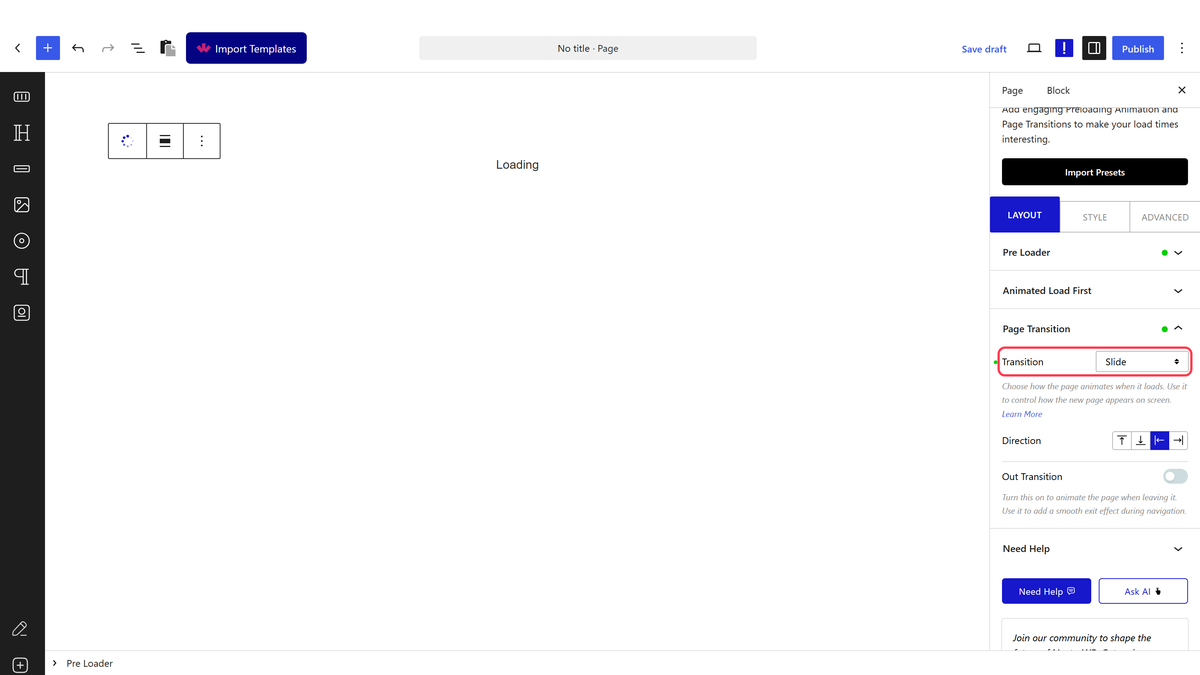
Page Transition

From this tab, you can add beautiful page loading transition effects. Learn the process.

How to Style the Preloader Block?

You’ll find most of the styling options for the Preloader block in the Style tab.

Image – If you are using the image preloader, you can style it from this tab. From here, you can manage image width, margin, border and box shadow. If you are using the Image as Loader option, then from the Image Loader section, you can manage opacity and CSS Filter for both normal and fill states.

preloader style new

Icon – If using an icon as a loader, you can manage the style from this tab. From here, you can manage the icon size, padding, margin, color, background, border etc.

Text – If you are using text as a preloader, you can manage the style from this tab. You can manage the background, padding, margin, border etc.

Predefined – If you are using any predefined loading animation, then you can manage its padding and margin from here.

Progress Bar – This is for the progress type preloader, from here you can manage the progress bar width, height, color, margin, border etc.

Box – From this tab, you can manage the preloader container box and page background style. You can manage the preloader container box width, padding, background, border etc. From the Whole Background section, you can style the whole page background.

Advanced options remain common for all our blocks, you can explore all it options from here.

View Advanced tab tutorial.

About the Author

Photo of Aditya Sharma CMO of NexterWP
CMO at POSIMYTH Innovations · NexterWP · 7 years experience

He has spent years in the WordPress ecosystem building, breaking, and optimizing sites until they actually perform. He works at the intersection of speed, growth, and usability, helping creators ship websites that load fast and convert. An active WordPress community contributor sharing through tools, tutorials, and direct collaboration. Tested practice, not theory.

WordpressThemesElementorn8nAIClaudeAutomationServer

Share your Thoughts

Get Instant Answers to all your questions about Nexter Blocks,
Extensions & Theme trained on 1000+ Docs and Videos

Still in Doubt? Let’s Assist You

Have Feedback or Questions?

Join our WordPress Community on Facebook!

Related Frequently Asked Questions

What should I do if the Preloader Block doesn't activate?

If the Preloader Block doesn't activate, ensure that the Nexter Blocks plugin is properly installed and activated. This block is part of the PRO version of Nexter Blocks, so check that you have the correct version. You can verify activation by navigating to Nexter u2192 Blocks and searching for 'Preloader'. If it's not visible, you may need to reinstall or update the plugin.

What are the best practices for setting a minimum load time for the preloader?

Setting a minimum load time for the preloader can enhance user experience by ensuring that the animation is visible long enough to reassure users that the site is loading. You can set this in the 'Load Time' section of the Preloader settings. For example, if you set a minimum load time of 3 seconds, the preloader will display for at least that duration, even if the page loads faster.

How do I exclude content that loads before the preloader?

To exclude content that loads before the preloader, you can use the options provided in the Preloader Block settings. This feature allows you to specify which elements should be hidden until the preloader finishes. This is useful for creating a seamless loading experience, ensuring that users don't see incomplete content while waiting for the page to load.

What types of preloaders can I create with Nexter Blocks?

Nexter Blocks offers various options for creating preloaders, including image, icon, text, Lottie file animations, and custom CSS/HTML preloaders. You can also choose from multiple predefined loading animations. This flexibility allows you to customize the preloader to match your site's branding and improve the loading experience.

Last reviewed: April 15, 2026

Related Docs