How to Add Lottie File Preloader Animation in WordPress?

Key Takeaways

  • Nexter Blocks includes a Preloader block that allows users to add Lottie file animations as loading animations on WordPress websites.
  • Lottie files are lightweight and customizable, providing a visually engaging loading experience for visitors while the site loads.
  • Users can manage Lottie file dimensions and animation speed directly within the Preloader block settings in Nexter Blocks.
Table of Contents

Lottie files are vector animations that are lightweight and highly customizable, making them an excellent choice for preloader animations on WordPress websites. By adding a Lottie file preloader animation to your website, you can create a visually stunning loading experience that keeps visitors engaged while your site loads.

With the Preloader block from the Nexter Blocks, you can easily add Lottie Files on your WordPress website as loading animations.

To check the complete feature overview documentation of the Nexter Blocks Preloader block, click here.

Requirement  – This block is a part of the Nexter Blocks, make sure its installed & activated to enjoy all its powers.

First, go to LottieFiles.com and create a free account there if you don’t have one.

Now log into your account and go to Featured here, you’ll find all the free Lottie files.

Click on the animation you like, it will open in a popup, click on the Save to workspace to generate button.

It will open the Lottie animation in a new window.

From the right panel, enable the Enable Asset Link toggle.

Make sure the Asset Link Format is set to Lottie JSON.

Then in the Asset link field, you’ll get the Lottie file URL.

Now add the Preloader block on the page or template, in the Pre Loader tab, you’ll find a repeater item under Layers.

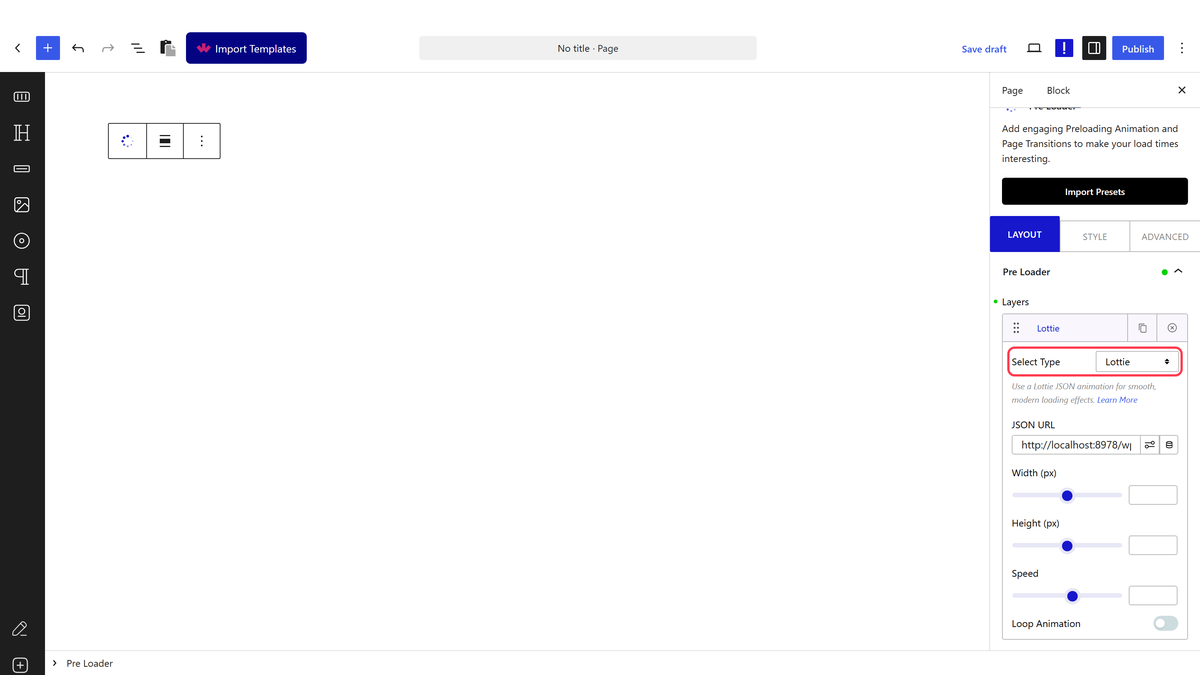
Open the item and select Lottie from the Select Type dropdown.

In the JSON URL field, paste the copied Lottie file URL.

preloader type lottie new

You can manage the Lottie File width and height from the Width (px) and Height (px) sections, respectively. From the Speed slider, you can increase the Lottie File animation speed.

Turn on the Loop Animation toggle to make the animation loop. 

Also, check How to Exclude a Content From a Preloader in WordPress.

About the Author

Photo of Aditya Sharma CMO of NexterWP
CMO at POSIMYTH Innovations · NexterWP · 7 years experience

He has spent years in the WordPress ecosystem building, breaking, and optimizing sites until they actually perform. He works at the intersection of speed, growth, and usability, helping creators ship websites that load fast and convert. An active WordPress community contributor sharing through tools, tutorials, and direct collaboration. Tested practice, not theory.

WordpressThemesElementorn8nAIClaudeAutomationServer

Share your Thoughts

Get Instant Answers to all your questions about Nexter Blocks,
Extensions & Theme trained on 1000+ Docs and Videos

Still in Doubt? Let’s Assist You

Have Feedback or Questions?

Join our WordPress Community on Facebook!

Related Frequently Asked Questions

What should I do if my Lottie file preloader animation isn't displaying?

If your Lottie file preloader animation isn't showing, ensure that the Preloader block from Nexter Blocks is installed and activated. This block is essential for adding Lottie animations to your WordPress site. Additionally, check that the Lottie file URL is correctly pasted in the JSON URL field and that the animation settings, such as width and height, are properly configured.

Can I use Lottie file preloaders for all types of websites?

Lottie file preloaders are highly customizable and lightweight, making them suitable for various types of websites. They enhance user experience by providing engaging loading animations while content loads. However, ensure that your site can support the Nexter Blocks Preloader block to implement this feature effectively.

What are the best settings for Lottie file preloaders in Nexter Blocks?

For optimal performance, adjust the animation speed using the Speed slider to match your site's loading time. Additionally, enable the Loop Animation toggle to keep the animation playing until the content is fully loaded. This ensures a smooth visual experience for visitors while they wait.

How do I exclude specific content from the preloader in WordPress?

To exclude specific content from the preloader, refer to the guide on How to Exclude a Content From a Preloader in WordPress. This allows you to control which elements are visible during the loading phase, enhancing user experience by preventing unnecessary loading animations on certain sections.

Is there a limit to the number of Lottie files I can use as preloaders?

While the page does not specify a limit on the number of Lottie files you can use, it's essential to consider performance implications. Using too many animations may slow down your site. It's best to select a few high-quality Lottie files that enhance user experience without compromising loading speed.

Last reviewed: April 15, 2026

Related Docs