












The featured image is the first thing a reader sees, and where your theme puts it is rarely where you would put it.
This block renders the current post’s featured image wherever you place it, at whatever size you choose.
For every Blog Builder setting in one place, see the Blog Builder guide.
Before You Start
- Edition: Free. Measured with Nexter Blocks Pro deactivated, this block renders byte-for-byte the same output.
- Block to enable: Post Image, switched on under Nexter > Blocks in your WordPress dashboard.
- A single post template to build in. These blocks belong in a template that renders one post, not on a standalone page.
- Posts with featured images set. A post without one renders nothing here at all.
Steps
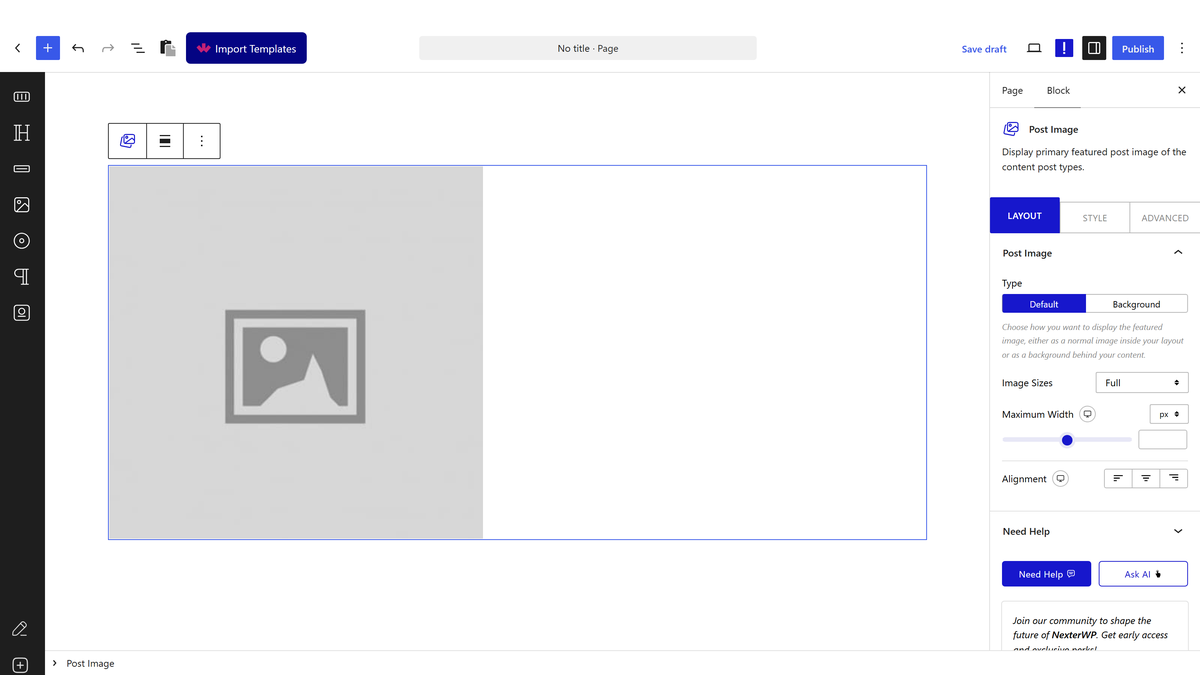
- Add the Post Image block to your single post template.
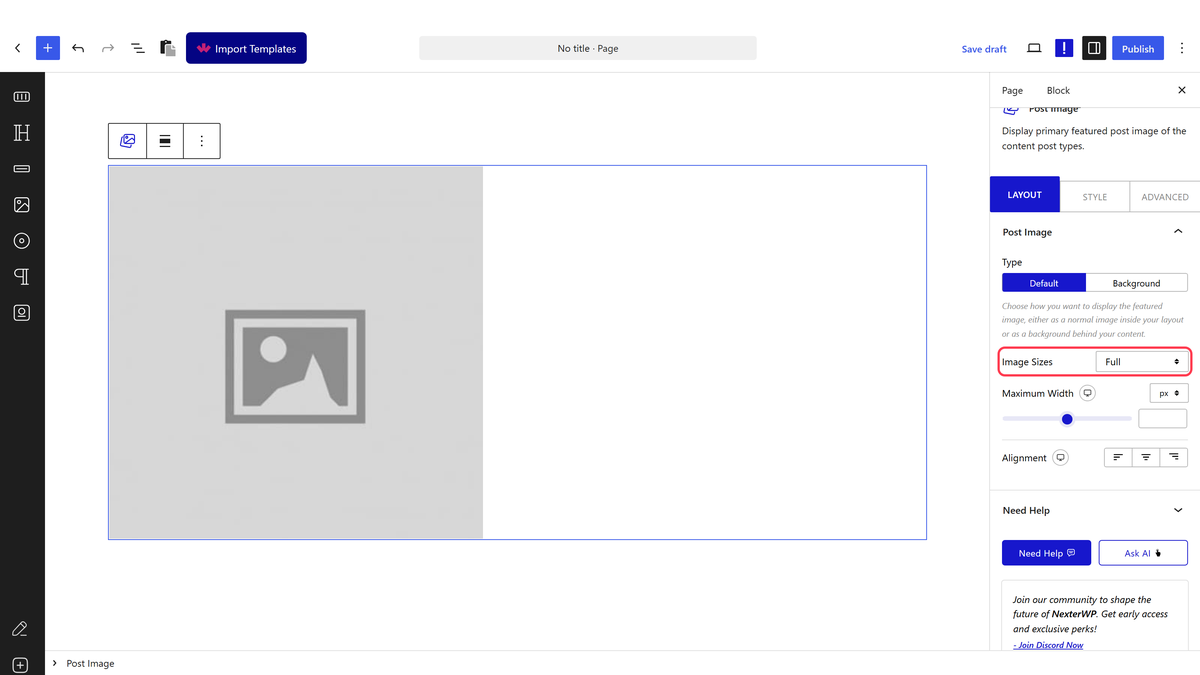
- Choose the image size and turn on the lightbox if you want one.
- Preview against a post that has a featured image.
How It Behaves
- Build this inside a single post template. The block reads whichever post the page is showing — it has no setting for picking one. In a Blog Builder template that is the post being viewed, which is exactly what you want.
- It renders the full-size image inside a link by default. Measured: one
<img>and one link. - The image size is a real WordPress size. Measured with thumbnail selected, the markup resolved to the
150x150file rather than scaling the full one in the browser. - The lightbox option adds real lightbox markup, so clicking opens the image rather than navigating.
- A post with no featured image renders absolutely nothing. Measured: 0 bytes, no wrapper and no placeholder. This block is the exception in the set — the others leave an empty container behind.
- On an ordinary page it shows that page’s data, not nothing. Measured: a Post Title block dropped onto a normal page rendered the page’s own title. The block does not check that it is on a post, so a mistake here shows the wrong thing rather than an error.
Limitations
- No featured image means no output, and no warning. Your template will simply close up around the gap, which is tidy but makes a missing image easy to miss.
- Choosing a size only works if that size exists. Images uploaded before a size was registered have not been cut to it.
- It is the featured image only. Images inside the post body belong to the content block.
- Full size on a large upload is a heavy page. Pick a size that matches the space.
- The lightbox needs JavaScript. Without it the link behaves as an ordinary one.
Troubleshooting
Nothing renders where the image should be
The post has no featured image. This block renders nothing at all in that case, rather than a placeholder.
The image is blurry
A small size is selected and then stretched by the layout. Choose a larger one.
The chosen size is being ignored
That size was probably registered after the image was uploaded, so the file was never generated. Regenerate your thumbnails.
The lightbox does not open
It needs JavaScript. Check the console for an error from another plugin.
