---
title: "How to Prevent Video Download in WordPress?"
url: https://nexterwp.com/docs/prevent-video-download-in-wordpress/
date: 2023-02-24
modified: 2026-03-31
author: "Aditya Sharma"
description: "Video content is quickly becoming one of the most popular types of media that people consume online. But as a WordPress user and website owner, you may be concerned about..."
image: https://nexterwp.com/wp-content/uploads/2024/05/prevent-video-download-in-wordpress-1024x519.jpg
word_count: 177
---

# How to Prevent Video Download in WordPress?

## Key Takeaways

- Nexter theme Content Protection enables video download prevention in WordPress by turning on the feature under Nexter > Extensions > Security.
- Content Protection includes toggles for Disable Right Click, Disable Dev's Tools Hot Keys, Disable Ctrl+U/CMD+U, and Disable F12 in the Protections tab.
- Who Can Access lets the site owner exclude users by role from the protection rules before clicking Save.

Video content is quickly becoming one of the most popular types of media that people consume online. But as a WordPress user and website owner, you may be concerned about people downloading your video content without your permission. With the right setup and security measures, you can prevent anyone from downloading your videos on WordPress.

To check the complete feature overview documentation of Content Protection feature, [click here](/docs/content-protection-for-wordpress-overview/).

Here we will explain how to protect your videos from being downloaded easily using the Nexter theme Content Protection feature.

Following the below steps:

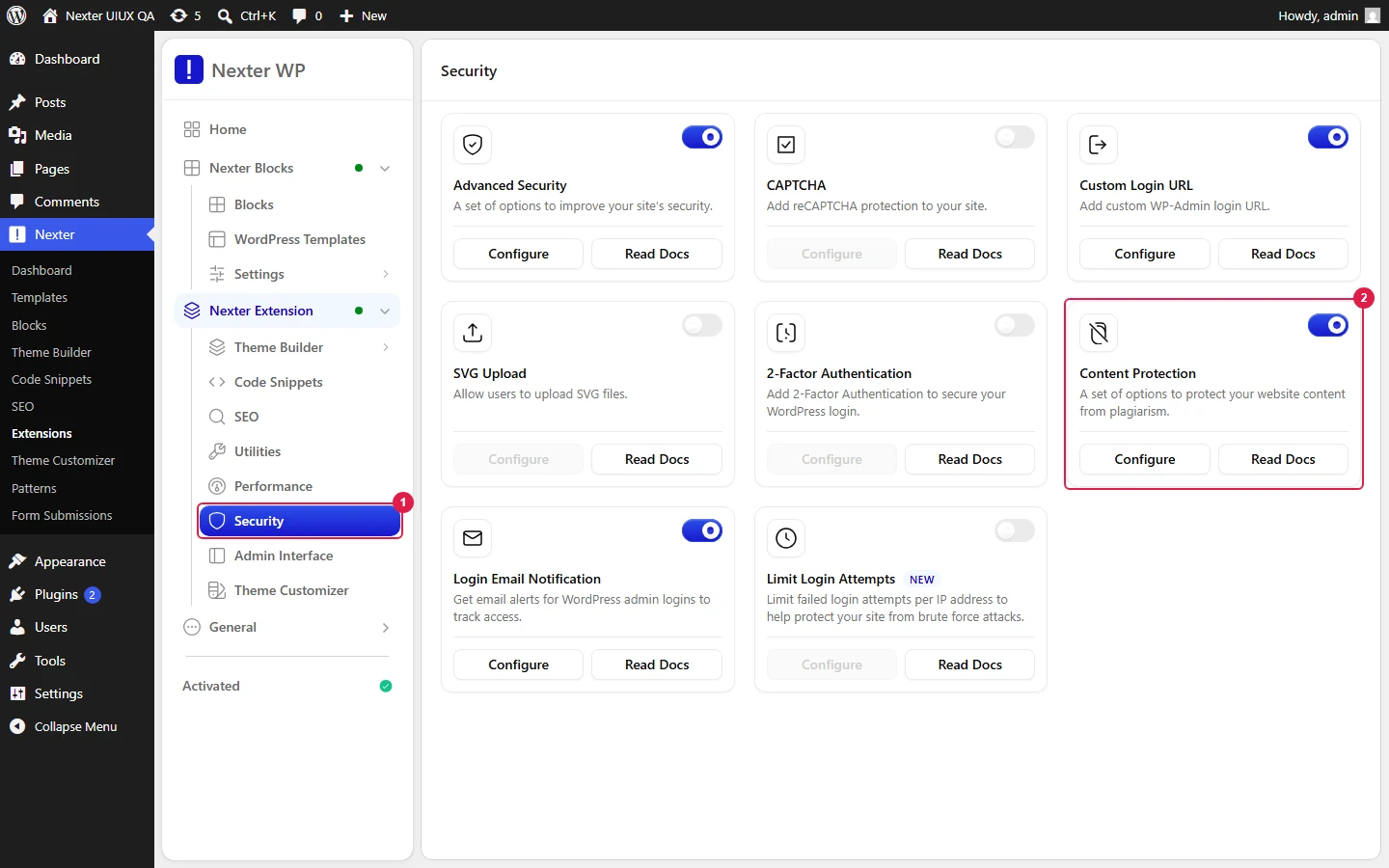
To do this, go to **Nexter **>** Extensions** > **Security.**

Then go to the **Content Protection** section, enable the toggle, and click the gear icon (⚙).

![](https://nexterwp.com/wp-content/uploads/2023/02/enable-content-protection-new-1024x511.png)

In the popup, go to the **Protections** tab, and turn on the toggles for **Disable Right Click**, **Disable Dev's Tools Hot Keys,** **Disable Ctrl+U/CMD+U** and **Disable F12**. 

From the **Who Can Access** section, you can exclude users by role from the above rules.

Then click on the **Save** button.

Also, check [How to Stop Image Download and Save in WordPress](https://nexterwp.com/docs/stop-image-download-and-save-in-wordpress/).