








Do you want to create a unique portfolio section in WordPress to showcase your portfolio images? A well-designed portfolio is essential for creative professionals like graphic designers, photographers, or web developers. It allows you to highlight your work and skills in a visually appealing way, helping to attract potential clients or employers.
With the Animated Service Boxes block from Nexter Blocks, you can create unique portfolio sections that will change the image as you hover over the text.
To check the complete feature overview documentation of the Nexter Blocks Animated Service Boxes block, click here.
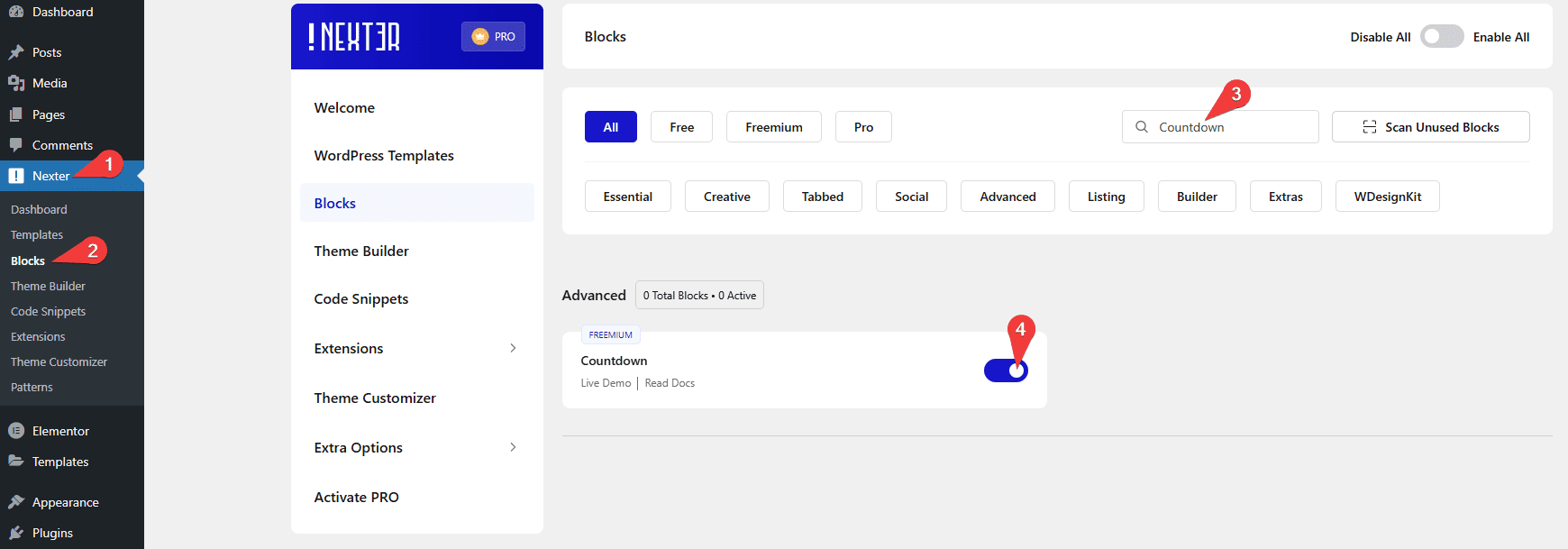
Requirement – This block is a part of the Nexter Blocks, make sure it’s installed & activated to enjoy all its powers.
To do this, add the Animated Service Boxes block to the page and follow the steps –
1. Select Portfolio from the Main Style section.
2. Then select the appropriate style from the Style section. Here you’ll find two styles.
- Style 1 – With this style, the image will be on the right and the text on the left column.
- Style 2 – With this style, the image will be used as the container background with overlaying text.
3. Then in the Service Boxes section, you have to add the content for the portfolio section. By default, you’ll find three items, open one item.
4. You have to add a title in the Title field.
5. Then in the Featured Image section, you have to add your portfolio image.
In the Button Link field, you can add a link to the title.
Following this process, you can edit the other items.
You can click on the +Add Item button to add more portfolio items.
You can select the image size from the Image Size dropdown.
Then from the Layout tab, you can manage the vertical and horizontal alignment of the text content, you can also manage the portfolio section height as well.
In the Title On Click tab, you can add an additional text for the title for tablet and mobile devices where users can click to visit the link set in the Button Link field.
Note: This additional text is given for the button link because, on mobile and tablet users have to click the title to change the image.
Now your portfolio images will change as you hover over the text.
