












A fixed deadline stops working the day after it passes, and everyone who arrives later sees a dead timer.
An evergreen countdown starts when each visitor arrives, so the offer always has time left on it.
For every Countdown setting in one place, see the Countdown block guide.
Before You Start
- Edition: Free — works in Nexter Blocks (free) and with Nexter Blocks Pro.
- Block to enable: Countdown, switched on under Nexter > Blocks in your WordPress dashboard.
- Your end date and time decided. The block reads it in your site’s timezone, set under Settings > General, not the visitor’s.
Steps
- Add the Countdown block to your page and click Design from Scratch.
- In Countdown Options, leave Countdown Setup on Normal and set the end date and time.
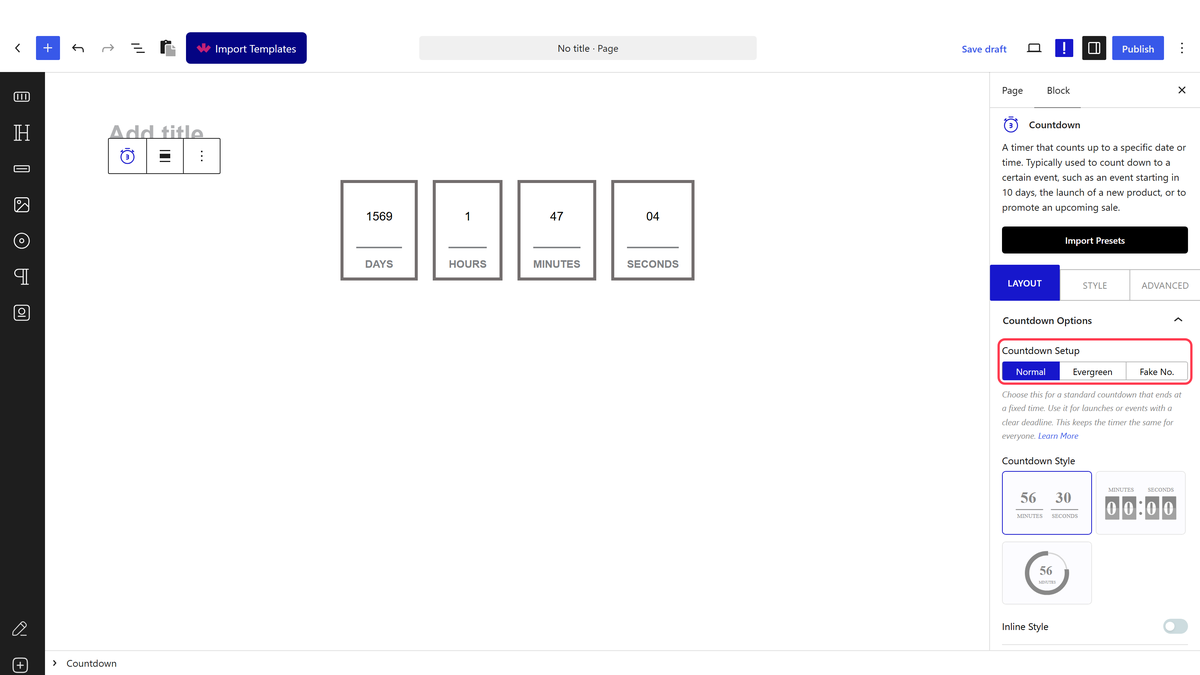
- Set Countdown Setup to Evergreen.
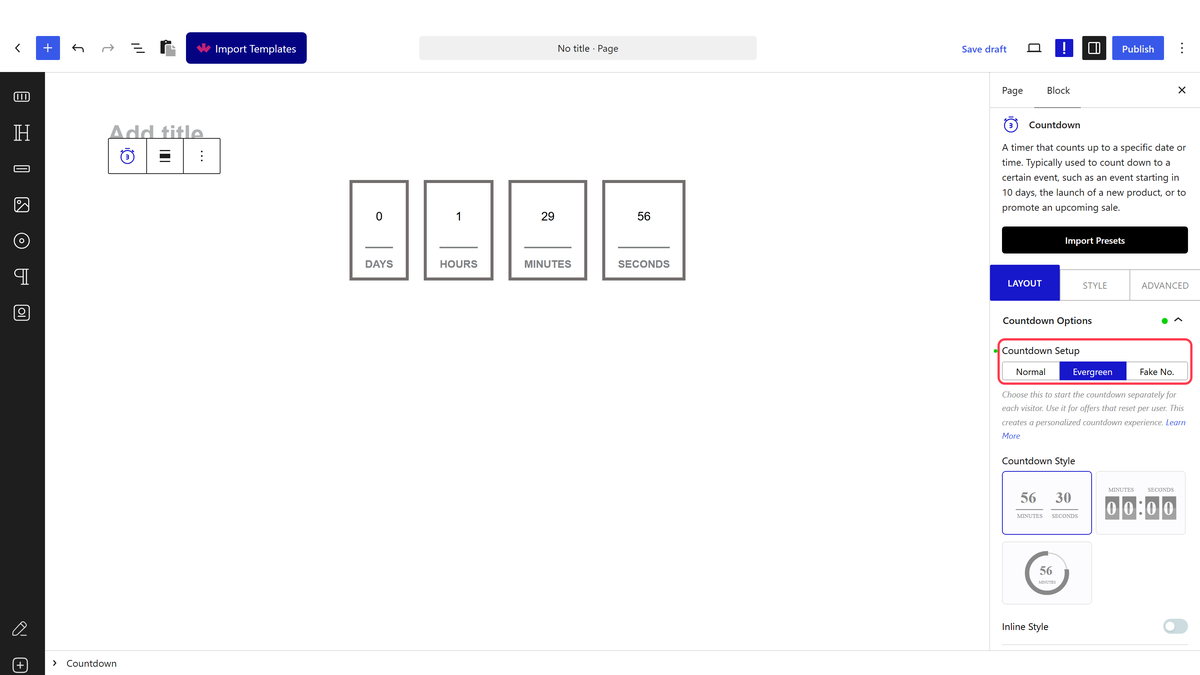
- Set how long each visitor’s timer should run.
- Switch the loop option on if the timer should start again for a returning visitor.
- Publish the page and check it in a private window.
How It Behaves
- Each visitor gets their own countdown, starting the first time they see the block.
- The remaining time is remembered in that visitor’s browser, so it keeps counting down across pages and between visits.
- With the loop option on, the timer restarts once it has run out instead of staying at zero.
- The ending actions work the same way as on a normal countdown.
Limitations
- Because the timer lives in the visitor’s browser, clearing site data or opening a private window starts it again from the top.
- The same person on a phone and a laptop gets two independent timers.
- An evergreen deadline is not a real deadline, so be careful about claiming scarcity that does not exist.
- It cannot be used to count down to a shared event — use the Normal setup for that.
Troubleshooting
The timer resets every time I reload
Test in a normal window rather than a private one, and check that site data is not being cleared between loads.
Every visitor sees the same remaining time
Countdown Setup is probably still on Normal, which counts to one fixed date for everyone.
