





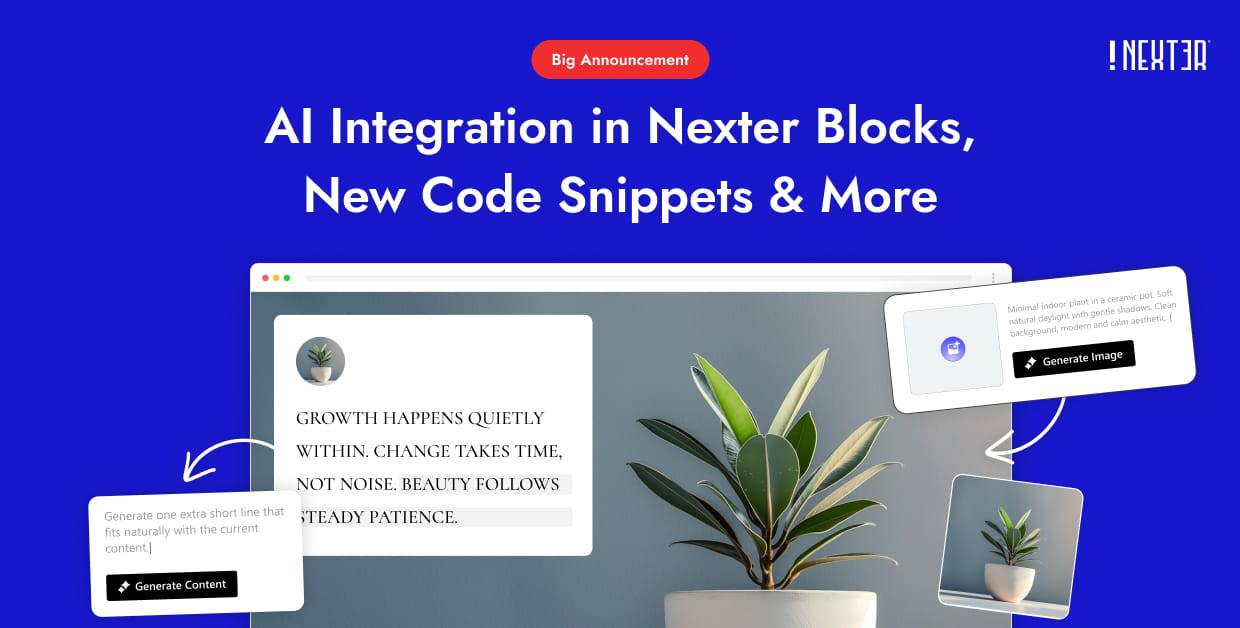


Are you looking to use AI-generated images in your WordPress site? With the AI image generator feature of Nexter Block, you can create beautiful AI images directly inside the Gutenberg editor. There’s no need to use any external tools or upload images separately. Just type a clear prompt, and your image will be generated in seconds.
You can generate AI images in almost all the image-related blocks of Nexter Blocks.
In Nexter Blocks, you can generate images with OpenAI and Google Gemini API.
Required Setup
- Make sure the default WordPress Block editor is active.
- You need to have the Nexter Blocks plugin installed and activated.
To generate AI images in Nexter Blocks, you have to enable the Manage API Keys.
Enable Manage API Keys
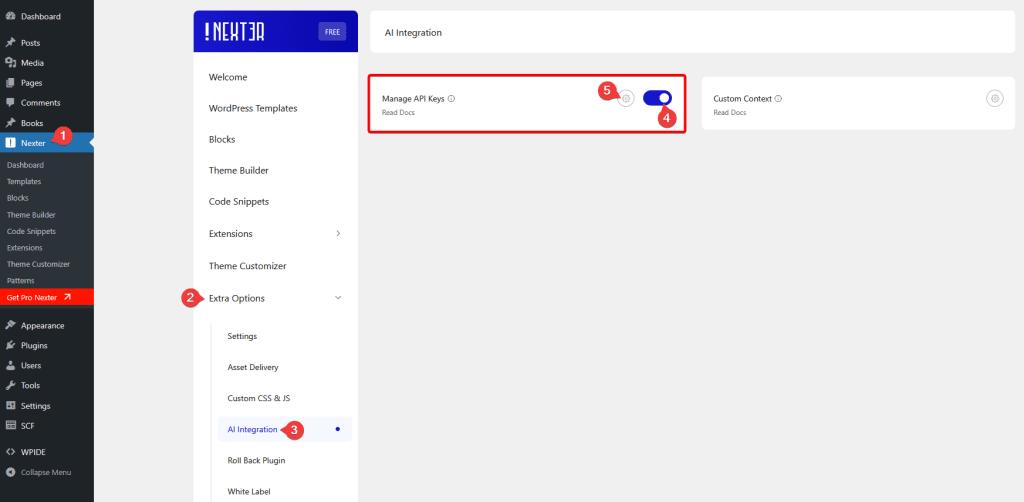
From Dashboard, go to Nexter > Extra Options > AI Integration.
Then go to Manage API Keys section, enable the toggle and click on the gear icon (⚙).
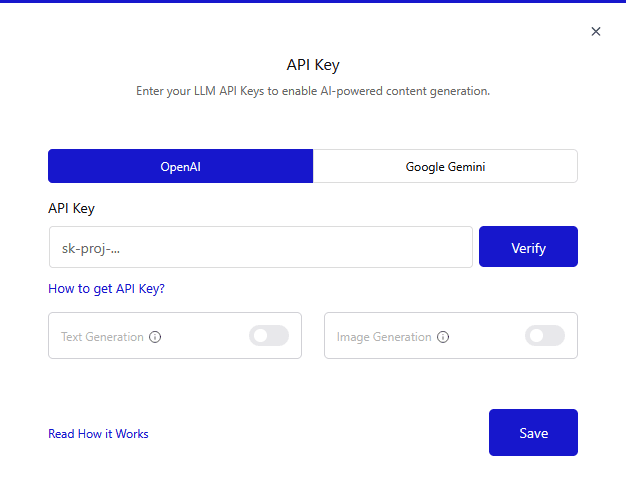
It will open the API Key pop-up. From here, from here, you can connect with OpenAI or Google Gemini API to generate AI images and text.
Connect with OpenAI API Key
To generate images with OpenAI in your Gutenberg editor, you need to connect your WordPress website with the OpenAI API. Simply follow the step-by-step guide to learn how to set up the OpenAI API key in Nexter Blocks.
The AI image generation feature in Nexter Blocks is free to use, but to generate an OpenAI API key, you need an OpenAI premium account. OpenAI offers different pricing plans based on image quality and usage.
Generate OpenAI API Key
To get your API key, visit the OpenAI platform and log in to your OpenAI account.
Once you’re logged in, go to your account dashboard. On the top-right side, you’ll see a button called Create new secret key. Click this button to generate your API key.
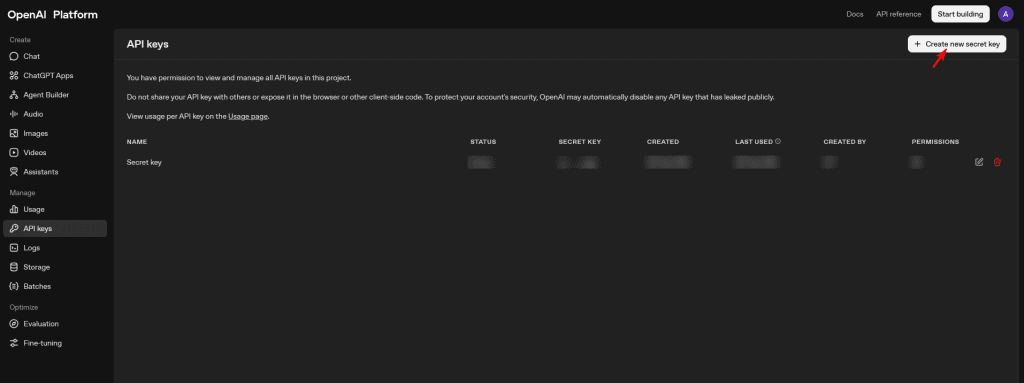
Then, enter the key name (optional) and adjust other settings, such as project and permission, if required. After that, click the Create secret key button.
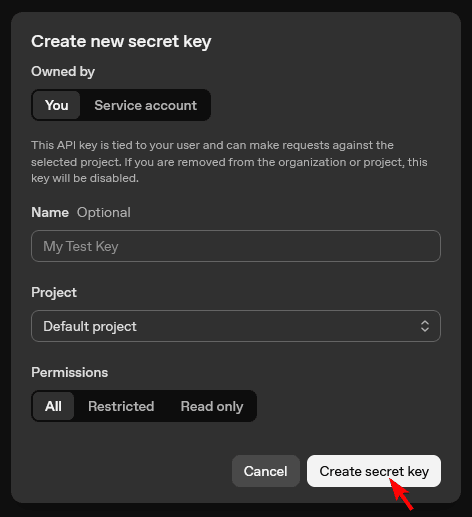
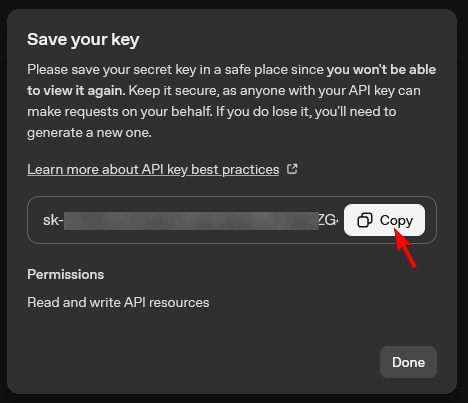
Now your secret key will be created instantly and will be ready to use right away (if you have credits).
Copy the API key into a notepad (you won’t be able to see it again once the popup closes).
Connect OpenAI with Nexter Blocks
From Dashboard, go to Nexter > Extra Options > AI Integration.
Then go to Manage API Keys section, enable the toggle and click on the gear icon (⚙).
It will open the API Key pop-up.
Then, in the OpenAI tab, paste your OpenAI API key in the API Key field and click on the Verify button. It will verify your key.
Note: If you’ve already added the Google Gemini API key then you have to revoke it first.
To generate images with OpenAI, enable the Image Generation toggle.
Note: From the Text Generation toggle, you can generate text content as well.
Once done, click on the Save button to save the changes.
Add Context for Custom AI Content Generation
You can generate customized AI content for your website by providing additional information about your business.
To that, from Dashboard, go to Nexter >Extra Options >Custom Context.
Then click on the gear icon (⚙).
In the popup, you can add information about your business and your target audience.
Once done, click on the Save button.
Now, the AI content will be generated based on these informations.
Generate AI images with OpenAI in Nexter Blocks
With the AI image generation feature, you can generate AI images in almost all the image-related blocks of Nexter Blocks, such as Advanced Image, Button, Flip Box, etc.
For example, we’ll use the Advanced Image block here. Add the block to the page or post where you want to generate the image.
In the Content tab, click on the Generate With AI icon beside the Upload Image label.
Note: You’ll see the Generate with AI icon in every Nexter Block that lets you add an image.
It will open a popup, from here you can generate AI images.
Let’s understand the options you’ll find here.
Enter your prompt here – Here, you have to add the image prompt. Try to describe the image as clearly and in as much detail as possible for better results. You can click on the Prompt Enhancer icon to enhance your prompt.
Note: To use the Prompt Enhancer, make sure to enable the Text Generation toggle in the Manage API Key settings.
Number of Images – Here, you can set the number of images you want to generate. This limit depends on the model. In DALL E 3 model, you can generate only one image; for the rest, you can generate up to 10 images.
Image Type – From here, you have to select the type of image you want to generate.
Style – From here, you can select a specific style for your image.
Choose Model – Select the image generation model that you want to use for the image generation.
Aspect Ratio – From here, you can set the image aspect ratio.
Image Quality – Choose the image quality you want to generate. You can select Low, Medium, or High quality. Higher image quality may cost more based on OpenAI’s pricing. For DALL E 3 model, you can select between Standard and HD, while you can set image quality for DALL E 2 model.
Once your settings are done, click on the Generate Content button to generate the images.
Based on the number of images you select, the images will be generated automatically. Click Use This Image to insert an image into your post. You can also save the image to the Media Library to use it later.
Regenerate or Edit the Image with OpenAI
With the AI image generation feature of Nexter Blocks, you can also edit or regenerate images using AI. You can edit an AI-generated image or upload your own image and enhance it with AI. After clicking the Generate With AI icon on the block, you’ll see four options to edit the image. Click Use This Image to insert the image.
Expand
With this option, you can easily expand your image. You have to set the image scale from 0.1 to 1; it will scale down your image to expand the area. You can also set the image aspect ratio. Once done, click on the Expand Image button to expand your image. Click Use This Image to insert the image.
Generative Fill
With this option, you can easily edit a part of the existing image. To edit a part of the image, just mark the area and add your prompt. Try to describe as clearly and in as much detail as possible for better results. You can click on the Prompt Enhancer icon to enhance your prompt. Once done, click on the Regenerate button to edit the image. Click Use This Image to insert the image.
Resize
With this option, you can easily change the image resolution to normal, medium or high and then click on the Regenerate button to resize the image. Click Use This Image to insert the image.
Variation
With this option, you can easily create different variations of your existing image. Just set the number of image variations you need and click on the Regenerate button to create the variations. Click Use This Image to insert the image.
Connect with Google Gemini API Key
To generate images with Google Gemini in your Gutenberg editor, you need to connect your WordPress website with the Google Gemini API. Simply follow the step-by-step guide to learn how to set up the Google Gemini API key in Nexter Blocks.
The AI image generation feature in Nexter Blocks is free to use, but to generate AI images using the Google Gemini API key, you need a Google AI Pro subscription.
Generate Google Gemini API Key
To get your Google Gemini API key, visit the Google AI Studio API Key and log in using your Google Account credentials.
Once you’re logged in, click on the Create API Key button on the top-right side.
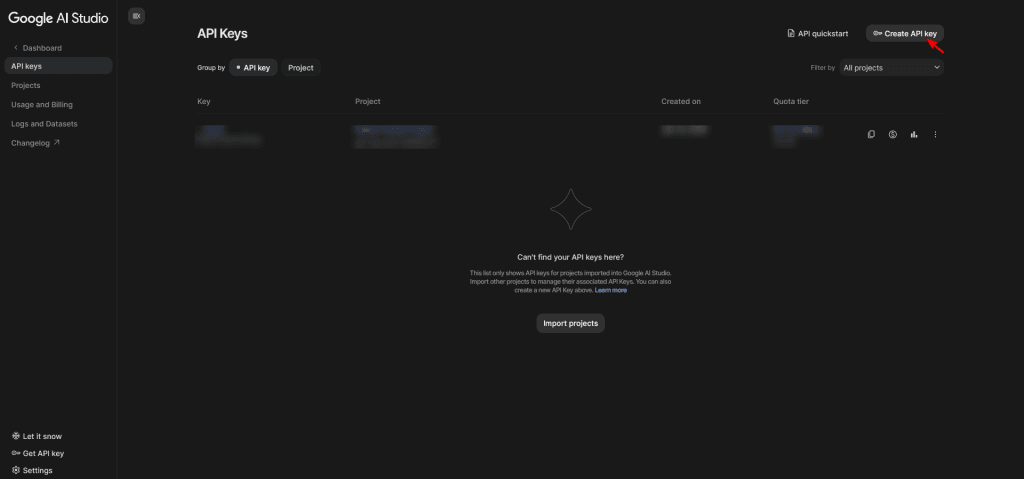
Then, enter the key name (optional) and adjust other settings, such as project, if required. After that, click the Create key button.
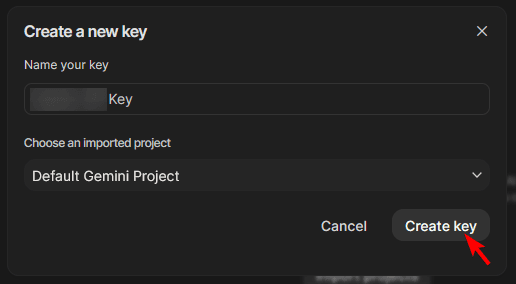
Now your API key will be generated.
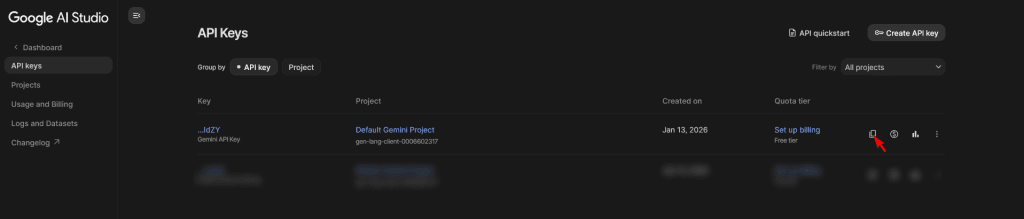
Click on the copy button to copy the key and paste it into a notepad.
Connect Google Gemini API with Nexter Blocks
From Dashboard, go to Nexter > Extra Options > AI Integration.
Then go to Manage API Keys section, enable the toggle and click on the gear icon (⚙).
It will open the API Key pop-up.
Then, in the Google Gemini tab, paste your Google Gemini API key in the API Key field and click on the Verify button. It will verify your key.
To generate images with Google Gemini, enable the Image Generation toggle.
Note: From the Text Generation toggle, you can generate text content as well.
In the Max Image Tokens per Prompt field, you can set the maximum number of tokens allowed for image generation. If the limit is reached, the generation will stop. The default value is set for the best performance, but you can change it if needed. You can also set it to 0 to remove the limit completely.
Once done, click on the Save button to save the changes.
Generate AI images with Google Gemini in Nexter Blocks
With the Google Gemini API as well, you can generate AI images in almost all the image-related blocks of Nexter Blocks, such as Advanced Image, Button, Flip Box, etc.
For example, we’ll use the Advanced Image block here. Add the block to the page or post where you want to generate the image.
In the Content tab, click on the Generate With AI icon beside the Upload Image label.
Note: You’ll see the Generate with AI icon in every Nexter Block that lets you add an image.
It will open a popup, from here you can generate AI images.
Let’s understand the options you’ll find here.
Enter your prompt here – Here, you have to add the image prompt. Try to describe the image as clearly and in as much detail as possible for better results. You can click on the Prompt Enhancer icon to enhance your prompt.
Number of Images – Here, you can set the number of images you want to generate. With the Gemini 2.5 Flash Image model, you can generate up to 10 images.
Image Type – From here, you have to select the type of image you want to generate.
Style – From here, you can select a specific style for your image.
Choose Model – Select the image generation model that you want to use for the image generation.
Aspect Ratio – From here, you can set the image aspect ratio.
Image Quality – Choose the image quality you want to generate. You can select 1k, 2k, or 4k quality. Higher image quality may cost more based on Gemini’s pricing.
Once your settings are done, click on the Generate Content button to generate the images.
Based on the number of images you select, the images will be generated automatically. Click Use This Image to insert an image into your post. You can also save the image to the Media Library to use it later.
