












A reader who finishes a post has to decide what to do next. Next and previous links make that decision for them, and they are the cheapest way to keep someone reading.
This block adds them to your template, showing the neighbouring posts by title.
For every Blog Builder setting in one place, see the Blog Builder guide.
Before You Start
- Edition: Pro — the Post Navigation block needs Nexter Blocks Pro.
- Block to enable: Post Navigation, switched on under Nexter > Blocks in your WordPress dashboard.
- A single post template to build in. These blocks belong in a template that renders one post, not on a standalone page.
- More than one published post. With a single post there is nothing to navigate to.
Steps
- Add the Post Navigation block to your single post template.
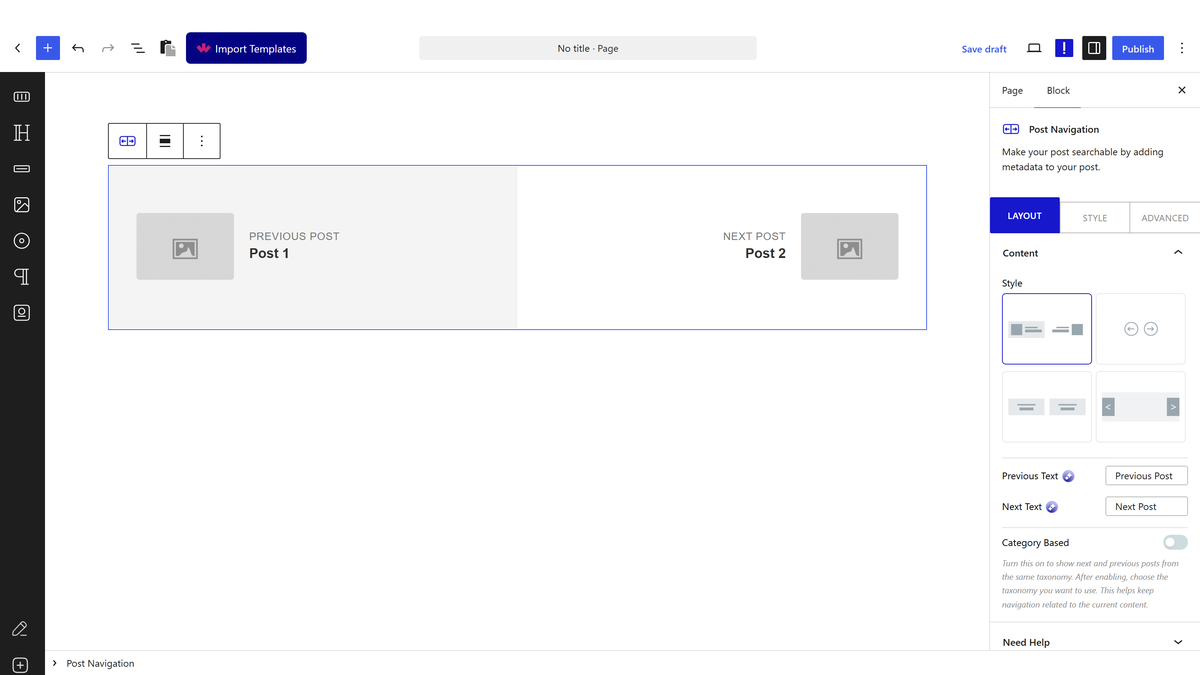
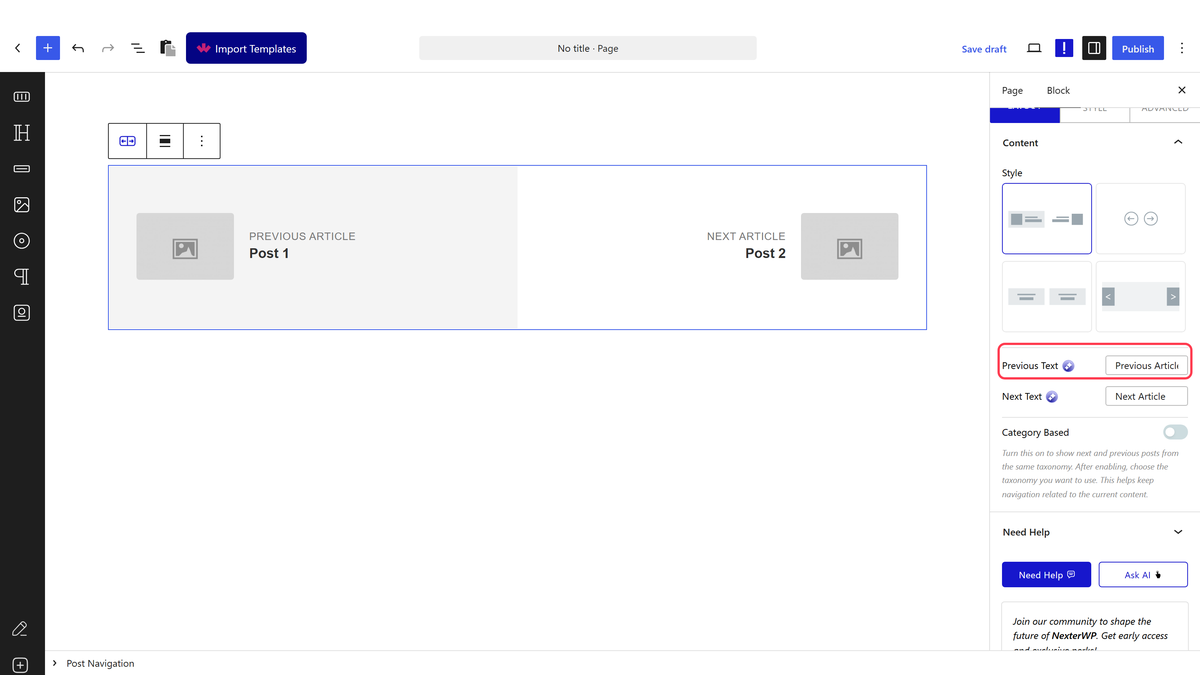
- Set the previous and next labels.
- Preview against a post in the middle of your archive.
How It Behaves
- Build this inside a single post template. The block reads whichever post the page is showing — it has no setting for picking one. In a Blog Builder template that is the post being viewed, which is exactly what you want.
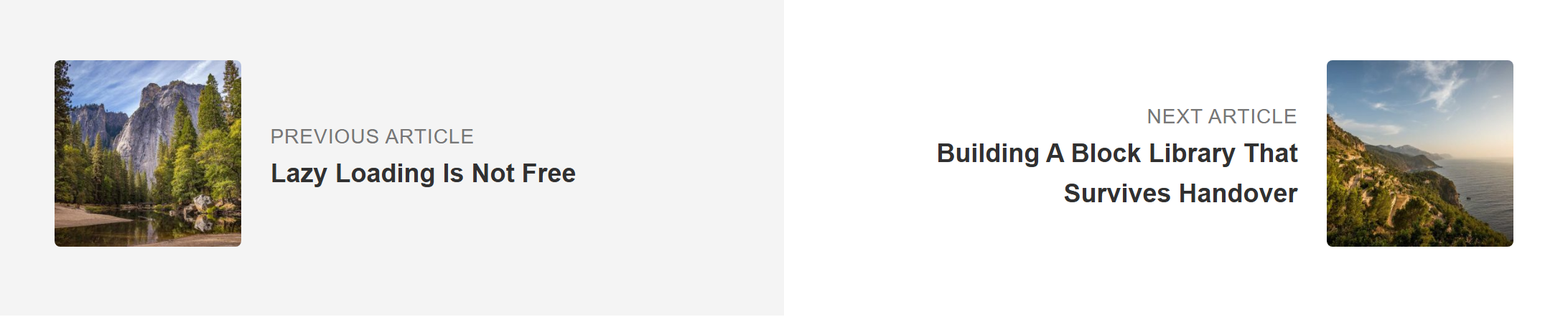
- It shows the neighbouring posts by title. Measured on a middle post: two links, reading Previous Post / Lazy Loading Is Not Free and Next Post / Forms That People Actually Finish.
- At the ends of the archive only one link renders. Measured: the oldest post rendered 1 link, the newest rendered 1, and a middle post rendered 2. That is correct — there is no post beyond the end.
- Neighbours are by publish date, in the same order as your archive.
- The labels are yours to write, separately from the post titles.
- This is the only Pro block in the Blog Builder set. Measured with Pro deactivated: not registered, 0 bytes. The other six render identically without Pro.
- On an ordinary page it shows that page’s data, not nothing. Measured: a Post Title block dropped onto a normal page rendered the page’s own title. The block does not check that it is on a post, so a mistake here shows the wrong thing rather than an error.
Limitations
- Pro only — measured with Pro deactivated, the block is not registered and renders nothing, leaving a gap at the end of your template.
- The first and last posts render only one link, so the block is not always symmetrical. Worth checking how your layout handles that.
- Navigation is chronological. It does not follow a series or a reading order, only publish date.
- It crosses categories by default, so the next post may be unrelated to the one just read.
- Very long titles can unbalance the layout when one neighbour is short and the other is not.
Troubleshooting
Nothing renders at all
This is the one Pro block in the set. Without Nexter Blocks Pro active it is not registered and produces no output.
Only one link is showing
You are looking at the first or last post in the archive, which has only one neighbour. That is correct behaviour.
The next post is unrelated
Navigation follows publish date across the whole archive, not the current category.
The links are showing the wrong posts
Neighbours are decided by publish date. Changing a post’s date changes its place in the order.
