











A long article is easier to read when the reader can see its shape before they start.
The Table of Contents block reads the headings already on your page and turns them into a linked outline, so nobody has to scroll to find the part they came for.
Before You Start
- Edition: Pro — the Table of Contents block is part of Nexter Blocks Pro.
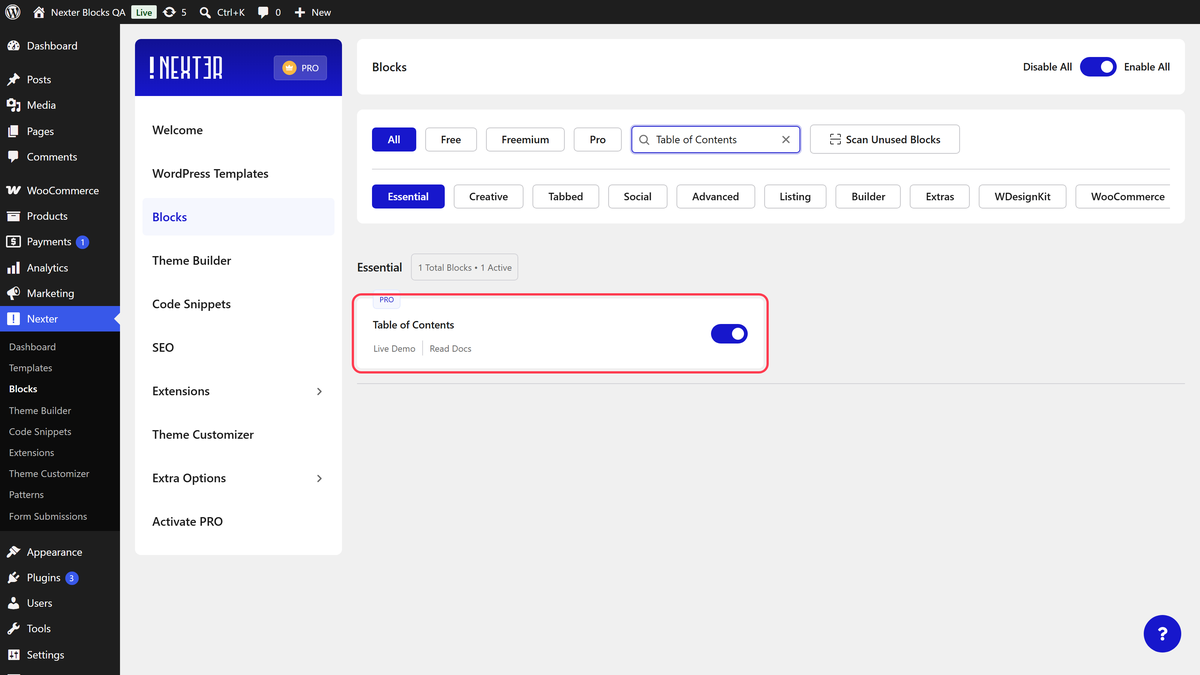
- Block to enable: Table of Contents, switched on under Nexter > Blocks in your WordPress dashboard.
- Real headings on the page: the list is built from your H1–H6 blocks, so text that only looks like a heading will not appear.
Steps
- Add the Table of Contents block to your post or page and click Design from Scratch.
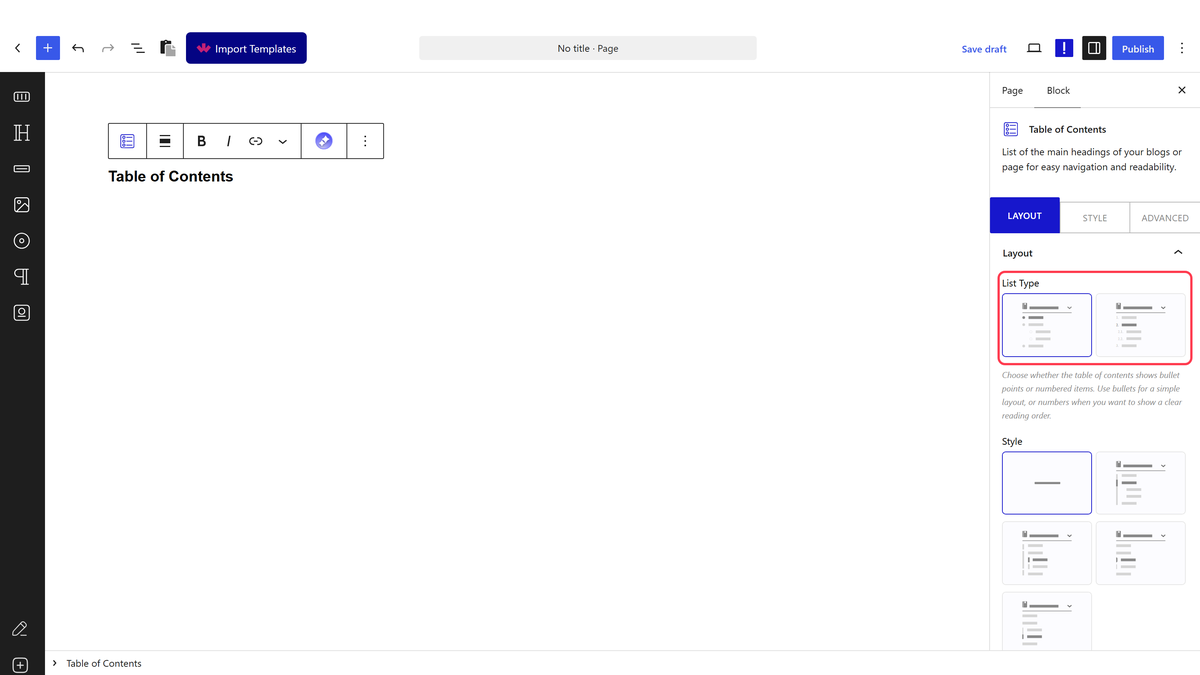
- In the Layout panel, pick a List Type — UL for bullets or OL for numbers — and a Style.
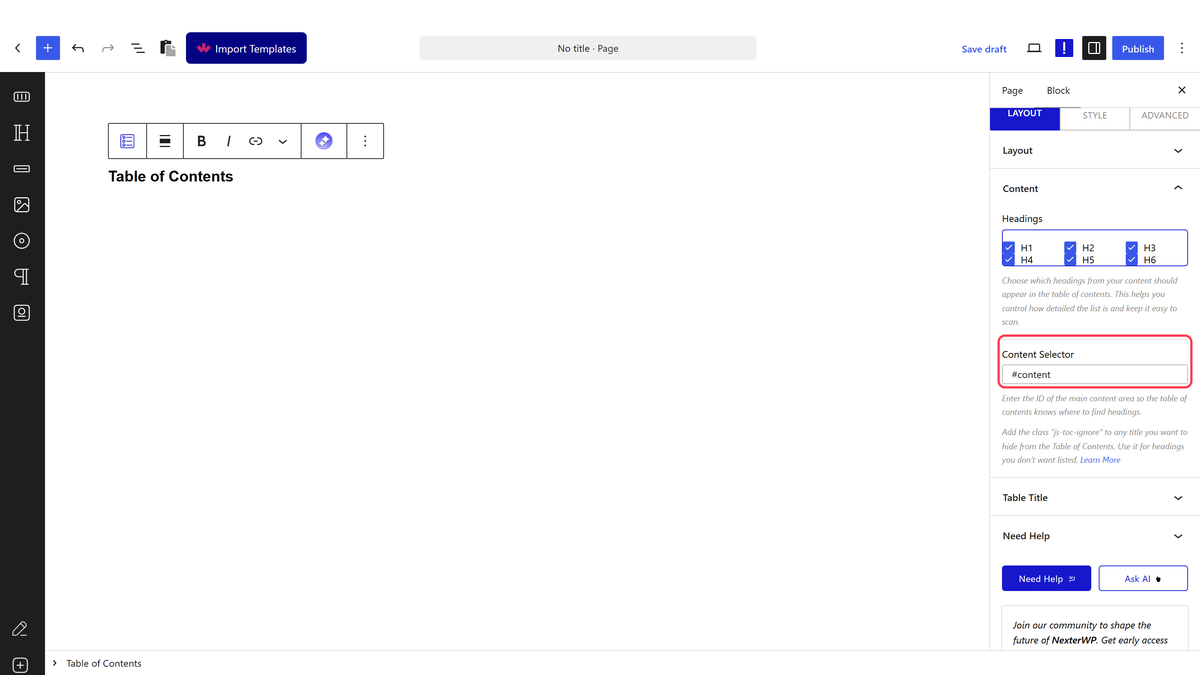
- Open the Content panel and check Content Selector. Leave it at #content unless your theme uses a different wrapper.
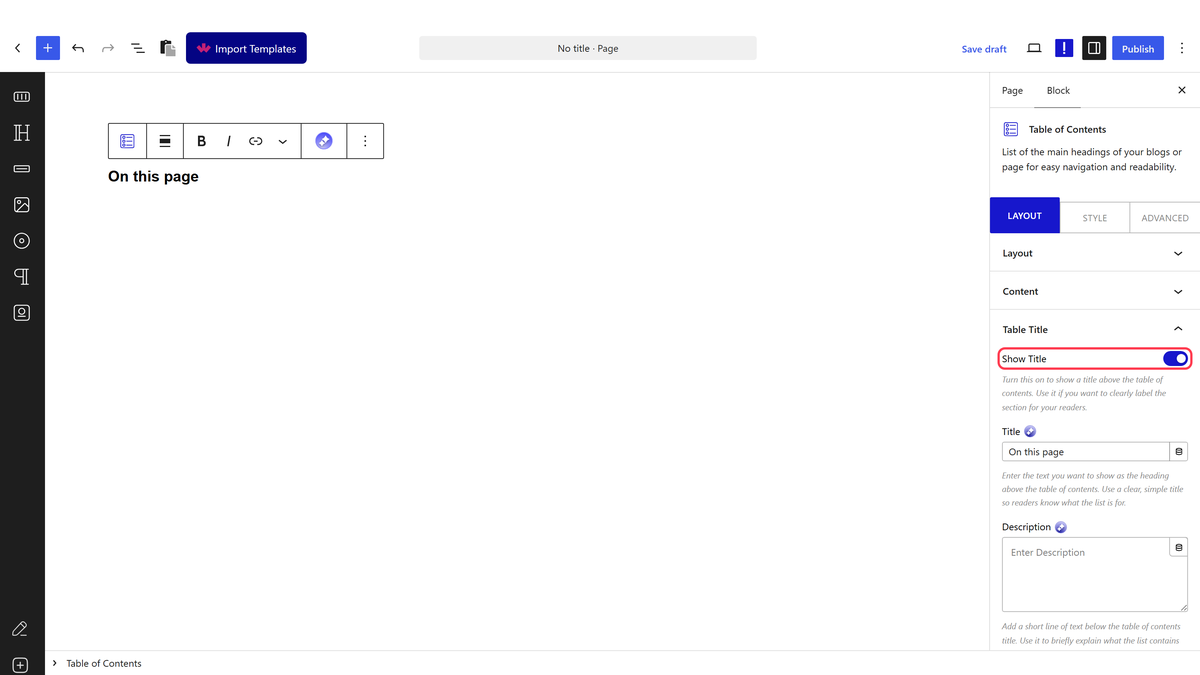
- In the Table Title panel, switch Show Title on and name the list — On this page reads better than the default.
- Publish, then open the page and check the list matches your headings.
Content Selector starts at #content, which is the wrapper most WordPress themes use — including the Nexter theme — so on most sites you can leave it alone.
What Each Panel Controls
| Panel | What you set there |
|---|---|
| Layout | List type, style, collapsing, smooth scrolling and whether the list sticks as you scroll |
| Content | Which heading levels are listed, and which part of the page is searched for them |
| Table Title | The heading above the list, its description, and the icons beside it |
The Settings That Matter Most
| Setting | What it does | Guide |
|---|---|---|
| Position Fixed | Keeps the list on screen while the reader scrolls | Sticky table of contents |
| Toggle Icon | Lets the reader fold the whole list away | Collapsible table of contents |
| Smooth Scroll | Glides to the section instead of jumping | Smooth scrolling |
| Headings (H1–H6) | Decides which heading levels are listed | — |
| Child Collapsed | Hides sub-headings until their section is reached | Collapsible table of contents |
How It Behaves
- The list is built in the reader’s browser, not saved into the page. Add a heading later and it appears in the list on its own — there is nothing to refresh or rebuild.
- Links are made from the heading text. A heading reading Getting Started becomes the link
#Getting-Started, and the block writes that id onto the heading itself. Renaming a heading therefore changes its link, so anything shared earlier will stop landing in the right place. - Sub-headings nest. An H3 after an H2 is listed inside it, so the outline mirrors the shape of the article.
- Turning heading levels off in the Content panel shortens the list — with H3 to H6 switched off, a page with two H2s and four H3s listed just the two H2s.
- One per page. With two Table of Contents blocks on the same page only the first one is filled in — the second stays empty. This was measured on the front end.
Limitations
- Pro only.
- The list can only contain real heading blocks. Bold text styled to look like a heading is invisible to it.
- Child Collapsed only works on Style 1. On None and Styles 2, 3 and 4 the sub-items stay visible whether the setting is on or not — measured on the front end.
- Leave the Smooth Scroll Offset at 0. With any other value the page scrolls past the heading and then jumps somewhere else entirely. See the smooth scrolling guide for what was measured.
- The block lists headings; it does not number your actual headings or change them in any way.
Troubleshooting
The list is empty and there is an error message on the page
If the reader sees Table of Content Class/Selector ID not found! Please Update "Content Selector" Option., the Content Selector does not match anything on the page. Put it back to #content, or use .entry-content, which works on most themes.
The list is empty but there is no error
The selector matched a container, but there were no headings inside it — check the Headings switches in the Content panel are not all off.
A heading I do not want keeps appearing
Single headings can be left out one at a time. See excluding a title.
The second table of contents on my page is blank
Only the first one on a page is filled in. Use one per page.
The block is missing from the inserter
Switch Table of Contents on under Nexter > Blocks in your dashboard.