












A progress bar for the whole page is not always the right question. Sometimes it is one long section that matters.
Apply to switches the block from tracking the whole page to tracking one element you point it at — as long as that element is tall enough to scroll through in its own right.
For every Dynamic Device setting in one place, see the Progress Tracker block guide.
Before You Start
- Edition: Free — the Progress Tracker block works in Nexter Blocks (free) and Nexter Blocks Pro.
- Block to enable: Progress Tracker, switched on under Nexter > Blocks in your WordPress dashboard.
- The bar is fixed to the screen, not the page. It stays in place as you scroll, pinned to the edge you choose — that is what makes it a reading indicator rather than a static graphic.
- A CSS class or ID on the section you want to track, and it should be taller than a typical screen.
Steps
- Add the Progress Tracker block anywhere on the page.
- Choose a Type: Horizontal, Vertical or Circular.
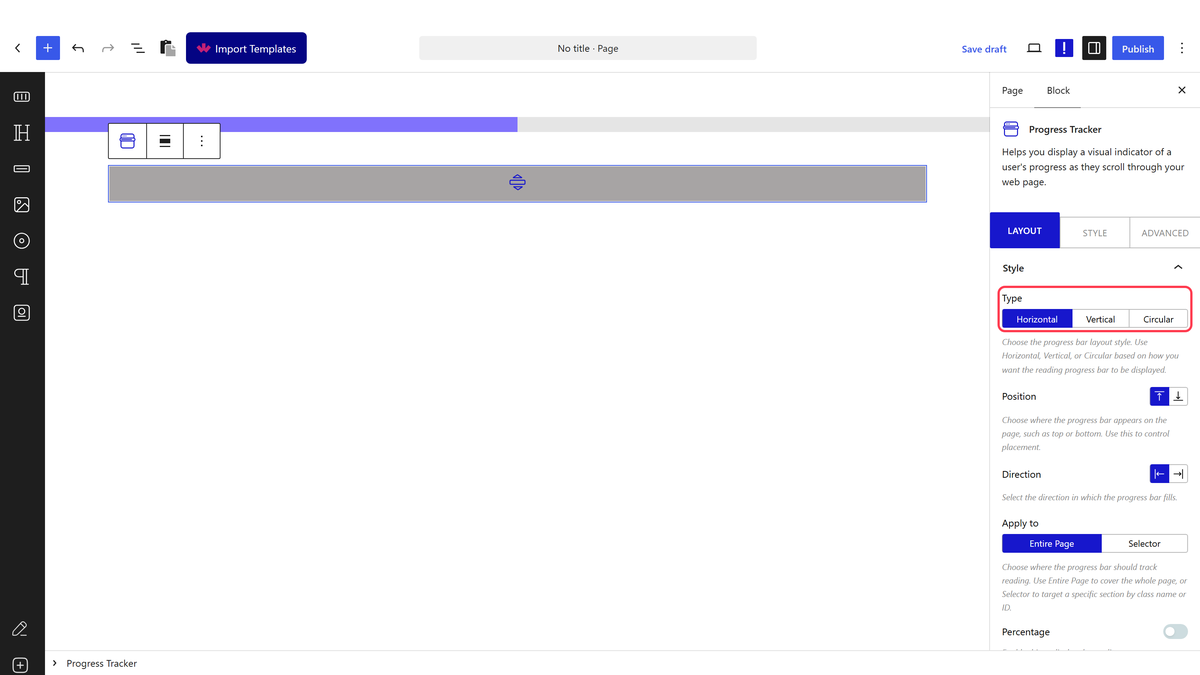
- Set Apply to to Selector.
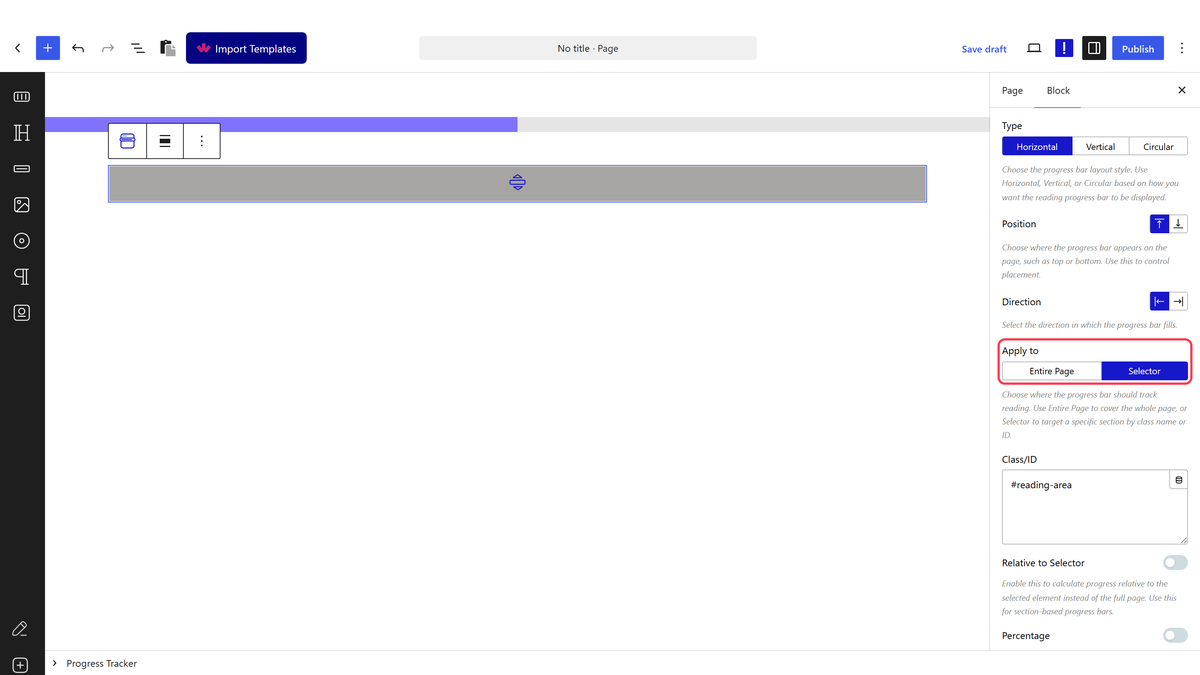
- Type the section’s class or ID into Class/ID, for example
#article-body.
- Turn on Relative to Selector if you want the bar to sit inside that section rather than fixed to the screen edge.
The tracked section needs to be taller than the screen. Measured: point the block at a section shorter than the viewport and the bar sits at 0% for most of the page, then jumps straight to 100% far too early and stays there — it never tracks the short section smoothly. Pick a section long enough to scroll through in its own right.
How It Behaves
- Measured on a section taller than the screen: the bar filled smoothly and proportionally all the way through — 17%, 37%, 57%, 77%, then 100% right at the section’s end.
- Measured on a section shorter than the screen, the tracking breaks. The bar sits at 0% for most of the page, then jumps straight to 100% well before the section is reached, and stays there for the rest of the page. Confirmed directly on the published page’s own fill value, not just read from the code.
- Relative to Selector changes where the bar sits, not what it measures — without it, the bar stays fixed to the edge of the screen the whole time; with it, the bar becomes part of that section and scrolls into view with it.
- Percentage and Pin Point both still work with a section-scoped bar — Percentage without restriction, Pin Point only if Apply to is switched back to Entire Page (see the Pin Point guide).
Limitations
- The section must be taller than the viewport, or the bar behaves incorrectly — measured, this is not a minor visual glitch, the bar becomes effectively useless on a short section.
- Only one selector per block — to track several sections, add several blocks.
- Pin Point does not work here at all — measured, switching Apply to away from Entire Page removes every marker.
Troubleshooting
The bar jumps to 100% almost immediately
The tracked section is shorter than the screen. Point Class/ID at a taller section, or wrap more content in the element you are tracking — measured, this exact symptom comes from a too-short section.
The bar does nothing at all
Check Class/ID matches a real element on the page — a typo or a selector that does not exist leaves the bar with nothing to measure.
My Pin Point markers disappeared when I switched to a section
That is expected — Pin Point only renders with Apply to set to Entire Page, measured. Switch Apply to back if the markers matter more than the section scoping.
