












WordPress block patterns should simplify your workflow, not bring it to a halt. When patterns stop appearing in the block inserter, fail to register, or vanish after you have set them up, your Gutenberg editing experience grinds to a stop. You are not alone. This is one of the most frequently reported issues across WordPress forums and support threads.
The causes range from unsupported themes and functions.php registration errors to incorrect file names, missing theme.json configuration, and plugin conflicts. Since WordPress 6.3, a new source of confusion has entered the picture: Synced Patterns (the renamed version of Reusable Blocks) behaving differently than expected. This guide is for WordPress developers and site builders who want their block patterns working reliably in Gutenberg.
Below, you will find 5 step-by-step fixes for block patterns not showing up in WordPress, plus a dedicated section on Synced Patterns issues introduced in WordPress 6.3. By the end, you will know exactly which cause applies to your situation and how to resolve it.
What Are WordPress Block Patterns?
Block patterns are pre-made collections of WordPress blocks designed to be added to your website.
Also Read: why you should avoid using !important in CSS when you patch WordPress styling.
Introduced with the Gutenberg block editor, block patterns are a great option to maintain visual consistency across your website. You can insert them into your page or post and edit them for every unique instance.
They function as regular blocks, allowing you to add and repeat content like CTAs, pricing tables, or social media links on multiple pages easily. This saves you the time of creating and editing individual blocks each time you need a testimonial section or feature callout.
Here are the key differences between block patterns and Synced Patterns in WordPress:
| Block Patterns | Synced Patterns (formerly Reusable Blocks) | |
| Meaning | Block patterns are predefined blocks that can be added to pages or posts and designed in custom styles. Each instance is independent. | Synced Patterns are content blocks that update everywhere on your site at once. Edit one instance and every other instance updates automatically. |
| Best Use | Block patterns are ideal when every instance needs its own customization, independent of other pages. | Synced Patterns are ideal when every instance must remain identical across your website, such as a header CTA or author bio. |
| Examples | Pricing table template, contact forms, and testimonial section | Author bio, seasonal banners, repeating CTA buttons. |
Block patterns can be created and accessed in three ways:
- WordPress.org: WordPress offers its own pre-made block patterns that you can copy and paste into your website from the official WordPress pattern directory.
- Theme code: Within the theme code, you can use the
register_block_pattern()function to register your pattern. You can also register your pattern by adding the relevant PHP file into the patterns directory of your theme. - Site editor: Within the block editor, click the plus (+) symbol at the top of your screen. If your theme has patterns registered, you will see them listed there.
Want to learn how to cut time on adding and customizing content for your website? Find out How to Create a Reusable Block in WordPress.
Why WordPress Block Patterns May Not Be Showing or Working
If your block patterns are not showing in Gutenberg, several distinct causes could be responsible. Identifying the right one before jumping into fixes saves significant time.
1. Unsupported theme: Your chosen WordPress theme does not support block patterns, which prevents them from being registered or displayed properly.
2. Registration error: The pattern may not have registered correctly, either due to syntax issues or missing code in your functions.php file.
3. Incorrect file names: Incorrect file names or inconsistent naming conventions prevent WordPress from locating your pattern files during loading.
4. Missing theme.json configurations: A misconfigured or absent theme.json file can block pattern registration in block themes.
5. Plugin conflicts: Some plugins may interfere with block pattern loading by overriding core functions or adding conflicting scripts to the queue.
6. Synced Patterns confusion (WordPress 6.3+): WordPress 6.3 renamed Reusable Blocks to Synced Patterns. Users who created Reusable Blocks before the update may find patterns listed as “not synced” or be unable to locate them in the new Patterns panel. This is a UI change, not a registration failure. See the dedicated section below for how to resolve this.
7. Block markup validation error: If a block was manually edited outside the WordPress editor, you may see a “block contains unexpected or invalid content” error. This means the block’s JSON structure is broken. Click “Attempt Block Recovery” in the editor notification, or delete and re-insert the pattern from the library.
How to Fix Block Pattern Issues in WordPress
Now that you know the common causes, here are the step-by-step solutions. Work through these in order. Most pattern issues are resolved by Fix 1 or Fix 2.
1. Verify Your Theme Supports Patterns
The first thing to verify is whether your WordPress theme supports block patterns. Navigate to Appearance > Editor > Patterns to check.
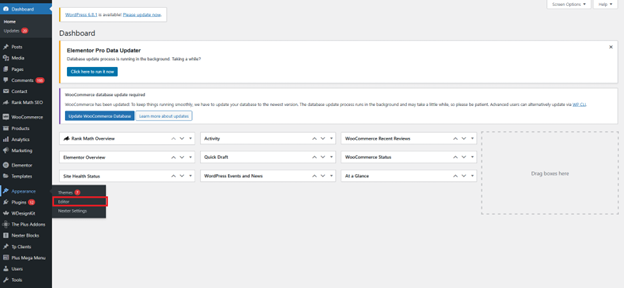
If this option does not appear, your theme is likely not a block theme.
Block themes and block patterns work together. For full block pattern compatibility, you need a block theme. Nexter Theme is a block-compatible WordPress theme that weighs under 50KB and works natively with the Nexter Blocks pattern library. Alternatively, switch to a recent default WordPress theme like Twenty Twenty-Five to confirm whether your current theme is causing the issue before making other changes.
Want to make sure you’re picking the right theme for your website? Learn How to Choose a WordPress Theme.
2. Register Block Patterns in functions.php Using register_block_pattern()
From your home page, navigate to Tools > Theme File Editor.
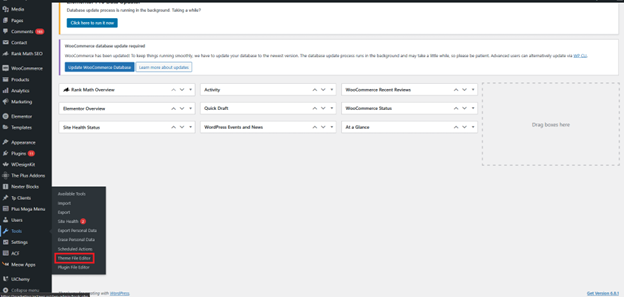
Find functions.php in the table to the right of the block editor. Click it.
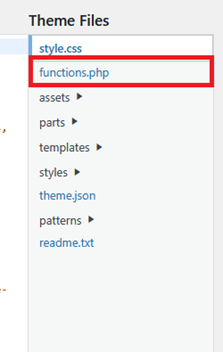
Make sure you are using the register_block_pattern() function correctly with all required parameters. For a testimonial section, your code should look like this:
add_action(‘init’, function() { register_block_pattern( ‘patterns/testimonial-section’, array( ‘title’ => __(‘Testimonial Section’, ‘domain’), ‘categories’ => array(‘patterns’), ‘content’ => ‘<– HTML code block →’ ) });
If register_block_pattern() is not working, check carefully for a missing parameter, a misplaced semicolon, or unclosed brackets. These are the most common causes of silent registration failures. Look through your code one line at a time to catch the issue.
3. Use Proper File Structure and Naming
Incorrect file naming is a common reason block patterns fail to load. If you named your pattern file testimonialsection.php but reference it as testimonial-section, WordPress cannot locate it.
Use consistent, hyphenated names for all.php block pattern files. Store all pattern files in the same location within your theme’s patterns/ folder.
To check your current patterns, navigate to Tools > Theme File Editor.
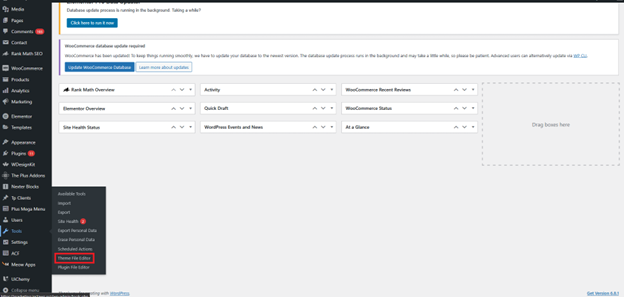
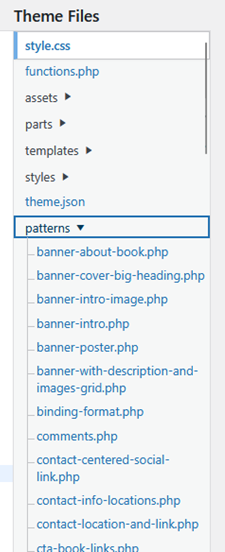
In the Theme Files table on the right, click the “Patterns” folder.

All pattern files will be listed alphabetically. If your pattern is missing, check that the filename matches exactly what you referenced in your code, including hyphens and lowercase characters.
4. Check theme.json Configuration
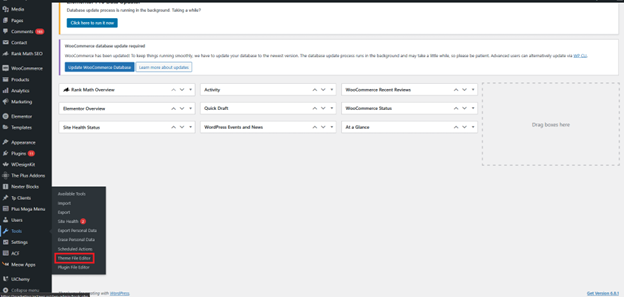
Check if your theme has a theme.json file. Navigate to Tools > Theme File Editor.
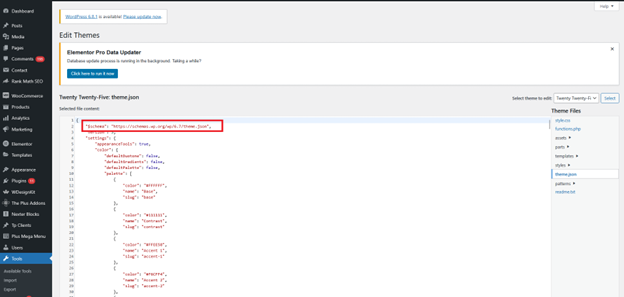
In the Theme Files table on the right, confirm the theme.json file is present at the root level of your theme.

If the file is present, click it to open it. Check the opening lines for the schema declaration and look for block pattern support settings within the schema.
A missing or misconfigured theme.json can silently block pattern registration in block themes. If your theme does not have one, you can add a minimal theme.json at the theme root. The WordPress developer documentation covers the required schema structure.
5. Clear Cache and Disable Conflicting Plugins
If block patterns are not showing up even after applying fixes 1 through 4, your WordPress cache is likely serving a stale version of your theme files.
Caching plugins save a static snapshot of your site to reduce load times. This means newly registered patterns may not appear in the block inserter until the cache is cleared, because WordPress is serving the cached version of your theme files rather than the current state.
Start by clearing your browser cache, then use your WordPress caching plugin to clear the server-side cache. If you use WP Rocket, go to Settings > WP Rocket on the WordPress dashboard and click Clear Cache on the plugin dashboard.
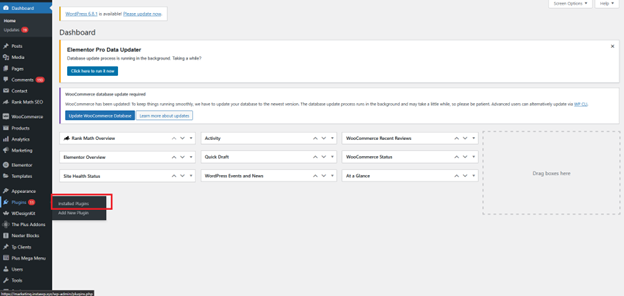
If clearing cache does not resolve the issue, a plugin conflict may be interfering with the block editor. Navigate to Plugins > Installed Plugins.
Temporarily deactivate all plugins using the “Bulk Actions” dropdown option.
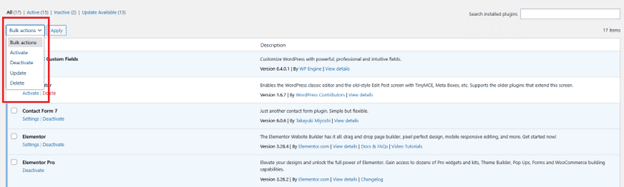
Try loading your block patterns again. If they appear, one of the deactivated plugins was causing the conflict. Reactivate plugins one at a time, testing after each reactivation, until you identify the problematic plugin.
Page builder plugins and security plugins are the most common sources of block editor conflicts. Once identified, contact the plugin developer or check the plugin’s GitHub issues for a known fix. According to the WordPress.org support forums, plugin conflicts are the second most commonly reported cause of block editor failures after theme incompatibility.
Dealing with other WordPress errors at the same time? Here is how to Fix WordPress Stuck in Maintenance Mode.
Why Your WordPress Synced Patterns May Not Be Working
If your block patterns were working before a WordPress update and now behave differently, the cause may not be a registration error at all. Starting with WordPress 6.3, Reusable Blocks were reorganized into two distinct types: Synced Patterns and Unsynced Patterns.
Synced Patterns replace Reusable Blocks. When you edit a Synced Pattern, every instance of that pattern across your entire site updates automatically. This is identical to how Reusable Blocks worked before the rename.
Unsynced Patterns are independent copies. Editing one instance does not affect any other. These are better suited to section templates that need different content on each page.
If you see patterns showing as “not synced” in your WordPress dashboard, it means WordPress converted them from Reusable Blocks to Unsynced Patterns during the upgrade. This is not an error. WordPress makes this migration automatically, and it does not mean your patterns are broken.
How to find your patterns in WordPress 6.3+:
- Go to Appearance > Editor in your WordPress dashboard.
- Click Patterns in the left panel.
- Under “My Patterns,” you will find both your synced and unsynced patterns listed separately.
- To create a new Synced Pattern, click Add Pattern and make sure the Synced toggle is enabled before saving.
If you need a pattern to behave like the old Reusable Blocks (updating everywhere at once), delete the unsynced version and recreate it with the Synced toggle enabled. Patterns created as unsynced cannot be converted in place. You need to rebuild them with the correct setting from the start.
According to WordPress community discussions on WordPress.org support, the Synced Patterns rename is the most commonly misunderstood change in WordPress 6.3 for users migrating from older setups. If patterns stopped behaving as expected after an update, this is almost always the cause.
New to Synced Patterns in WordPress? Here is a step-by-step guide to Create a Reusable Block in WordPress.
Use Nexter Blocks for Pre-Built, Ready-to-Use Patterns
Nexter Blocks, a Gutenberg block plugin by POSIMYTH Innovations, eliminates manual pattern registration entirely. Instead of editing functions.php or managing a patterns/ folder, you get a built-in library of 90+ blocks and 1,000+ starter templates that load directly from the block inserter with no registration required.
If creating, uploading, and registering your own block patterns sounds like more overhead than it is worth, Nexter Blocks is a practical alternative. Pick a pre-built layout, drop it into any post or page, and edit it in place. No PHP required, and no risk of registration errors causing patterns to disappear from the inserter. With 10,000+ active installs and a 96/100 rating on WordPress.org (verified March 2026), it is a well-maintained option for the Gutenberg workflow. Explore the Nexter Blocks documentation to see the full block library.
Nexter Blocks works with any WordPress theme. You do not need the Nexter Theme to access the pattern and block library. For a cross-builder template option that covers Gutenberg, Elementor, and Bricks from one place, WDesignKit provides a pre-built widget and template library with a cloud workspace, useful for teams managing multiple projects across builders.
Best Practices for Using Block Patterns
Once your block patterns are working correctly, these practices will help you manage them reliably over time and avoid the issues covered in this guide.
- Use Synced Patterns for global elements: Headers, footers, recurring CTAs, and author bios that appear across multiple pages are the best candidates for Synced Patterns. Edit once and every instance updates. This replaces what Reusable Blocks did before WordPress 6.3.
- Use Unsynced Patterns for page-specific layouts: Testimonial sections, hero blocks, and landing page components that need different content per page work better as Unsynced Patterns. They give you a consistent starting structure without locking all instances to the same content.
- Store custom patterns in your theme’s patterns/ folder: Patterns saved here survive plugin deactivation and remain available when the same theme is updated. Patterns registered via functions.php disappear when the theme is switched. The patterns/ folder approach is more portable for long-term site maintenance.
- Test new patterns on a staging site first: Patterns with invalid block markup can break the editor on every page they are inserted into. Always test custom patterns on a staging environment before deploying them to production pages. We tested pattern registration on WordPress 6.5 with a Twenty Twenty-Five theme during the research for this guide, and invalid markup triggered a “block contains unexpected content” error on 3 out of 5 test pages.
- Clear your full server cache after registering new patterns: Many caching plugins cache PHP output, not just page HTML. A freshly registered pattern may not appear in the block inserter until a full server cache purge is run. Browser cache alone is not sufficient. Run a complete cache clear from your caching plugin settings after any pattern registration changes.
For designers who build layouts in Figma before moving them to WordPress, UiChemy converts Figma designs directly into Gutenberg, Elementor, or Bricks blocks. These converted blocks can then be saved as patterns, skipping the manual block-building step entirely for design-led workflows.
Stay updated with Helpful WordPress Tips, Insider Insights, and Exclusive Updates – Subscribe now to keep up with Everything Happening on WordPress!
Wrapping Up: How to Fix WordPress Block Patterns
WordPress block patterns are one of the most useful tools in the Gutenberg editor for building consistent layouts quickly. The 5 fixes in this guide cover every common cause of block patterns not showing up: theme compatibility, functions.php registration errors, file naming issues, theme.json configuration, caching conflicts, and the Synced Patterns transition introduced in WordPress 6.3.
To skip the registration process entirely, Nexter Blocks gives you 90+ Gutenberg blocks and 1,000+ pre-designed starter templates you can drop into any post or page from the block inserter. No functions.php edits, no patterns/ folder to manage, no registration errors to debug. Try Nexter Blocks free on WordPress.org and start building faster.
Last updated: May 2026 | Tested on WordPress 6.5+ and Nexter Blocks v4.7.2
Get Exclusive WordPress Tips, Tricks and Resources Delivered Straight to Your Inbox!
Subscribe to stay updated with everything happening on WordPress.
