











Optimising images in WordPress is important for improving your website’s speed and performance. Large, uncompressed images can slow down your pages, especially for users on mobile devices or slower internet connections. By optimising your images, you can significantly reduce their file size while maintaining good visual quality.
With the Nexter Extension (Free) and Nexter Extension (Pro), you can easily optimise the images.
This is a freemium feature. If you are using the free Nexter Extension version, you can optimise images in WebP or you can keep the original file format.
With the Nexter Extension pro version, you can optimise the image in AVIF format or use the Smart option to automatically select AVIF or WebP based on the browser’s support.
How to Optimise Images with the Nexter Extension?
To optimise images with the Nexter Extension, from the WordPress Dashboard, go to Nexter > Extensions > Performance.
Then go to the Image Optimisation section, enable the toggle and click on the gear icon (⚙).
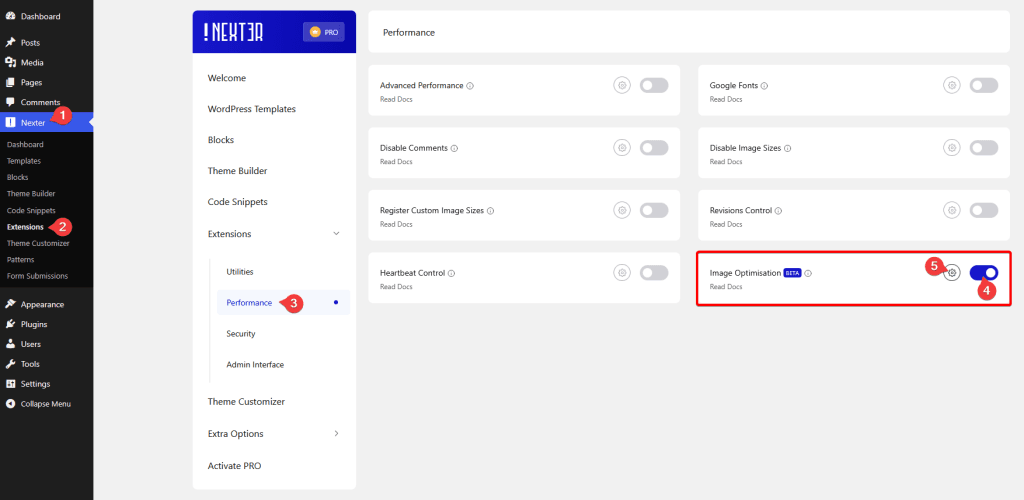
It will open the Image Optimisation pop-up.
Image Format
From the Select Compressed Image Format section, you can choose the image format that your images will be converted to after optimisation. Each format has different benefits in terms of compression, quality, and compatibility.
- Smart (Pro) – Automatically selects the best image format (WebP or AVIF) based on the browser’s support. This helps deliver the smallest file size while keeping good image quality and ensuring compatibility across different browsers.
- WebP – Converts images to the WebP format, which provides better compression than traditional formats like JPEG and PNG while maintaining good image quality. This helps reduce image size and improve website loading speed. WebP is supported by most modern browsers.
- AVIF (Pro) – Converts images to the AVIF format, which offers even better compression than WebP while maintaining high visual quality. This can significantly reduce image file sizes, helping pages load faster. However, some older browsers may not fully support AVIF.
- Keep Original – Keeps the image in its original format without converting it to another format. The image will still be optimised, but the file type will remain the same as the original upload.
Select the option as per your requirements.
Note: AVIF support depends on your server configuration. If your server does not support AVIF, the option will be disabled. In that case, you can contact your hosting provider to enable AVIF support on your server.
Optimisation Mode
Then, from the Select Optimisation Mode section, you can choose how strongly the images should be compressed during optimisation. Each mode balances image quality and file size differently.
- Balanced – Provides the best balance between image quality and file size. It reduces the image size noticeably while keeping images clean and sharp. This option is recommended for most websites.
- Lossless – Compresses images without removing any visual data. The file size reduction is smaller, but the image quality remains exactly the same as the original. This is a good option for logos, icons, or detailed graphics where quality must remain unchanged.
- Aggressive – Applies stronger compression to achieve the maximum file size reduction. This helps improve website performance, especially for large photos or background images. Some minor quality changes may occur, but they are usually not noticeable on most websites.
Select the option that fits your needs.
Auto Optimisation
Then, by enabling the Auto Optimise on Upload toggle, images will be automatically optimised as soon as they are uploaded to the media library. The optimisation will follow the format and compression settings you selected earlier, helping reduce image file sizes without requiring any manual action. This ensures all newly uploaded images are optimised right away, keeping your website fast and efficient.
If Auto Optimise on Upload is disabled, you can still optimise images manually. You can optimise individual images from the Media Library, from the Edit Media page, or bulk optimise multiple images at once.
All images will be optimised based on the settings you have configured here.
Advanced Settings
After that, from the Advanced Settings section, you can adjust some additional settings.
Image Metadata
From the Image Metadata (EXIF) section, you can choose whether to keep or remove the metadata stored in the image file.
- Strip – Removes all image metadata such as camera details, location data, device information, and other hidden data stored in the image. This helps reduce the file size slightly and improves privacy. It is recommended for most websites.
- Keep – Keeps the original image metadata inside the file. This includes information such as camera settings, date, location, and other technical details. This option can be useful for photography or portfolio websites where metadata may be important.
Image Resize
From the Resize Large Images section, you can set the maximum width and height for uploaded images.
Then enable the Resize images larger than these dimensions checkbox.
If an uploaded image exceeds the defined width or height, it will be automatically resized before the optimisation process begins.
For example, if both the maximum width and height are set to 500px:
- If you upload an image with 1000px × 600px, it will be resized to 500px × 300px to fit within the maximum width.
- If you upload an image with 800px × 1200px, it will be resized to 333px × 500px to fit within the maximum height.
This resizing process maintains the original aspect ratio, ensuring the image does not appear stretched or distorted while reducing its dimensions. This helps keep image sizes manageable and improves website performance.
Avoid Larger Output
From the Avoid Larger Output Files section, you can prevent images from being optimised if the optimised file becomes larger than the original image.
To enable this, check the Skip optimisation if output file is larger than original checkbox. When this option is enabled, the system will compare the optimised image with the original file. If the optimised version is larger, the optimisation will be skipped and the original image will be kept.
Restore Images
If you want to restore the original images, you can do that from the Restore Original Images section. Simply click the Restore Now button, and all optimised images will be reverted back to their original versions.
This option is useful if you want to undo the optimisation process and return to the original image files.
Exclude Images
From the Exclude Images From Optimisation section, you can exclude specific images, folders, or file types from being optimised. This is useful if you want certain images to remain unchanged.
You can add one path per line to define what should be excluded.
Examples:
- 2024/10 – Excludes all images inside the 2024/10 folder.
- 2024/10/image.jpg – Excludes a specific image file.
- product-images/*.png – Excludes all PNG images inside the product-images folder.
- */backup/* – Excludes all images inside any backup folder.
- *.gif – Excludes all GIF images.
- *.svg – Excludes all SVG images.
By enabling the Run Image Optimisation in Background toggle, you can run the image optimisation process in the background without blocking uploads or slowing down the admin experience.
After that, from the Image Optimisation Speed section, you can control how many images are processed in a single request during optimisation. This helps manage server resources and avoid issues related to the site’s execution time limit.
Processing more images at once makes the optimisation finish faster, but it may require more server resources. Processing fewer images per request is safer for servers with lower execution time limits.
- Fast – Processes 10 images per request. This completes optimisation faster and is suitable for servers with higher execution time limits.
- Balanced – Processes 5 images per request. This provides a good balance between speed and server stability. Recommended for most websites.
- Slow – Processes 3 images per request. This reduces the load on the server and helps avoid timeouts on servers with lower execution time limits.
Once done, click on the Save button.
Now, based on your settings, images will be optimised.

