












A two hundred row table pushes everything else off the screen, and most visitors only need the first few.
The Data Table block can show a handful of rows at a time and let the visitor pick how many.
For every Data Table setting in one place, see the Data Table block guide.
Before You Start
- Edition: Pro — the entries dropdown needs Nexter Blocks Pro.
- Block to enable: Data Table, switched on under Nexter > Blocks in your WordPress dashboard.
- A table with more rows than you want shown at once.
Steps
- Add the Data Table block to your page and click Design from Scratch.
- In the Table panel, leave Type on Standard.
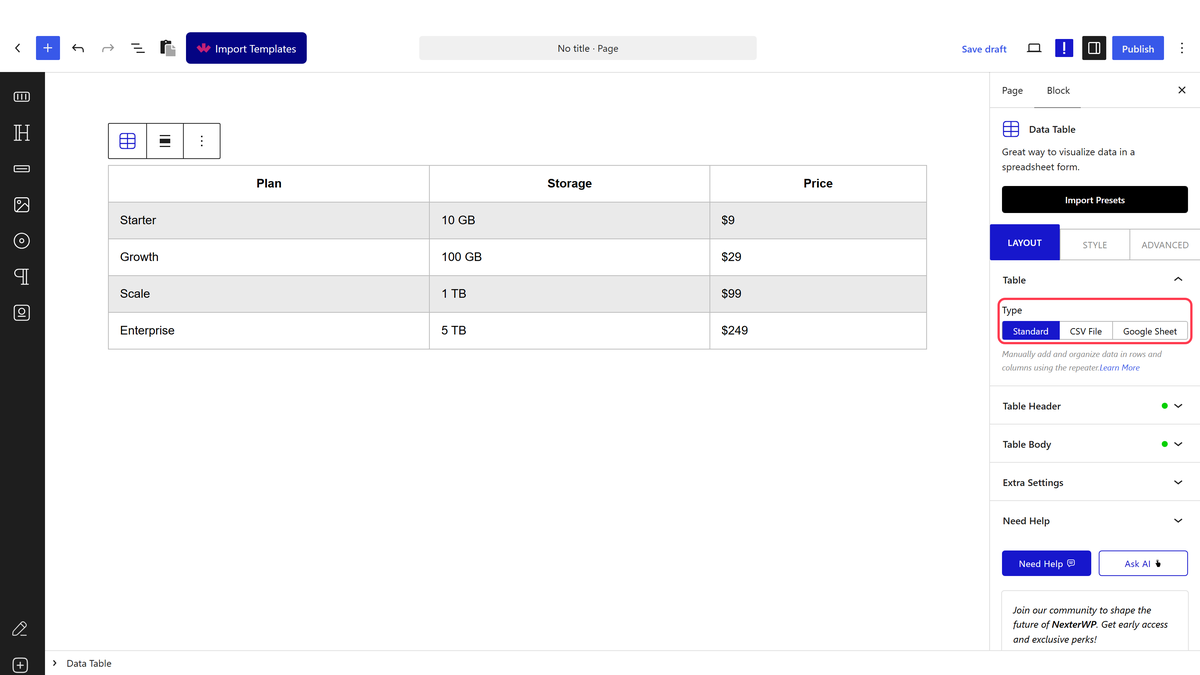
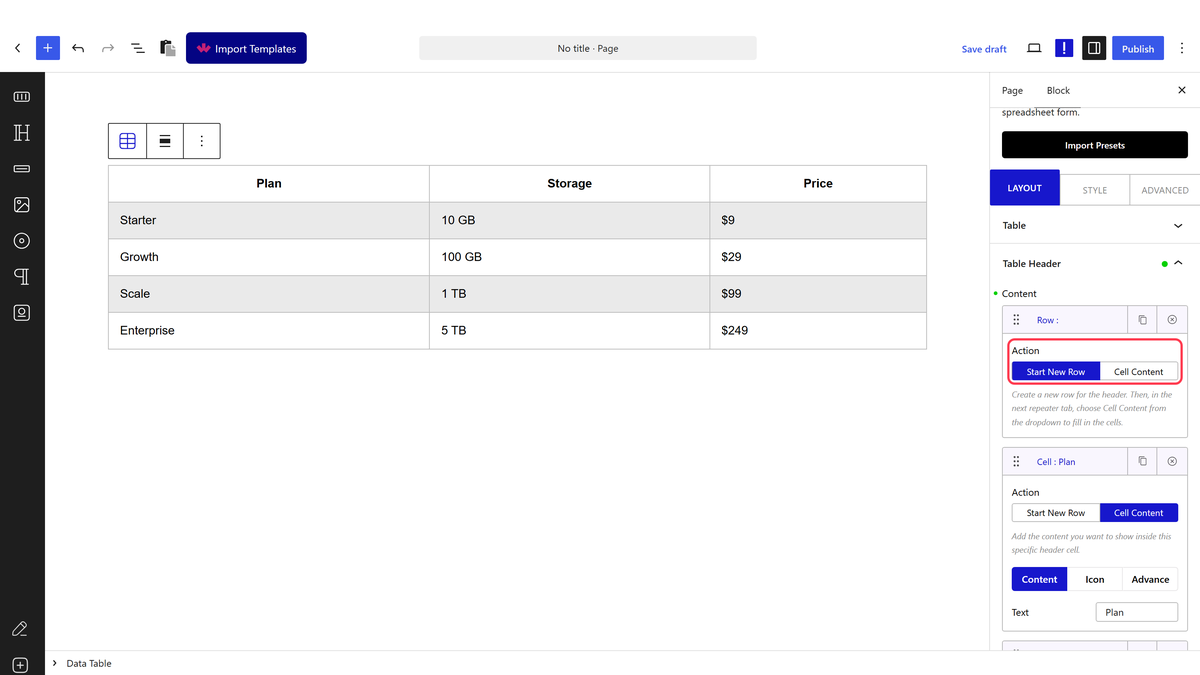
- Open Table Header. Each item’s Action is either Start New Row or Cell Content — start a row, then add one Cell Content item per column and type its heading.
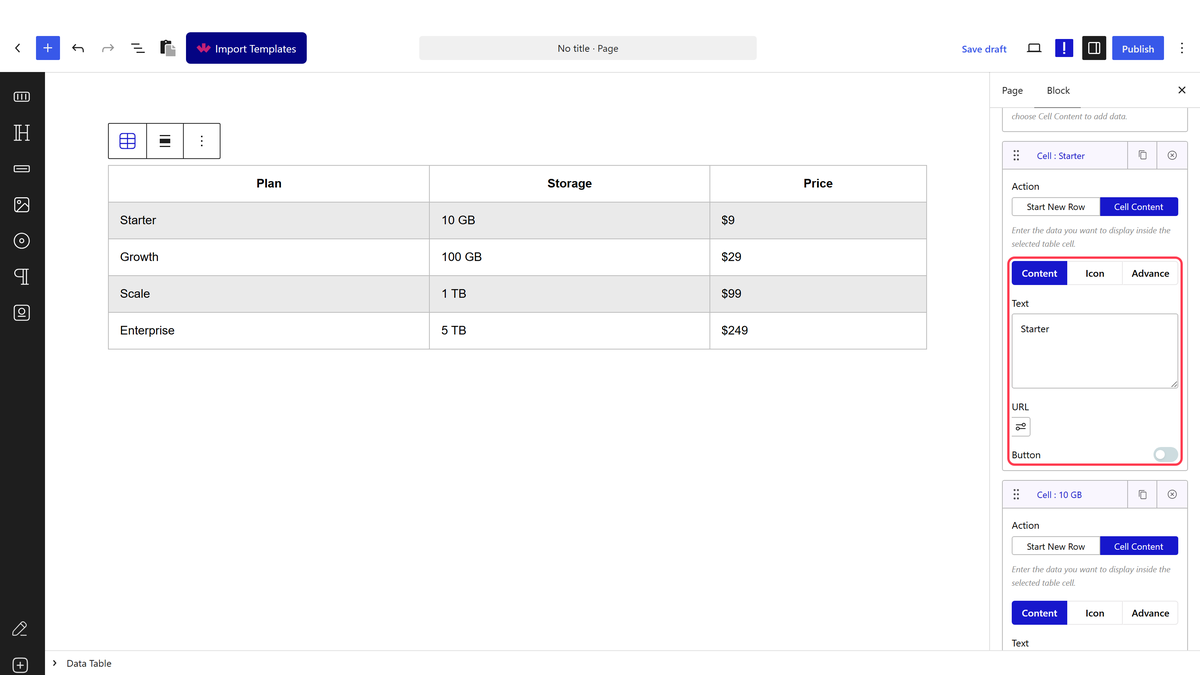
- Open Table Body and do the same: a Start New Row item, then one Cell Content item per column with its Text.
- Open Extra Settings and switch Filter Dropdown on.
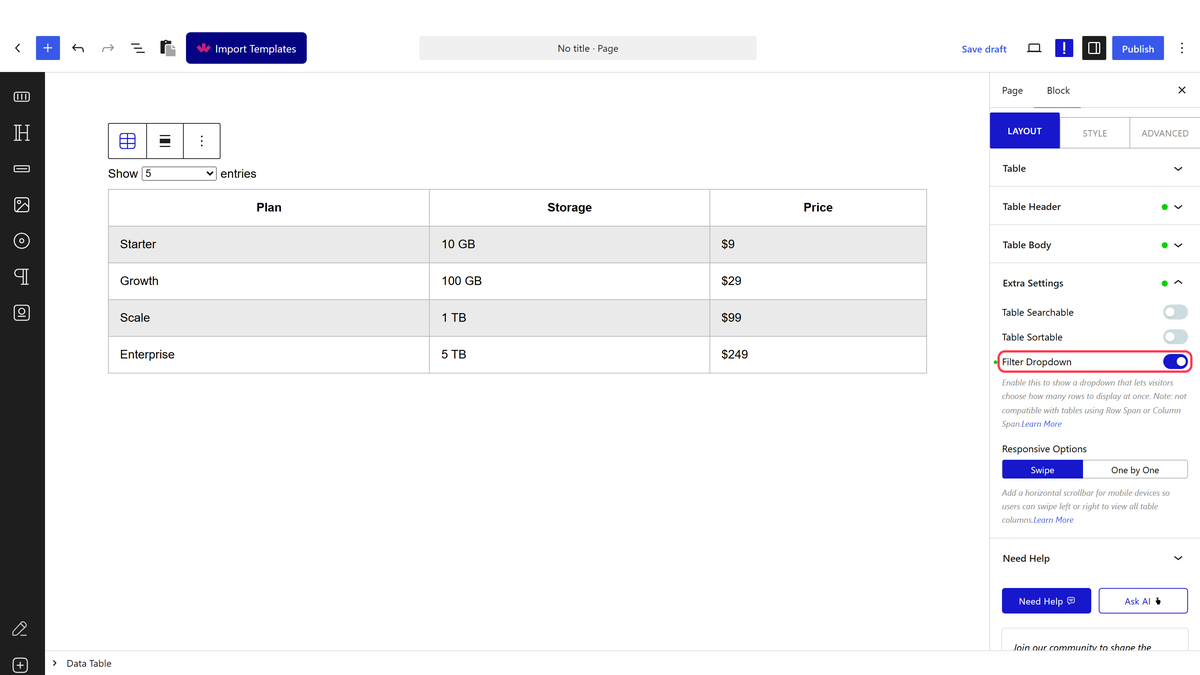
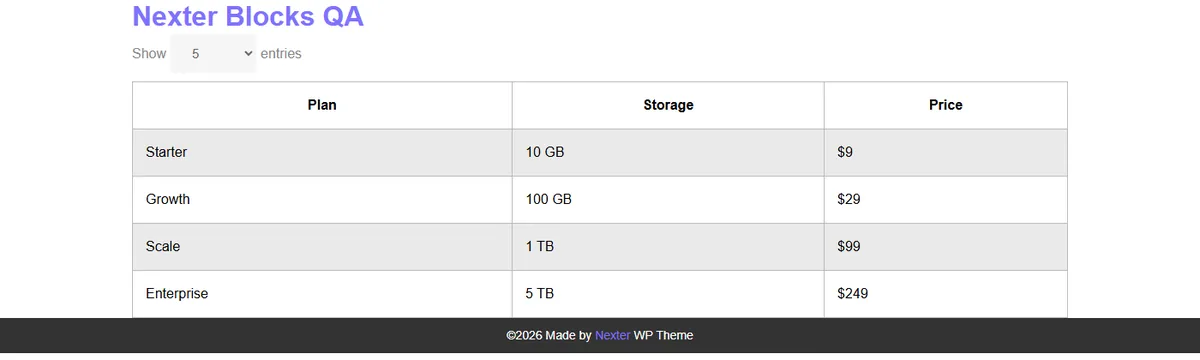
- Publish the page. A dropdown appears above the table with the entries per page choices.
How It Behaves
- The dropdown offers 5, 10, 15 and All entries per page, and the table starts on 5.
- Choosing a number re-renders the table immediately, with no page reload.
- The rest of the rows are still in the page, so search and sorting work across all of them rather than only the visible ones.
- With the dropdown off the table simply shows its rows — up to 500 on one page.
Limitations
- Pro only. The switch appears in the free plugin but no dropdown renders until Pro is active.
- The choices are fixed at 5, 10, 15 and All — you cannot add your own numbers.
- Every row still loads with the page, so this shortens the table rather than speeding up a huge one.
- The block’s own note warns that the dropdown is not compatible with tables using Row Span or Column Span, and a merged table does log a heading mismatch in the browser console.
Troubleshooting
No dropdown appears
Check that Filter Dropdown is on and that Nexter Blocks Pro is active, then view the published page rather than the editor preview.
The table shows every row anyway
The dropdown is probably set to All. Reload the page to return it to the default of 5.
The paging behaves oddly on a merged table
Remove Column Span and Row Span from that table, or leave the dropdown off and present the table in full.
