













If you already have many images in your WordPress media library, with Nexter you can bulk optimise them to reduce their file sizes and improve website performance. Bulk optimisation allows you to process multiple images at once instead of optimising them one by one.
With the Nexter Extension (Free) and Nexter Extension (Pro), you can easily optimise all the images in the media library at once.
If you are using the free Nexter Extension version, you can optimze upto 500 images per month but with the Nexter Extension pro you can optimise unlimited images per month.
How to Bulk Optimise Images with the Nexter Extension?
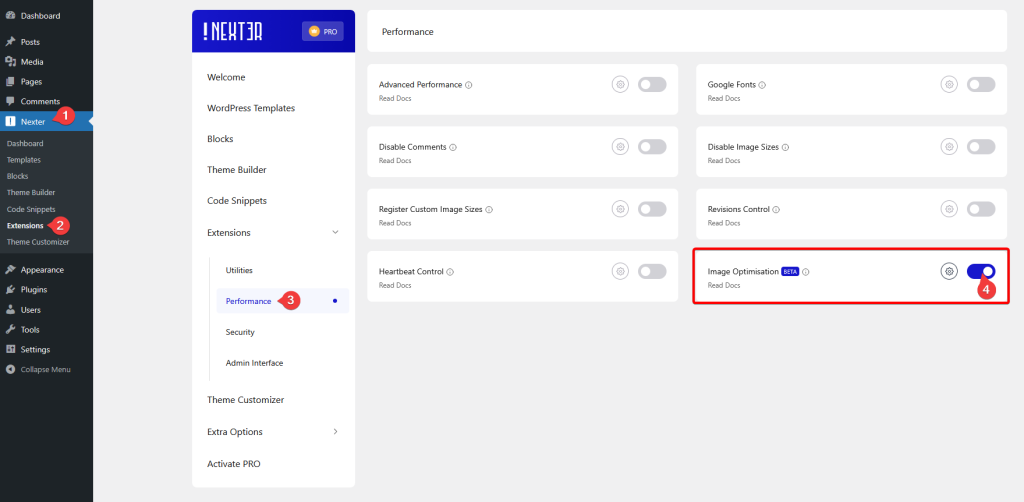
To bulk optimise images with the Nexter Extension, from the WordPress Dashboard, go to Nexter >Extensions > Performance.
Then go to the Image Optimisation section abd enable the toggle.
Then, from the WordPress Dashboard, go to Media >Bulk Images.
On the Bulk Image Optimisation page, you can optimise multiple images from your media library at once.
In the Image Queue section, you’ll see whether there are any images available for optimisation. If there are images remaining, simply click the Start Bulk Optimisation button at the top to begin the process.
Note: If there are no images left to optimise, the Start Bulk Optimisation button will be disabled.
Once started, the system will automatically begin optimising images in batches based on the settings configured in the Nexter Image Optimisation Settings section.
Note: You can click the Image Optimisation Settings button at the top right to configure or update your image optimisation settings.
During the process, you will see a live progress bar showing the overall optimisation progress. It will display useful information such as:
- Images Remaining – Number of images left to optimise.
- Skipped Images – Images that were skipped during optimisation.
- Total Savings – Total file size reduced after optimisation.
At the top of the page, you will also see key statistics, including:
- Storage Saved – Total storage space saved after optimisation.
- Monthly Usage – Number of images optimised out of your monthly limit.
- Total Count – Total number of images detected for optimisation.
- Status – Current status of the optimisation process.
Once the optimisation process starts, you can pause or restart the process at any time if needed. This allows you to control the optimisation without losing the progress.
Note: Make sure to keep the browser window open while the optimisation process is running. Closing the window or navigating away from the page may stop the process before all images are optimised.
This is how easily you can bulk optimise images.

