






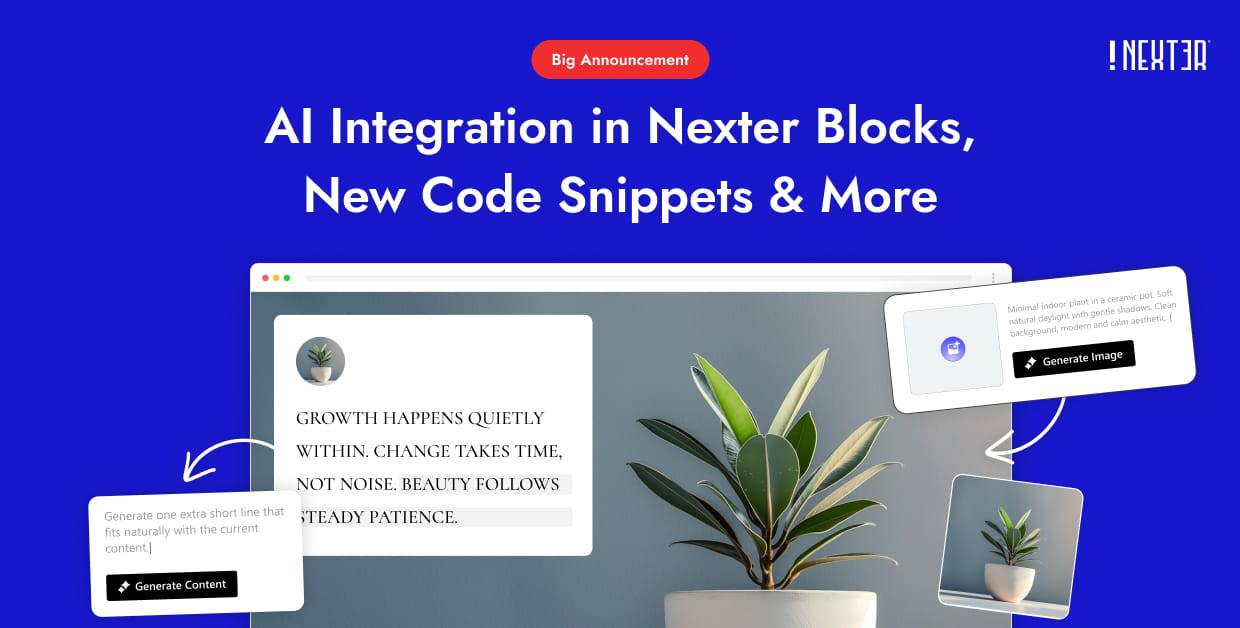


Are you looking to use AI-generated text on your WordPress site? With the AI Text Generator feature of Nexter Blocks, you can create high-quality content directly inside the Gutenberg editor. There’s no need to use external tools or copy-paste text. Just enter a clear prompt, and your content will be generated in seconds.
You can generate AI text in almost all the text-related blocks of Nexter Blocks.
In Nexter Blocks, you can generate images with OpenAI and Google Gemini API.
Required Setup
- Make sure the default WordPress Block editor is active.
- You need to have the Nexter Blocks plugin installed and activated.
To generate AI text in Nexter Blocks, you have to enable the Manage API Keys.
Enable Manage API Keys
From Dashboard, go to Nexter > Extra Options > AI Integration.
Then go to Manage API Keys section, enable the toggle and click on the gear icon (⚙).
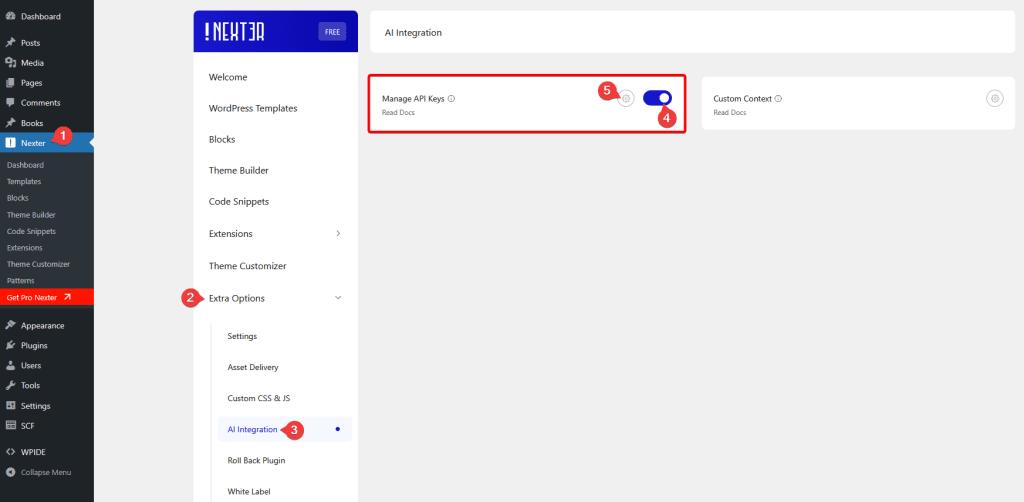
It will open the API Key pop-up. From here, from here, you can connect with OpenAI or Google Gemini API to generate AI images and text.
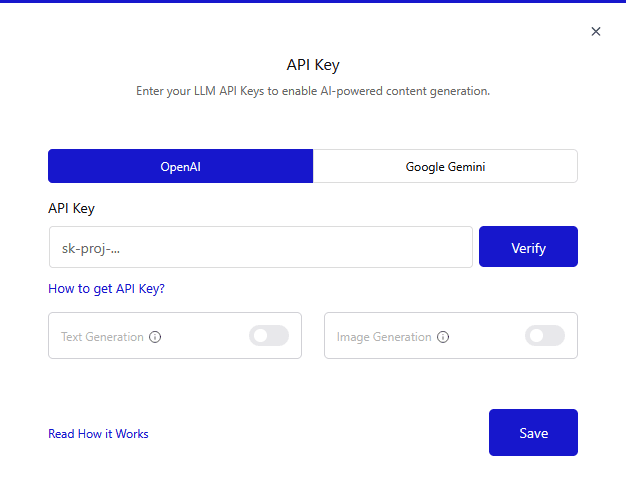
Connect with OpenAI API Key
To generate text with OpenAI in your Gutenberg editor, you need to connect your WordPress website to the OpenAI API. Simply follow the step-by-step guide to learn how to add the OpenAI API key in Nexter Blocks.
The AI text generation feature in Nexter Blocks is free to use, but you’ll need an OpenAI account to create an API key. OpenAI offers different pricing plans based on usage.
Generate OpenAI API Key
To get your API key, visit the OpenAI platform and log in to your OpenAI account.
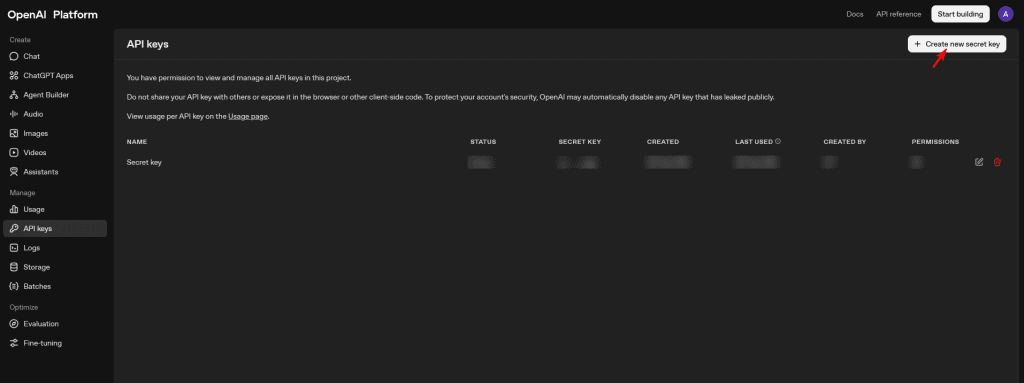
Once you’re logged in, go to your account dashboard. On the top-right side, you’ll see a button called Create new secret key. Click this button to generate your API key.
Then, enter the key name (optional) and adjust other settings, such as project and permission, if required. After that, click the Create secret key button.
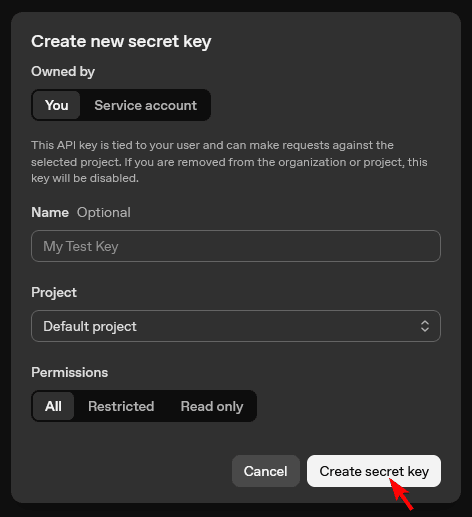
Now your secret key will be created instantly and will be ready to use right away (if you have credits).
Copy the API key into a notepad (you won’t be able to see it again once the popup closes).
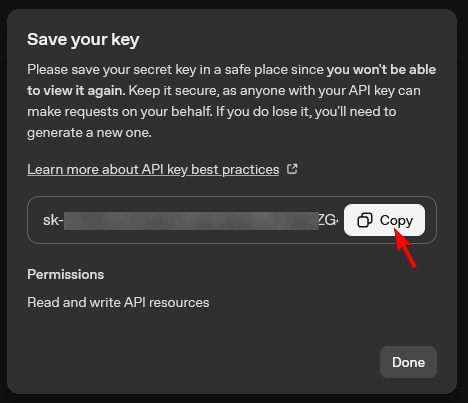
Connect OpenAI with Nexter Blocks
From Dashboard, go to Nexter > Extra Options > AI Integration.
Then go to Manage API Keys section, enable the toggle and click on the gear icon (⚙).
It will open the API Key pop-up.
Then, in the OpenAI tab, paste your OpenAI API key in the API Key field and click on the Verify button. It will verify your key.
Note: If you’ve already added the Google Gemini API key then you have to revoke it first.
To generate text with OpenAI, enable the Text Generation toggle.
Note: From the Image Generation toggle, you can generate AI images as well.
In the Max Text Tokens per Prompt field, you can set the maximum number of tokens allowed for text generation. If the limit is reached, the generation will stop. The default value is set for the best performance, but you can change it if needed. You can also set it to 0 to remove the limit completely.
Then, from the Text Model dropdown, you can select the AI model for the text generation.
Once done, click on the Save button to save the changes.
Add Context for Custom AI Content Generation
You can generate customized AI content for your website by providing additional information about your business.
To that, from Dashboard, go to Nexter >Extra Options >Custom Context.
Then click on the gear icon (⚙).
In the popup, you can add information about your business and your target audience.
Once done, click on the Save button.
Now, the AI content will be generated based on these informations.
Generate AI Text with OpenAI in Nexter Blocks
With the AI text generation feature, you can generate AI text in almost all the text-related blocks of Nexter Blocks, such as Heading, Accordion etc.
For example, we’ll use the Heading block here. Add the block to the page or post where you want to generate the content.
In the Content tab, click on the Generate With AI icon.
Note: You’ll see the Generate with AI icon in different places (including the block toolbar) across blocks of Nexter Block that support AI text generation.
It will open a popup, from here you can generate AI texts.
Let’s understand the options you’ll find here.
Prompt – Here, you have to add the image prompt. Try to describe the image as clearly and in as much detail as possible for better results. You can click on the Prompt Enhancer icon to enhance your prompt.
Note: From the Suggested Prompts section, you can easily add predefined prompts.
Creativity Level – From here, you can set the writing creativity level.
Select Tone – From here, you set the writing tone.
Once your settings are done, click on the Generate Content button, and it will start generating content.
Once the content is generated, you can click on the Add Content button to add the content.
Note: If there is an error while generating the content, change the text model from the Nexter settings and try again.
If you are not happy with the content, you can edit the prompt by clicking the Modify Prompt button, and you can regenerate the content.
Modify AI Text Content
Once the AI text content is generated, click on the Generate With AI icon in the block toolbar. Now you’ll see some options to modify the existing content.
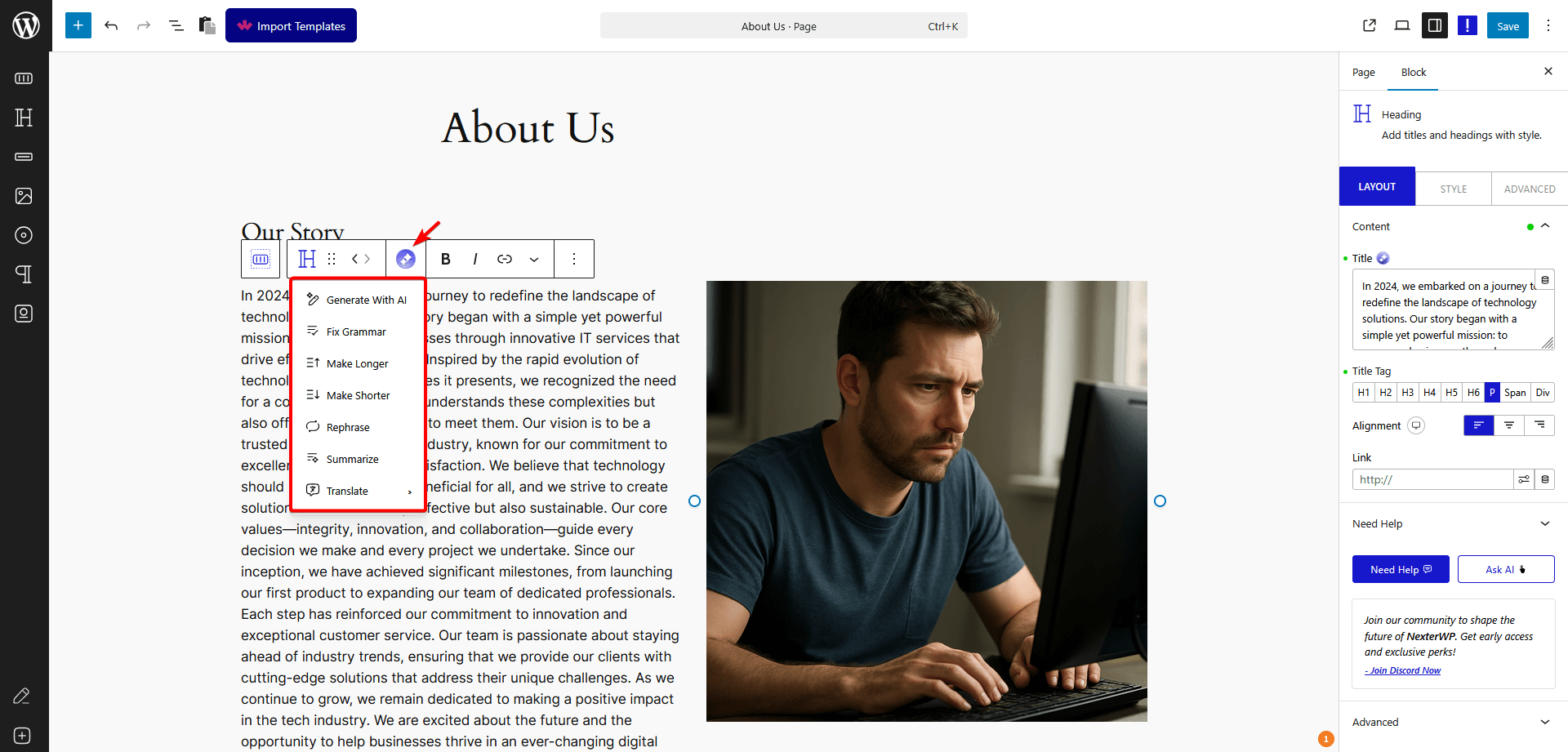
Note: You’ll fin this feature in all the Gutenberg text related blocks.
Generate With AI – With this option, you can add more content to the existing content or add a new prompt. You’ll also get all the options mentioned below to modify the content.
Fix Grammar – With this option, you can check and fix the grammatical issues of your content.
Make Longer – With this option, you can make your content longer.
Make Shorter – With this option, you can make your content shorter.
Rephrase – With this option, you can rephrase your content.
Summarize – With this option, you can summarize your content.
Translate – With this option, you can translate your content into different languages.
Generate AI Text Content in Repeater-Based Blocks
With the AI text generation feature, you can easily add content in different repeater-based blocks of Nexter Blocks, like Accordion.
For example, we’ll use the Accordion block here. Add the block to the page or post where you want to generate the content.
In the Content tab, click on the Generate With AI icon.
Note: You’ll also see the Generate With AI icon inside the repeater items to generate content individually.
It will open a popup.
First, choose how many repeater items you want to generate content for.
The remaining options are the same as for other text blocks.
Once your settings are done, click on the Generate Content button, and it will start generating content.
If you are happy with the content, you can click on the Add Content button to add the content.
Generate AI Text with Image in Repeater-Based Blocks
With the Nexter Blocks AI content generation feature, you can generate both text and images in different repeater-based blocks of Nexter Blocks that support them, such as Testimonials, Team Member etc.
Note: To generate both text and image, make sure to enable both Text Generation and Image Generation toggles from the Manage API Key section.
For example, we’ll use the Testimonials block here. Add the block to the page or post where you want to generate the content.
In the Content tab, click on the Generate With AI icon.
Note: You’ll also see the Generate With AI icon inside the repeater items to generate content individually.
It will open a popup.
First, choose how many repeater items you want to generate content for.
Then add the prompt for the text content.
To generate the image along with the text, check the Include Image Generation checkbox. This will auto-generate the image based on your text prompt.
The remaining options are the same as for other text blocks.
Once your settings are done, click on the Generate button, and it will start generating content along with the image.
If you are happy with the content, you can click on the Add Content button to add the content.
Generate AI Code in the Code Highlighter Block
To generate AI code in the Code Highlighter block, add the block.
In the Source Code tab, click on the Generate With AI icon.
It will open a popup, from here you can generate AI code.
In the Prompt field, add the prompt for the code and click on the Generate Content button.
It will automatically generate the code.
Once the code is generated, you can click on the Add Content button to add the code inside the Code Highlighter block.
Connect with Google Gemini API Key
To generate texts with Google Gemini in your Gutenberg editor, you need to connect your WordPress website with the Google Gemini API. Simply follow the step-by-step guide to learn how to set up the Google Gemini API key in Nexter Blocks.
The AI text generation feature in Nexter Blocks is free to use, but to generate AI text using the Google Gemini, you need a Google Gemini API key.
Generate Google Gemini API Key
To get your Google Gemini API key, visit the Google AI Studio API Key and log in using your Google Account credentials.
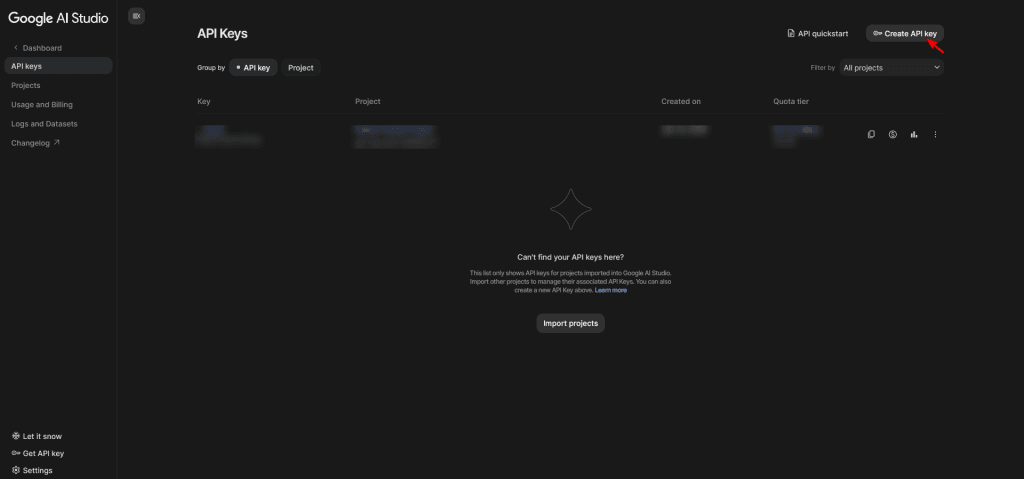
Once you’re logged in, click on the Create API Key button on the top-right side.
Then, enter the key name (optional) and adjust other settings, such as project, if required. After that, click the Create key button.
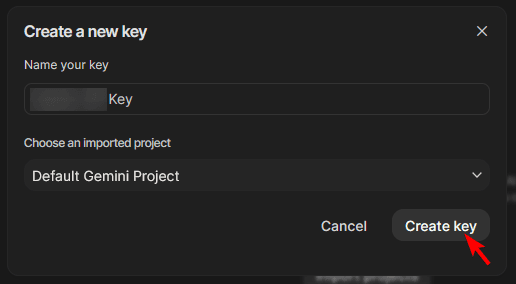
Now your API key will be generated.
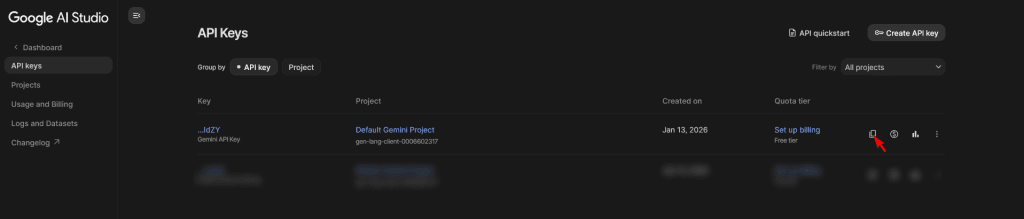
Click on the copy button to copy the key and paste it into a notepad.
Connect Google Gemini API with Nexter Blocks
From Dashboard, go to Nexter > Extra Options > AI Integration.
Then go to Manage API Keys section, enable the toggle and click on the gear icon (⚙).
It will open the API Key pop-up.
Then, in the Google Gemini tab, paste your Google Gemini API key in the API Key field and click on the Verify button. It will verify your key.
To generate images with Google Gemini, enable the Text Generation toggle.
Note: From the Image Generation toggle, you can generate AI images as well.
In the Max Image Tokens per Prompt field, you can set the maximum number of tokens allowed for image generation. If the limit is reached, the generation will stop. The default value is set for the best performance, but you can change it if needed. You can also set it to 0 to remove the limit completely.
Then, from the Text Model dropdown, you can select the AI model for the text generation.
Once done, click on the Save button to save the changes.
Generate AI Text with Google Gemini in Nexter Blocks
With the AI text generation feature, you can generate AI text in almost all the text-related blocks of Nexter Blocks, such as Heading, Accordion etc.
The text generation process with Google Gemini is the same as with OpenAI in Nexter Blocks.
