---
title: "How to Use the HTML Content With the Hover Card in WordPress?"
url: https://nexterwp.com/docs/use-the-html-content-with-the-hover-card-in-wordpress/
date: 2024-12-16
modified: 2026-09-16
lang: en
author: "Aditya Sharma"
description: "Sometimes one row needs more than a line of text. The HTML content type takes your own markup — a paragraph with a link in it, a small list, a..."
image: https://nexterwp.com/wp-content/uploads/2024/12/use-the-html-content-with-the-hover-card-in-wordpress-1-1024x519.jpg
word_count: 482
---

# How to Use the HTML Content With the Hover Card in WordPress?

## Key Takeaways

- Hover Card bloquea contenido HTML en Nexter Blocks, y la edición Free funciona junto con Nexter Blocks Pro; el bloque se activa en Nexter > Blocks dentro del panel de WordPress.
- Render HTML muestra la estructura solo después de pulsarlo, y el contenido se inserta dentro del tag de la fila usando Open Tag, Close Tag y HTML Code.
- WordPress filtra el marcado como contenido de entrada: , , enlaces y listas se conservan, pero se elimina y sus palabras pueden quedar visibles; los shortcodes no se ejecutan.

Sometimes one row needs more than a line of text.

The HTML content type takes your own markup — a paragraph with a link in it, a small list, a few lines of formatted copy — and drops it inside that row’s tag.

*For every Dynamic Device setting in one place, see the [Hover Card block guide](https://nexterwp.com/docs/create-hover-card-animation-in-wordpress/).*

[LIVE BLOCK LINK](https://nexterwp.com/nexter-blocks/blocks/hover-card-animations-wordpress/)

## Before You Start

- **Edition:** Free — the Hover Card block works in Nexter Blocks (free) and in Nexter Blocks Pro.- **Block to enable:** Hover Card, switched on under **Nexter > Blocks** in your WordPress dashboard.- **A little HTML.** This block builds markup out of the rows you add, so it helps to know what a tag is and which tag wraps which.

## Steps

- Add the **Hover Card** block to your page.

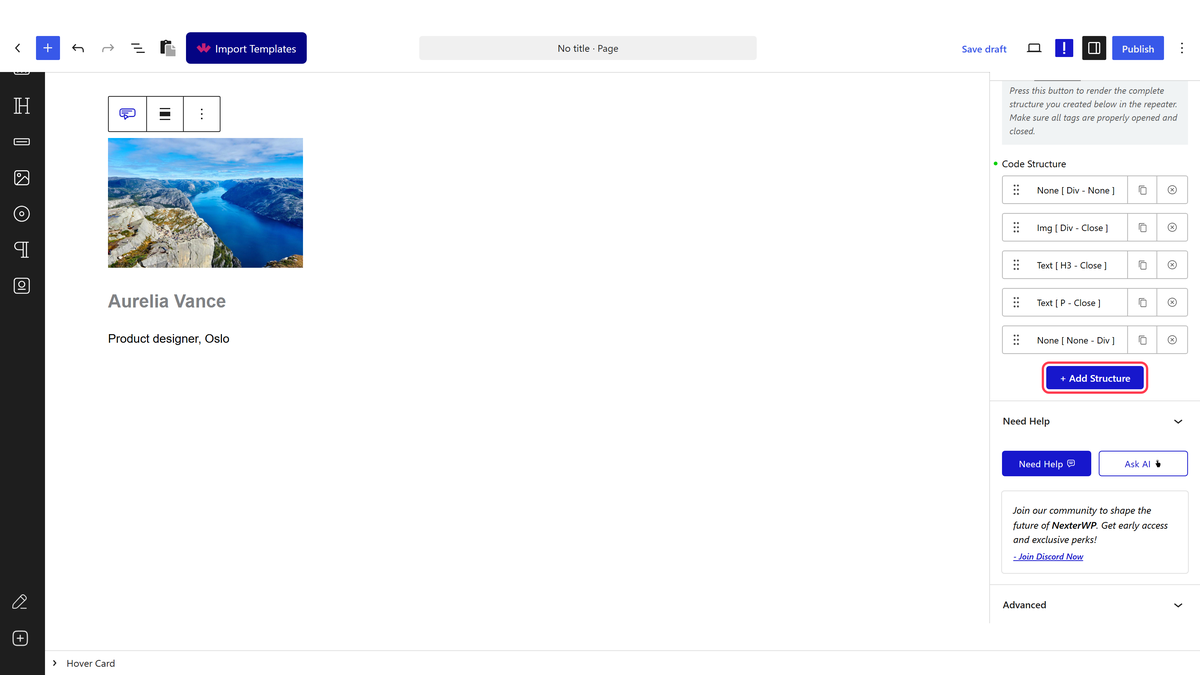
- Open the row already waiting under **Code Structure**, or press **+ Add Structure** for another one.
![The Code Structure repeater](https://nexterwp.com/wp-content/uploads/2026/09/hc-structure.webp)

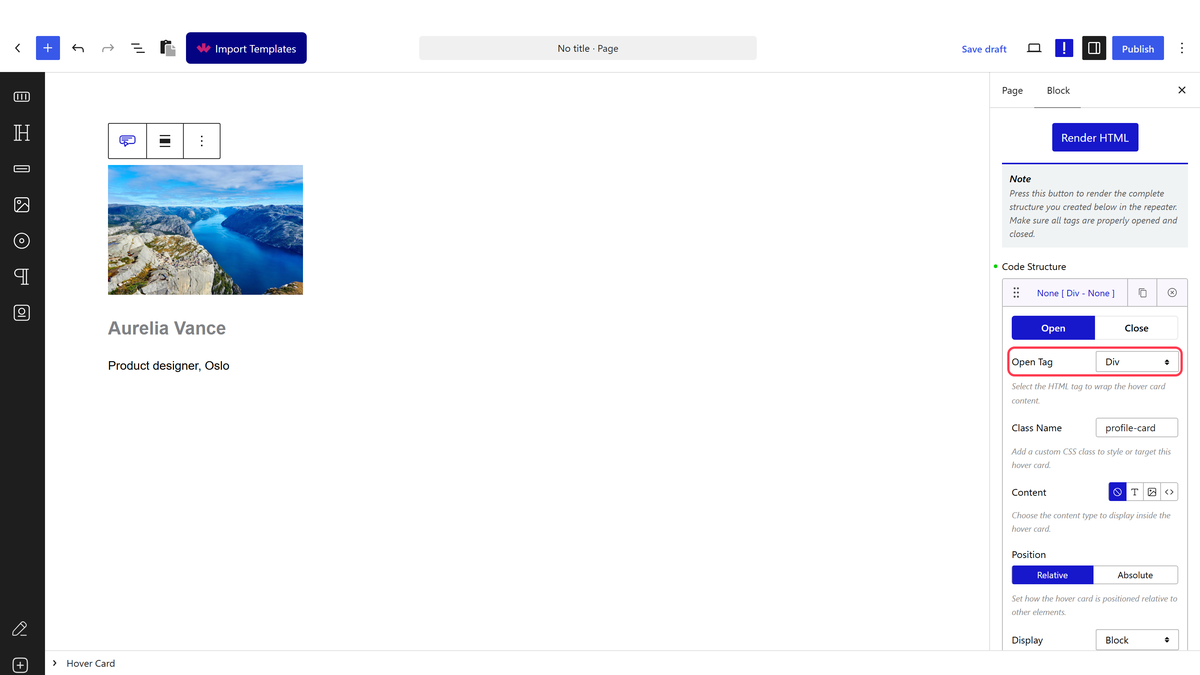
- Choose the wrapper in **Open Tag**, and close it in **Close Tag**.
![The Open Tag setting](https://nexterwp.com/wp-content/uploads/2026/09/hc-opentag.webp)

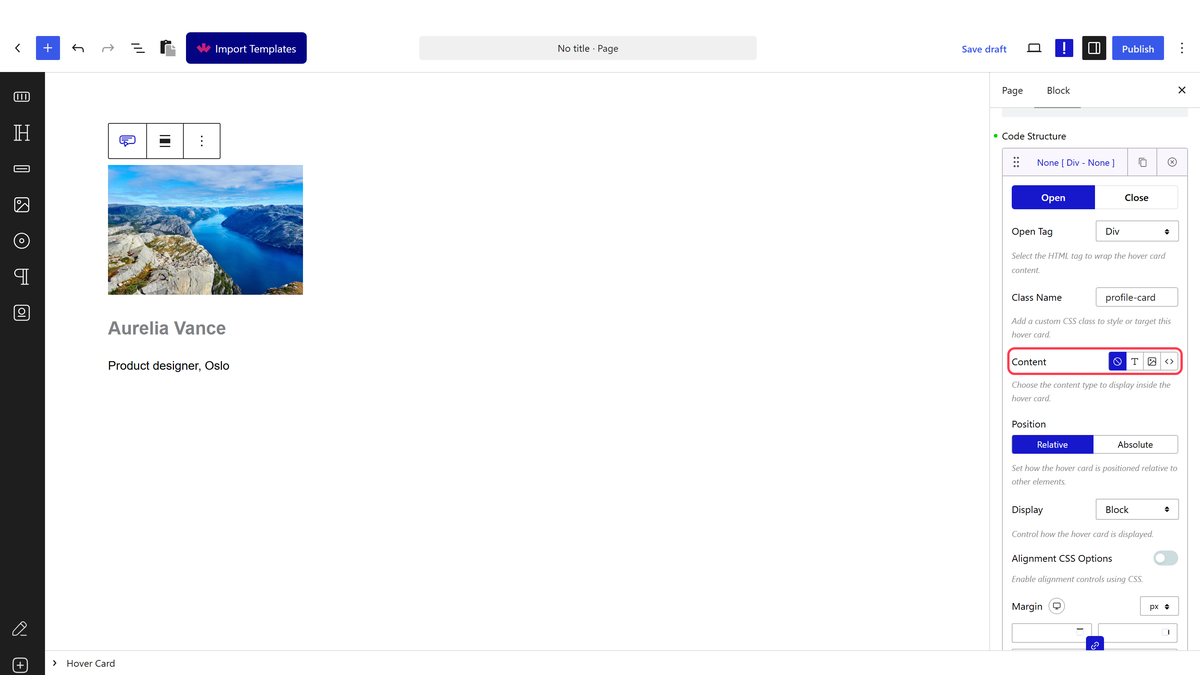
- Set **Content** to the HTML option.
![The Content type chooser](https://nexterwp.com/wp-content/uploads/2026/09/hc-content.webp)

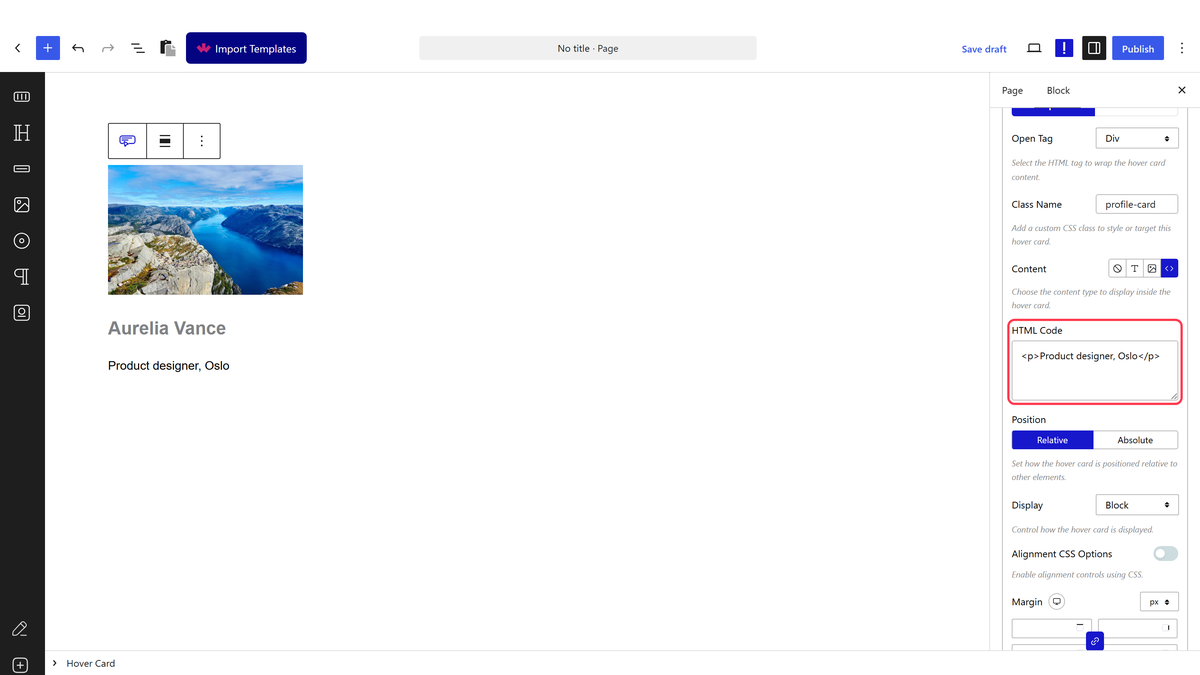
- Write your markup in **HTML Code**.
![The HTML Code field](https://nexterwp.com/wp-content/uploads/2026/09/hc-html.webp)

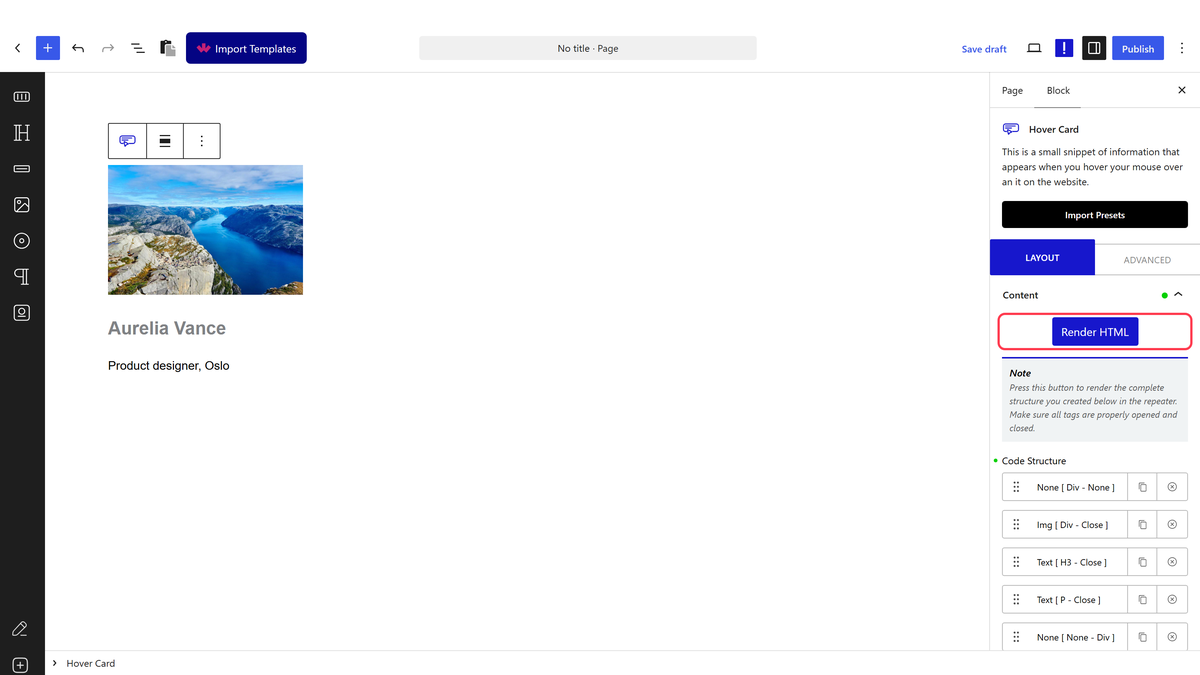
- Press **Render HTML** to draw the structure, then publish.
![The Render HTML button](https://nexterwp.com/wp-content/uploads/2026/09/hc-render.webp)

> ***Your markup is filtered.** It goes through the same rules WordPress uses for post content, so formatting, links and lists survive and scripts do not.*

## What Survives The Filter

| You write | What renders | Why |
| --------- | ------------ | --- |
| `<strong>`, `<em>`, links, lists | Unchanged | Ordinary post markup |
| `<script>` | Removed — but its text is left behind | Filtered, and measured: the page showed the script’s contents as words |
| Inline styles and unusual attributes | Mostly stripped | Same post-content rules |

## How It Behaves

- **The markup lands inside the row’s tag**, so an HTML row inside a `p` tag gives you a paragraph containing your markup.- **Removed tags can leave their text.** Measured with a script tag: the tag went, the words inside it stayed and were printed on the page. Delete the whole thing, do not rely on the filter.- **This is the row type for rich copy** — bold, links and several sentences in one place, which the [text content type](https://nexterwp.com/docs/use-the-text-content-with-the-hover-card-in-wordpress/) cannot do.- It is markup, not a shortcode field: WordPress shortcodes are not run here.

## Limitations

- **No scripts.** Anything script-shaped is filtered out.- Inline styles are unreliable — put styling on the row, or use a class and your own CSS.- Broken markup here breaks the whole structure, and nothing warns you.- Nothing appears until Render HTML is pressed.

## Troubleshooting

### Part of my markup vanished

It was filtered. Stick to the tags WordPress allows in post content — formatting, links, lists, headings.

### Odd words appeared on the page

A stripped tag left its contents behind. Measured with a script tag: the tag was removed and the text inside it was printed. Remove the whole block of code, not just the tag.

### My styling is not applying

Inline styles are mostly stripped. Put a class in **Class Name** on the row and style it from your theme, or use the row’s own Background and Border settings.

## Related Docs

- [Hover Card block guide](https://nexterwp.com/docs/create-hover-card-animation-in-wordpress/)- [Text content](https://nexterwp.com/docs/use-the-text-content-with-the-hover-card-in-wordpress/)- [Image content](https://nexterwp.com/docs/use-the-image-content-with-the-hover-card-in-wordpress/)- [Multiple elements inside one element](https://nexterwp.com/docs/add-multiple-elements-inside-one-element-in-elementor-hover-card/)

## Frequently Asked Questions

**Q: What kind of HTML works inside the Hover Card row?**
A: The Hover Card row is meant for rich HTML, not plain text only. It can hold a paragraph with a link, a small list, or a few lines of formatted copy inside the row’s tag. Nexter Blocks keeps the markup in the row and filters it through the same post-content rules WordPress uses, so basic formatting survives while script code does not.

**Q: Why did part of my HTML disappear in the Hover Card?**
A: That usually happens because the content was filtered by WordPress post-content rules. Tags like formatting, links, lists, and headings are allowed, but stripped tags can leave their text behind. A script tag is the clearest example: the tag itself is removed, but its words can still show up on the page. If you need clean output, remove the whole block of code instead of only the tag.

**Q: How do I add HTML content to a Hover Card in WordPress?**
A: The workflow is simple: add the Hover Card block, open the row under Code Structure or add another structure, choose wrapper tags in Open Tag and Close Tag, set Content to HTML, write your markup in HTML Code, then press Render HTML. In Nexter Blocks, nothing appears until Render HTML is pressed, so that button is what turns your markup into visible structure.

**Q: What should I use instead of HTML content if I only need plain text?**
A: Text content is better when you only need simple copy. The HTML content type is for richer markup like links, lists, and multiple formatted lines in one row. The page calls out that text content cannot do that same job as well, so choosing HTML makes sense when one row needs more than a single line of plain text.

**Q: Why is my inline CSS not working in the Hover Card?**
A: Inline styles are mostly stripped because the content goes through WordPress post-content filtering. That means styling inside the markup is unreliable. The safer approach is to put styling on the row itself with Background and Border settings, or add a class in Class Name and style it from your theme. That keeps presentation separate from filtered content.

**Q: Does Hover Card HTML content work with scripts or shortcodes?**
A: Scripts do not survive this field, and shortcodes are not run here either. The page says this is markup inside a row tag, not a shortcode field. That matters because WordPress can remove script-shaped code while leaving its text behind, which can create odd words on the page if you only strip part of it.
