












An iframe, is a HTML element that allows you to embed content from an external source on a webpage. This is commonly used to embed videos, maps, and other external content.
The Dynamic Device block from the Nexter Blocks allows you to embed iframes in your device mockup to show third party or live website content.
To check the complete feature overview documentation of the Nexter Blocks Dynamic Device block, click here.
Requirement – This block is a part of the Nexter Blocks, make sure its installed & activated to enjoy all its powers.
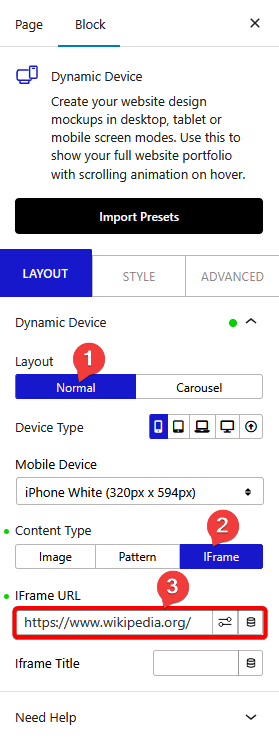
TTo add an iframe inside your device mockup add the block on the page, make sure to set the Layout to Normal and after choosing the appropriate device type and mockup, go to Content Type and select IFrame from the section.
Then add the website URL in the IFrame URL field.
Then add the Title for Iframe in the IFrame Title field.
Now you’ll able to interact with the site or content from your device mockup.
Also, check How to add website scrolling device mockup in WordPress.


