











Rebuilding a section you already designed on another site is wasted work. Cross-Domain Copy Paste lets you copy a Nexter section from one WordPress site and paste it into a different one, with its settings intact.
It works because the copy goes through your computer’s clipboard rather than browser storage, so the two sites do not need to know about each other at all.
Before You Start
- Edition: Free.
- Nexter Blocks installed on both sites. The paste is validated against Nexter block markup, so the destination has to understand it.
- A browser that allows clipboard reading. If the Clipboard API is unavailable, the editor falls back to a paste box you paste into manually.
What Is Cross-Domain Copy Paste?
It is a copy and paste that survives crossing between two unrelated WordPress sites. You copy on the source site, switch to the destination site’s editor, and paste.
How It Works
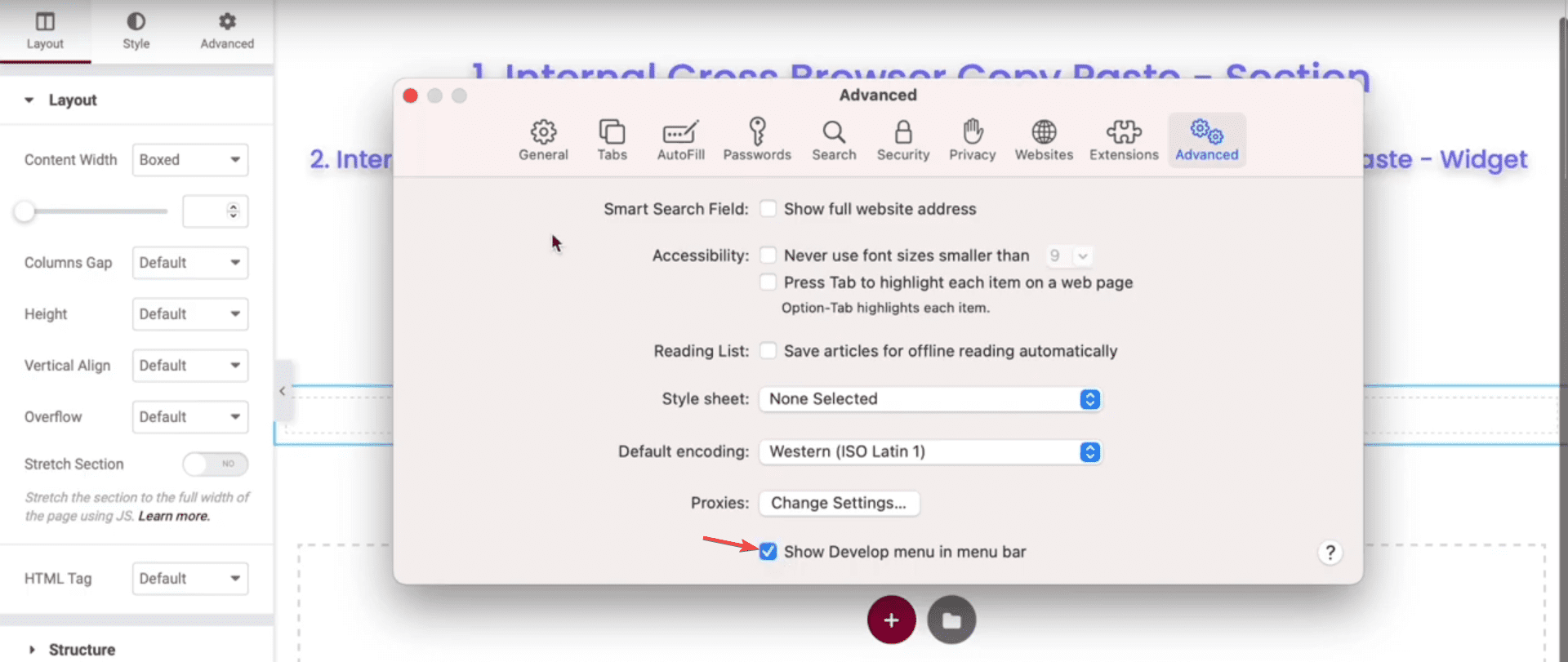
- The clipboard is the transport. The editor reads your system clipboard, which belongs to your computer rather than to either website. That is what makes it cross-domain — no shared login, no connection between the sites, no server in the middle.
- Only Nexter markup is accepted. The pasted text is checked for Nexter block delimiters before anything happens, so ordinary text or another plugin’s blocks are ignored rather than producing a broken paste.
- The clipboard content may be block markup or JSON. Both forms are recognised.
- Sections without images paste directly, with no server involved on either side.
How to Use It
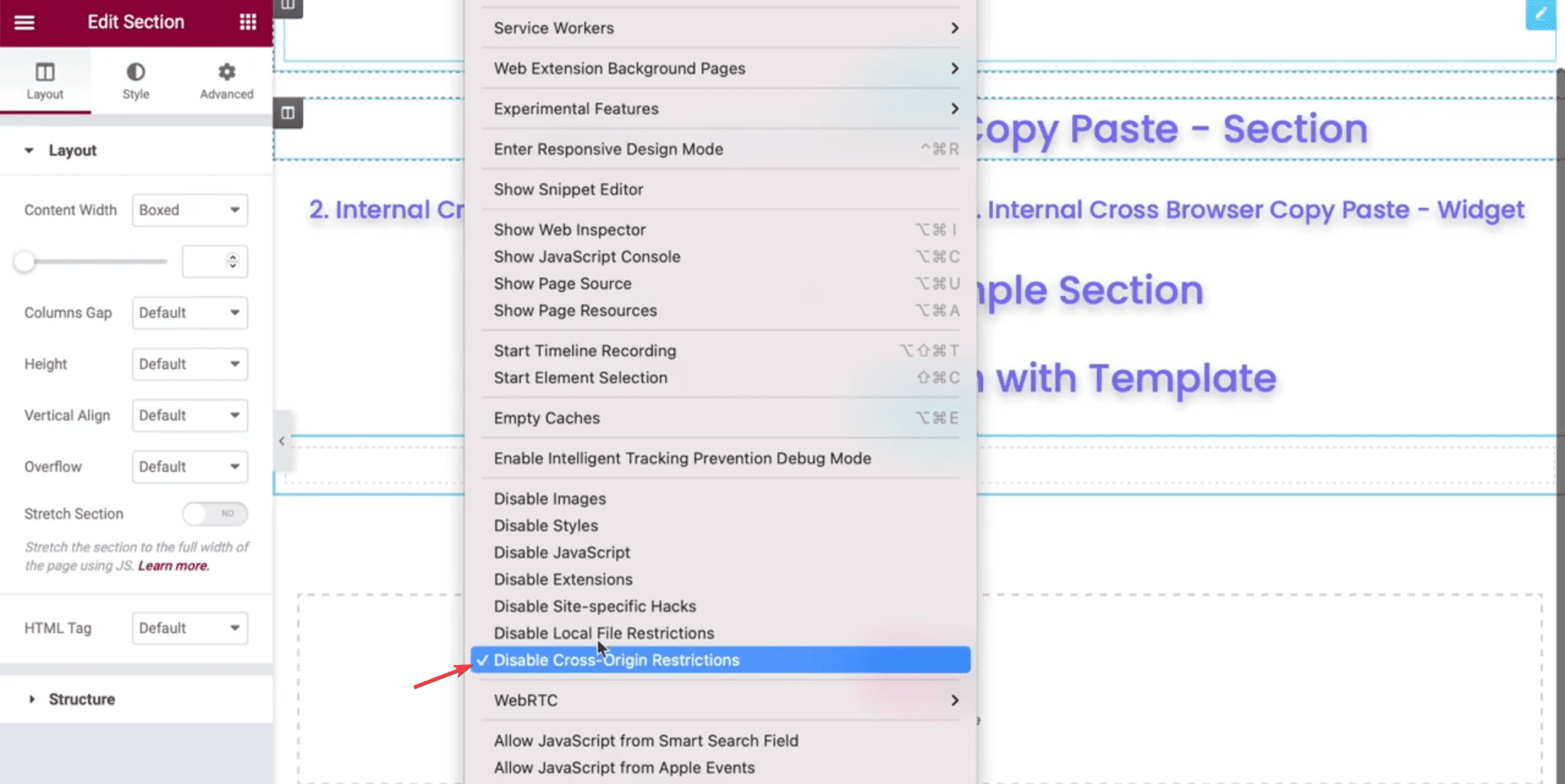
Copy the section on the source site, open the destination site’s editor, and use the paste option. The section is inserted with its settings.
Limitations
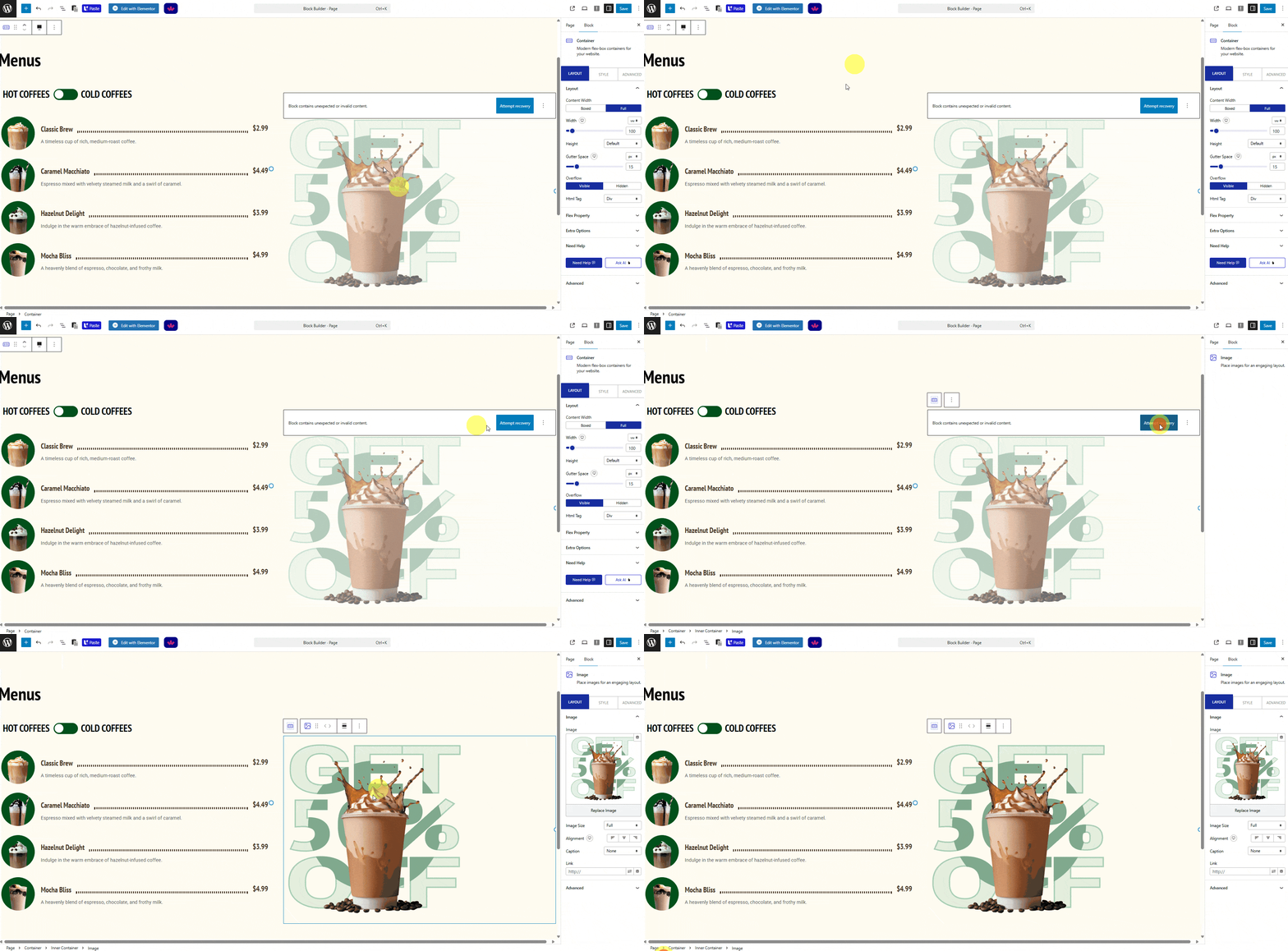
- Sections containing images do not currently paste. Measured on 5.0.6: the editor shows a loading spinner that never finishes, nothing is inserted and no error appears. The image path calls a server endpoint that is not present in this version. Reported to the developers. Workaround: paste the layout first — it will work if you remove the images from the copied section — then add the images on the destination site.
- Both sites need Nexter Blocks. Pasting into a site without it will not work, because the markup is validated on arrival.
- Pro blocks need Pro on the destination. A section built from Pro blocks will not render on a site running only the free plugin.
- It copies the section, not the site. Global styles, fonts and theme settings do not travel with it, so the same section can look different on the destination.
- Dynamic content does not carry over. Anything bound to a post, product or custom field on the source site has nothing to bind to on the destination.
- The clipboard holds one thing at a time. Copying anything else in between replaces it.
Troubleshooting
The spinner never stops
The section contains an image. That path is not working on this version. Remove the images from the copied section, paste the layout, then add images on the destination site.
Nothing happens when I paste
The clipboard does not contain Nexter block markup. Copy the section again on the source site, and do not copy anything else in between.
The browser will not let the editor read the clipboard
Some browsers and permission settings block clipboard reading. The editor then shows a paste box instead — click into it and paste normally.
The section pasted but looks different
Styling that lives outside the section — global styles, fonts, theme settings — does not travel with it. Match those on the destination site.
Some blocks are missing after pasting
Those are probably Pro blocks and the destination site does not have Nexter Blocks Pro active.