












Every extra page load between a shopper and the product they want costs you sales. Live search keeps them on the page they are already on.
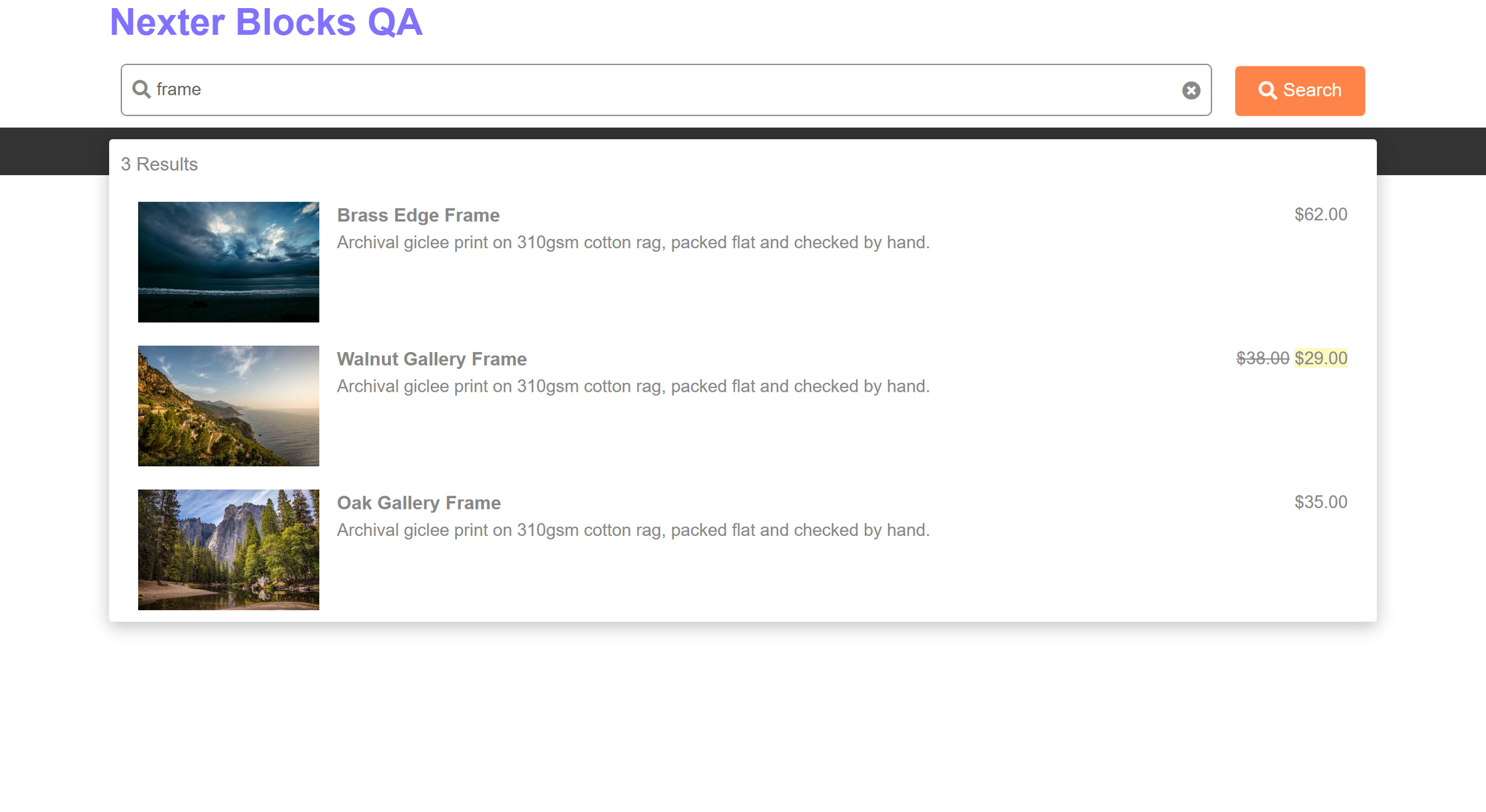
With AJAX switched on, the Search Bar shows matching products under the box as the shopper types, with thumbnails and prices attached.
For every Search Bar setting in one place, see the Search Bar guide.
Before You Start
- Edition: Free. Measured with Nexter Blocks Pro deactivated, the Search Bar renders identically — form, input, dropdowns, suggestions and results all work without Pro.
- Block to enable: Search Bar, switched on under Nexter > Blocks in your WordPress dashboard.
- WooCommerce active, with published products. Product search is guarded: with WooCommerce inactive the block returns an error rather than an empty list.
Steps
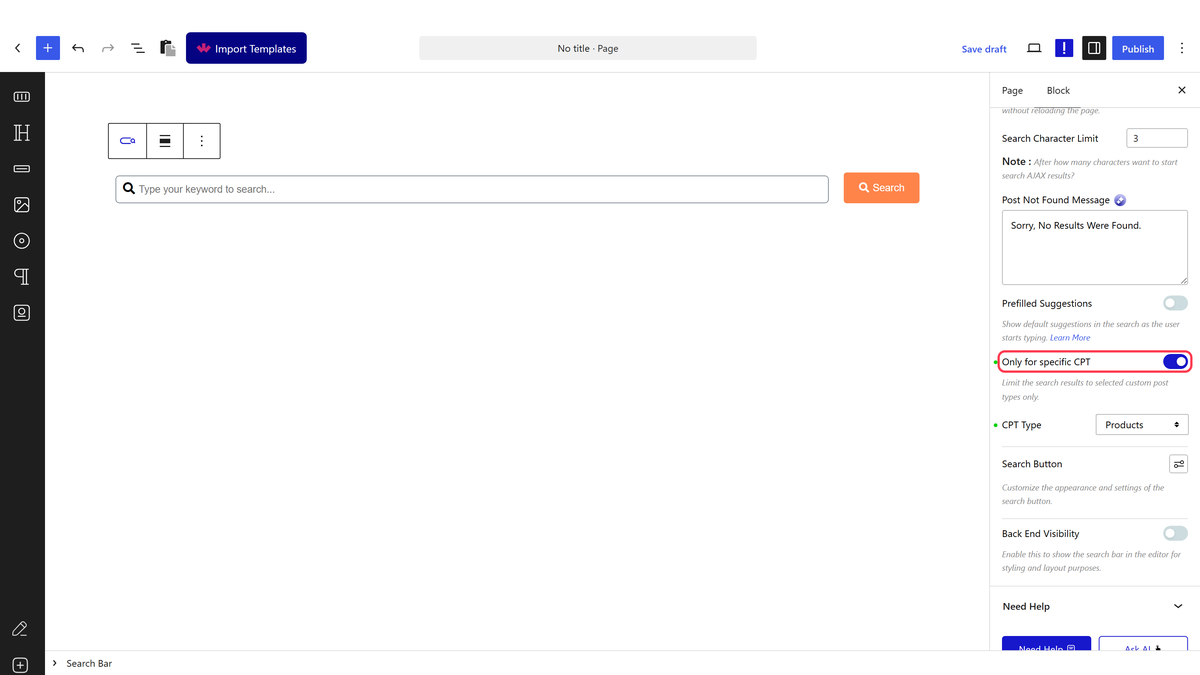
- Select your Search Bar block, open Extra Option, switch on Only for specific CPT, and set CPT Type to Products.
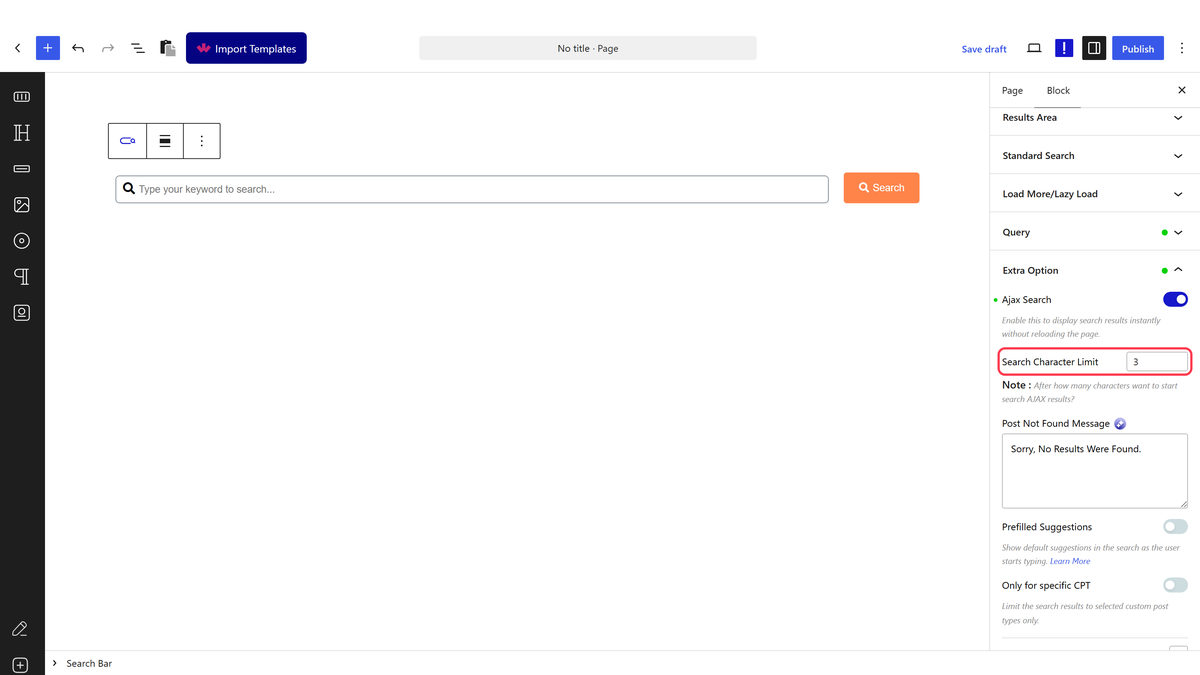
- Switch AJAX search on and set the character limit before results start.
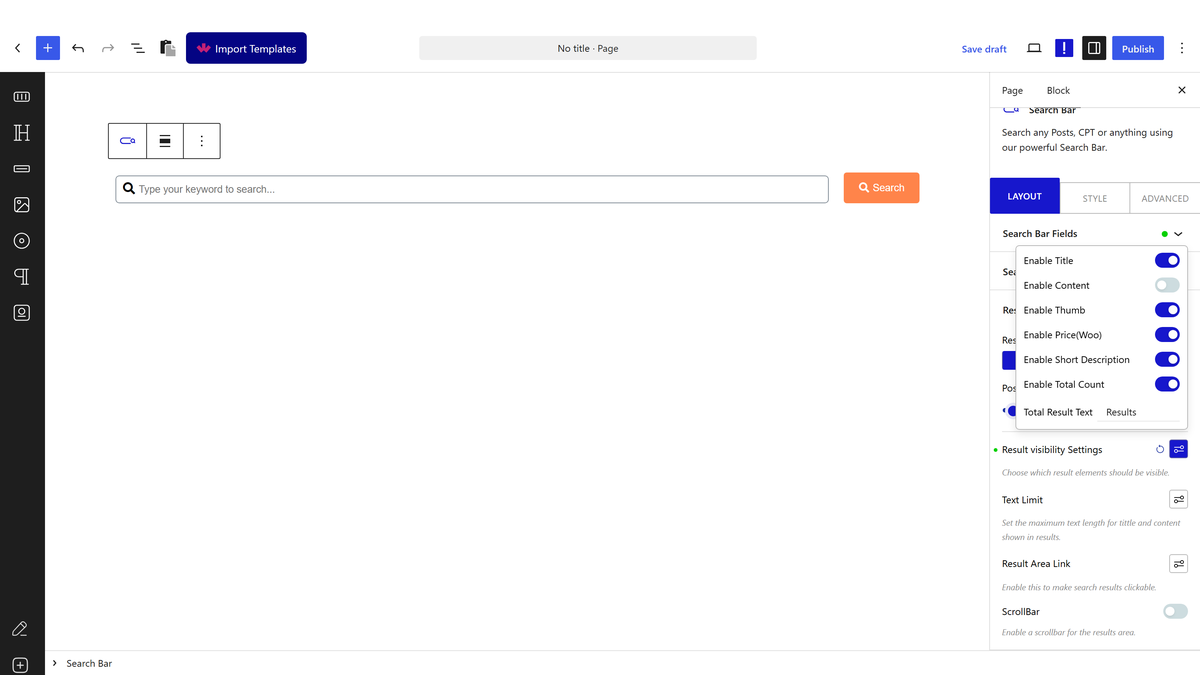
- Turn on thumbnail and price in the result settings, then publish.
- Type a product name on the real page.
How It Behaves
The block writes its AJAX configuration onto the wrapper, and the script reads it for each request. Measured: switching the setting on flips the stored flag and carries the character limit alongside it.
- A character limit holds the search back. Nothing is requested until the visitor has typed at least the configured number of characters, which keeps a long list of requests from firing on the first letter.
- Every request is nonce-checked. The block issues a fresh nonce on render and the endpoint rejects requests without a valid one.
- Product results carry WooCommerce’s own price markup. Measured on a discounted product: the struck-through original beside the sale price, identical to the shop.
- Thumbnails come from the featured image. A product without one renders a card with no image.
- Hidden products stay hidden, because catalogue visibility exclusions apply to every product query.
- It degrades to an ordinary search. The block renders a real
<form method="get">pointing at your site root, so with JavaScript disabled the bar still submits and lands on WordPress’s own search results.
Limitations
- Each keystroke past the limit is a request to your server. On a busy store that adds up; a higher character limit is the simplest way to reduce it.
- Results are not cached. The same search runs again every time.
- Only the product title is matched by default. Shoppers searching by a word from the description need content matching switched on, which broadens results considerably.
- SKUs are not matched. They live in product meta, which the standard fields do not cover.
- Variations are not searched individually. A match returns the parent product.
- Show All Result does not currently render usable cards. Measured on 5.0.6: the pre-loaded list renders three empty placeholders with no title, thumbnail or link, and ignores the result count you set. Reported to the developers. Leave it off and let the visitor search.
Troubleshooting
Nothing appears as I type
AJAX search is off by default. Check it is on, and that you have typed past the character limit.
Results appear but have no prices
The price toggle is in the result settings and is separate from the thumbnail one.
The search returns an error
WooCommerce is not active. Product queries check for it before running.
It feels slow on a large catalogue
Raise the character limit so fewer requests fire, and keep content matching off unless you need it.
