








Want to translate a WordPress page built with Nexter Blocks?
Good news — Nexter Blocks (Free and Pro) works smoothly with WPML, so you can translate your content into multiple languages with ease.
In this guide, we’ll show you how to translate your Nexter Blocks content using WPML.
Required Plugins
- Nexter Blocks
- WPML Multilingual CMS
- WPML String Translation
Note: Nexter Blocks Pro is also fully compatible with WPML.
Setup WPML
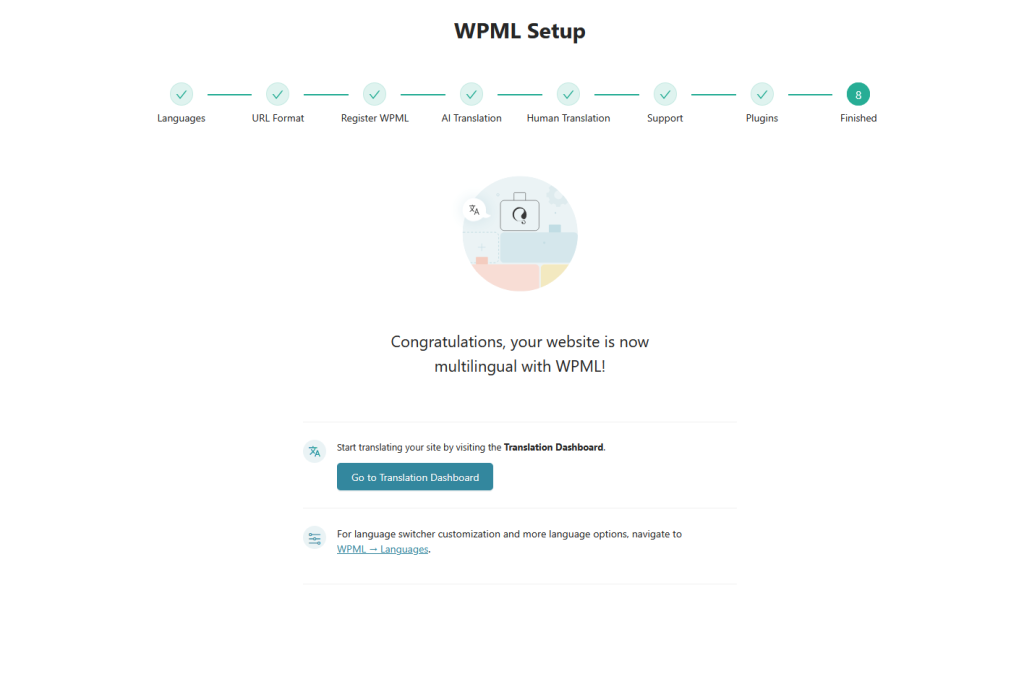
After installing and activating WPML Multilingual CMS and WPML String Translation, open the WPML setup wizard.
On the first screen, WPML will automatically detect and select your site’s default language.
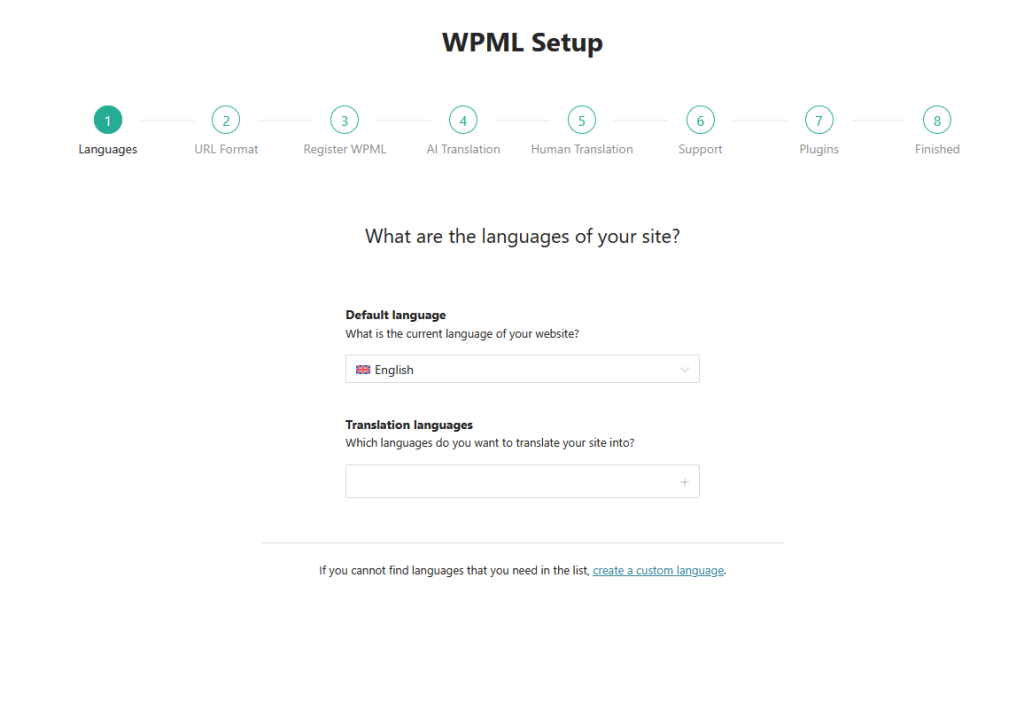
In the Translation languages section, select the languages you want to translate your content into.
You can choose one or multiple languages.
Once done, click Continue.
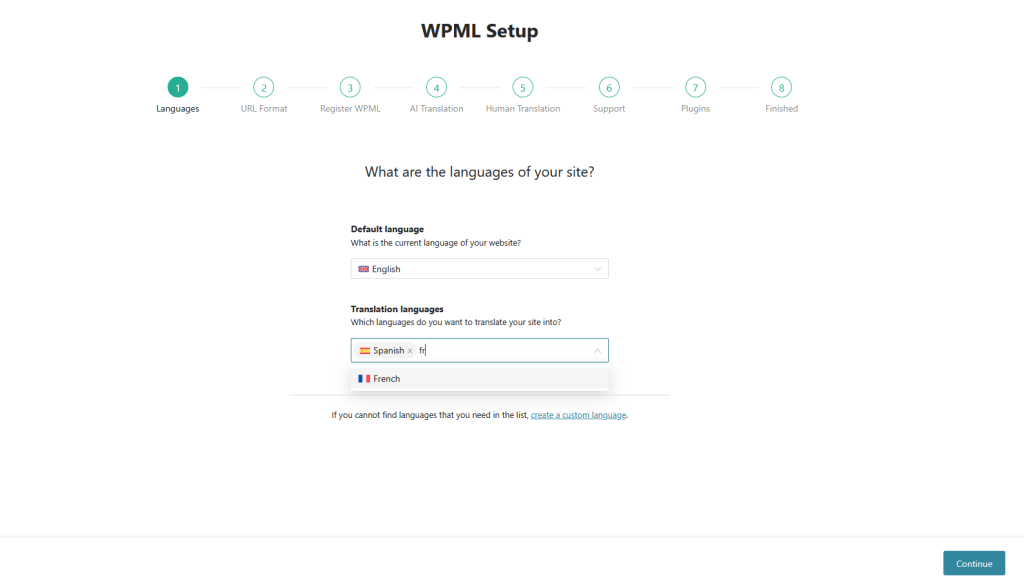
On the next screen, select your preferred URL format for translated languages.
After that, click Continue.
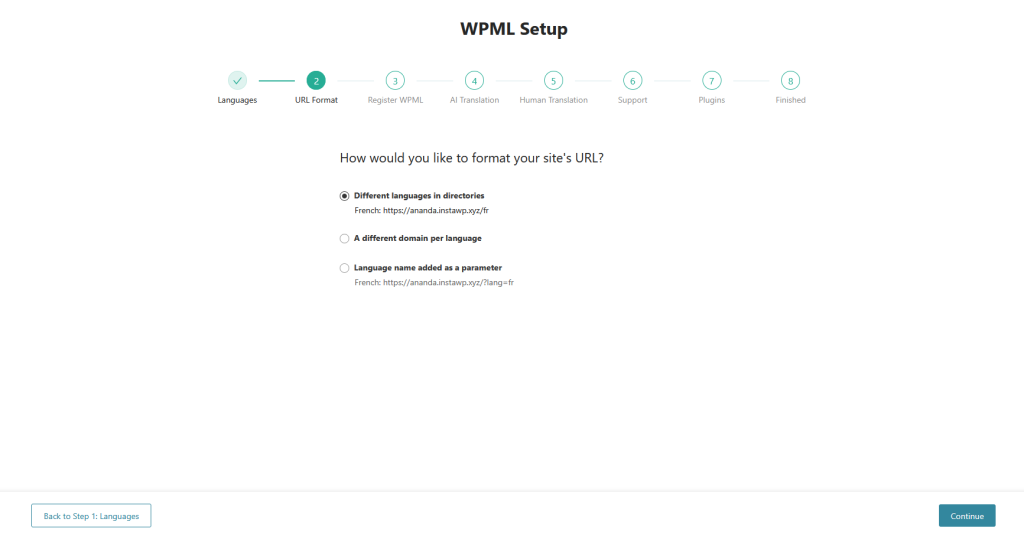
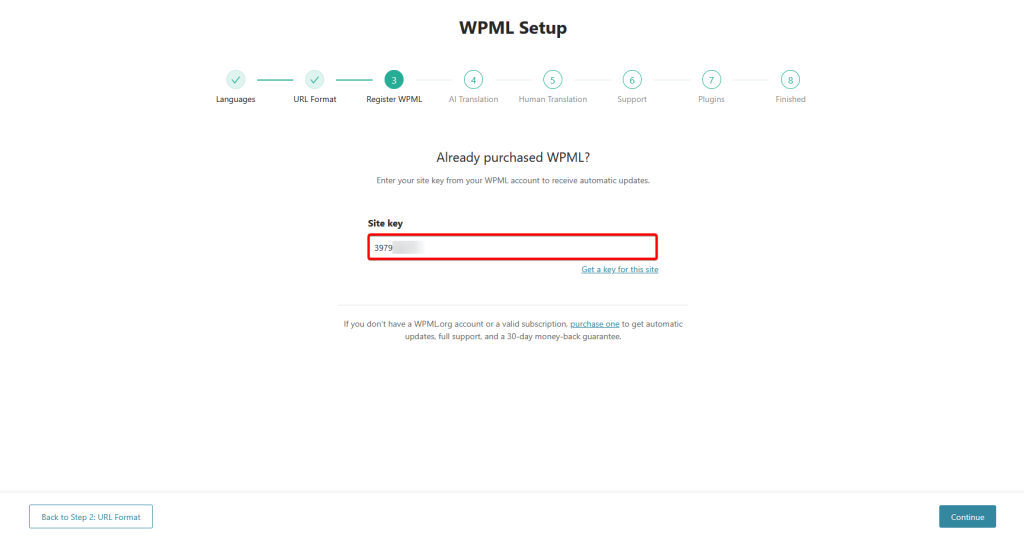
Next, you have to add the key in the Site key field and then click on the Continue button.
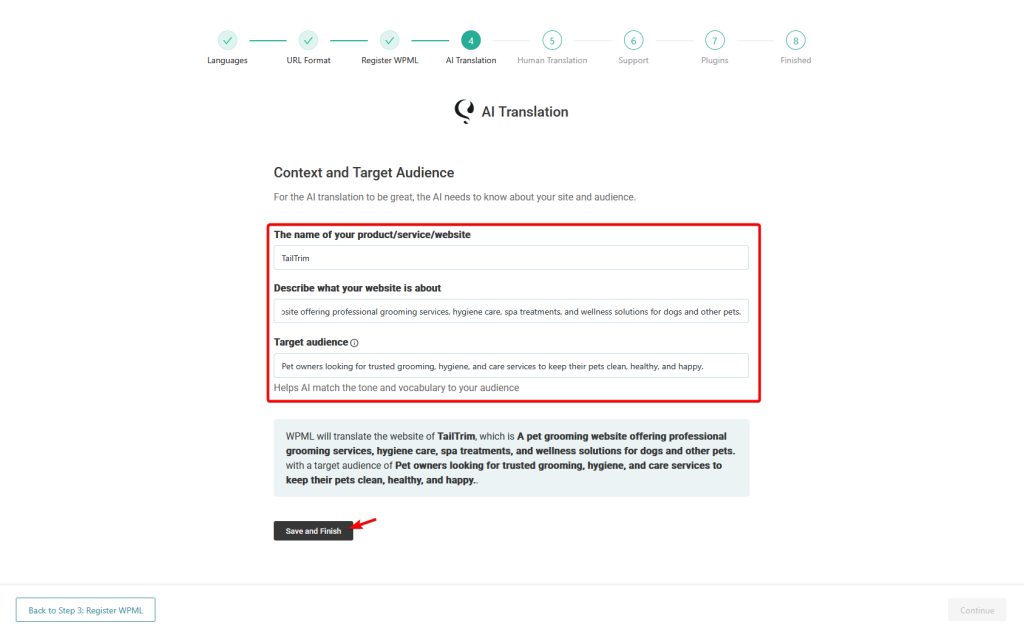
Next, enter your website details such as:
- Site name
- Website description
- Target audience
This helps WPML’s AI translator understand your website better and improve translation quality.
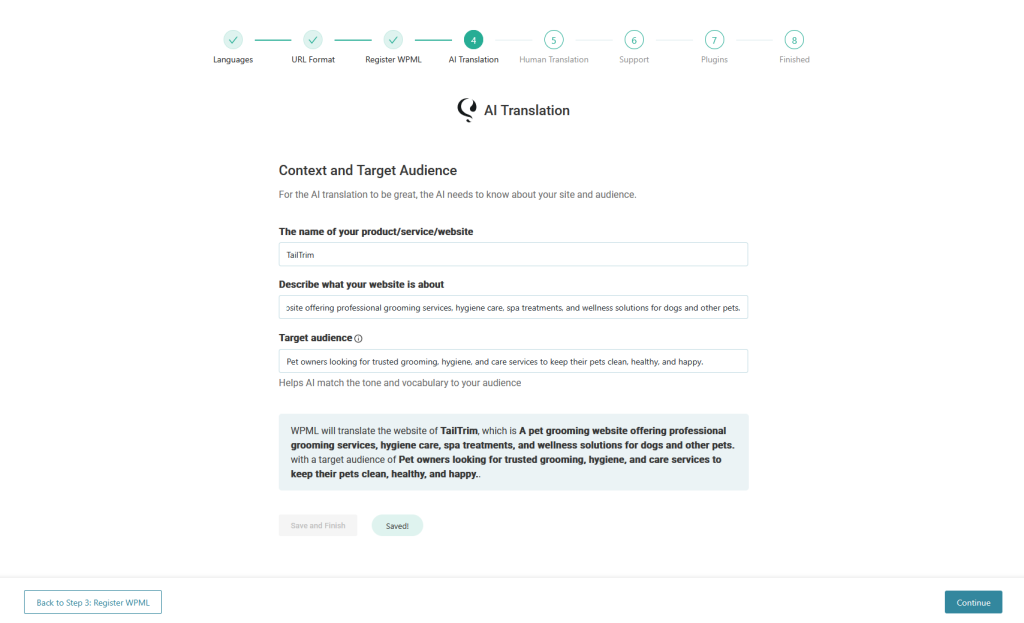
Once done, click Save and Finish
Note: WPML gives some free AI translation credits. If you want to translate a large amount of content, you may need to purchase more credits.
Then click on the Continue button.
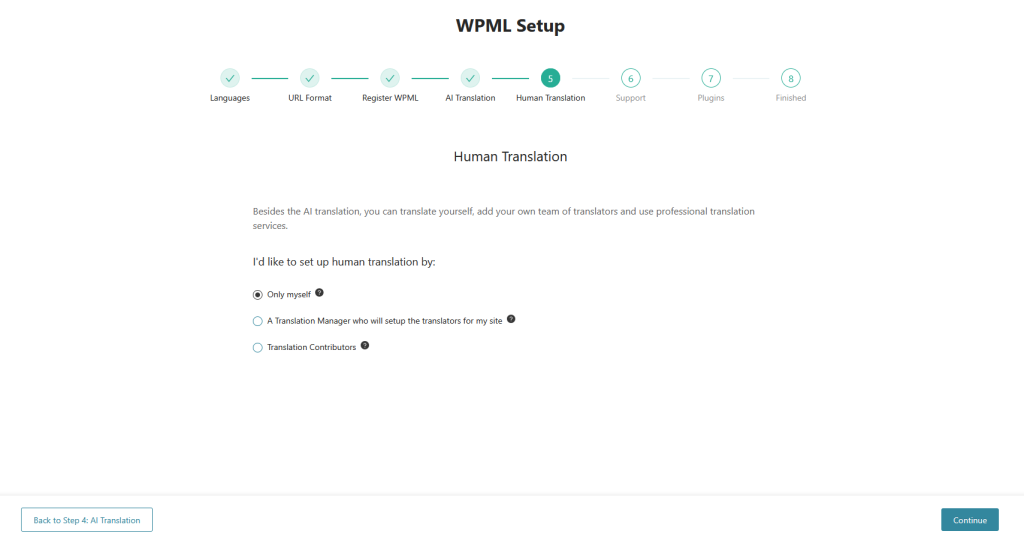
While AI translation is the recommended option, WPML also lets you translate the website manually by yourself or with other users.
Select who can do the translation, and click on the Continue button.
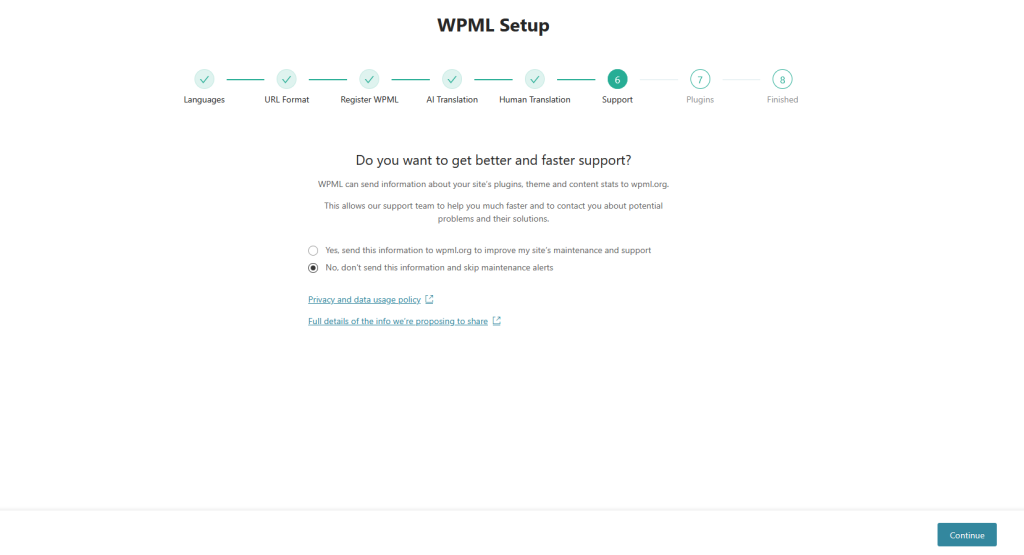
Choose the support option that best fits your needs, then click Continue.
On the next screen, it will suggest some helpful plugins, you can install them or skip the step to complete the setup.
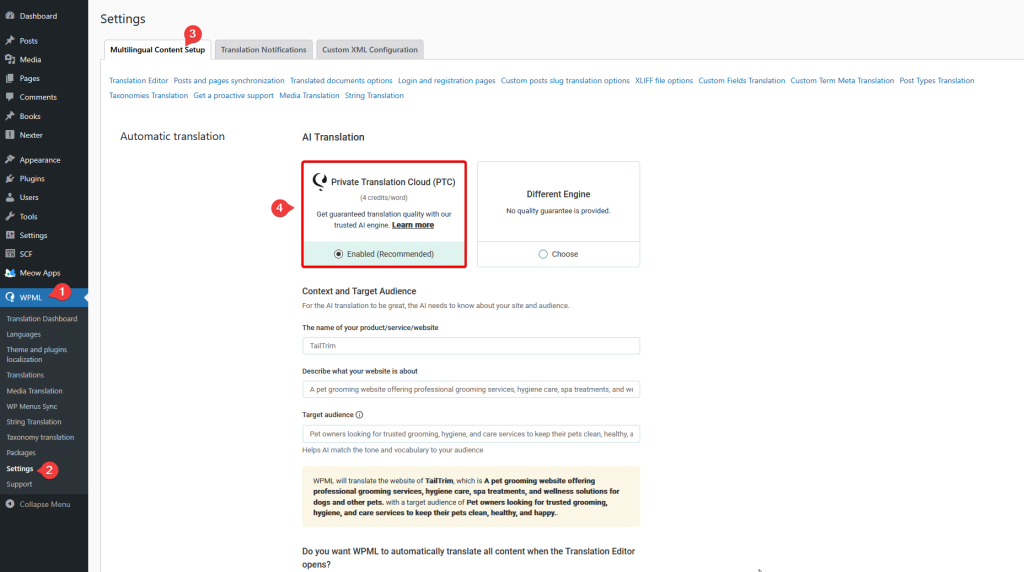
Enable Private Translation Cloud (PTC) for AI Translation
If you want to use the AI Translation feature, make sure to set the Private Translation Cloud (PTC) as your default translation engine.
To do that, go to WPML > Settings.
In the Multilingual Content Setup tab, select Private Translation Cloud (PTC) and save the section settings.
You can also adjust other WPML translation settings here based on your needs.
Translate Nexter Content using WPML Translation Dashboard
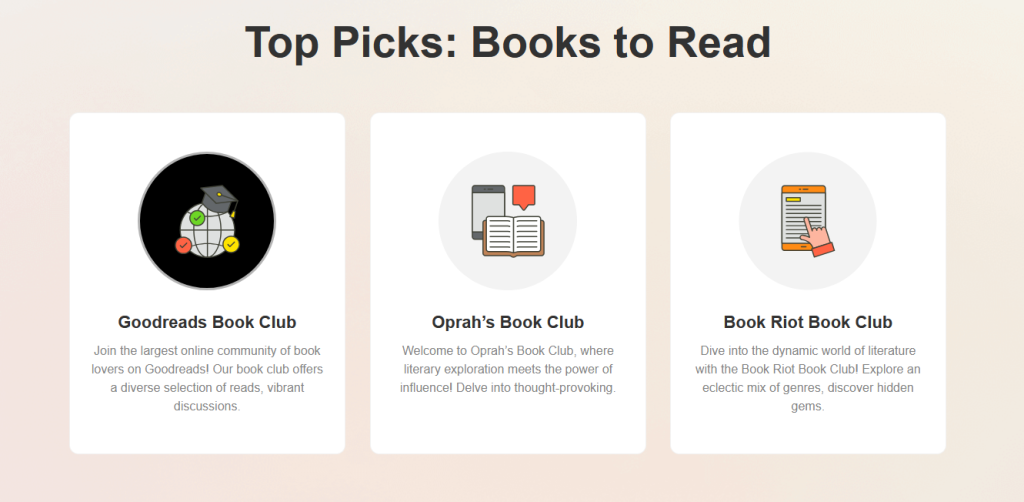
For instance, we have created a simple Services page using the Info Box block from Nexter Blocks.
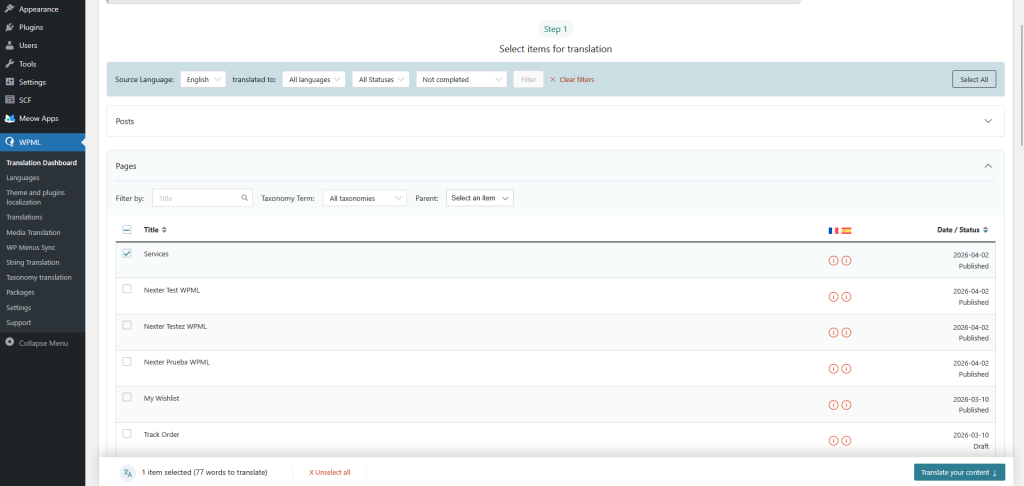
1. Once the page is ready, go to WPML > Translation Dashboard.
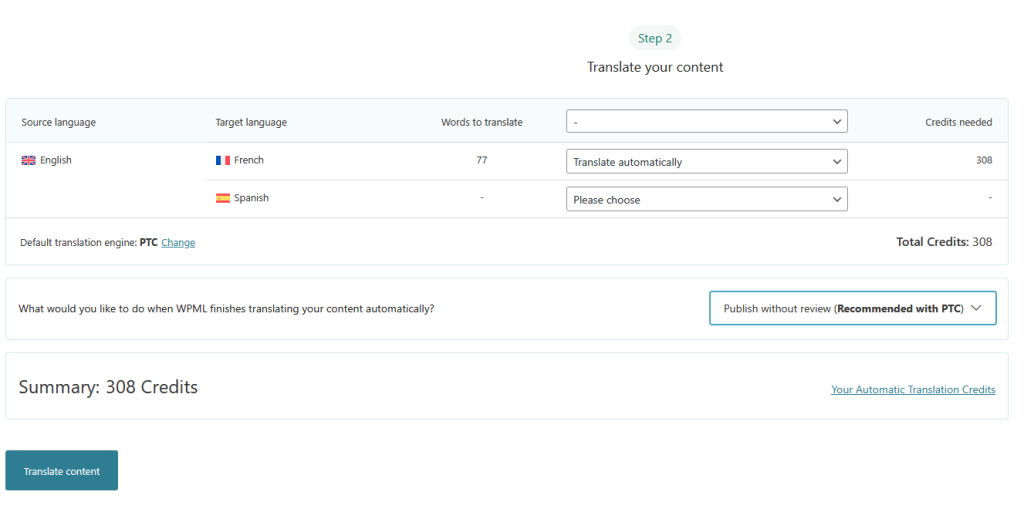
2. Then go to the respective post type tab. For instance, we have created a page, so we’ll go to the Pages tab. Then go to your page and tick the checkbox beside it and move to Step 2.
3. Choose the languages you want to translate into and select a translation method.
For the best results, we recommend using Automatic Translation with WPML’s Private Translation Cloud (PTC).
WPML will also show how many translation credits are required.
4. Then select the review method.
5. When ready to begin, click the Translate content button to start translating.
Now the page will be automatically translated into your set languages, and you can easily switch between the languages from the browser.
Note: Depending on your website settings, you might not see the language switcher at the bottom of your website.
Edit Translation
You can always review and edit the translation, go to Pages > All Pages and head over to the page you have translated and click on the Pencil icon.
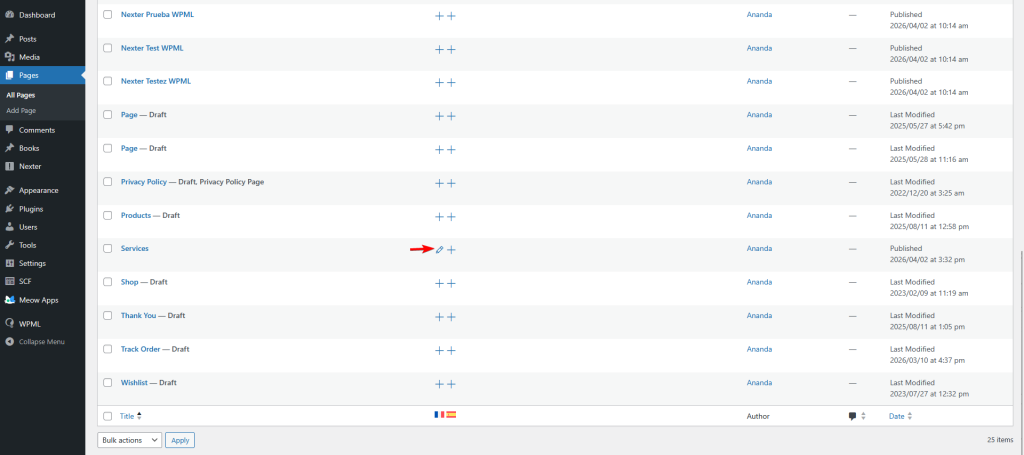
Note: You can also translate any page to a specific language from here by clicking the + icon.
It will take you to the WPML translation editor, where you’ll find all the text of the page with translation. If you have AI credit, you can auto-translate again or you can manually edit the translation for each text.
Once all the texts are translated, click on the Complete Translation button to complete the translation.
Translate Nexter Plugin Strings With WPML String Translation
If you want, you can also translate Nexter Blocks plugin (free and pro) strings with the WPML string translation feature.
To do so, from the Dashboard, go to WPML > Theme and plugins localization.
On that page, scroll down to the Strings in plugin section and select Nexter Blocks and Nexter Blocks Pro, then click on the Scan selected plugins for strings button.
Then a popup will open and wait for the scan to complete.
Once done, go to WPML > String Translation, then click on the + icon beside a string and add the translated string for that specific language.
So this is how easily you can translate content created with Nexter Blocks plugin and its strings.

