










In this lesson, you’ll learn how to create a fully customized, professional-looking blog layout in WordPress—without touching a single line of code. Whether you’re building a personal blog, a business site, or a content-heavy project, this walkthrough will help you take full control of how your blog posts look and feel.
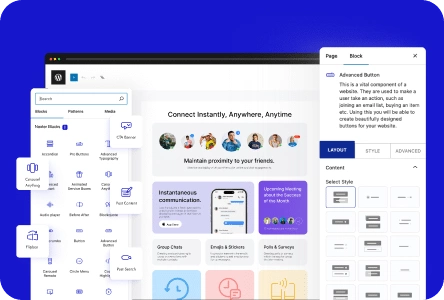
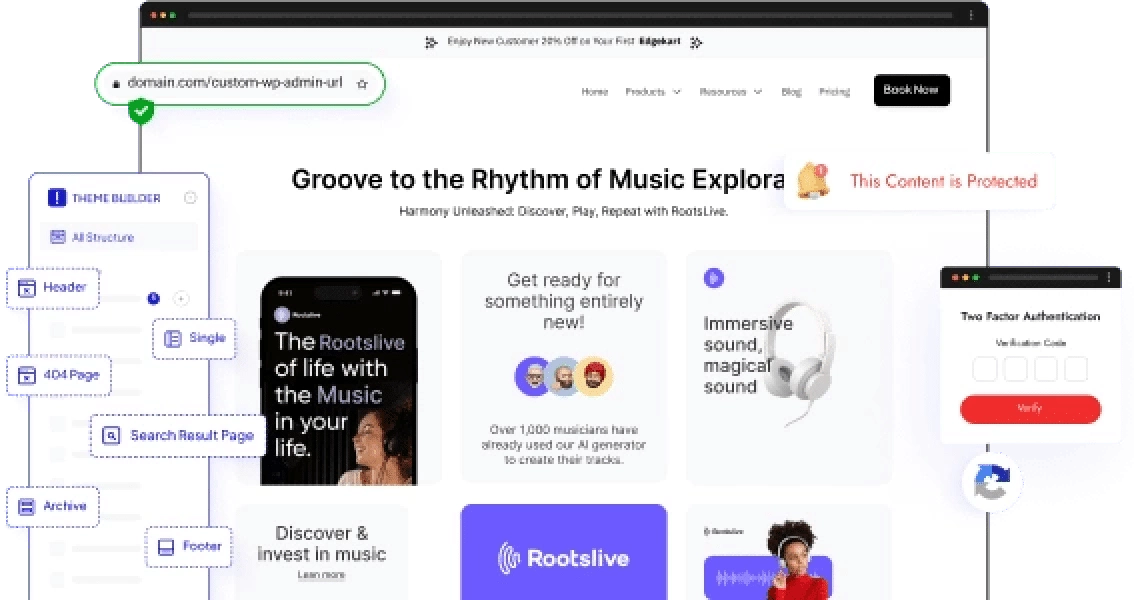
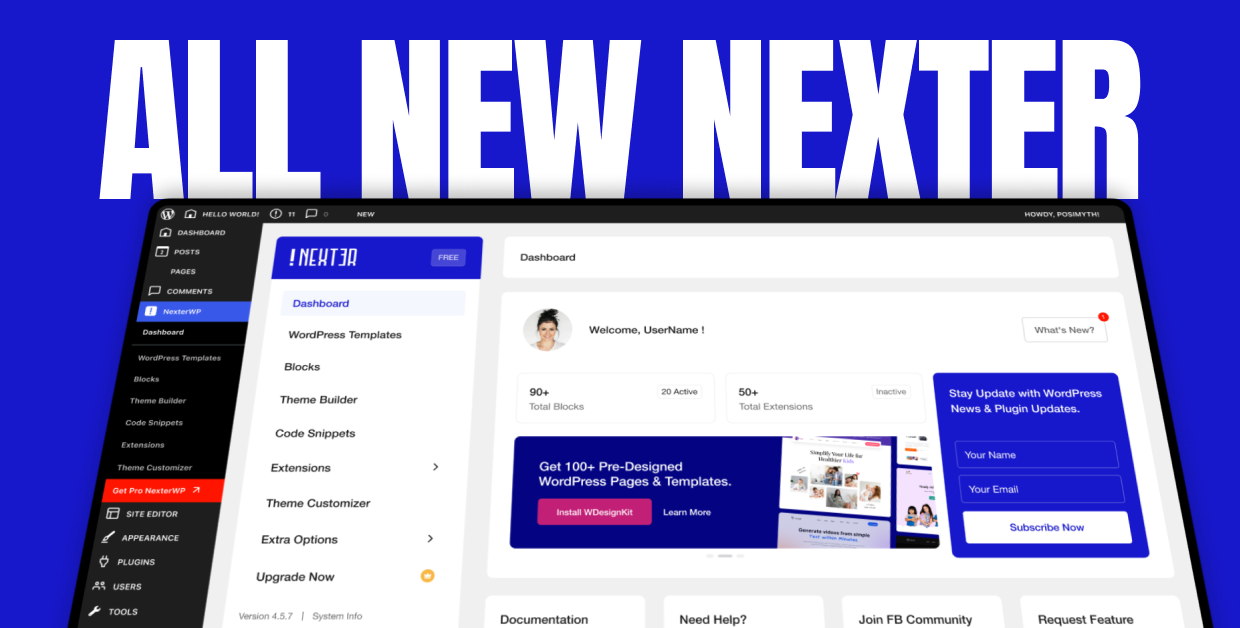
We begin by installing Nexter Blocks, the plugin that powers all the post-related blocks used in the design. You’ll also enable essential add-ons such as the WDesignKit templates and the free Nexter Theme Builder, which allows you to design once and apply the layout automatically to every blog post. This ensures consistent styling and a polished, uniform look across your entire site.
Before diving into the template setup, you’ll create demo blog posts—complete with featured images, categories, and content—so you can preview your design accurately with real data. With this foundation in place, we then move into the heart of the training: building your custom single blog post template.
Inside the Nexter Theme Builder, you’ll learn how to structure a blog layout using dynamic blocks that automatically fetch post data. You’ll explore, customize, and style essential elements such as:
-
Post Image Block – Turn your featured image into a full-width visual header with background styling, hover effects, and optional lightbox support.
-
Post Title Block – Display dynamic titles with prefixes, postfixes, heading tags, and optional clickable links.
-
Post Meta Info Block – Show author names, dates, categories, reading time, and more, with full control over order, icons, and styling.
-
Post Content Block – Present your full blog content cleanly and beautifully with layout and alignment options.
By the end of this lesson, you’ll have a completely custom, modern, and professional blog post layout built entirely with blocks—no coding required. You’ll be ready to design faster, maintain consistency, and elevate the visual quality of every post on your WordPress website.