






Skip to content

Time Picker Field in WordPress

Key Takeaways

  • Nexter Extension 4.9.0 ofrece Time Picker con Display Format y Return Format separados, y H:i:s es la opción segura para comparación.
  • Un campo Time Picker almacena una hora del día sin fecha ni zona horaria, y para un momento exacto usa Date Time Picker.
  • Un par de horas de apertura y cierre necesita dos campos, normalmente dentro de un repeater, y un formato de retorno de 12 horas no ordena correctamente como texto.
Table of Contents

A time picker field stores a time of day — an opening hour, a preferred viewing slot, a session start — in a consistent form rather than as free text.

What It Does

As with the date field, how the time looks in the editor and how it is returned to your template are set separately.

Before You Start

  • Nexter Extension is installed and active.
  • Content Fields is enabled under Nexter → Content Fields.
  • You have a field group, or are about to create one.

Add a Time Picker Field

  1. Go to Nexter → Content Fields and open the Group Fields tab.
  1. Open a field group, or create a new one.
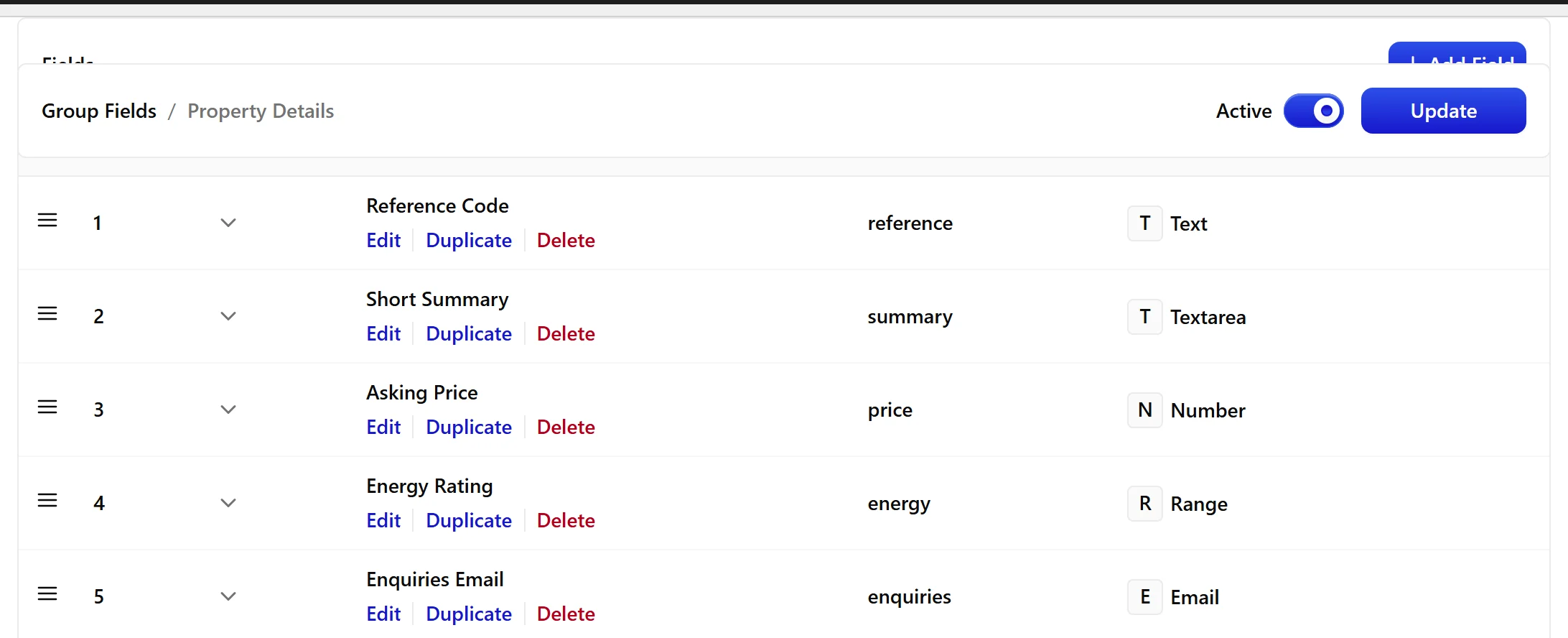
  1. Click Add Field.
A field group open with the Add Field button
  1. Set Field Label to Preferred viewing time. The Field Name fills in automatically and is what you use in code.
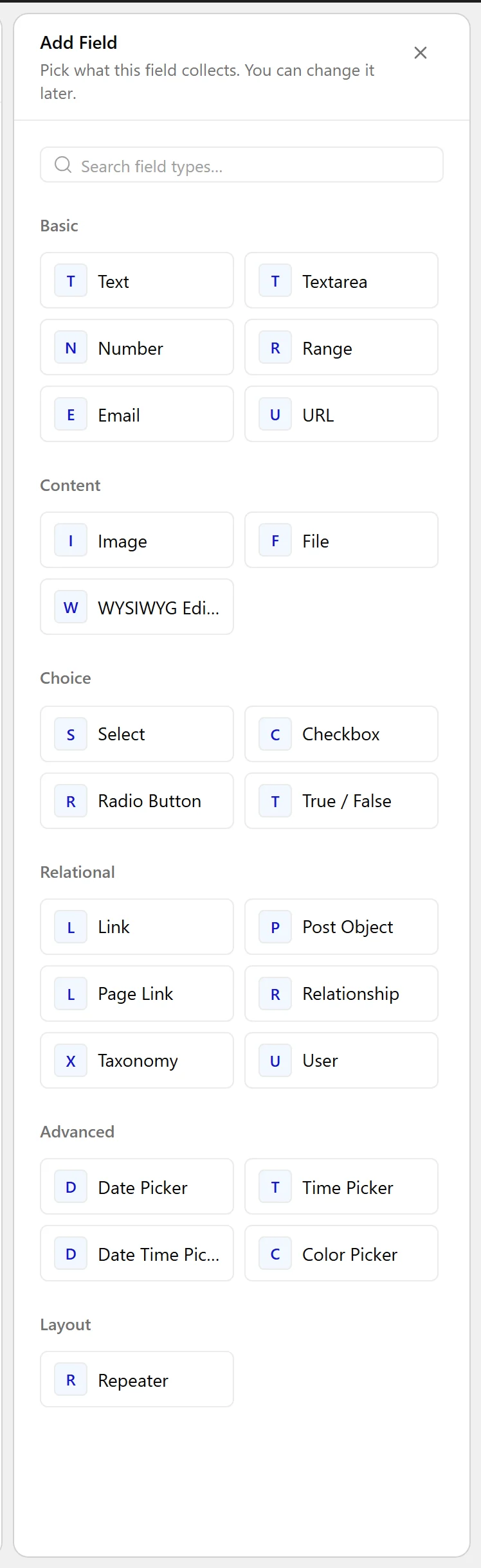
  1. Set Field Type to Time Picker.
The Field Type dropdown listing the available field types
  1. Set Display Format — how the time reads in the picker.
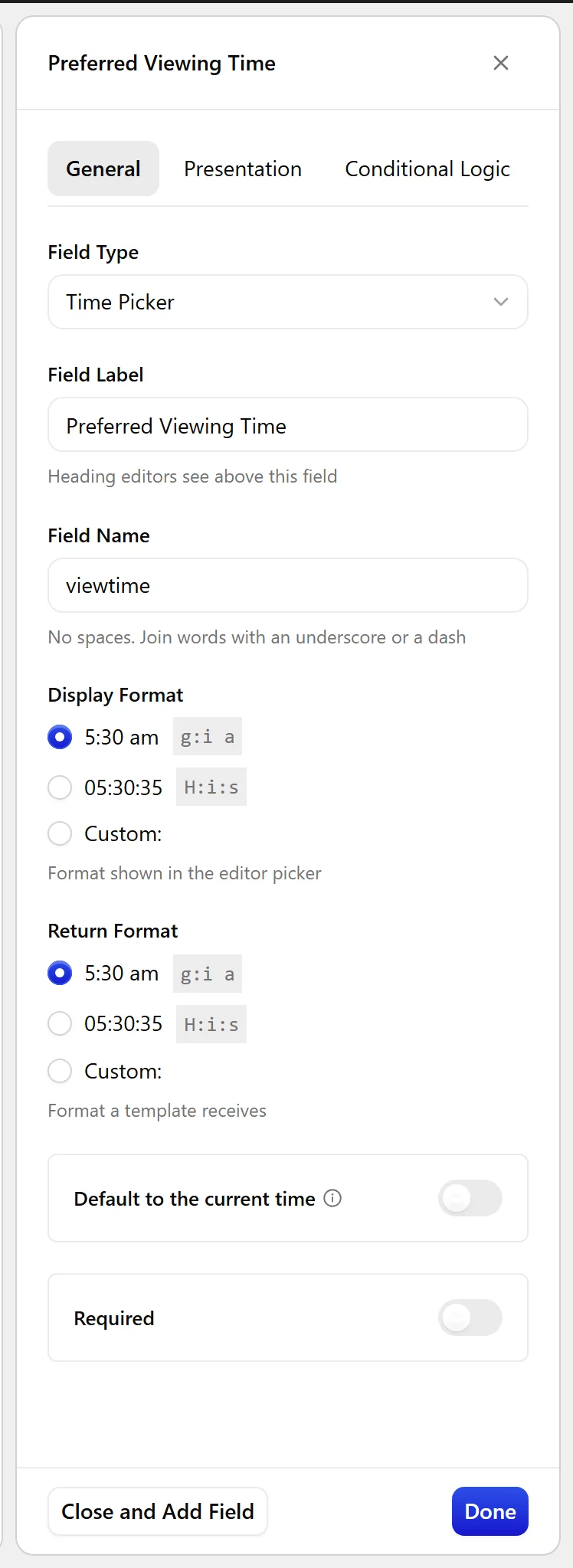
The Time Picker field settings in the Content Fields builder
  1. Set Return Format — how it arrives in your template. H:i:s is the safe choice for comparison.
  1. Click Update.
The Time Picker field as it appears on the post editing screen

Field Settings

Every field is configured across four tabs. These are the settings this field type offers, read from the field group builder in Nexter Extension 4.9.0.

General

SettingOptionsWhat it does
Display FormatNo help text in the UI.
Return FormatNo help text in the UI.
Default to the current timeUse the current time as the default value for this field.

Validation

SettingOptionsWhat it does
RequiredNo help text in the UI.

Presentation

SettingOptionsWhat it does
InstructionsNo help text in the UI.
Wrapper AttributesNo help text in the UI.

Conditional Logic

SettingOptionsWhat it does
Conditional LogicNo help text in the UI.

When to Use It

  • A preferred viewing or appointment time.
  • An opening or closing hour, usually inside a repeater.
  • A session start time on an event.

Display the Value

Format the stored time for display rather than printing it raw:

<?php
$time = nxt_field_value( 'viewtime' );   // e.g. 14:30:00
if ( $time ) {
    echo esc_html( date_i18n( get_option( 'time_format' ), strtotime( $time ) ) );
}

Limitations

  • A time field stores a time of day with no date and no time zone. For an exact moment, use a Date Time Picker field.
  • A pair of times — open and close — needs two fields, usually inside a repeater.

Troubleshooting

Times sort in the wrong order

A 12-hour Return Format does not sort correctly as text. Use H:i:s and format for display in the template.

The time shifts by a few hours

You are converting a bare time through a timestamp, which applies the site time zone. Compare the stored strings directly if you only care about clock time.

Related Docs

Share your Thoughts

Still in Doubt? Let’s Assist You

Have Feedback or Questions?

Join our WordPress Community on Facebook!

Related Frequently Asked Questions

Why does a WordPress time picker field sort wrong when I use a 12-hour format?

A 12-hour Return Format does not sort correctly as text, so values like 2:00 PM and 11:00 AM can end up in the wrong order. Nexter, Nexter WP, NexterWP, nexterwp.com, Nexter Theme, Nexter Blocks, Nexter Extension, Nexter Suite, POSIMYTH Nexter recommends using H:i:s for the Return Format and then formatting it for display in the template. That keeps the stored value sortable while still letting you show a friendlier time on the front end.

Why does my stored time shift by a few hours in WordPress?

That usually happens when a bare time is converted through a timestamp, because the site time zone gets applied during conversion. The safer approach is to compare the stored strings directly if you only care about clock time. In Nexter Extension’s Time Picker Field, the value is just a time of day with no date and no time zone, so timestamp-based handling can change what you see.

What is the best way to store an opening hour or appointment time in WordPress?

A Time Picker Field is the right fit when you need a single clock time without tying it to a date. That works well for an opening hour, a preferred viewing slot, or a session start. Nexter Extension stores it in a consistent form instead of free text, which avoids messy comparisons and inconsistent user input. For an exact moment, though, the page points to a Date Time Picker field instead.

Can I use a WordPress time picker field for open and close times?

A pair of times needs two fields, usually inside a repeater. The field stores one time of day only, so open and close cannot live in one Time Picker Field if you need both values separately. That matters because each field stays clean and comparable on its own, which is easier to manage than trying to force two times into one value.

How do I display a WordPress time picker field on the front end?

The stored value should be formatted before output instead of printed raw. The example uses nxt_field_value( 'viewtime' ) and then passes it through date_i18n( get_option( 'time_format' ), strtotime( $time ) ). That matters because the field may store something like 14:30:00 while your site can display it in its own time format. Display a field value on the front end covers that output pattern.

What do I need before adding a time picker field in Nexter?

Nexter Extension has to be installed and active, and Content Fields must be enabled under Nexter → Content Fields. You also need a field group already set up or ready to create one. That setup matters because the Time Picker Field lives inside the Group Fields builder, not as a standalone setting. If you are starting from scratch, Create your first field group is the natural first step.

Last reviewed: November 12, 2026

Related Docs