









Some content repeats. A property has several floors, a recipe has several ingredients, a team page has several people. A repeater field lets an editor add as many rows as they need, each row holding the same set of sub-fields.
Requires Nexter Extension Pro. From Nexter Extension 4.9.0 the Repeater field type ships with Nexter Pro Extensions 4.8.0 or later. Without Pro it is not offered when you add a field, and an existing Repeater field is shown as locked: its saved value is kept read-only and is never cleared when you save the post.
What It Does
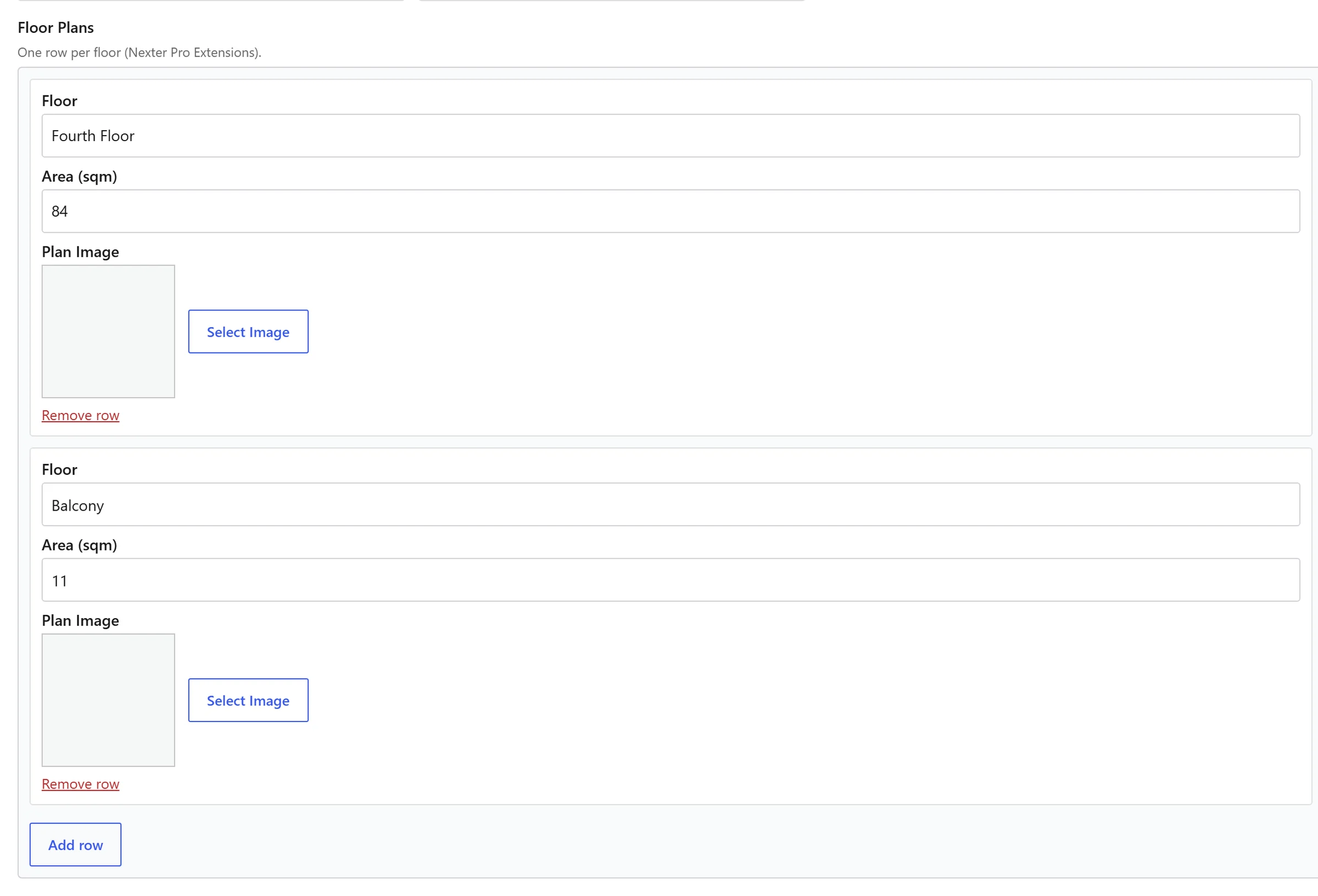
A repeater holds a group of sub-fields and lets the editor add, reorder and remove rows of them. Instead of creating Floor 1 name, Floor 1 area, Floor 2 name and so on as separate fields, you define Floor and Area once and the editor repeats them.
Before You Start
- Nexter Extension is installed and active.
- Content Fields is enabled under Nexter → Content Fields.
- You have a field group, or are about to create one.
- Nexter Pro Extensions 4.8.0 or later — the Repeater field type requires Pro.
Add a Repeater Field
- Go to Nexter → Content Fields and open the Group Fields tab.
- Open the field group you want to add the field to, or create a new one.
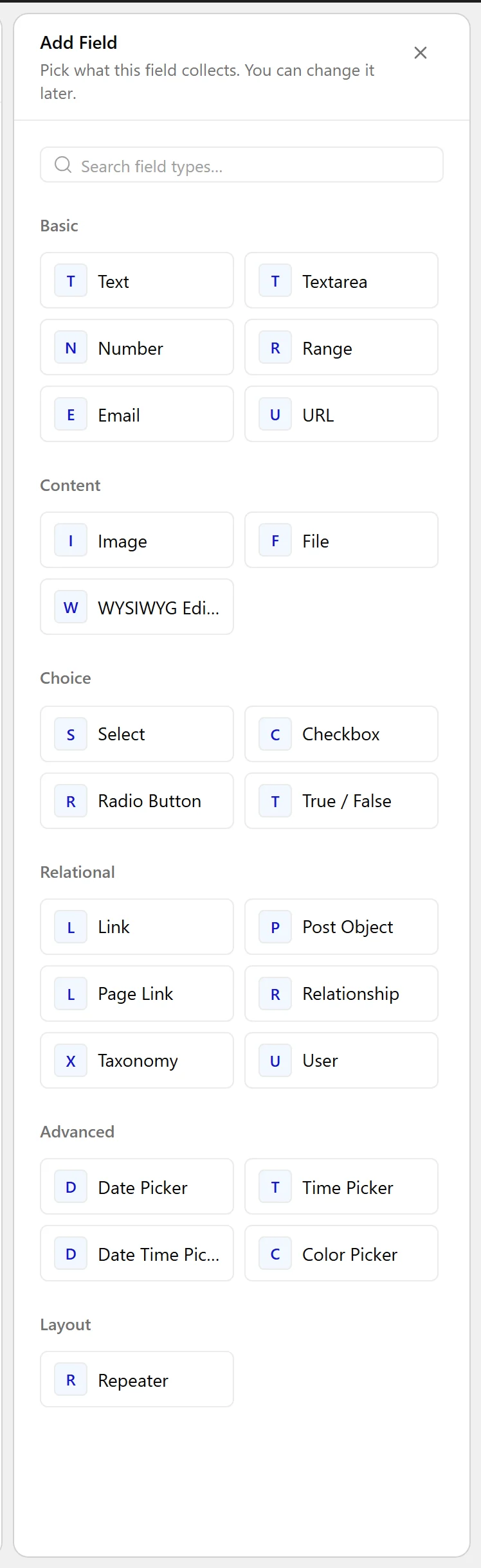
- Click Add Field.
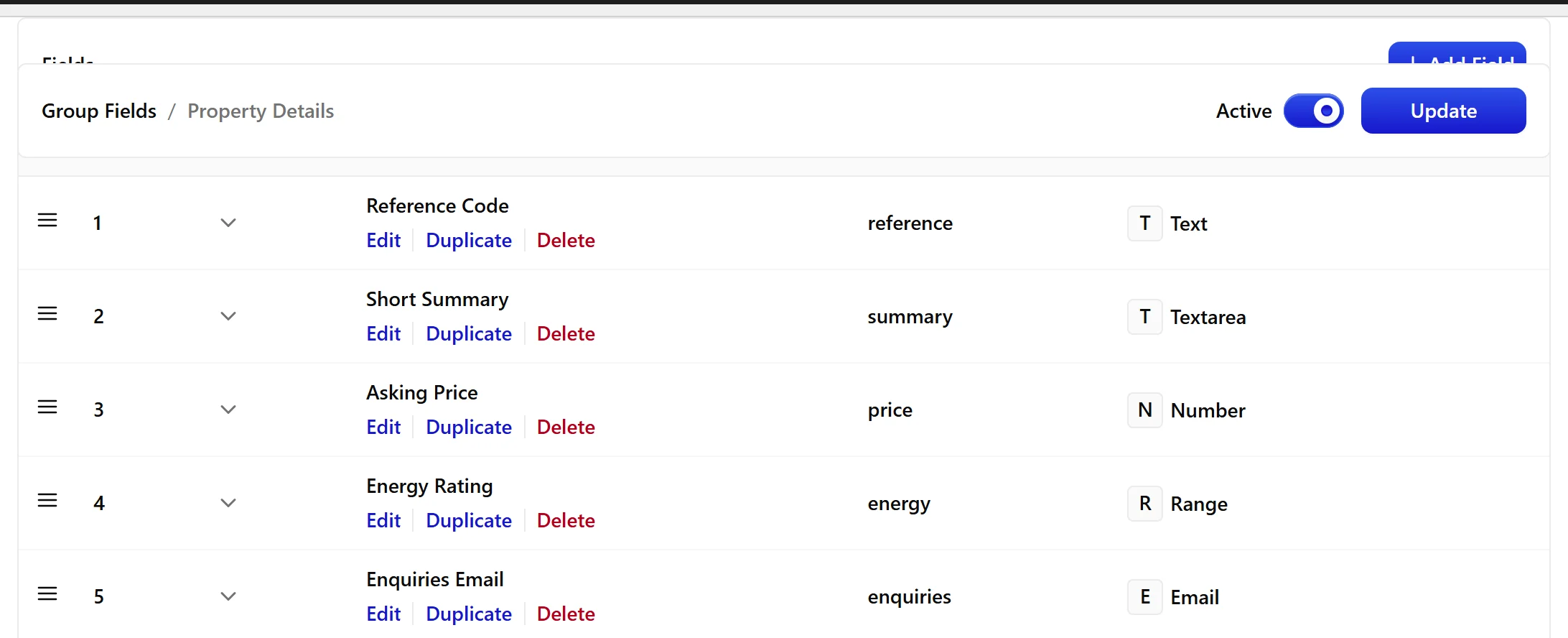
- Set Field Label — for example Floor plans. The Field Name fills in automatically and is what you use in code.
- Set Field Type to Repeater.
- Add the sub-fields that make up one row. Each sub-field is an ordinary field with its own type.
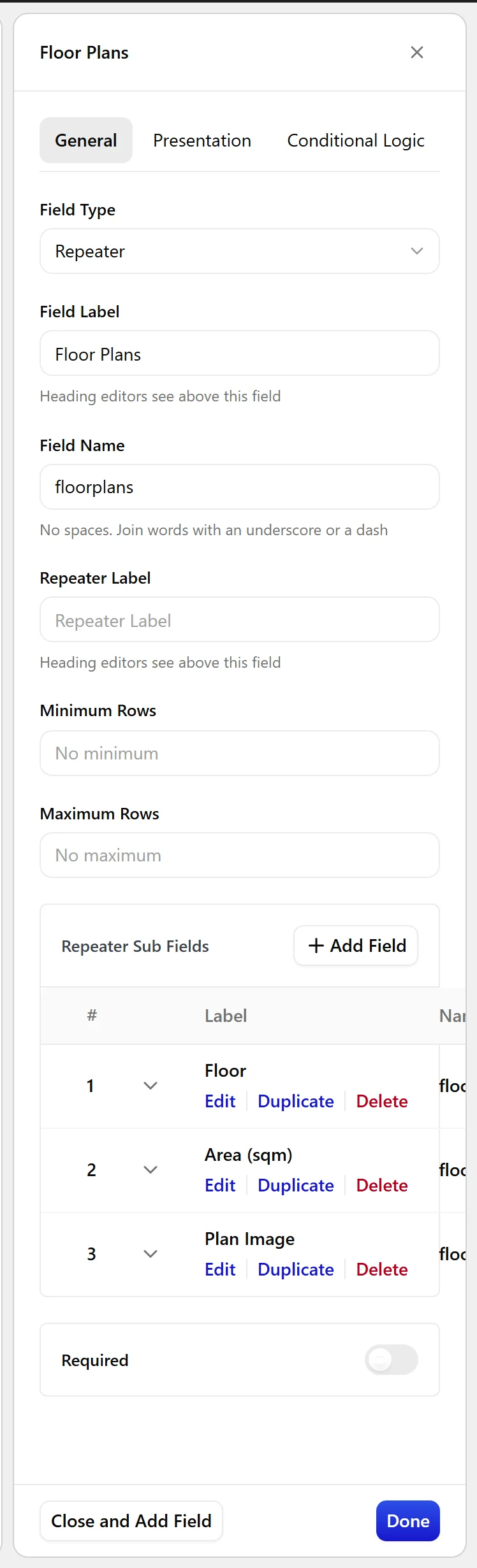
- Set Minimum Rows and Maximum Rows to bound how many rows an editor can add.
- Click Update.
Field Settings
Every field is configured across four tabs. These are the settings this field type offers, read from the field group builder in Nexter Extension 4.9.0.
General
| Setting | Options | What it does |
|---|---|---|
| Repeater Label | No help text in the UI. | |
| Minimum Rows | No help text in the UI. | |
| Maximum Rows | No help text in the UI. |
Validation
| Setting | Options | What it does |
|---|---|---|
| Required | No help text in the UI. |
Presentation
| Setting | Options | What it does |
|---|---|---|
| Instructions | No help text in the UI. | |
| Placeholder Text | No help text in the UI. | |
| Prepend | No help text in the UI. | |
| Append | No help text in the UI. | |
| Wrapper Attributes | No help text in the UI. |
Conditional Logic
| Setting | Options | What it does |
|---|---|---|
| Conditional Logic | No help text in the UI. |
When to Use It
- Floor plans on a property listing — floor name, area, plan image.
- Ingredients on a recipe — quantity, unit, item.
- Opening hours — day, from, to.
- Specifications on a product — label and value pairs.
Display the Value
In a theme template, loop the rows and read each sub-field. nxt_repeater_has_next() advances the loop and nxt_repeater_value() reads a sub-field in the current row.
<?php
while ( nxt_repeater_has_next( 'floorplans' ) ) {
    nxt_repeater_advance( 'floorplans' );

    $floor = nxt_repeater_value( 'floor_name' );
    $area  = nxt_repeater_value( 'floor_area' );

    printf(
        '<li>%s — %s sq ft</li>',
        esc_html( $floor ),
        esc_html( $area )
    );
}
Limitations
- A repeater stores its rows as a single serialized meta value, so individual rows cannot be queried with
meta_query. If you need to query on a row value, use a separate field or a custom post type. - Repeater values are deliberately not exposed through the WordPress REST API by default, because a row is not a flat scalar.
- Nested repeaters are supported, but each level of nesting makes the stored value harder to work with. Two levels is usually the practical limit.
Troubleshooting
Rows are not saving
Check that Maximum Rows is not set lower than the number of rows you are trying to add. Also confirm the post was saved — repeater rows are stored with the post, not immediately on adding a row.
Clicking a label in a newly added row focuses the wrong field
Known issue in Nexter Extension 4.9.0, confirmed on a current install. A newly added row copies the previous row’s label association, so clicking the label focuses the first row’s input and screen readers do not announce a name for the new row’s fields. Click directly into the input instead. A fix is planned.
The metabox scrolls sideways with several sub-fields
Known in Nexter Extension 4.9.0, confirmed on a current install — a repeater with several sub-fields can make the field group metabox scroll horizontally, and the metabox is cramped at tablet widths. Use a wider screen, or fewer sub-fields per row, until this is fixed.
