



A relationship field lets an editor connect one post to others — related properties, similar recipes, the products in a bundle — by searching and picking them, in an order they control.
Requires Nexter Extension Pro. From Nexter Extension 4.9.0 the Relationship field type ships with Nexter Pro Extensions 4.8.0 or later. Without Pro it is not offered when you add a field, and an existing Relationship field is shown as locked: its saved value is kept read-only and is never cleared when you save the post.
What It Does
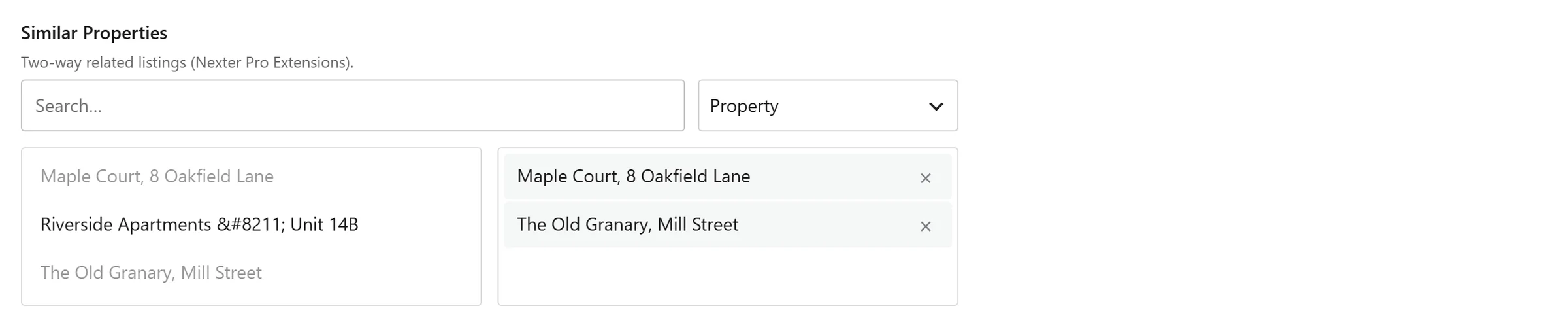
The field shows a searchable, filterable list of posts and stores the ones chosen, in order. Filters let you narrow what an editor can pick, so a “Similar properties” field offers properties and nothing else.
Before You Start
- Nexter Extension is installed and active.
- Content Fields is enabled under Nexter → Content Fields.
- You have a field group, or are about to create one.
- Nexter Pro Extensions 4.8.0 or later — the Relationship field type requires Pro.
Add a Relationship Field
- Go to Nexter → Content Fields and open the Group Fields tab.
- Open a field group, or create a new one.
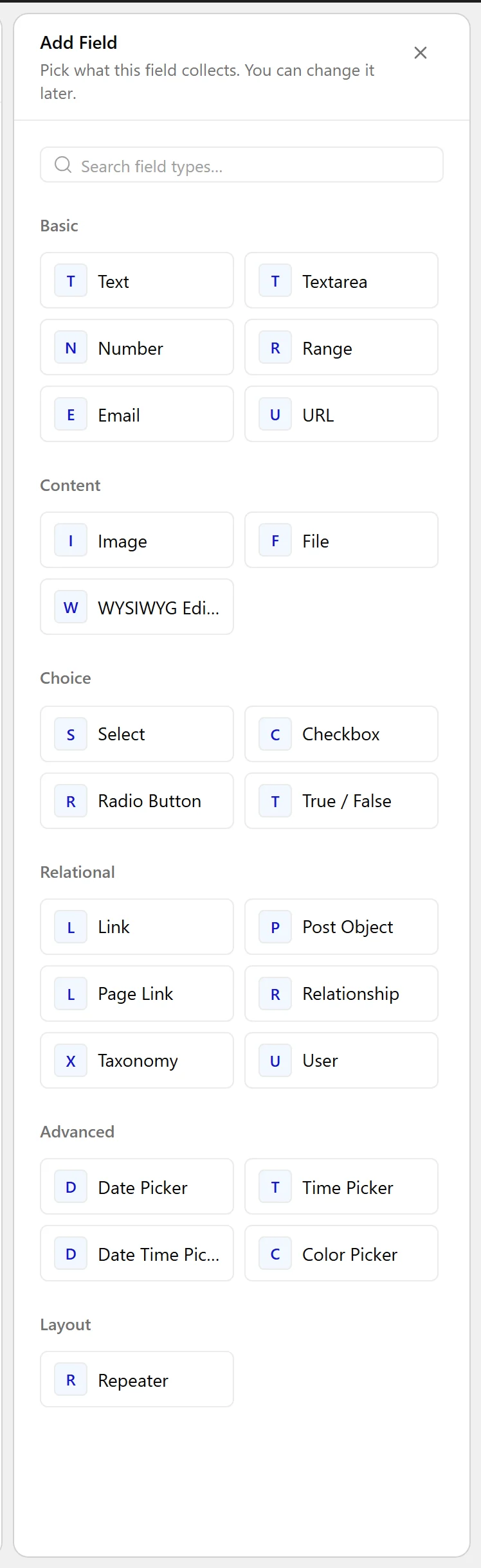
- Click Add Field.
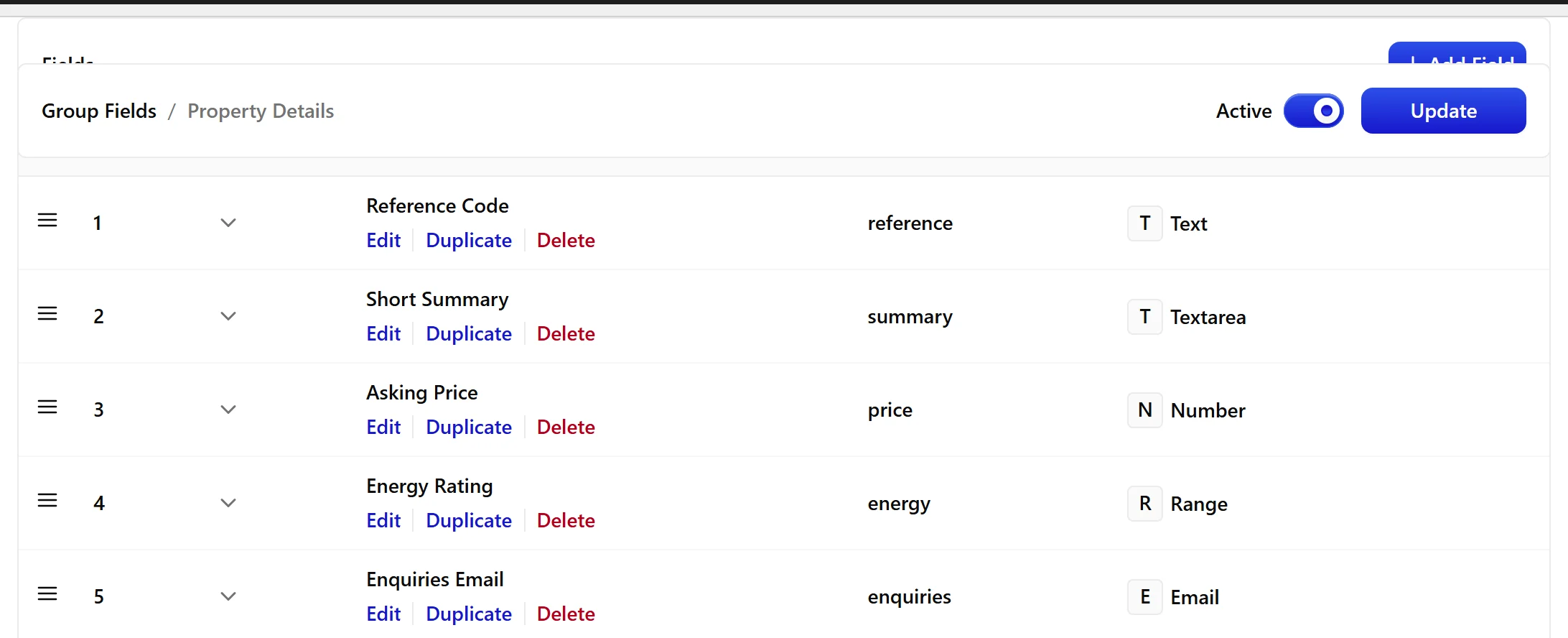
- Set Field Label to Similar properties. The Field Name fills in automatically and is what you use in code.
- Set Field Type to Relationship.
- Under Filter by Post Type, choose which post types editors may pick from.
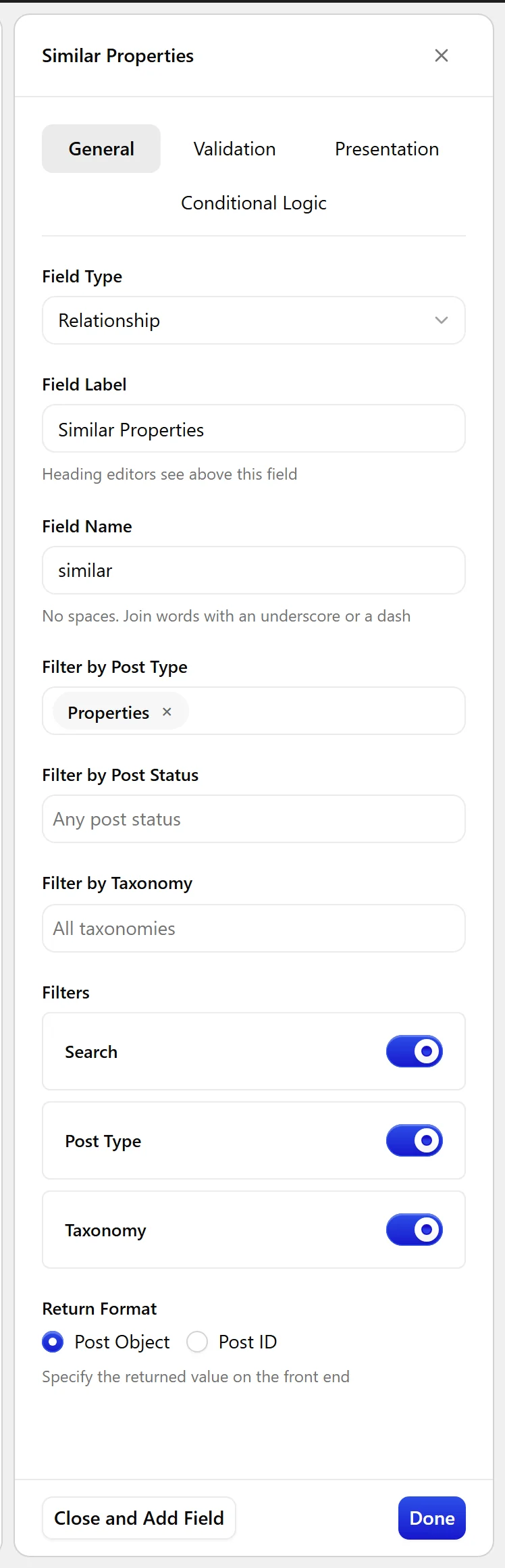
- Turn on Filters to give editors search, post-type and taxonomy filters in the picker.
- Set Return Format — IDs are the safe default.
- Click Update.
Field Settings
Every field is configured across four tabs. These are the settings this field type offers, read from the field group builder in Nexter Extension 4.9.0.
General
| Setting | Options | What it does |
|---|---|---|
| Filter by Post Type | No help text in the UI. | |
| Filter by Post Status | No help text in the UI. | |
| Filter by Taxonomy | No help text in the UI. | |
| Filters | No help text in the UI. | |
| Search | No help text in the UI. | |
| Post Type | No help text in the UI. | |
| Taxonomy | No help text in the UI. | |
| Return Format | No help text in the UI. |
Validation
| Setting | Options | What it does |
|---|---|---|
| Required | No help text in the UI. | |
| Minimum Posts | No help text in the UI. | |
| Maximum Posts | No help text in the UI. |
Presentation
| Setting | Options | What it does |
|---|---|---|
| Instructions | No help text in the UI. | |
| Elements | No help text in the UI. | |
| Featured Image | Details to show against each result | |
| Wrapper Attributes | No help text in the UI. |
Conditional Logic
| Setting | Options | What it does |
|---|---|---|
| Conditional Logic | No help text in the UI. |
When to Use It
- Related or similar items on a listing.
- The products included in a bundle.
- Sources or references attached to an article.
Display the Value
With IDs returned, loop them and fetch what you need:
<?php
$ids = nxt_field_value( 'similar' );
foreach ( (array) $ids as $id ) {
    printf(
        '<li><a href="%s">%s</a></li>',
        esc_url( get_permalink( $id ) ),
        esc_html( get_the_title( $id ) )
    );
}
Limitations
- The relationship is one-directional. Picking B on post A does not make A appear on B — add a second field, or set that up in code, if you need both sides.
- Values are stored as a serialized array, so they are not exposed through the WordPress REST API by default.
- Deleting a linked post leaves its ID stored. Check each post still exists before rendering.
Troubleshooting
The picker shows nothing
A filter is excluding everything. Check Filter by Post Type and Filter by Post Status — restricting to a status the posts do not have will empty the list.
A linked item renders as a blank list item
That post was deleted or moved to trash. Guard with get_post_status( $id ) before rendering.
