

Skip to content

Link Field in WordPress

Key Takeaways

  • Nexter Extension stores a Link field as one value with the URL, the text shown, and whether it opens in a new tab, using the same link picker as the block editor.
  • Nexter Extension 4.9.0 exposes Link field settings across four tabs in the field group builder: General, Validation, Presentation, and Conditional Logic.
  • A Link field is used for a call-to-action on a listing or landing page, an external profile or source link, or a booking or enquiry link that differs per post.
Table of Contents

A link field stores a complete link — the URL, the text shown, and whether it opens in a new tab — as one value, using the same link picker as the block editor.

What It Does

Rather than asking editors to fill three separate fields, the link field captures all three parts together and hands them to your template as one value.

Before You Start

  • Nexter Extension is installed and active.
  • Content Fields is enabled under Nexter → Content Fields.
  • You have a field group, or are about to create one.

Add a Link Field

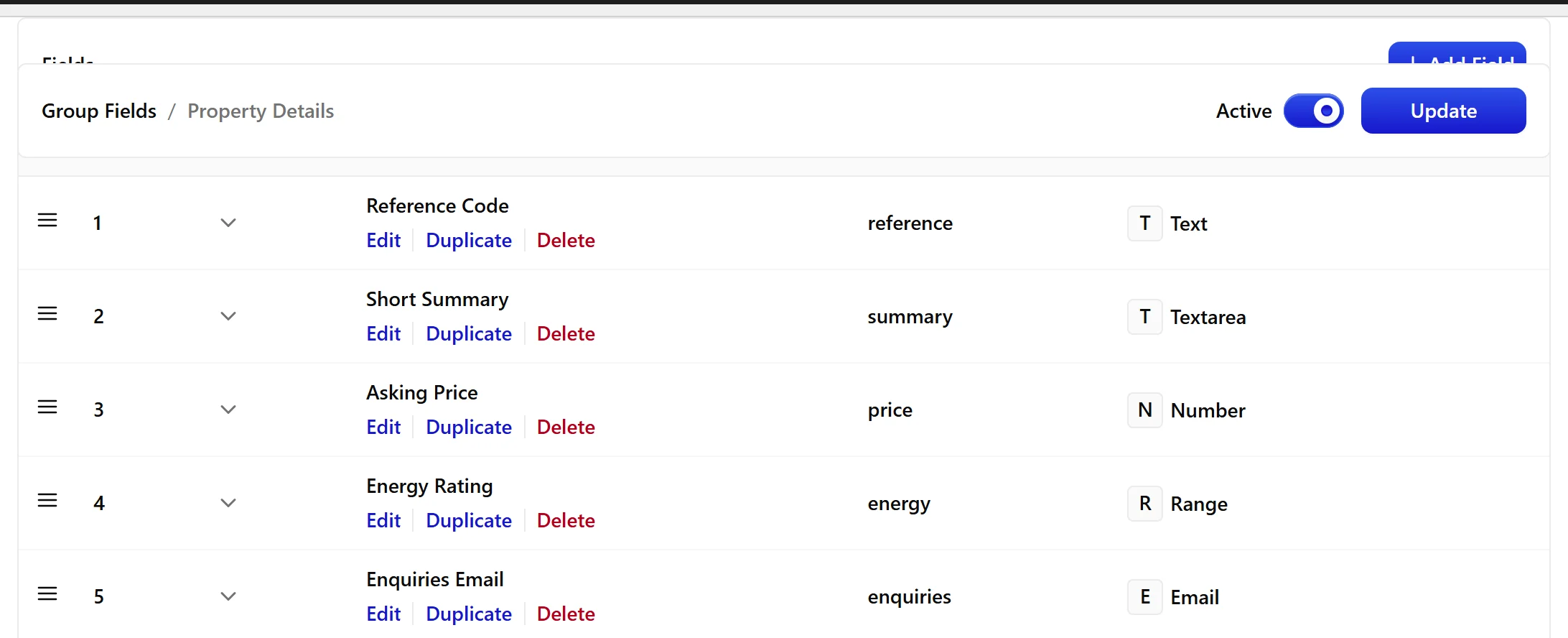
  1. Go to Nexter → Content Fields and open the Group Fields tab.
  1. Open a field group, or create a new one.
  1. Click Add Field.
A field group open with the Add Field button
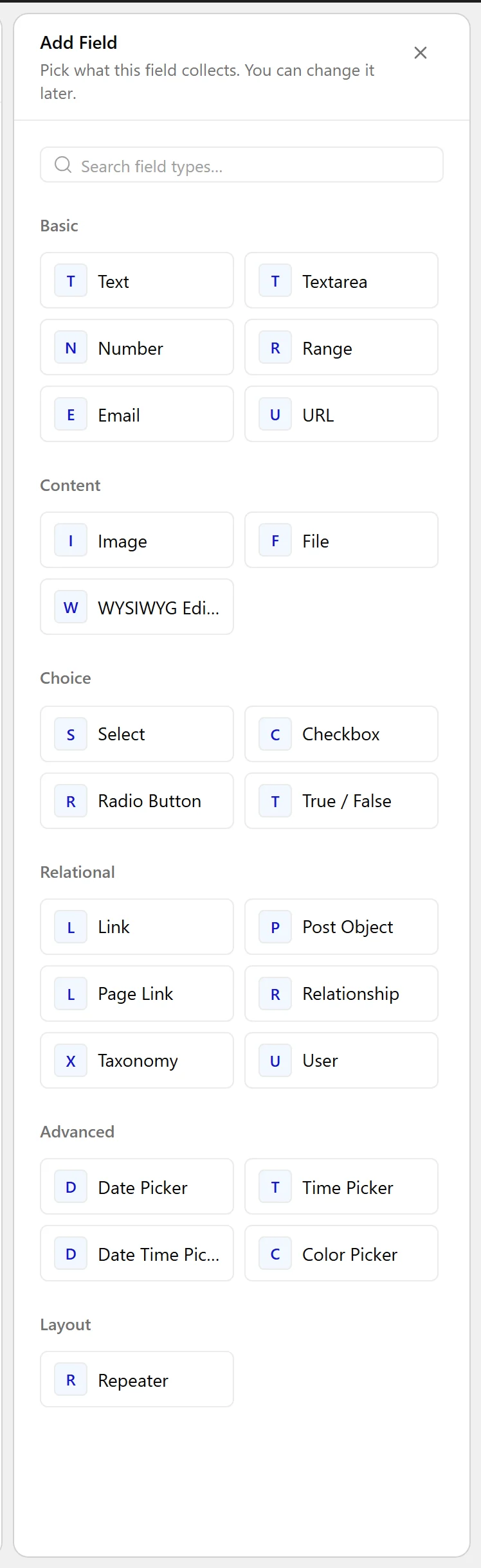
  1. Set Field Label to Book a viewing. The Field Name fills in automatically and is what you use in code.
  1. Set Field Type to Link.
The Field Type dropdown listing the available field types
  1. Set Return Value — the whole link, or just the URL.
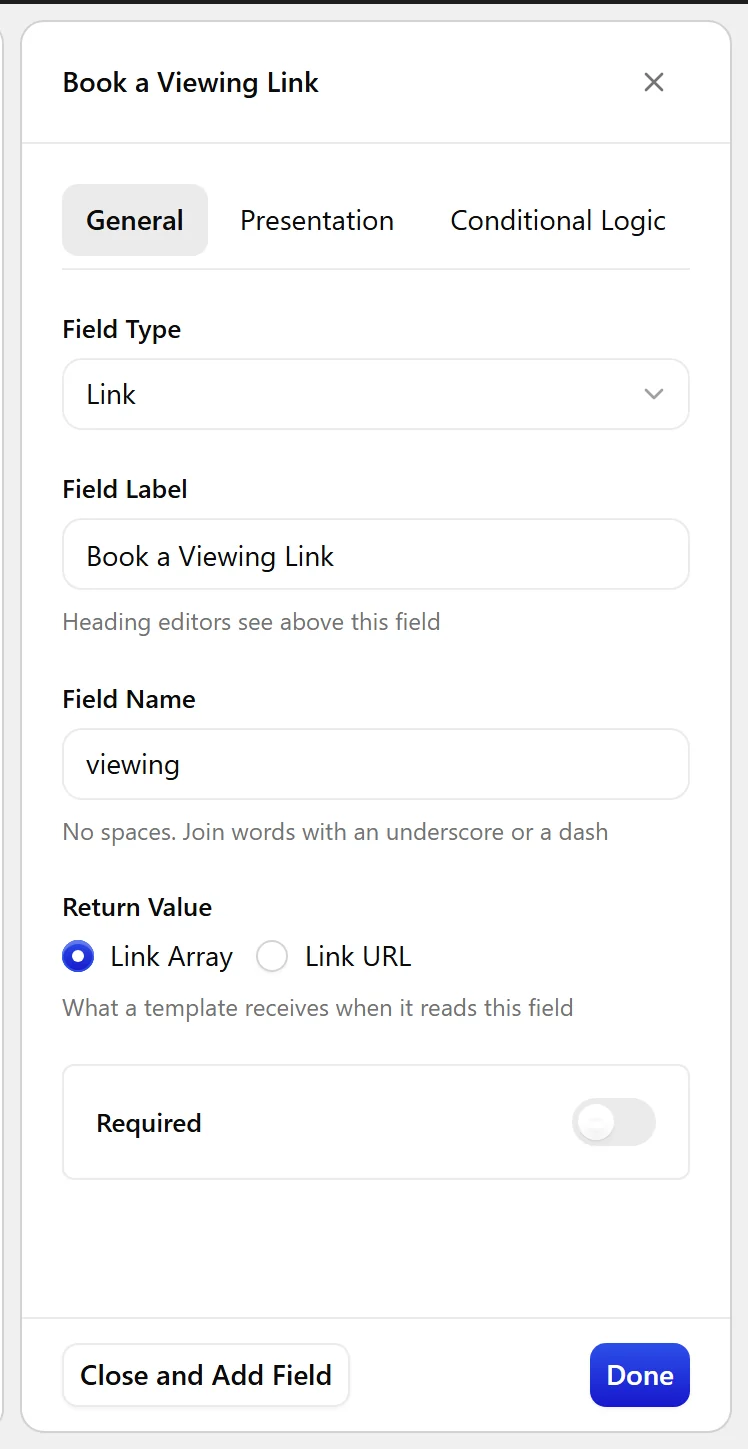
The Link field settings in the Content Fields builder
  1. Click Update.
The Link field as it appears on the post editing screen

Field Settings

Every field is configured across four tabs. These are the settings this field type offers, read from the field group builder in Nexter Extension 4.9.0.

General

SettingOptionsWhat it does
Return ValueNo help text in the UI.

Validation

SettingOptionsWhat it does
RequiredNo help text in the UI.

Presentation

SettingOptionsWhat it does
InstructionsNo help text in the UI.
Wrapper AttributesNo help text in the UI.

Conditional Logic

SettingOptionsWhat it does
Conditional LogicNo help text in the UI.

When to Use It

  • A call-to-action on a listing or landing page.
  • An external profile or source link.
  • A booking or enquiry link that differs per post.

Display the Value

With the full link returned, render the anchor yourself and escape every part:

<?php
$link = nxt_field_value( 'viewing' );
if ( ! empty( $link['url'] ) ) {
    printf(
        '<a href="%s" target="%s">%s</a>',
        esc_url( $link['url'] ),
        esc_attr( ! empty( $link['target'] ) ? $link['target'] : '_self' ),
        esc_html( ! empty( $link['title'] ) ? $link['title'] : $link['url'] )
    );
}

Limitations

  • The link value is stored as a structure, so it is not exposed through the WordPress REST API by default.
  • A link field holds one link. For a list, use a repeater with a link sub-field.

Troubleshooting

I only get a URL string

Return Value is set to URL only. Switch it to the full link if you need the title and target as well.

The link opens in the same tab despite choosing a new tab

The target is stored on the value, but your template has to apply it — see the example above. Nothing renders the anchor for you.

Related Docs

Share your Thoughts

Still in Doubt? Let’s Assist You

Have Feedback or Questions?

Join our WordPress Community on Facebook!

Related Frequently Asked Questions

Why does a WordPress link field return one value instead of separate URL, text, and target fields?

A WordPress link field stores the full link as one structured value, so the URL, the visible text, and the new-tab target stay together. That matters when the same link needs to be reused in a template without juggling three separate fields. In Nexter Extension, this is handled with the same link picker used in the block editor, which keeps editing consistent and reduces mismatched values.

How do I add a link field in Nexter Content Fields?

The field is added inside Nexter → Content Fields from the Group Fields tab. Open or create a field group, click Add Field, set the Field Label, choose Field Type as Link, then pick the Return Value you want. The Field Name fills in automatically and is the key you use in code. That setup keeps the field group organized before you publish it.

Should I return the full link or just the URL from a WordPress link field?

Return Value changes what your template receives. Full link is better when you need the title and target as well as the URL, while URL only is simpler if you only need a plain address. The tradeoff is important because the full link is stored as a structure, so it gives you more context but needs template code that reads each part correctly.

How do I display a WordPress link field on the front end?

The full link needs to be rendered as an anchor tag in your template, with each part escaped separately. The example on the page uses `nxt_field_value( 'viewing' )`, then prints `href`, `target`, and link text from that value. If title is missing, it falls back to the URL. That pattern matters because nothing outputs the anchor automatically.

Why does my WordPress link field only show a URL string?

That happens when Return Value is set to URL only. Switch it to the full link if you need the title and target too. This is a common gotcha because both options look similar in setup, but they produce very different output in templates. With URL only, you get a plain string instead of the structured link data.

Why does my WordPress link open in the same tab even though I chose a new tab?

The target is stored on the value, but your template has to apply it when rendering the anchor. The page’s example shows `target` being printed from the saved value, with `_self` used as a fallback when no target exists. That means choosing a new tab in the editor is not enough by itself if your template ignores that field.

Last reviewed: November 12, 2026

Related Docs