



Skip to content

Image Field in WordPress

Key Takeaways

  • Nexter Extension 4.9.0 muestra el campo de imagen en el generador de grupos de campos con Return Format, Library, Required, Allowed File Types, Instructions, Preview Size y Wrapper Attributes.
  • El campo de imagen guarda una referencia a un adjunto de la biblioteca multimedia y puede devolver un ID, una URL o un array con tamaños y texto alternativo según Return Format.
  • Un campo de imagen solo contiene una imagen; para varias imágenes, usa un repeater con un subcampo de imagen, y si el adjunto se elimina de la biblioteca, el campo sigue apuntando a un ID que ya no resuelve.
Table of Contents

An image field lets an editor pick a picture from the media library, or upload a new one, without touching the post content. The image belongs to the post as data, so a template decides how it is displayed.

What It Does

The image field stores a reference to a media library attachment. What it hands back to your template depends on Return Format — an attachment ID, a URL, or an array with the sizes and alt text.

Before You Start

  • Nexter Extension is installed and active.
  • Content Fields is enabled under Nexter → Content Fields.
  • You have a field group, or are about to create one.

Add an Image Field

  1. Go to Nexter → Content Fields and open the Group Fields tab.
  1. Open a field group, or create a new one.
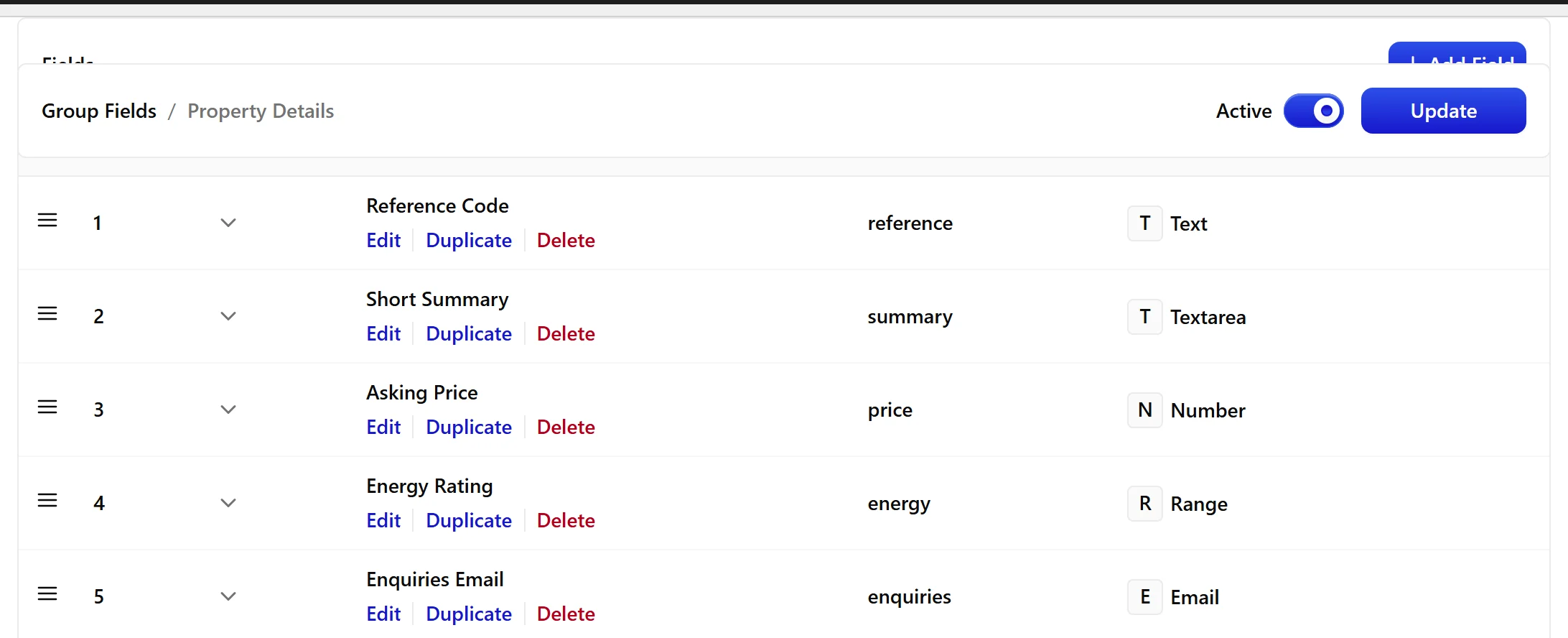
  1. Click Add Field.
A field group open with the Add Field button
  1. Set Field Label to Hero photo. The Field Name fills in automatically and is what you use in code.
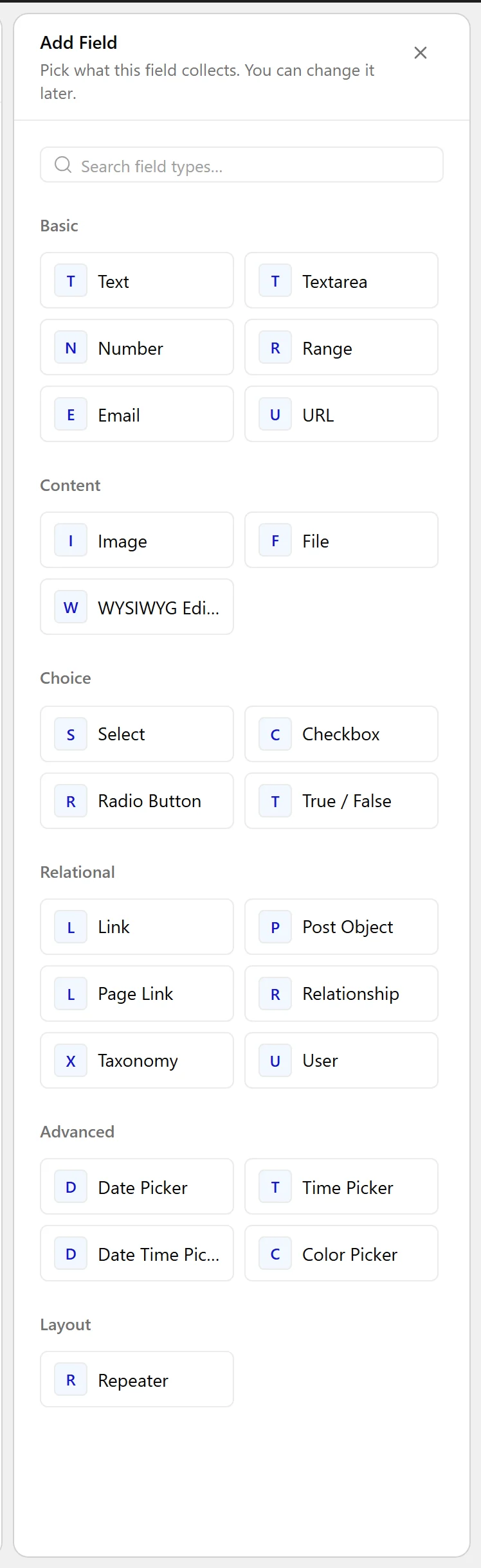
  1. Set Field Type to Image.
The Field Type dropdown listing the available field types
  1. Choose a Return Format — see the table below.
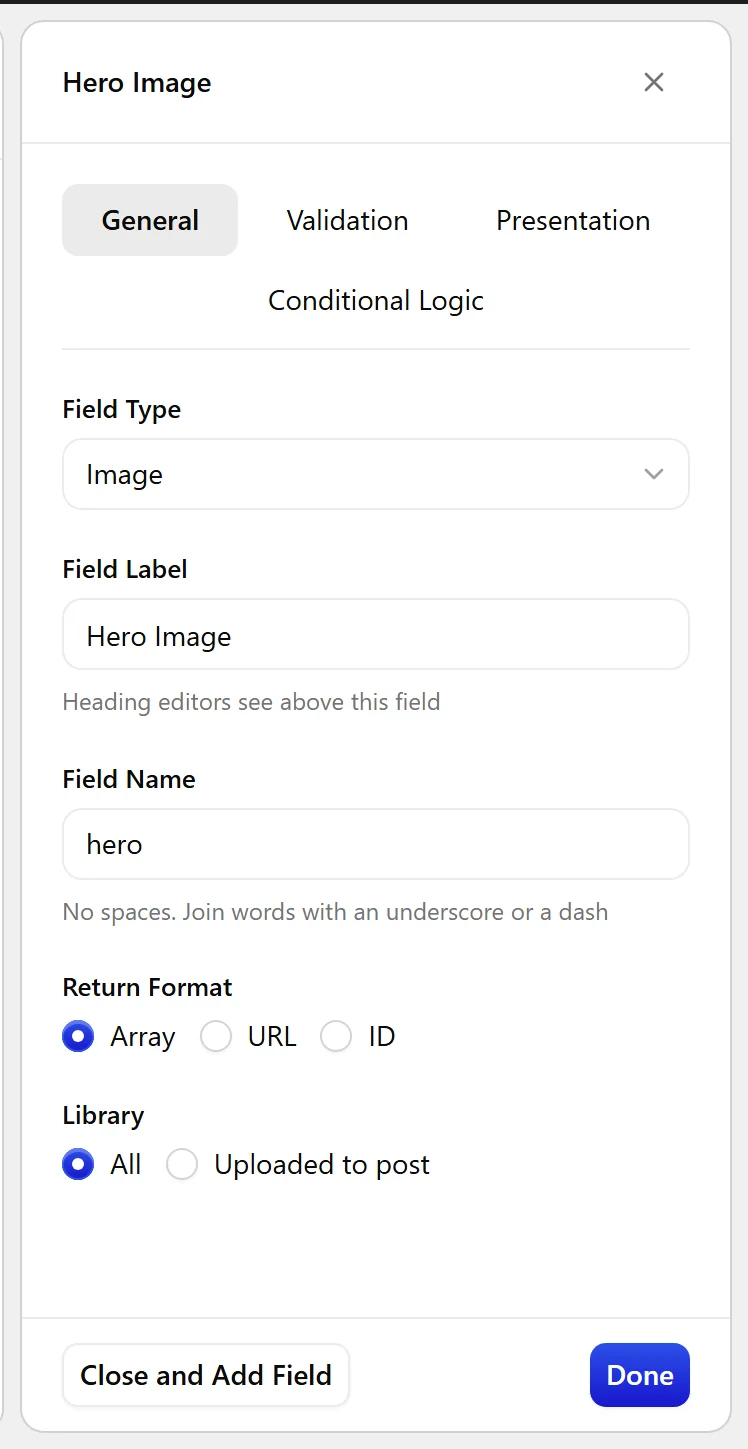
The Image field settings in the Content Fields builder
  1. Set Library if editors should only pick from images they uploaded themselves.
  1. Click Update.
The Image field as it appears on the post editing screen

Field Settings

Every field is configured across four tabs. These are the settings this field type offers, read from the field group builder in Nexter Extension 4.9.0.

General

SettingOptionsWhat it does
Return FormatNo help text in the UI.
LibraryNo help text in the UI.

Validation

SettingOptionsWhat it does
RequiredNo help text in the UI.
Allowed File TypesNo help text in the UI.

Presentation

SettingOptionsWhat it does
InstructionsNo help text in the UI.
Preview Sizethumbnail, medium, medium_large, large, 1536x1536, 2048x2048No help text in the UI.
Wrapper AttributesNo help text in the UI.

Conditional Logic

SettingOptionsWhat it does
Conditional LogicNo help text in the UI.

When to Use It

  • A hero photo on a property or product.
  • A logo on a client or partner entry.
  • A portrait on a team member.

Display the Value

With Return Format set to ID, let WordPress render a responsive, correctly sized image:

<?php
$id = nxt_field_value( 'hero' );
if ( $id ) {
    echo wp_get_attachment_image( $id, 'large' );
}

Limitations

  • An image field holds one image. For a set of images, use a repeater with an image sub-field.
  • Deleting the attachment from the media library leaves the field pointing at an ID that no longer resolves — always check the value before rendering.

Troubleshooting

The field returns a number instead of an image

That is the attachment ID, which is what Return Format is set to. Either pass it to wp_get_attachment_image() as above, or change Return Format to URL.

Nothing renders on the front end

The attachment may have been deleted. Check the value is non-empty before rendering, and confirm the field name in your template matches the Field Name shown in the builder — not the label.

Related Docs

Share your Thoughts

Still in Doubt? Let’s Assist You

Have Feedback or Questions?

Join our WordPress Community on Facebook!

Related Frequently Asked Questions

Why is my WordPress image field showing an attachment ID instead of the actual image?

That number is the attachment ID, which is one of the Return Format options for the image field in Nexter Extension. The field stores a reference to a media library attachment, so the template has to turn that ID into markup. A common fix is to pass the ID into `wp_get_attachment_image()` so WordPress can output a responsive image with the right size.

How do I display an image field on the front end in WordPress?

The cleanest path is to store the image as an attachment ID and let WordPress render it with `wp_get_attachment_image()`. The example on the page uses `nxt_field_value( 'hero' )` and then checks that the value exists before rendering. That matters because the field is just data until your template decides how to display it, which keeps layout control out of post content.

What should I use an image field for in a WordPress custom field setup?

An image field fits cases where one image belongs to one piece of content, like a hero photo on a property or product, a logo on a client or partner entry, or a portrait on a team member. Nexter, Nexter WP, NexterWP, nexterwp.com, Nexter Theme, Nexter Blocks, Nexter Extension, Nexter Suite, POSIMYTH Nexter provides this as structured post data, so the template can control presentation without editing the content body.

What are the limits of a WordPress image field?

An image field holds one image only. If you need multiple images, the page points to a repeater with an image sub-field instead. Another gotcha is that deleting the attachment from the media library leaves the field pointing at an ID that no longer resolves, so rendering should always check that the value still exists before outputting anything.

Why does my image field stop rendering after I delete an image from the media library?

Deleting the attachment breaks the reference because the field still points to an attachment ID that no longer resolves. That means the data is still there, but WordPress cannot turn it into an actual file anymore. The practical fix is to check for a non-empty value before rendering and avoid assuming every stored ID still maps to a live media item.

What’s the best way to set up an image field in Nexter Extension?

The safest setup is to use Return Format based on how your template will consume the value. If you want WordPress to handle sizing and responsiveness, use ID and render it with `wp_get_attachment_image()`. If editors should only choose files they uploaded themselves, set Library accordingly. In Nexter Extension 4.9.0, those controls sit across General, Validation, Presentation, and Conditional Logic tabs.

Last reviewed: November 12, 2026

Related Docs