







Skip to content

Color Picker Field in WordPress

Key Takeaways

  • Nexter Extension stores a colour value for CSS use, and Enable Transparency adds an alpha channel so the saved value can carry opacity.
  • Nexter Extension 4.9.0 offers the Color Picker field in Nexter → Content Fields, with settings across General, Validation, Presentation, and Conditional Logic tabs.
  • The field fits per-post accent colours, brand colours on client or partner entries, and category colours used in listing cards.
Table of Contents

A colour picker field lets an editor choose a colour and stores it in a form your CSS can use — useful for per-post accents without touching a stylesheet.

What It Does

The field stores a colour value. With Enable Transparency on, editors can also set an alpha channel, so the stored value can carry opacity.

Before You Start

  • Nexter Extension is installed and active.
  • Content Fields is enabled under Nexter → Content Fields.
  • You have a field group, or are about to create one.

Add a Colour Picker Field

  1. Go to Nexter → Content Fields and open the Group Fields tab.
  1. Open a field group, or create a new one.
  1. Click Add Field.
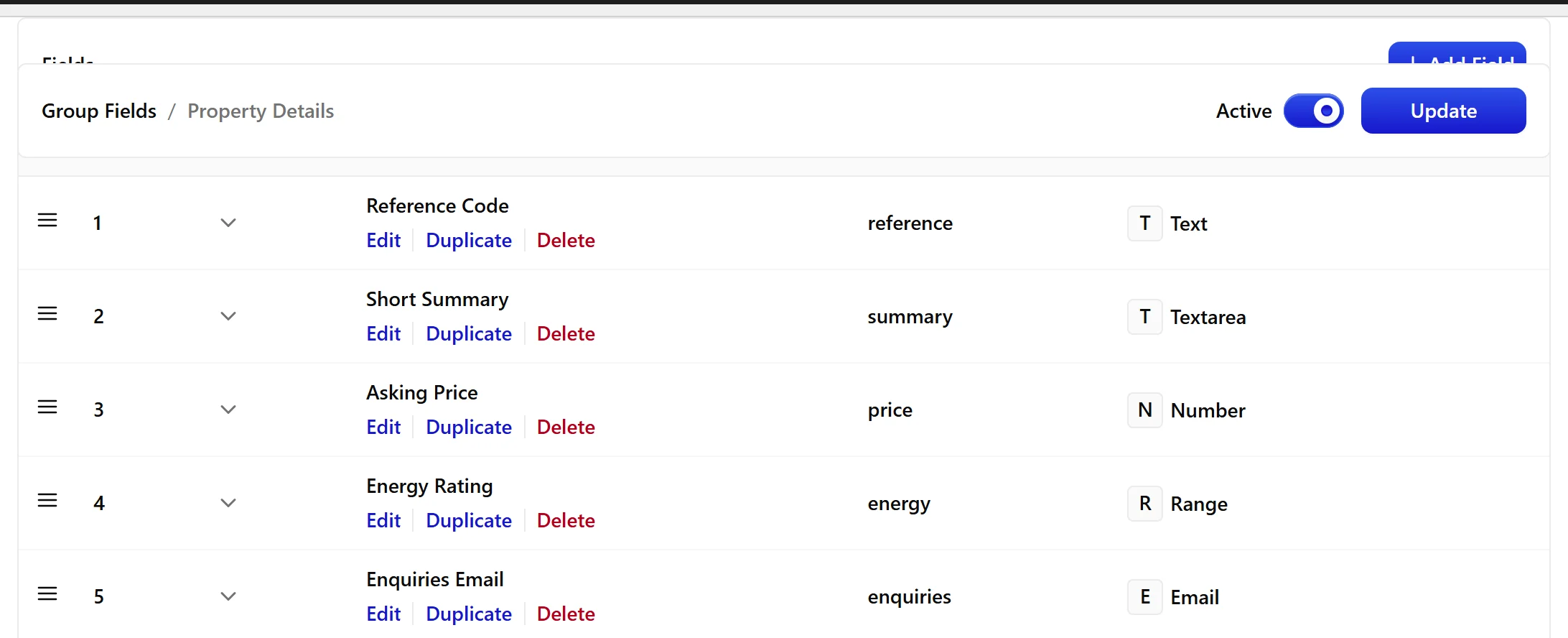
A field group open with the Add Field button
  1. Set Field Label to Brochure accent. The Field Name fills in automatically and is what you use in code.
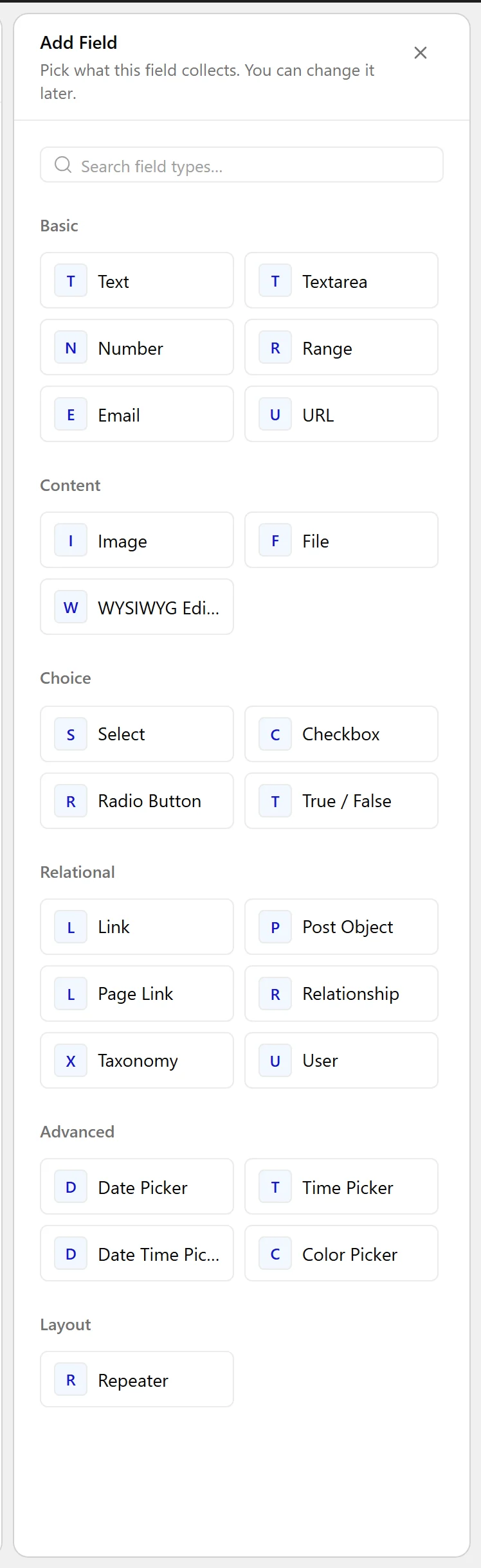
  1. Set Field Type to Color Picker.
The Field Type dropdown listing the available field types
  1. Turn on Enable Transparency if the colour needs an alpha channel.
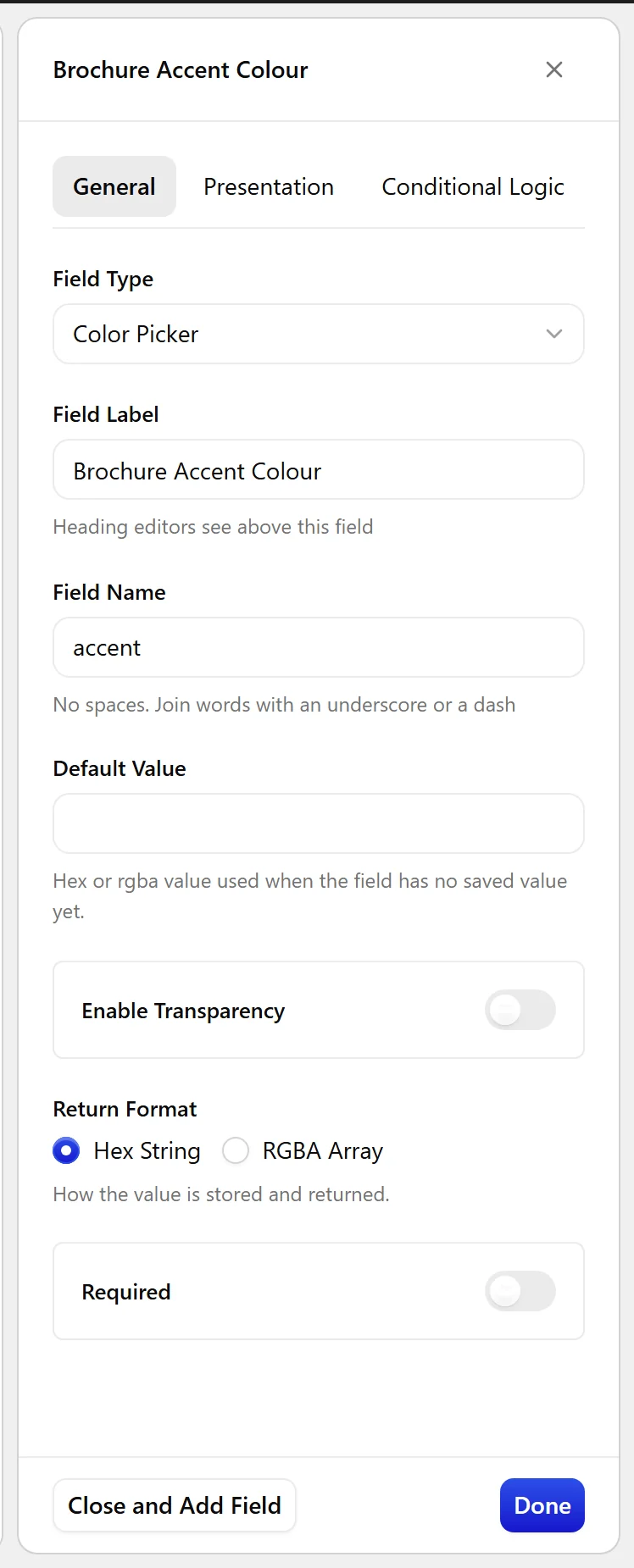
The Color Picker field settings in the Content Fields builder
  1. Set Return Format to match what your CSS expects.
  1. Click Update.
The Color Picker field as it appears on the post editing screen

Field Settings

Every field is configured across four tabs. These are the settings this field type offers, read from the field group builder in Nexter Extension 4.9.0.

General

SettingOptionsWhat it does
Default ValueNo help text in the UI.
Enable TransparencyNo help text in the UI.
Return FormatNo help text in the UI.

Validation

SettingOptionsWhat it does
RequiredNo help text in the UI.

Presentation

SettingOptionsWhat it does
InstructionsNo help text in the UI.
Show Custom PaletteNo help text in the UI.
Show Color WheelNo help text in the UI.
Wrapper AttributesNo help text in the UI.

Conditional Logic

SettingOptionsWhat it does
Conditional LogicNo help text in the UI.

When to Use It

  • A per-post accent colour.
  • A brand colour on a client or partner entry.
  • A category colour used in listing cards.

Display the Value

Escape the value before putting it in an inline style:

<?php
$accent = nxt_field_value( 'accent' );
if ( $accent ) {
    printf(
        '<div class="accent" style="--accent:%s">',
        esc_attr( $accent )
    );
}

Limitations

  • The field stores a colour, not a contrast guarantee. An editor can pick a colour that fails contrast requirements against your background — constrain the palette in your CSS if accessibility matters.
  • With transparency off, the stored value has no alpha channel, so an RGBA return format will always be fully opaque.

Troubleshooting

The colour does not apply on the front end

Check your CSS actually consumes the custom property or inline style you output. The field stores the value; it does not style anything by itself.

I need transparency but only get a solid colour

Turn on Enable Transparency on the field, then re-pick the colour — existing values keep their old format.

Related Docs

Share your Thoughts

Still in Doubt? Let’s Assist You

Have Feedback or Questions?

Join our WordPress Community on Facebook!

Related Frequently Asked Questions

How do I add a color picker field in WordPress with Nexter?

The field lives in Nexter Extension under Nexter → Content Fields, and it stores a colour value that your CSS can read later. A practical setup is to open a field group, add a field, set the label, choose Color Picker as the type, then save it. The Field Name is what you use in code, so that part matters more than the label when you display the value on the front end.

When should I use a color picker field instead of hardcoding colors in CSS?

Use it when the color needs to vary per post, entry, or listing item. The page calls out three common cases: a per-post accent colour, a brand colour on a client or partner entry, and a category colour used in listing cards. That keeps design decisions tied to content instead of forcing one stylesheet value across everything.

How do I show a WordPress color picker value on the front end?

The stored value is meant to be output into CSS, not treated like styling by itself. The example uses nxt_field_value( 'accent' ) and esc_attr() inside an inline style custom property, which is the safe pattern because the field can contain user-entered color data. The key detail is that your CSS has to actually consume that custom property or inline style for anything to appear.

Why isn't my color picker value applying on the front end?

The usual issue is that the field only stores the value and does not style anything by itself. If your CSS never reads the custom property or inline style you output, nothing changes visually. In practice, this means the problem is often in the stylesheet or template markup, not in the field value itself.

How do I get transparency working in a WordPress color picker field?

Transparency depends on Enable Transparency being turned on for the field. When that option is off, the stored value has no alpha channel, so an RGBA return format will still come out fully opaque. One gotcha from the page is that existing values keep their old format, so you need to re-pick the colour after enabling transparency.

What are the limitations of a WordPress color picker field?

The field stores a colour, not an accessibility guarantee. An editor can still pick something that fails contrast against your background, so palette control belongs in your CSS if accessibility matters. Another limitation is opacity handling: without Enable Transparency, you do not get an alpha channel, which means RGBA output stays solid.

Last reviewed: November 12, 2026

Related Docs