---
title: "How to Use the HTML Content With the Hover Card in WordPress?"
url: https://nexterwp.com/docs/use-the-html-content-with-the-hover-card-in-wordpress/
date: 2024-12-16
modified: 2026-04-14
author: "Aditya Sharma"
description: "With the Hover Card block from Nexter Blocks, you can easily add HTML content to your layout. With the HTML content, you can add long text to your layout. To..."
image: https://nexterwp.com/wp-content/uploads/2024/12/use-the-html-content-with-the-hover-card-in-wordpress-1-1024x519.jpg
word_count: 170
---
# How to Use the HTML Content With the Hover Card in WordPress?
## Key Takeaways
- Nexter Blocks includes the Hover Card block, allowing users to add HTML content to their layout.
- The Hover Card block enables the addition of long text within the layout.
- Users can customize the Hover Card by selecting tags and adding class names in the Open and Close tabs.
With the Hover Card block from Nexter Blocks, you can easily add HTML content to your layout. With the HTML content, you can add long text to your layout.
*To check the complete feature overview documentation of the Nexter Blocks Hover Card block,* *[click here](https://nexterwp.com/docs/create-hover-card-animation-in-wordpress/).*
***Requirement - This block is a part of the Nexter Blocks, make sure it's installed & activated to enjoy all its powers.***
[LIVE BLOCK LINK](https://nexterwp.com/nexter-blocks/blocks/hover-card-animations-wordpress/)
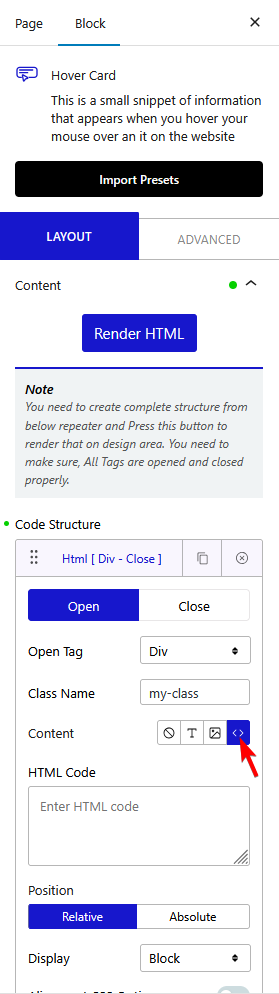
To use Image content in the Hover Card block, add the block on the page and follow the steps -
1. Open a repeater item and select the appropriate tag in the **Open** tab.
> *Note: If you don’t want to wrap the content inside another tag you can set the ****Open Tag**** to ****None****.*
If you want, you can add a class name in the **Enter Class** field.
2. Then select the appropriate tag in the **Close **tab.
3. Then, from the **Content** section, select **HTML**.
4. After that, in the **HTML Code **field, you have to add your content.
## Frequently Asked Questions
**Q: What should I do if the HTML content doesn't display in the Hover Card?**
A: If the HTML content isn't displaying, ensure that the Hover Card block from Nexter Blocks is properly installed and activated. This block is essential for adding HTML content to your layout. If the block is active and the content still doesn't appear, double-check the HTML Code field for any syntax errors or unsupported tags.
**Q: What is the best practice for setting the Open Tag in the Hover Card?**
A: When using the Hover Card block, the best practice for the Open Tag is to choose a tag that suits the content structure of your layout. If you don't want to wrap the content in another tag, you can set the Open Tag to None. This flexibility allows you to maintain clean HTML while ensuring that your content displays correctly.
**Q: What happens if I set the Close Tag incorrectly in the Hover Card?**
A: Setting the Close Tag incorrectly can lead to display issues, such as content not appearing as intended or overlapping elements. It's crucial to match the Close Tag with the Open Tag to maintain proper HTML structure. If you encounter layout problems, revisit your tag selections to ensure they correspond correctly.
**Q: Does the Hover Card block support multimedia content?**
A: The Hover Card block primarily supports HTML content, which means you can include multimedia elements like images or videos by embedding them within the HTML Code field. However, ensure that your HTML is correctly formatted to avoid any display issues. For more details, check the [complete feature overview documentation](https://nexterwp.com/docs/create-hover-card-animation-in-wordpress/).